 See it in action
 Style presets
On this page
A style preset is a ready-made look for every AndOr widget. The merchant picks one in the app embed’s Style preset setting. Each preset is a small bundle of styling tokens, nothing more.
Pick a preset
-
In the theme editor, open App embeds and expand AndOr Discount Display.
-
Choose a Style preset and press Save.
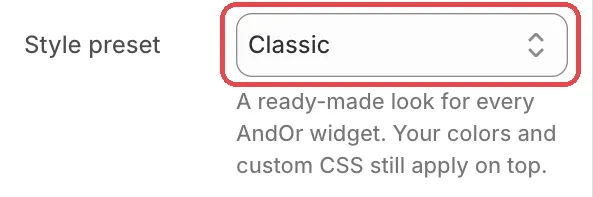
Options: Classic, Soft, Bold, Minimal, Dark. Default: Classic.
Your colors and custom CSS still apply on top of the preset.
How it works
The embed writes the choice on the <html> element as
data-andor-preset, for example data-andor-preset="soft". Classic
writes nothing, so the shipped look stays.
Each preset lives in the AndOr stylesheet under a selector like
:root[data-andor-preset="soft"]. That selector is more specific than
the embed’s own :root tokens, so a preset wins over them. For example,
a preset’s radius beats the Corner radius setting.
What each preset changes
Each tab shows the same product page with the preset applied, and the tokens it sets. The volume picker sits above the theme’s Add to cart. A volume price table and a goal bar with suggestions sit below it.
Classic
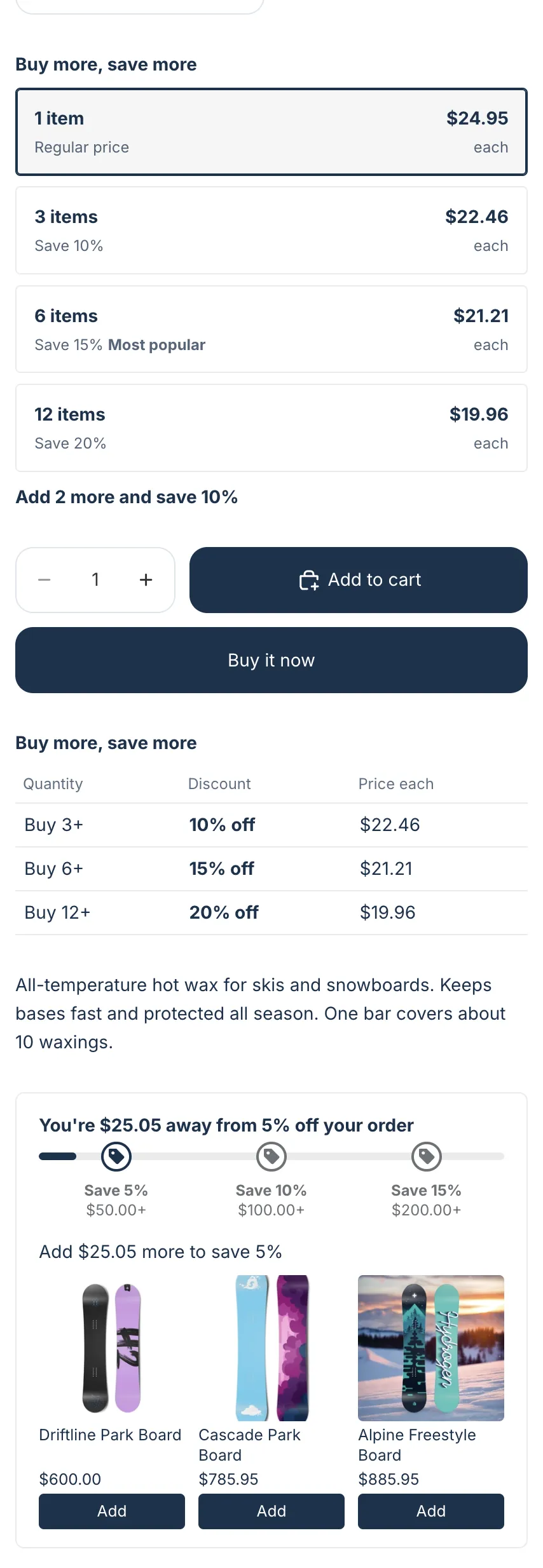
The shipped look. It sets no tokens.
Soft
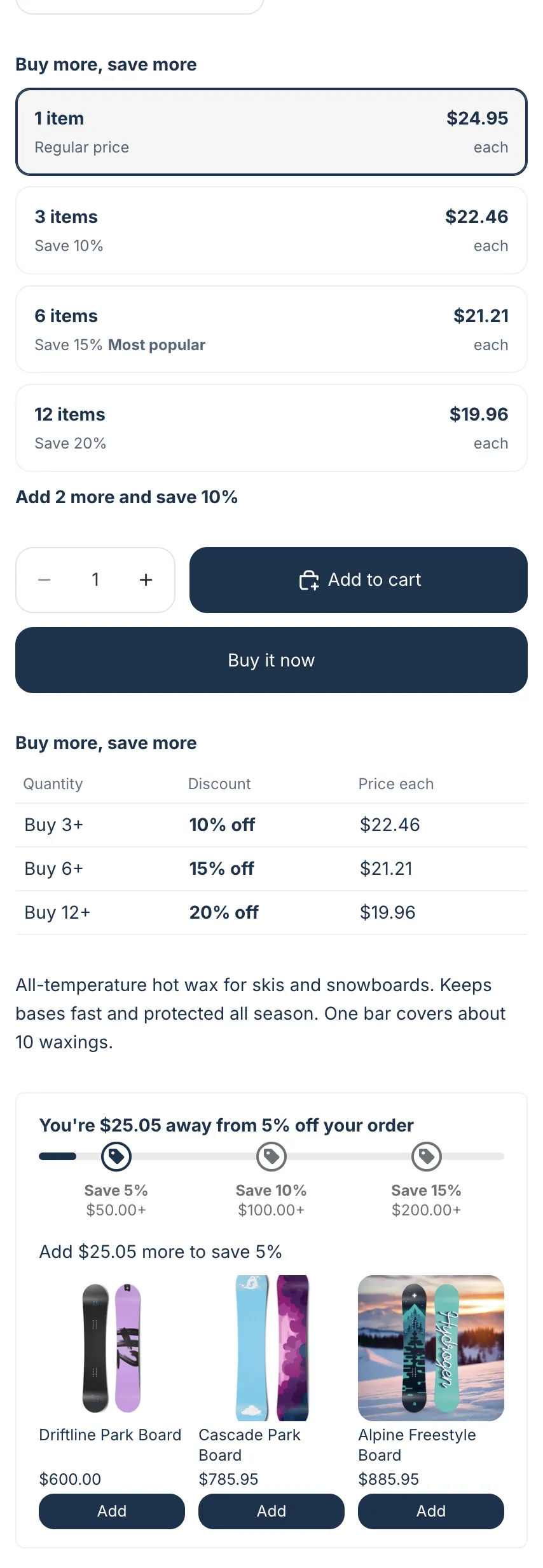
Rounder corners, a lighter border and a soft grey background on the volume table’s current row.
:root[data-andor-preset="soft"] {
  --andor-radius: 12px;
  --andor-color-border: rgba(0, 0, 0, 0.06);
  --andor-color-background-soft: #f6f6f7;
}Bold
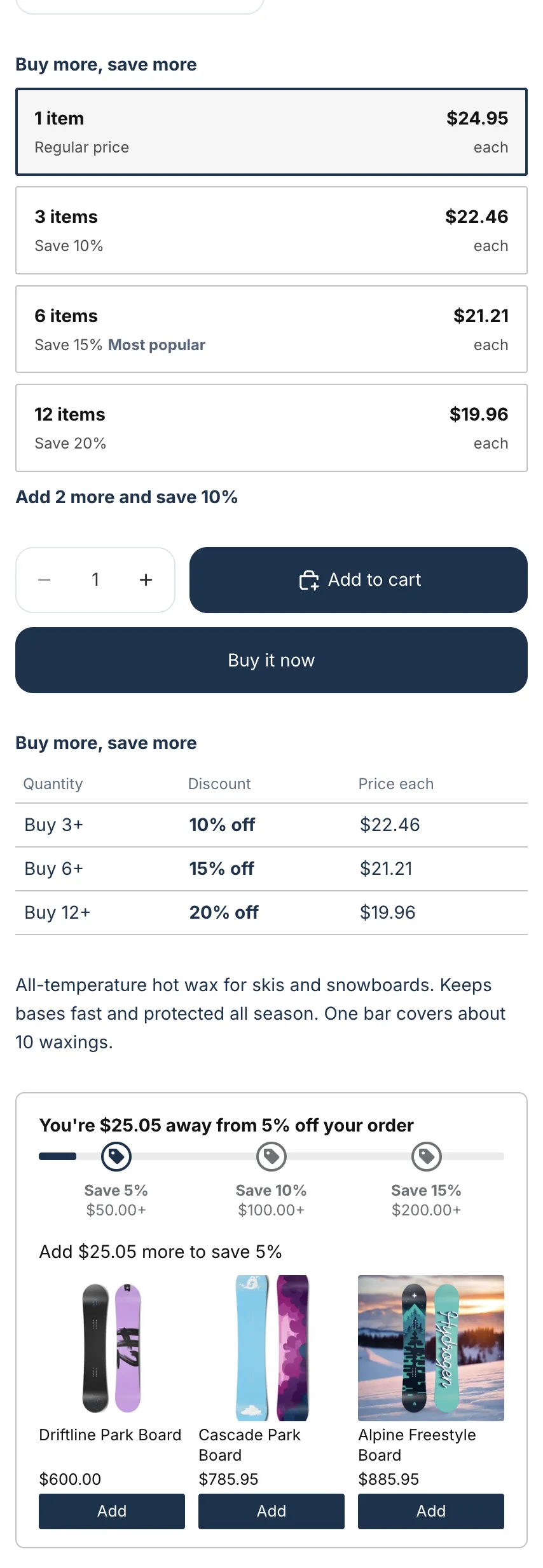
Nearly square corners, dark text and a strong border.
:root[data-andor-preset="bold"] {
  --andor-radius: 2px;
  --andor-color-text: #111111;
  --andor-color-border: rgba(0, 0, 0, 0.24);
  --andor-color-background-soft: rgba(0, 0, 0, 0.06);
}Minimal
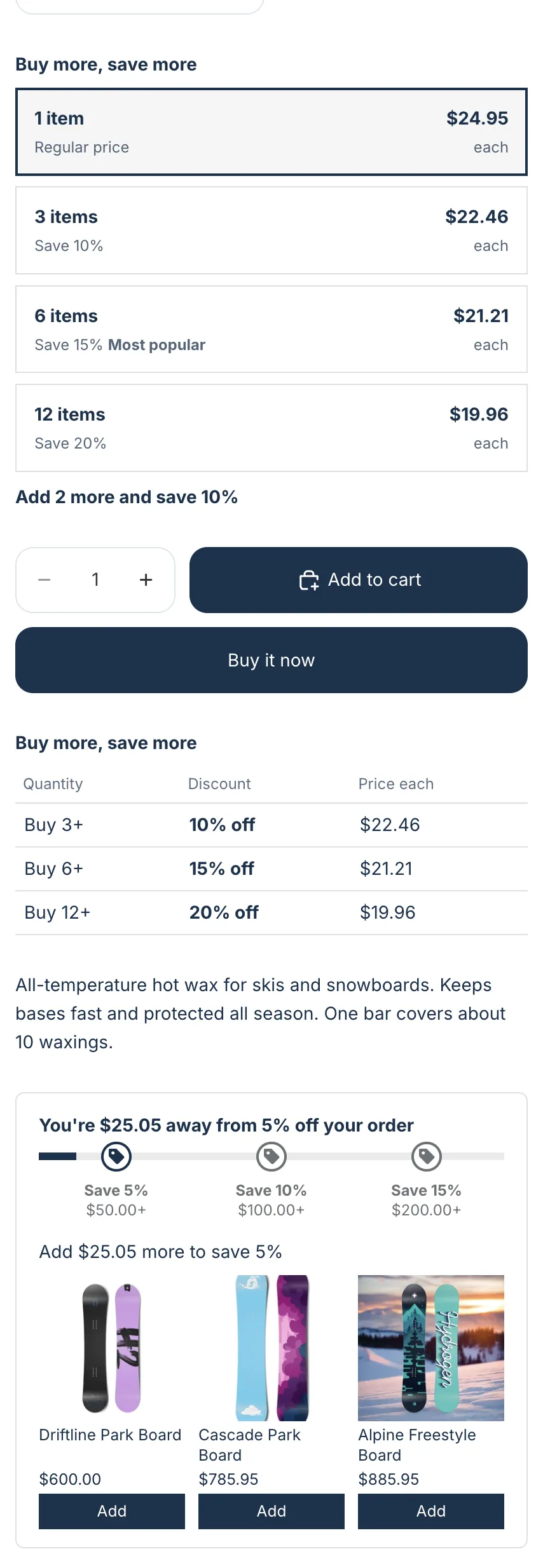
Square corners and no soft background.
:root[data-andor-preset="minimal"] {
  --andor-radius: 0px;
  --andor-color-border: rgba(0, 0, 0, 0.12);
  --andor-color-background-soft: transparent;
}Dark
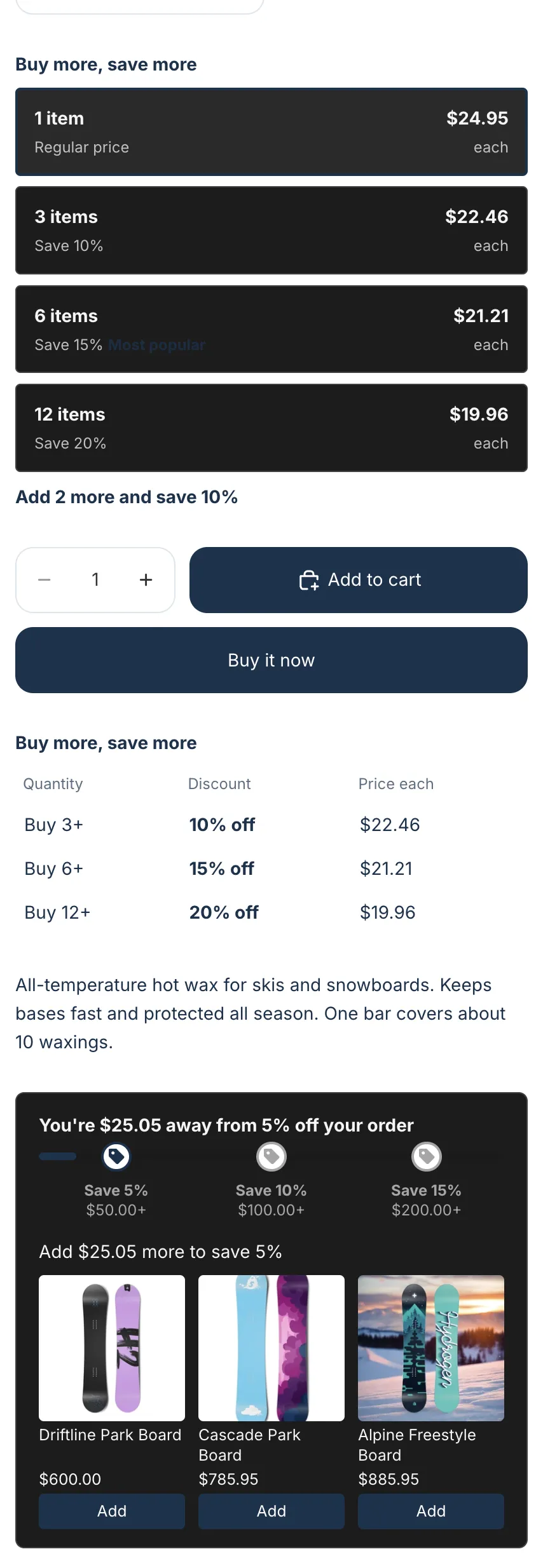
Light text on dark backgrounds, for dark themes. It also sets a green for a won goal bar.
Note On Dark, the Most popular label in the volume picker is low contrast. If you show the label, check it on your store.
:root[data-andor-preset="dark"] {
  --andor-color-text: #f5f5f5;
  --andor-color-muted: #a6a6a6;
  --andor-color-border: rgba(255, 255, 255, 0.16);
  --andor-color-background: #1c1c1c;
  --andor-color-background-soft: #2a2a2a;
  --andor-color-success: #3fb950;
}Note No preset sets the accent color. The accent still comes from the block color, the embed’s Sale price color or the app brand color.
Override a preset
Use the preset’s selector in your CSS or in the embed’s Custom CSS
box. Add html in front, so your rule wins whatever order the files
load in:
/* Your own preset on top of "soft": */
html:root[data-andor-preset="soft"] {
  --andor-color-background-soft: #fff4e5;
}