 See it in action
 One-line tags
On this page
A one-line tag is an AndOr app block written as a single HTML tag. Use one when the theme gives the block nowhere to sit. The app embed fills the tag in with the same widget the block draws.
The tags are custom HTML tags, not registered custom elements (web components). They have no behavior of their own: the app embed’s script finds each tag on the page and draws the widget inside it.
Caution Every tag needs the AndOr Discount Display app embed. The app hands out a tag only while the embed is on, but it cannot check again later. If the embed is switched off, every tag renders nothing, with no error. Delete the tags if you ever turn the embed off.
The seven tags
| Tag | Same as the block | Page |
|---|---|---|
<andor-discount-callout> |
AndOr Discount callout | any page |
<andor-goal> |
AndOr Order goal | any page |
<andor-tiers> |
AndOr Volume tiers | product page |
<andor-badge> |
AndOr Savings badge | product page |
<andor-price> |
AndOr Sale price | product page |
<andor-offer-picker> |
AndOr Offer picker (product page) | product page |
<andor-claim> |
AndOr Offer picker (cart page) | cart page |
Copy the tags from the app: open Storefront display, choose See all blocks, and use the Product page: one-line tags section on the Storefront blocks page.
How a tag works
- You fill in nothing. No namespace, no product, no dates. The embed already knows the shop’s discounts and the product the page is about.
- It is filled before the page is drawn. The embed renders the
finished widget into a hidden
<template>in the<head>. The tag copies it the instant the browser reads the tag. The shopper never sees an empty box first. - Its files load only when the page has the tag. A page without the tag downloads none of that widget’s scripts or styles.
- The words are the app’s. The merchant changes shopper notes on the app’s Storefront text page, per language. See Storefront text.
- Do not put a
classon a tag. The documenteddata-attributes are fine, and anything else is ignored. Aclassis the exception. A tag with the block’s own class (for exampleclass="andor-goal") is taken for the block and stays empty. Style it from your stylesheet or the embed’s Custom CSS box instead.
Where to paste a tag
On a product page:
- Horizon: in the theme editor, add a Custom Liquid block to the product template and paste the tag into it.
- Dawn and similar themes: paste the tag into the product section
code, usually
sections/main-product.liquid.
On the cart page, for <andor-claim>:
- Horizon: add a Custom Liquid block to the cart template and paste the tag into it.
- Dawn and similar themes: paste the tag under the cart lines, for
example in
sections/main-cart-footer.liquid.
The callout and the goal bar also work outside the product page, for
example in layout/theme.liquid, just after the opening <body> tag.
Discount callout
A small icon pill that says “Free shipping”. It shows only while a storewide free shipping discount with no minimum is live.
<andor-discount-callout></andor-discount-callout>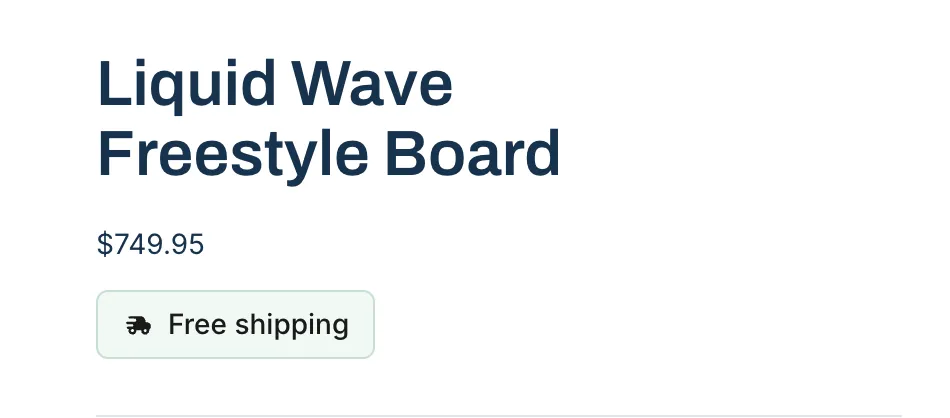
| Attribute | Value | Example |
|---|---|---|
data-text |
The sentence, plain text | data-text="Ships free" |
data-icon |
A glyph name, or none |
data-icon="gift" |
data-background |
Any CSS color | data-background="#fff4e5" |
data-color |
Any CSS color | data-color="#5c3a00" |
data-border |
Any CSS color | data-border="#ffd699" |
data-radius |
Whole pixels | data-radius="12" |
The glyph names are truck, percent, tag, gift, check and
cart.
<andor-discount-callout
  data-text="Free delivery on everything"
  data-icon="gift"
></andor-discount-callout>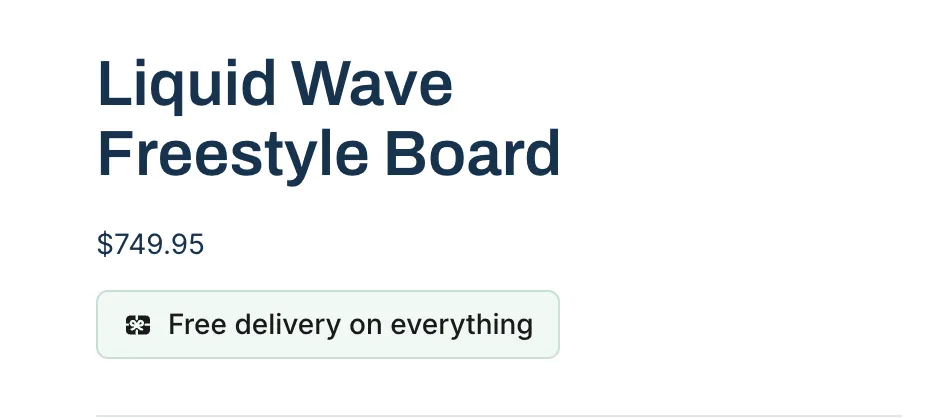
An attribute can reword or recolor a pill you were going to get. It cannot make one appear. There is no attribute for the block’s “only show while a free shipping discount is active” switch.
Order goal bar
A progress bar such as “You’re $30 away from 10% off your order”. It re-reads the cart every time the cart changes. Unlike the block, the tag works on any template.
<andor-goal></andor-goal>
| Attribute | Value | Example |
|---|---|---|
data-drawer |
Present, only, or false |
data-drawer |
data-orientation |
horizontal, vertical |
data-orientation="vertical" |
data-accent |
Any CSS color | data-accent="#0b7285" |
data-icons |
false to hide the icons |
data-icons="false" |
data-icon-position |
label |
data-icon-position="label" |
<andor-goal data-orientation="vertical" data-accent="#0b7285"></andor-goal>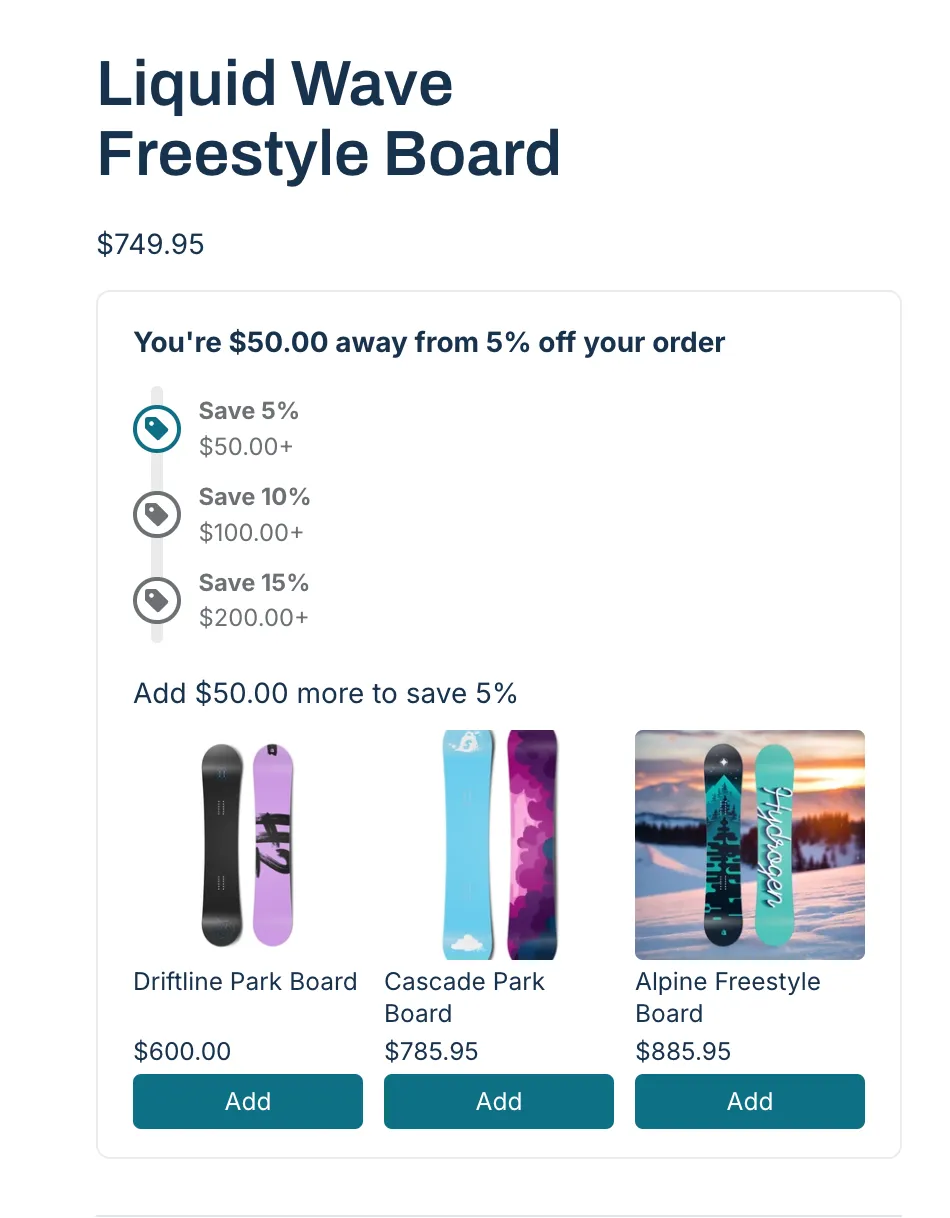
data-draweralso shows the bar in the cart drawer. It matches the block’s drawer checkbox.data-drawer="only"shows the bar in the cart drawer and nothing on the page. Paste it once inlayout/theme.liquid, just after the opening<body>tag.- Both drawer options need Horizon 4.0 or Dawn 15.5 or later.
<andor-goal data-drawer="only"></andor-goal>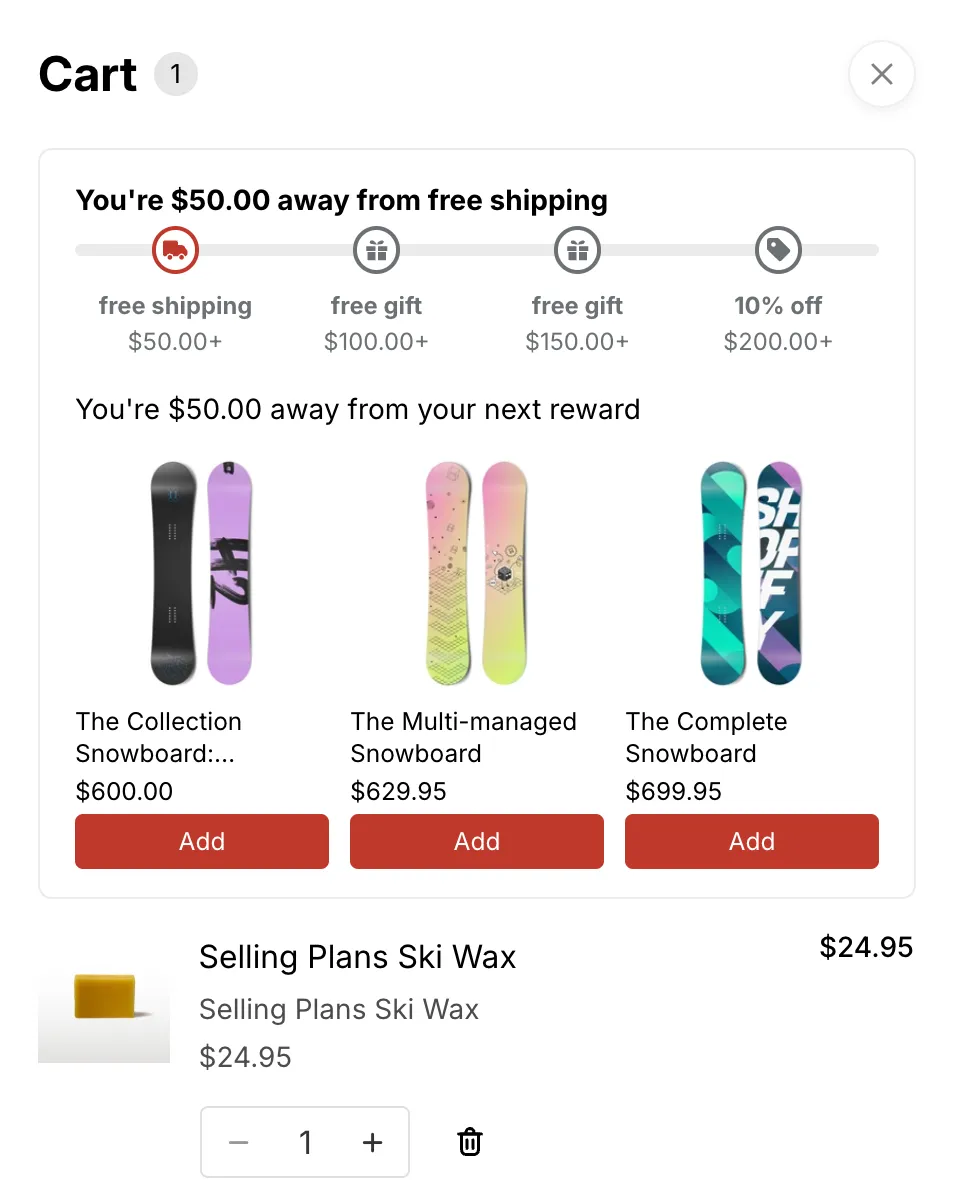
There are no attributes for the six message settings. The app adds a condition clause to its sentence when the discount has one (for example “, for new customers”). A sentence on the tag would drop that clause. If you need your own wording, use the block.
In a currency other than the store’s, the bar shows for a tiered AndOr goal. A one-threshold goal, or a goal from a Shopify discount, does not show.
Volume discount table
The buy-more-save-more ladder for the product the page is about, for example “Buy 3+ / 10% off / $18.00 each”. With a live Volume picker upsell offer, it shows tier cards instead.
<andor-tiers></andor-tiers>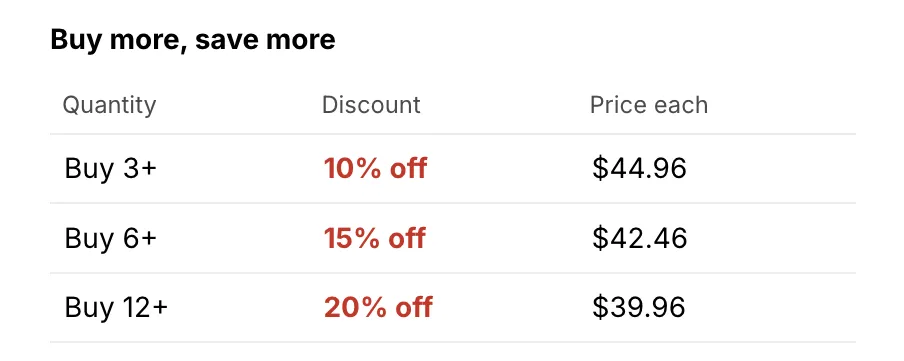
| Attribute | Value | Example |
|---|---|---|
data-heading |
Any text, or empty for none | data-heading="Bulk pricing" |
data-accent |
Any CSS color | data-accent="#0b7285" |
data-popular |
1, 2 or 3 |
data-popular="2" |
data-layout |
list, mini, boxes or table |
data-layout="list" |
data-labels |
Titles, comma separated | data-labels="Single, Double" |
<andor-tiers data-layout="list" data-popular="2"
  data-labels="Single, Double, Family"></andor-tiers>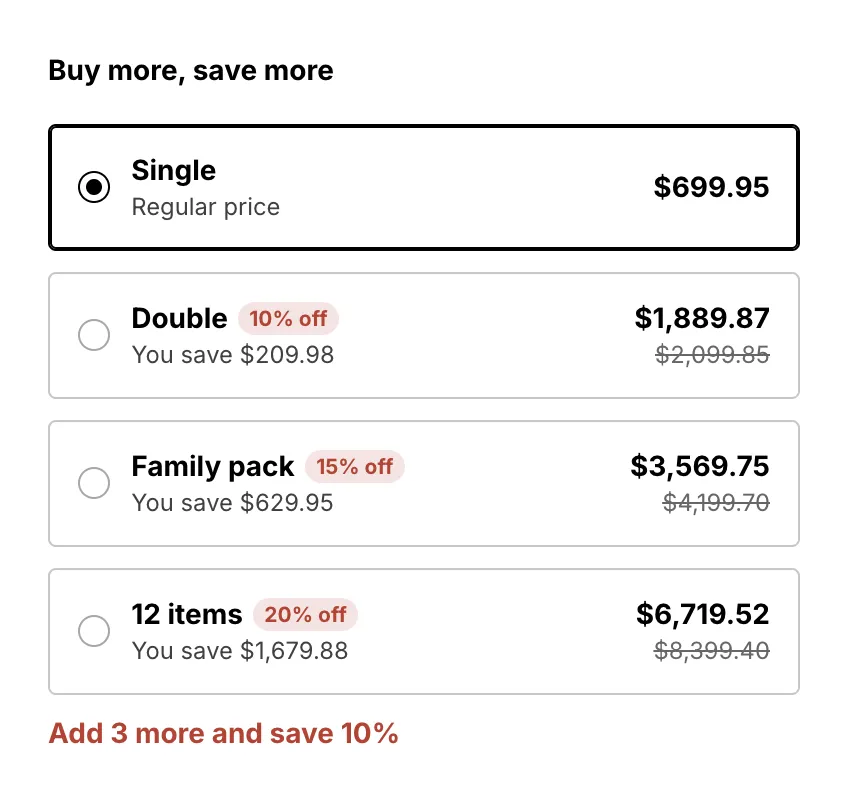
- Leave
data-layoutoff for cards.data-layout="table"always shows the price table, so a second tag can show the table beside the picker. - On
boxes, adddata-andor-scrollto keep one row that scrolls sideways. - Do not paste it inside a product card or a related-products loop. It always shows the ladder for the product the page is about.
Percentage badge
The savings chip for the product the page is about, with the same wording, codes and conditions as the Savings badge block.
<andor-badge></andor-badge>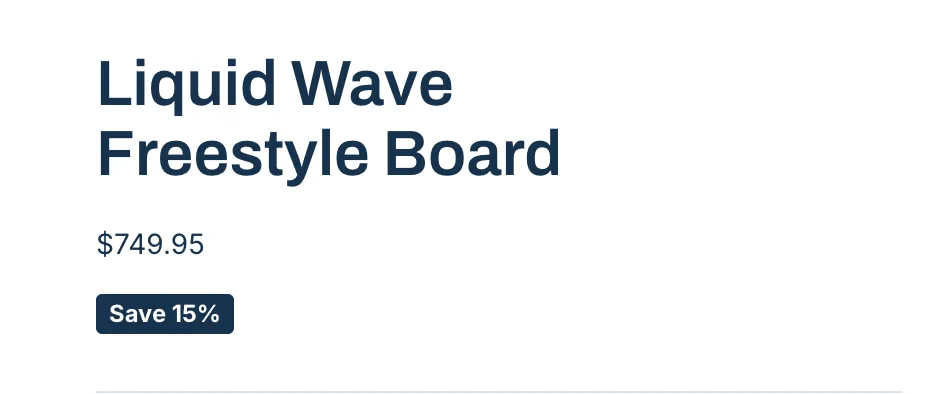
There are no attributes. Restyle it with its own style, which wins
over the app’s colors:
<andor-badge
  style="--andor-badge-background:#0b7285;--andor-badge-color:#fff"
></andor-badge>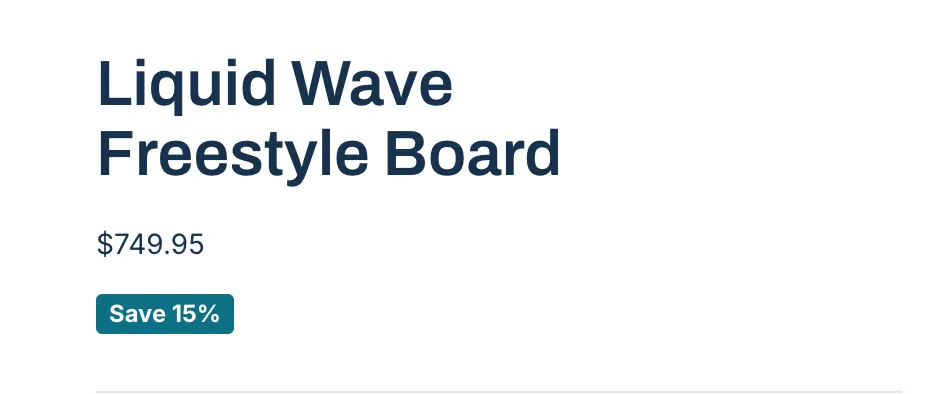
To put it over the product image on Dawn, paste it in
snippets/product-media.liquid, after all the images, inside their
wrapper:
<andor-badge
  style="position:absolute;z-index:2;
    top:0.5rem;left:0.5rem;right:auto;bottom:auto"
></andor-badge>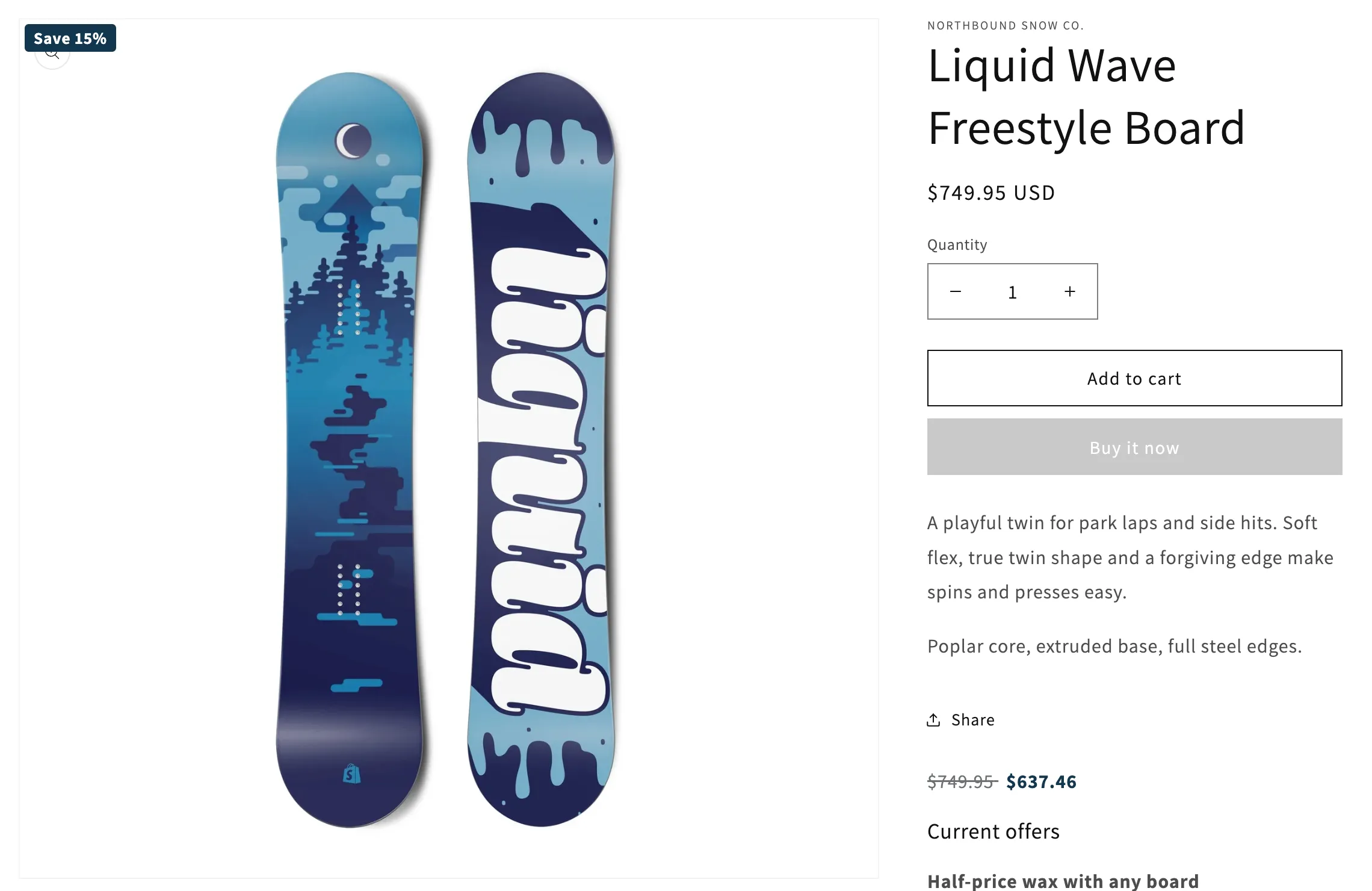
A discount aimed at particular variants is skipped by the tag. The Savings badge block does follow the variant picker.
Sale price
The struck original price and the sale price, following the variant picker. This is the one tag that hides something: it hides your theme’s price while it has a sale price to show.
On Dawn, paste it inside the element that holds the theme’s price, as its
last line. In sections/main-product.liquid that is inside
<div id="price-{{ section.id }}">, just after the {% render 'price' %}
line:
<andor-price></andor-price>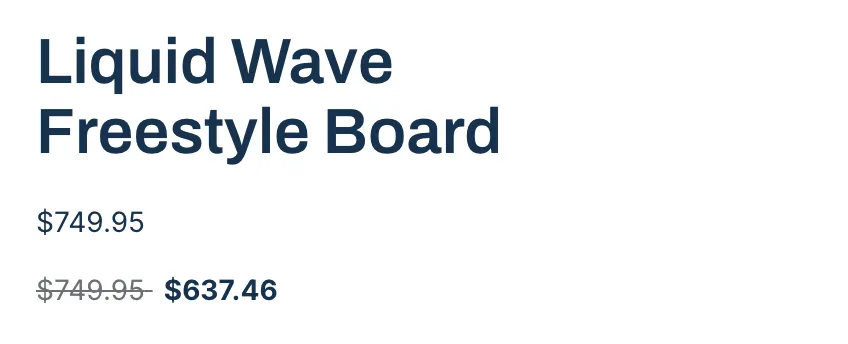
If the wrong element gets hidden, name what to hide:
<andor-price data-hide=".price__regular"></andor-price>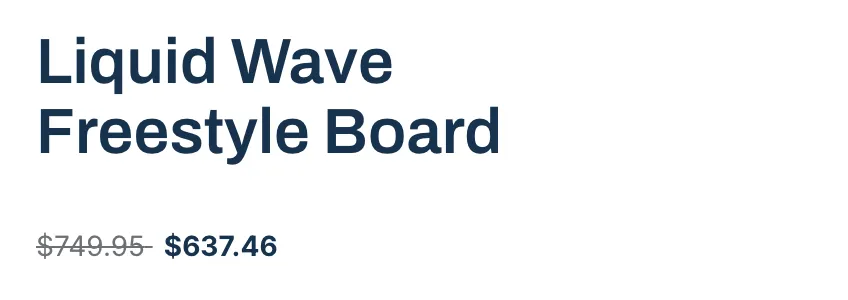
On Horizon, add a Custom Liquid block to the product template with:
<andor-price data-hide="#shopify-section-{{ section.id }} product-price"></andor-price>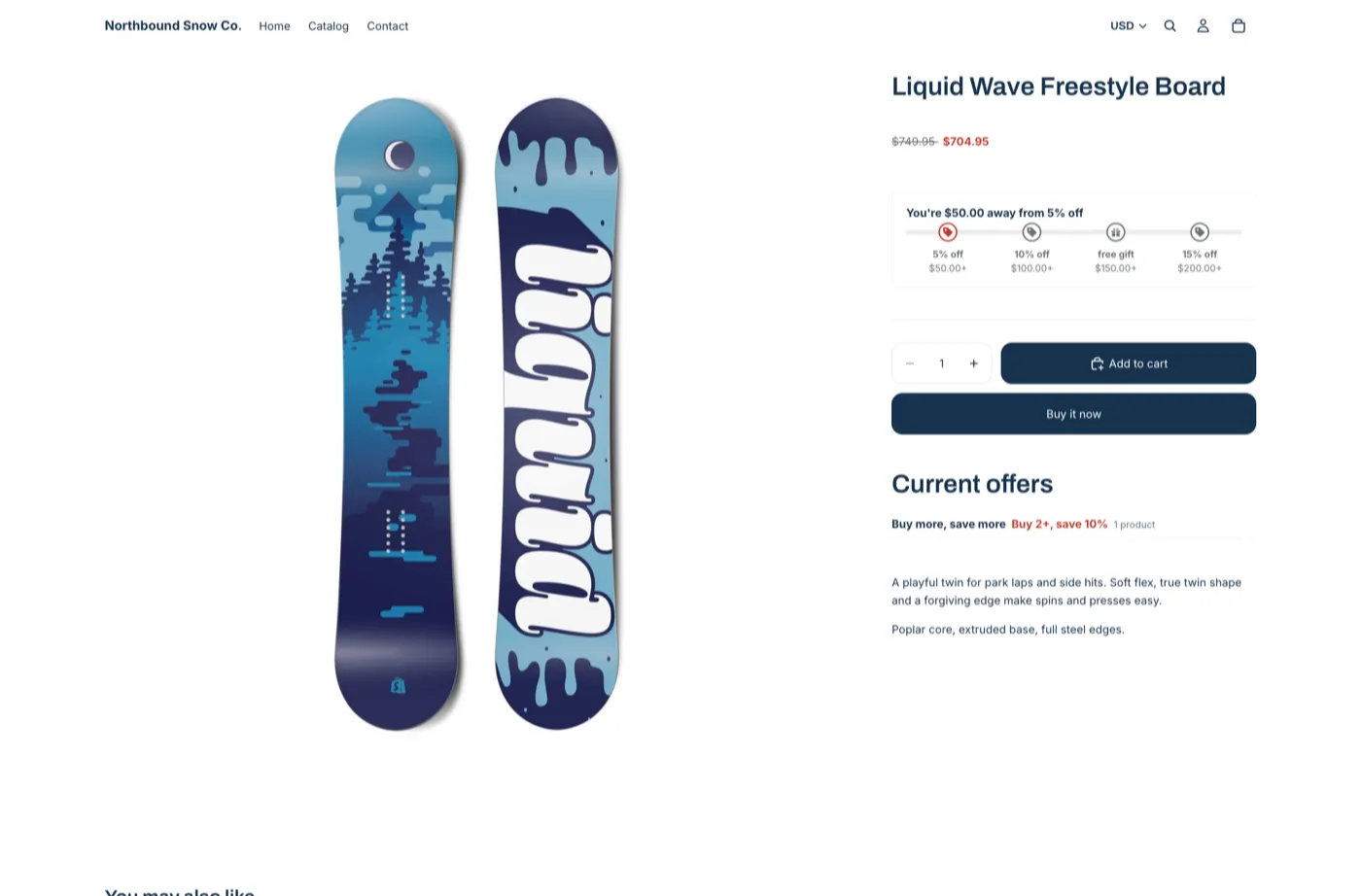
Caution Do not paste it in
snippets/price.liquid(Dawn) orblocks/price.liquid(Horizon). Product cards use those files too, so every card would print this page’s price.
A product with more than 60 variants whose prices differ shows no sale price. The theme’s price stays.
Offer picker
The “Frequently bought together” card for a Bundle offer, or a banner for a Buy X Get Y or Gift offer, on the product page.
<andor-offer-picker></andor-offer-picker>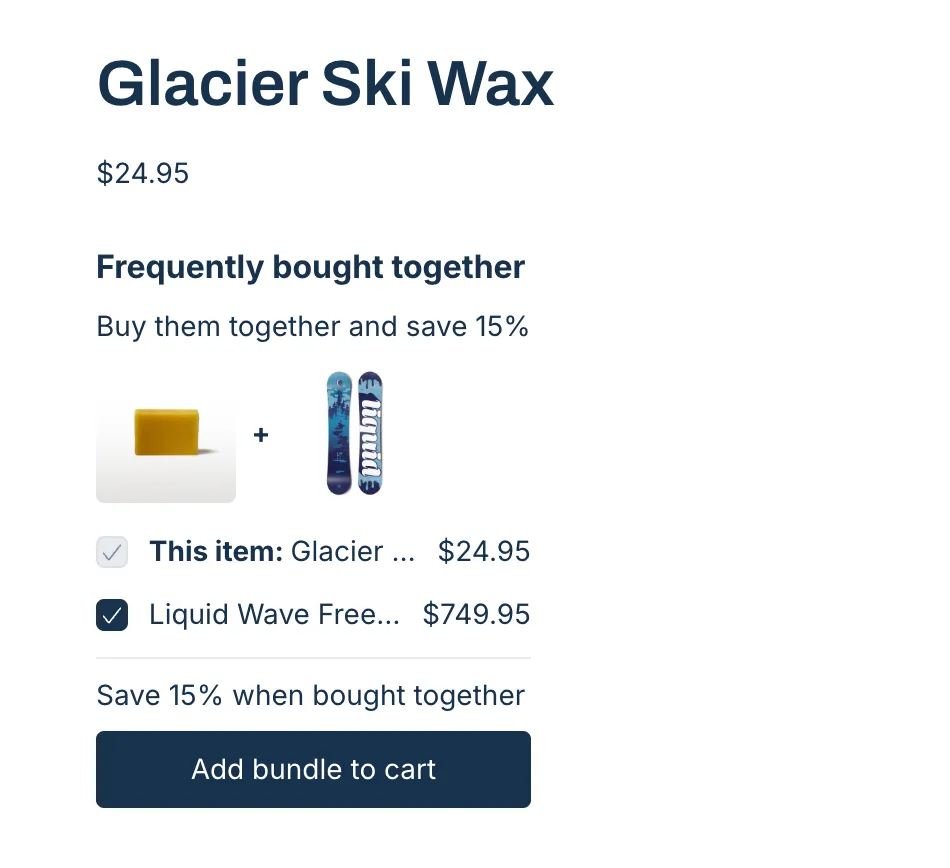
| Attribute | Value | Example |
|---|---|---|
data-accent |
Any CSS color | data-accent="#0b7285" |
Do not paste it where the Offer picker block is also placed. The shopper would see the card twice.
Cart claim rows
On the cart page: the Buy X Get Y claim row and the free gift slot. When Add the gift for the shopper is on, AndOr can add the gift by itself. Otherwise nothing is added until the shopper presses the button.
<andor-claim></andor-claim>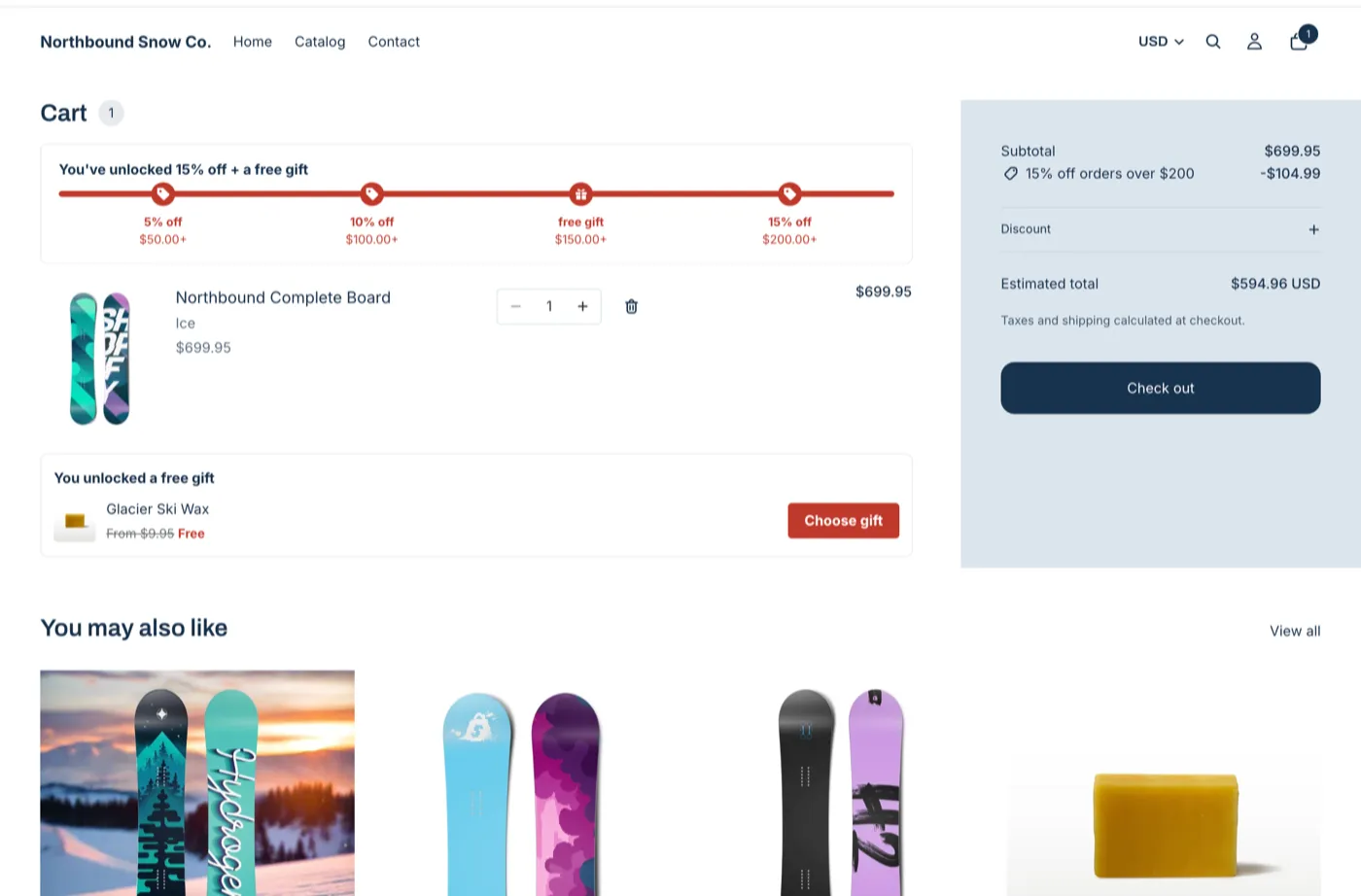
| Attribute | Value | Example |
|---|---|---|
data-accent |
Any CSS color | data-accent="#0b7285" |
- It works on the cart page only. Pasted anywhere else it stays empty.
- The cart drawer needs no tag. The app embed puts the same rows there.