 See it in action
 Product discount
On this page
“Apply automatic discounts to products based on conditions.” A product discount lowers the price of cart lines. It has four discount types: Simple, Volume, Bundle and Buy X Get Y.
Tip Want the discount shown on your store too, with widgets like volume tiers or a bundle card? Start from Promotions instead. A promotion makes the same kind of discount rule for you.
Before you start
- Decide if shoppers get the discount automatically, or must enter a code. You can’t change this after you save.
- Pick the products: specific products, collections, variants, tags, product types or SKUs.
Set it up
-
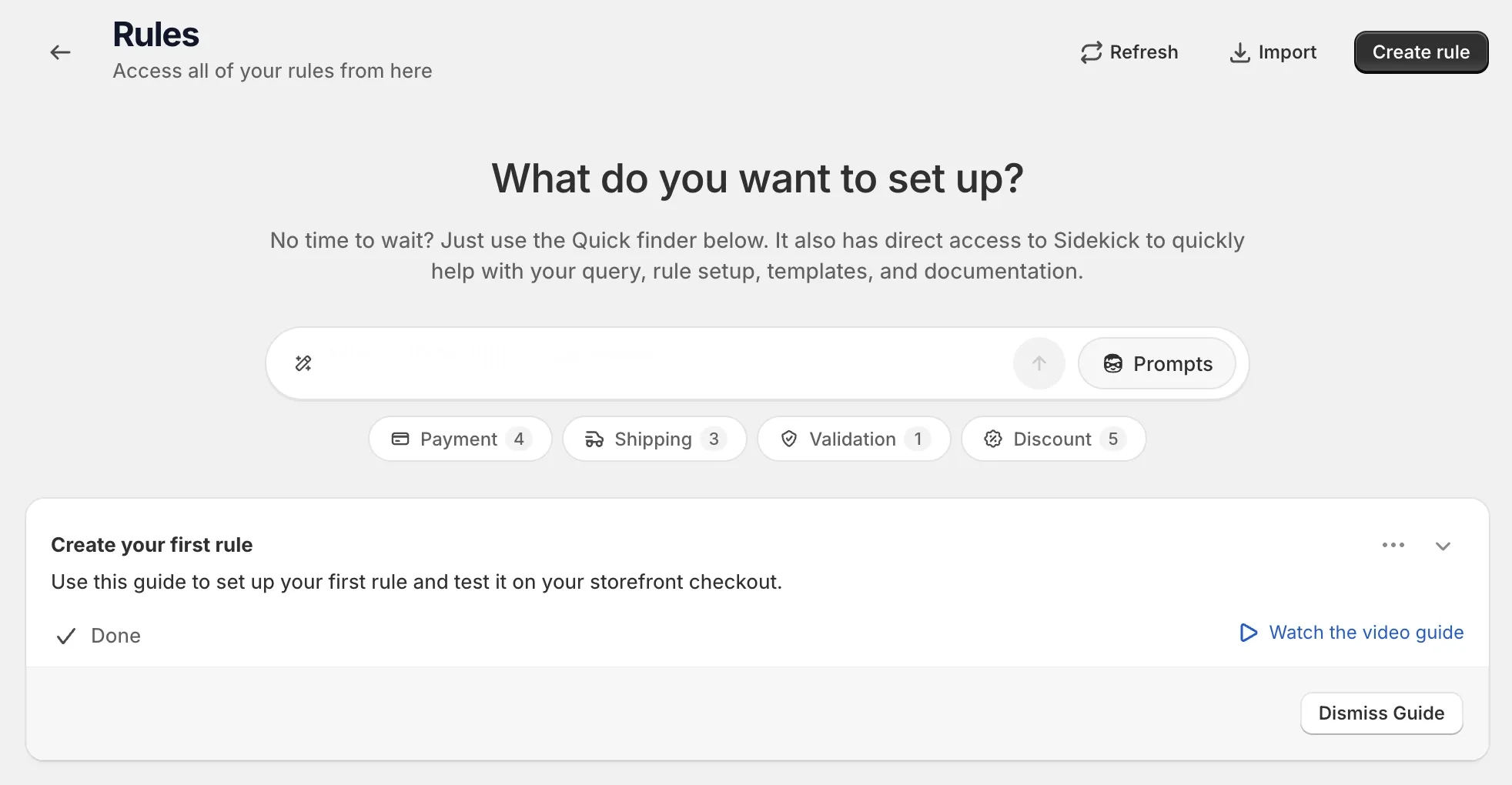
Open Rules and click Create rule.
-
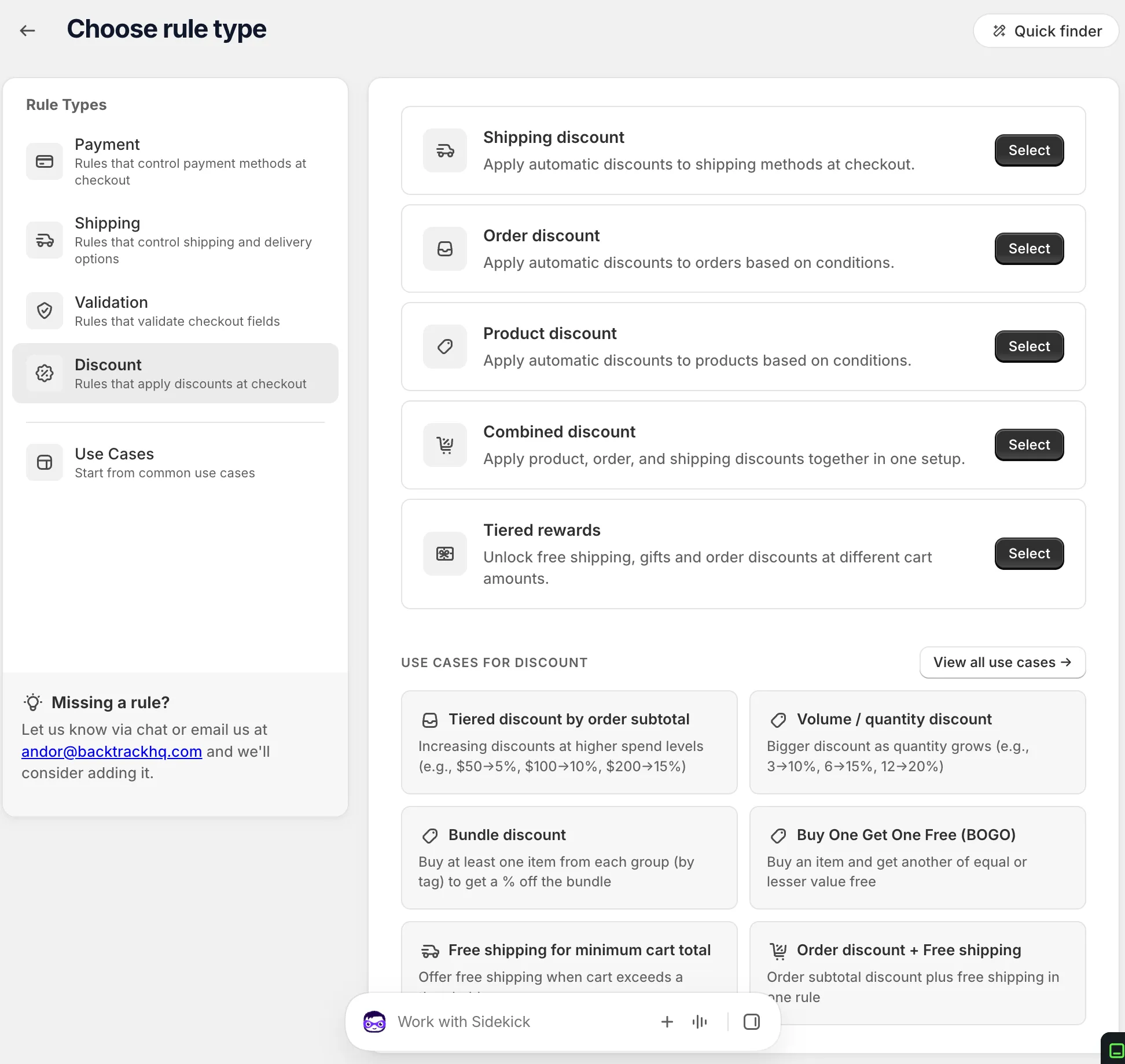
Under Discount, find Product discount and click Select.
-
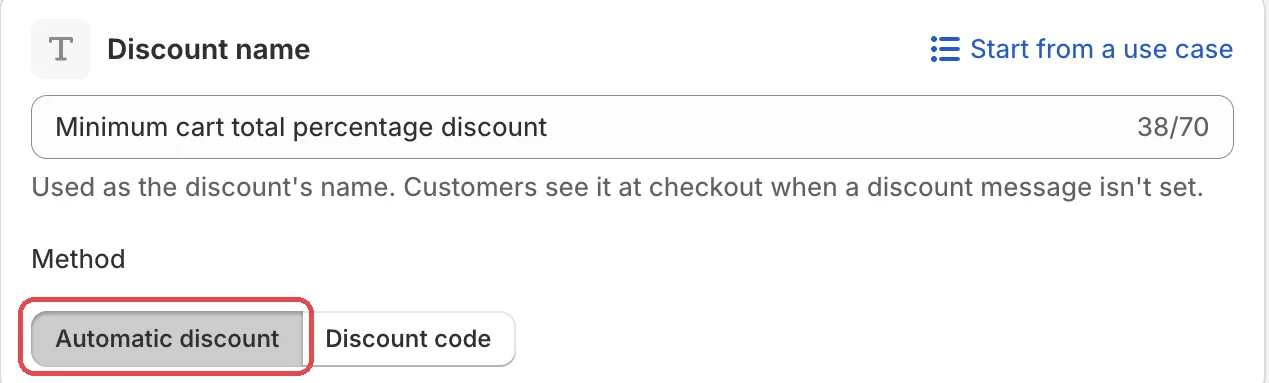
Name the discount and pick the Method.
Choose Automatic discount or Discount code. For a code, type it or click Generate random code. Or click Start from a use case to fill in the whole form. See Start from a use case.
-
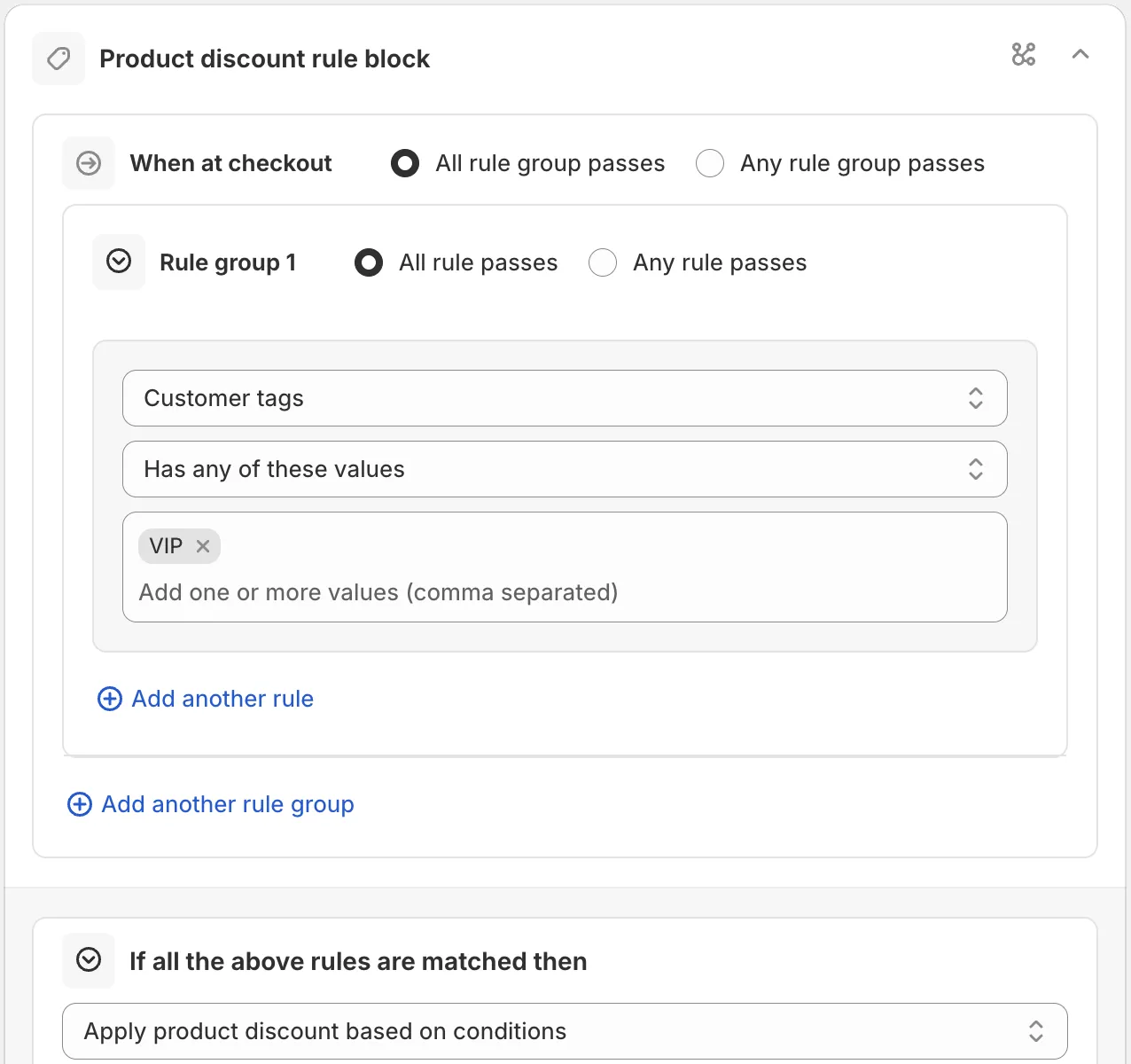
Pick a rule set and add your conditions.
In Rule sets, pick the set with the conditions you need. Then, under When at checkout, use Always for every cart, or a condition such as Customer tags. See Conditions, groups and blocks.
-
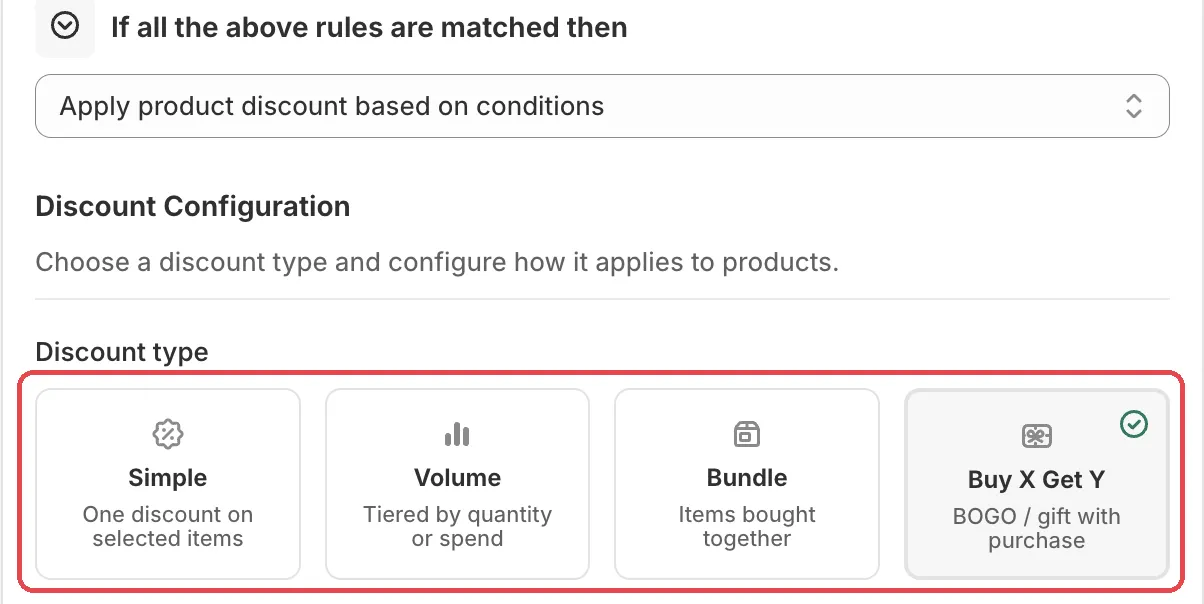
In Discount Configuration, pick a Discount type and set it up.
Choose Simple, Volume, Bundle or Buy X Get Y. The fields for each type are below in Settings. Then set the side cards: Combinations, Discount strategy and, if needed, Active dates.
-
Save it as a draft, test it, then activate it.
In the Status card, choose Draft and save. Then go to checkout on your store and enter the test email from the rule’s Status card. Only this email sees a draft rule. Add matching products. For a code discount, enter the code too.
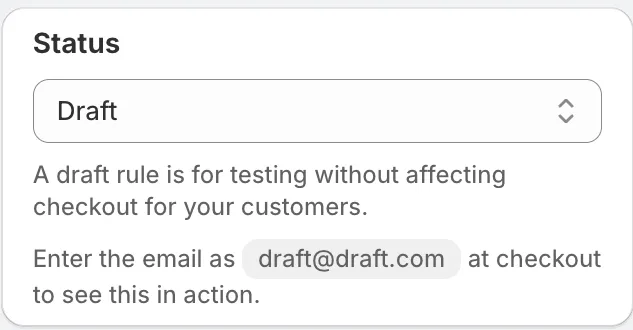
When it works, choose Activate in the Status card and save.
Manage the status here in the app. Status changes made in the Shopify admin are not reflected in AndOr.
Actions
Apply product discount based on conditions
The only action for this rule type. When the conditions match, the discount in Discount Configuration applies.
Settings
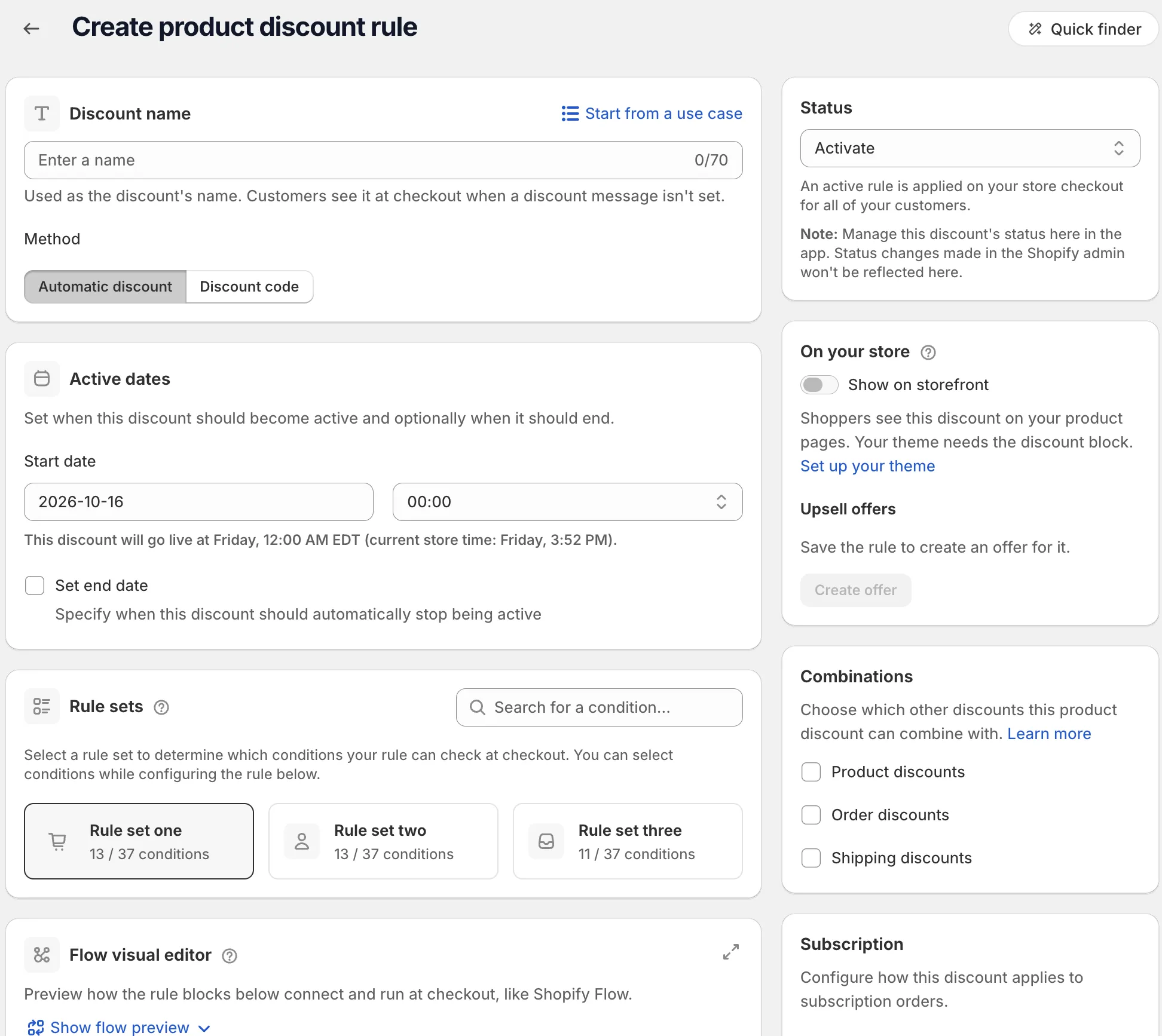
Name and method
Discount name
For an automatic discount, it is “Used as the discount’s name. Customers see it at checkout when a discount message isn’t set.” For a code, shoppers see the code, not this name.
Method
Options: Automatic discount, Discount code.
Automatic discount: “Discount is automatically applied at checkout.” Discount code: “Customers must enter discount code at checkout.”
Discount types
Simple
“One discount on selected items.” Set the Discount value and the products under Applies to.
Volume
“Tiered by quantity or spend.” For example 10% off 3 items, 15% off 6 items.
- Tier basis: Quantity of items, or Subtotal amount.
- Discount based on: All products (combined), Product or Variant. With All products, the combined total of all selected items picks one tier. With Product or Variant, each one picks its own tier.
- Exclude products already on sale: skips items whose compare-at price is higher than their price.
- Tiers: each has a Minimum threshold and a Tier discount. Use Add tier for more.
Bundle
“Items bought together.” Add Bundle groups with Add group. Each group has a Group name (optional), Group items and Items required from this group. Then set the Bundle discount.
Full bundle only: when on, only the items that make a full bundle get the discount. When off, every matching item gets it once a full bundle is in the cart.
Buy X Get Y
“BOGO / gift with purchase.”
- Customer buys (X): Buy quantity (X) and a Target.
- Customer gets (Y): Get quantity (Y) and a Target.
- Reward on Y: the Reward for the Y items.
- Apply the reward to the cheapest eligible Y items: gives the reward on the cheapest Y items.
Target options: Specific products, Specific collections, Specific variants, Products with tags, Specific SKUs, Any item in cart.
Value and products
Discount value
Options: Percentage off, Fixed amount off, Set fixed price, Free (100% off).
Limit the discount to a maximum amount caps the saving with a Maximum discount amount.
Applies to
Options: All products, Specific products, Exclude products, Specific collections, Exclude collections, Specific variants, Exclude variants, Specific product tags, Exclude product tags, Specific product types, Exclude product types, Specific SKUs, Exclude SKUs.
For tags, types and SKUs, type a value and press Enter, or paste a comma-separated list.
Discount message
Optional. Shown to shoppers when the discount applies, for example “Save 20% on all t-shirts”. If blank, they see the discount name. It has a Translate button.
Side cards
Discount strategy
“Choose how many discounts apply when several rules match.”
Options: First match, Maximum discount, All matches.
Maximum discount uses
Only for Discount code. Limit the total uses, and tick Limit to one use per customer if needed.
Active dates
Start date, Start time and an optional end with Set end date. Times use your store’s timezone. The card shows Scheduled, Active or Expired. See Schedule and status.
Combinations
Choose which other discounts this one can combine with: Product discounts, Order discounts, Shipping discounts. See Discount combinations.
Subscription
Applies on subscription, and a Recurring cycle limit. Set the limit to 0 for unlimited cycles.
On your store
The Show on storefront switch shows this discount on your product pages as a sale price or a savings badge. Your theme needs the discount block. See Promotions.
Examples
Open Start from a use case on the rule page and pick one of these:
- Buy One Get One Free (BOGO): buy an item and get another of equal or lesser value free.
- Volume / quantity discount: a bigger discount as quantity grows.
- Bundle discount: buy at least one item from each group (by tag) to get a percentage off the bundle.
Limits
The Limitations card on the rule page lists:
- “Applies per cart line, not the order total.”
- “Draft order checkouts are not supported.”
See Limits.