 See it in action
 Widgets not showing
On this page
AndOr hides a widget on purpose when it cannot be sure the price or reward is right. It shows no error on your store. Work down this checklist to find the cause.
Tip Open Promotions and click the Needs attention tab first. It flags rows with Theme block missing, Sync issue or Offer can’t show.
1. Check your plan
Every plan includes storefront widgets, the Free plan too. If your store reached 110% of your plan’s orders this month, widgets and upsell offers pause until next month or until you upgrade. Look for the paused banner at the top of Promotions, and the Paused: order limit reached badge. See Offers and widgets paused and Plans and billing.
2. Check the app embed
Turn on the AndOr Discount Display app embed in the theme your store uses. Blocks show without it, but the cart drawer, your colors, your text and translations, and one-line tags need it. A widget that only fails in the cart drawer, or a pasted tag that shows nothing, usually means the embed is off.
-
In Shopify, open Online Store > Themes and click Edit theme on your live theme.
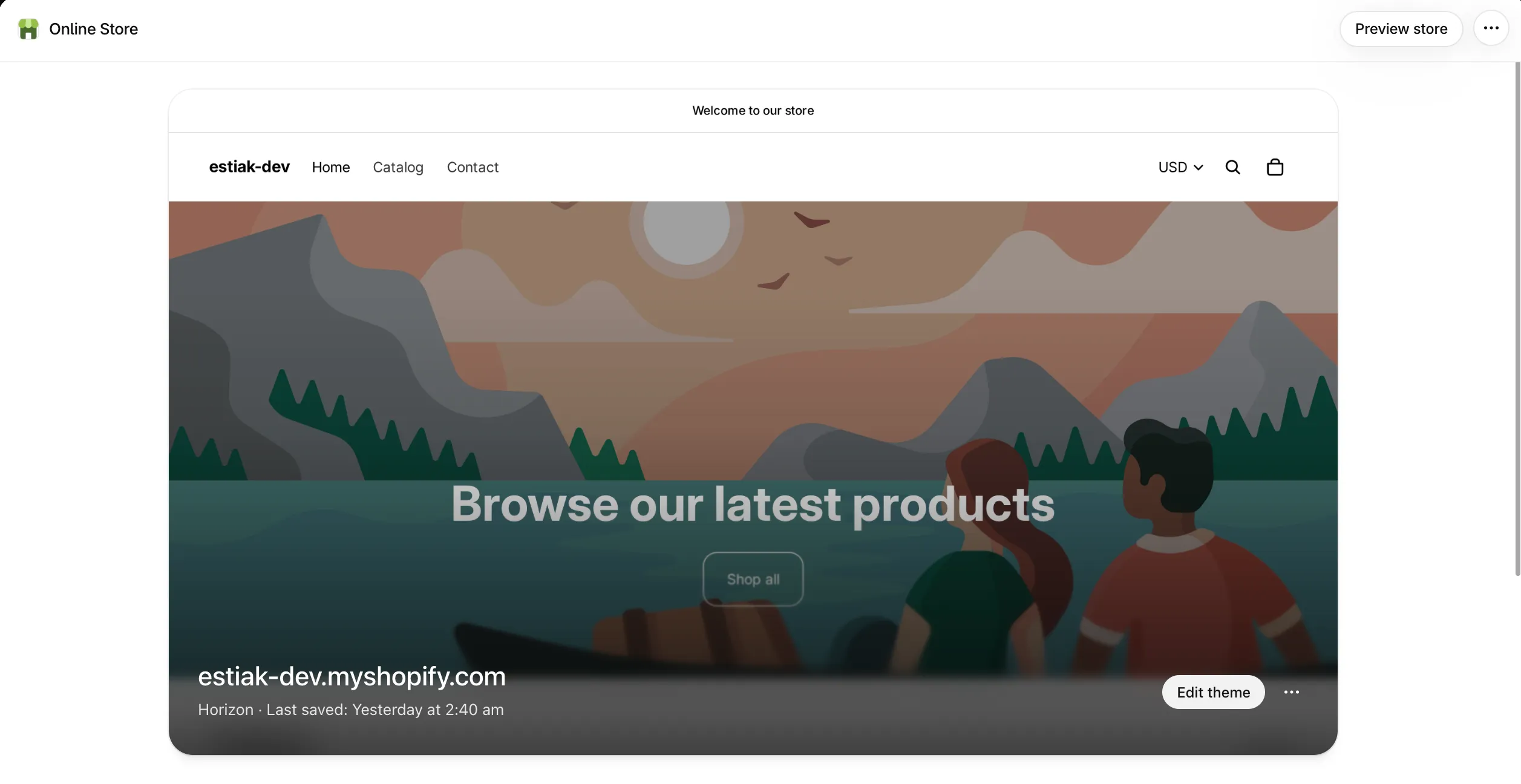
-
Open App embeds and check AndOr Discount Display is on.
If it is off, turn it on and click Save.
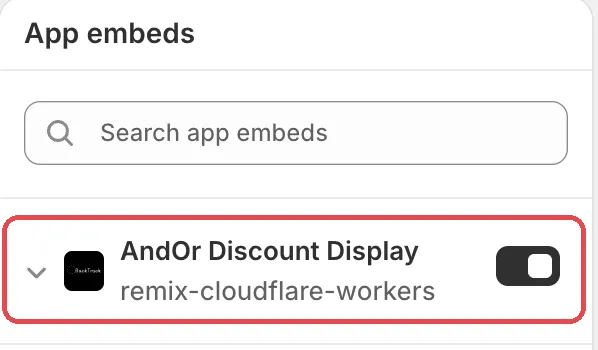
Caution A new or duplicated theme needs its own app embed and blocks. Check them again after you switch themes.
3. Check the block is in your theme
The app embed shows nothing by itself. Each widget is a block you add to a page template, then save.
- Is the block on the right page? AndOr Countdown and AndOr Volume tiers work on product pages only. AndOr Collection banner works on collection pages only. AndOr Order goal works on product and cart pages.
- Did you click Save in the theme editor after adding it?
- For Buy X get Y and Free gift, is AndOr Offer picker also on the cart page? Shoppers claim the reward there.
- No AndOr blocks under Add block? Your theme may be an older (vintage) theme. Blocks need Online Store 2.0. Use the app embed and one-line tags. See Theme requirements.
Note The theme editor shows a sample widget with made-up numbers when no real discount fits. A widget in the theme editor does not prove it shows on your live store.
4. Check the discount is switched on for your store
-
Open Promotions and click the Storefront widgets tab.
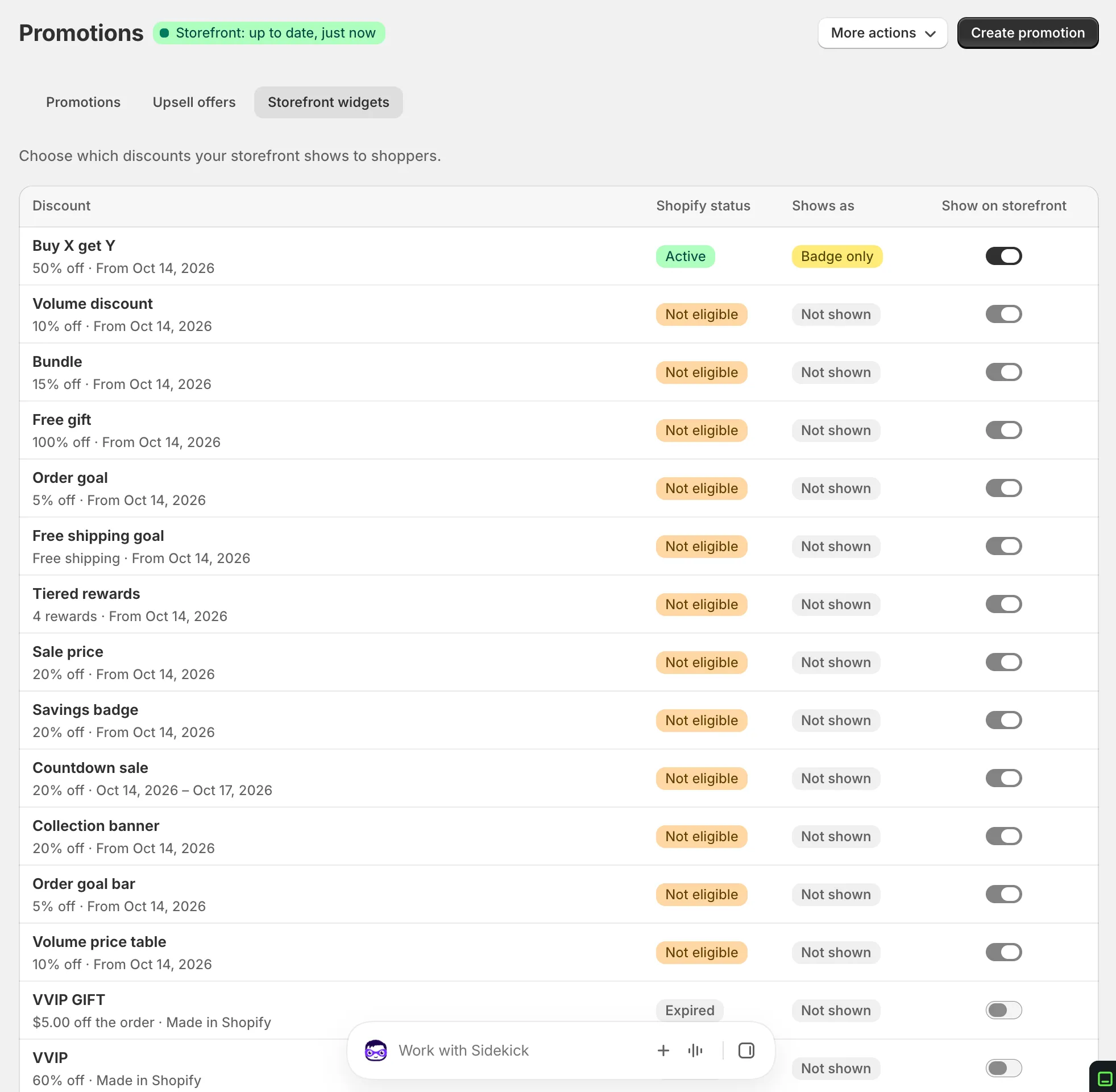
-
Find the discount and check Show on storefront is on.
A discount you create in Shopify is not shown until you turn it on here. A switch you cannot click means the discount can’t be shown right now. Your choice is kept and works again when it qualifies.
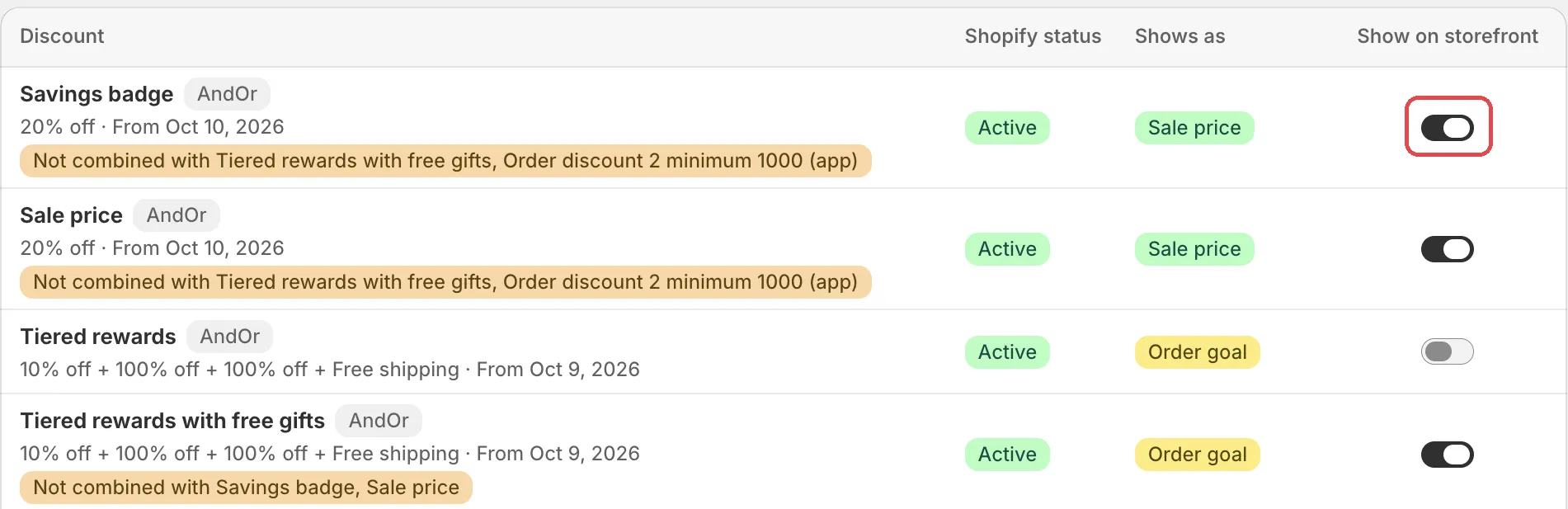
Also check the sync status at the top of the page. Storefront updates are paused means Live sync is off. Turn Live sync back on to update your store again.
5. Check the discount itself
- Is it active today? Widgets show only active discounts within their dates. A draft, a discount that starts later, or an expired discount shows nothing. Drafts are for testing at checkout only.
- Is it limited to some customers? A discount for customer segments or specific customers shows no price. The store can’t tell who is shopping.
- Is it for subscriptions only? These do not show.
- Is it a discount code that hit its usage limit? It stays hidden until you raise or remove the limit.
- Is it made by another app? AndOr can’t read other apps’ discounts, so it can’t show them.
- Is the product a gift card? Shopify never discounts gift cards, so no widget shows on them.
- Is it an AndOr rule with extra settings? Some rule settings stop a discount from showing. For example: extra conditions, more than one rule block, a maximum discount amount, or discount code rejection. The promotion page and the rule editor tell you why.
6. Check you added the right widget
Each widget shows only what it can show truthfully.
- No sale price, but a badge works. Some product discounts depend on the cart: a code, a minimum order amount, a Buy X get Y, or “buy 3, get 10% off”. They get a savings badge, never a sale price. Add AndOr Savings badge.
- The savings badge is empty. In the block settings, check Show badges for discounts with conditions is on. The badge shows only the product’s own saving. An order discount, like 10% off orders over $50, never shows as a badge. Add the AndOr Order goal block for it.
- The countdown is empty. AndOr Countdown needs a discount with an end date.
- The goal bar is empty. AndOr Order goal needs a discount with a minimum cart amount in money, not an item count. The discount must apply to all products and must not be a discount code.
- The volume block shows a table, not picker cards. Picker cards need a live Volume picker upsell offer for that discount. Without one, the block shows the price table.
- The free shipping callout is empty. AndOr Discount callout shows only for free shipping with no minimum, when Only show while a free shipping discount is active is on. Free shipping with a minimum shows in the goal bar instead.
- Nothing from AndOr in the cart drawer. For the goal bar, turn on Also show in the cart drawer in the block. The goal bar, the gift slot and the claim row in the drawer all need the app embed. They also need a theme that sends Shopify’s storefront cart events, like Horizon 4.0+ or Dawn 15.5+. See Theme requirements.
- The widget updates only after a reload. Your theme doesn’t send Shopify’s storefront cart events. The widget is right on each page load. See Theme requirements.
- The collection banner is empty. It shows only for a discount on that collection itself, not on single products in it.
7. The widget shows, but checkout pays something else
Another discount won at checkout because the two can’t be combined. See “Can’t be combined” notes.
Still stuck?
Email andor@backtrackhq.com or use the chat in the app. Tell us the discount name, the product and the page where the widget is missing.