 See it in action
 Savings badge: Code
On this page
Use this code where your theme has no slot for the app block, like product cards or a spot inside your theme’s own price line. It comes from the theme code library on the app’s Storefront blocks page. To open it, go to Promotions > More actions > See all blocks.
In the app, each entry has your store’s real details filled in. The
recipes and examples here say app--<app-id>--andor_display, so copy
them from the app before you paste.
For every widget’s code in one place, see Add AndOr with code.
One-line tag
Each tag is one line. The app embed fills it in with the same widget as the matching app block.
Note Every tag needs the AndOr Discount Display app embed turned on. With the embed off, the tag shows nothing. See what works without the app embed.
Where to paste a tag:
- Horizon: in the theme editor, add a Custom Liquid block to the product template and paste the tag into it.
- Dawn and similar themes: paste the tag into the product section
code, usually
sections/main-product.liquid.
Percentage badge, one line
The whole savings badge as a single tag the app embed fills in, wording, currency, code button and expiry included.
<andor-badge></andor-badge>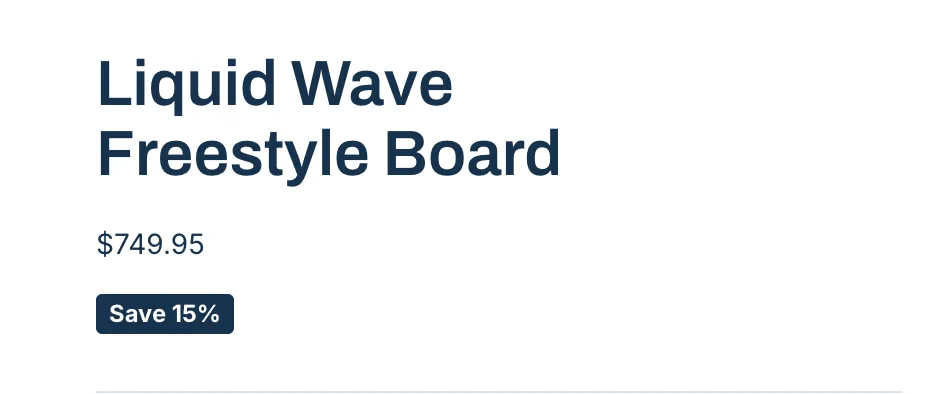
Where it goes: On a product page, wherever you want the chip. Beside the title or the price in sections/main-product.liquid needs nothing else. To put it OVER the main image, paste it in the file that renders that image. In Dawn that is snippets/product-media.liquid. Paste it after all the images, inside a wrapper that has position: relative. Then give the tag its own corner: <andor-badge style="position:absolute;top:0.5rem;left:0.5rem;right:auto;bottom:auto;z-index:2"></andor-badge>. It has to be on a product TEMPLATE. Do not put it inside a product card or a related-products loop. There it would print this page’s badge beside a different product.
More: Percentage badge in One-line tags.
Product card recipes
Longer Liquid for the product cards on collection, search and home pages, where apps cannot add a block. These recipes work with the app embed off.
- Dawn and similar themes: most go in
snippets/card-product.liquid. Each recipe says exactly where. - Horizon: do not paste these. Horizon builds its product cards from blocks, so add the AndOr Sale price or AndOr Savings badge app block to the card in the theme editor instead.
The numbers and the full notes for each recipe are in Product card recipes.
Percentage badge, over the image
Recipe 1. A “20% OFF” chip in the corner of the card image.
{% comment %} AndOr Discount Display: badge over the image. {% endcomment %}
{% assign andor_item = card_product | default: product %}
{% assign andor_percent = andor_item.metafields.app--<app-id>--andor_display.best_percent.value | plus: 0 %}
{% if andor_percent > 0 and andor_item.gift_card? != true %}
  <span class="andor-badge" style="position:absolute;top:0.5rem;left:0.5rem;bottom:auto;right:auto;width:auto;height:auto;z-index:2;background:#c0392b;color:#ffffff;border-radius:0.25em;padding:0.15em 0.55em;font-size:0.85em;font-weight:600">{{ andor_percent | floor }}% OFF</span>
{% endif %}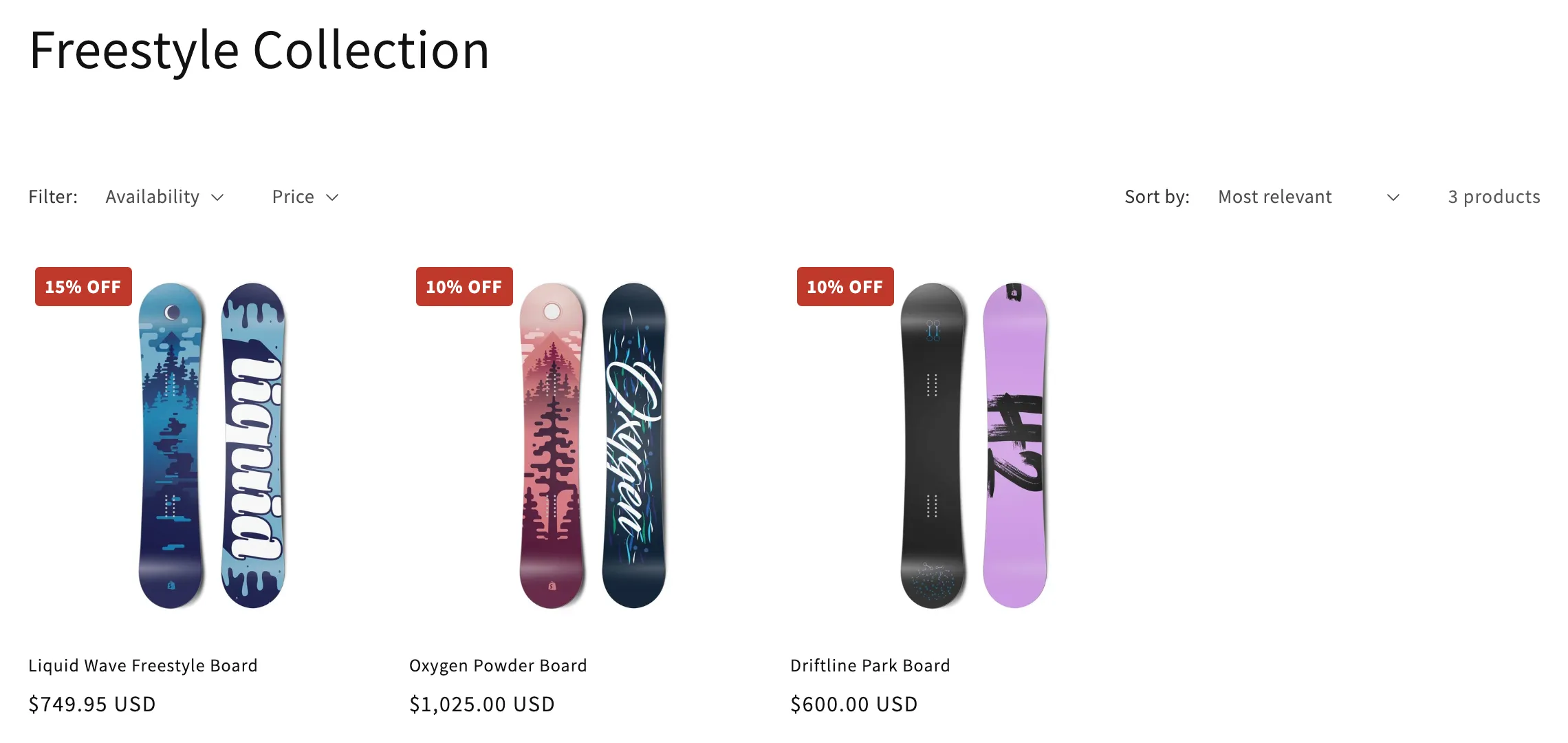
Where it goes: Inside your card’s image wrapper in snippets/card-product.liquid, AFTER all the images, just before the wrapper’s closing tag. Not between the two <img> tags.
Percentage badge, next to the title
Recipe 2. The same number inline, with no positioning to get wrong.
{% comment %} AndOr Discount Display: badge next to the title. {% endcomment %}
{% assign andor_item = card_product | default: product %}
{% assign andor_percent = andor_item.metafields.app--<app-id>--andor_display.best_percent.value | plus: 0 %}
{% if andor_percent > 0 and andor_item.gift_card? != true %}
  <span class="andor-badge" style="display:inline-block;background:#c0392b;color:#ffffff;border-radius:0.25em;padding:0.15em 0.55em;font-size:0.85em;font-weight:600">Save {{ andor_percent | floor }}%</span>
{% endif %}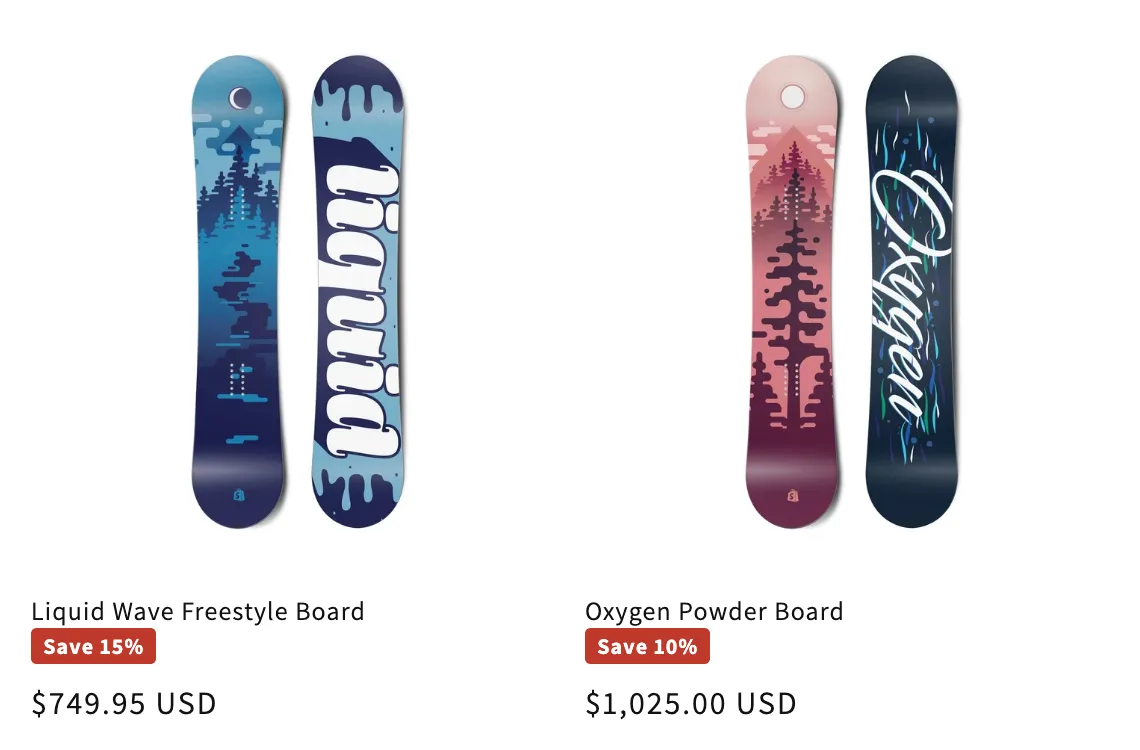
Where it goes: Right after the product title link in snippets/card-product.liquid.
Badge that hides when the sale ends
Recipe 4. The inline badge, plus the one comparison that makes it expire.
{% comment %} AndOr Discount Display: badge that expires. {% endcomment %}
{% assign andor_item = card_product | default: product %}
{% assign andor_percent = andor_item.metafields.app--<app-id>--andor_display.best_percent.value | plus: 0 %}
{% comment %} The key is ABSENT when the sale does not end, so the default has to be far future. {% endcomment %}
{% assign andor_ends = andor_item.metafields.app--<app-id>--andor_display.best_ends_at.value | default: 9999999999 %}
{% assign andor_now = 'now' | date: '%s' | plus: 0 %}
{% if andor_percent > 0 and andor_ends > andor_now and andor_item.gift_card? != true %}
  <span class="andor-badge" style="display:inline-block;background:#c0392b;color:#ffffff;border-radius:0.25em;padding:0.15em 0.55em;font-size:0.85em;font-weight:600">Save {{ andor_percent | floor }}%</span>
{% endif %}
Where it goes: Anywhere the inline badge goes. It is the same recipe with three more lines.
Developer example
Short Liquid to start your own code from. Each one keeps the common
rules and says what it skips. It is written for the product page. On a
product card, change product to card_product.
The same examples, with notes for developers, are in Developer examples.
Savings badge
A “Save 20%” chip while a sale is on.
{% comment %} AndOr Discount Display: savings badge example. {% endcomment %}
{% assign andor_data = product.metafields.app--<app-id>--andor_display %}
{% assign percent_off = andor_data.best_percent.value | plus: 0 %}
{% assign ends_at = andor_data.best_ends_at.value | default: 9999999999 %}
{% assign now_seconds = 'now' | date: '%s' | plus: 0 %}
{% if percent_off > 0 and ends_at > now_seconds %}
  <span class="andor-savings-badge"
    style="background: #c0392b; color: #fff; padding: 0.2em 0.6em;">
    Save {{ percent_off | floor }}%
  </span>
{% endif %}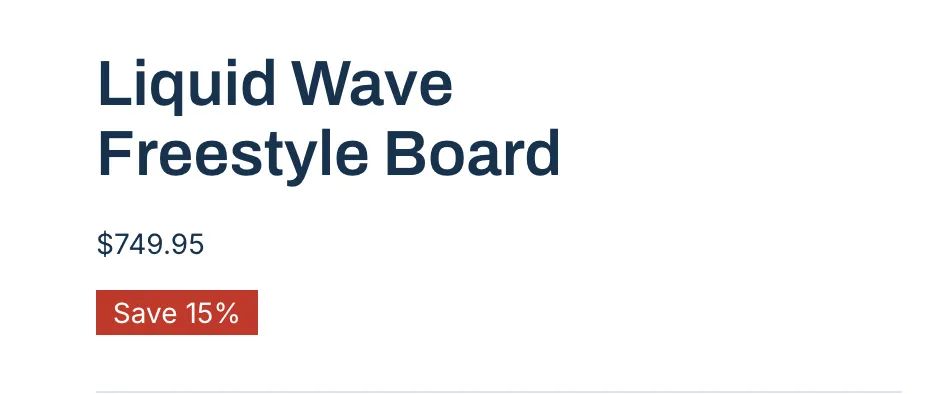
Where it goes: On a product page, in sections/main-product.liquid. On a product card, change product to card_product.
Skips: storewide sales, amount-off deals, tiered and code discounts, gift cards. For the full rules use <andor-badge></andor-badge>.