 See it in action
 Current offers (AndOr Offers block)
On this page
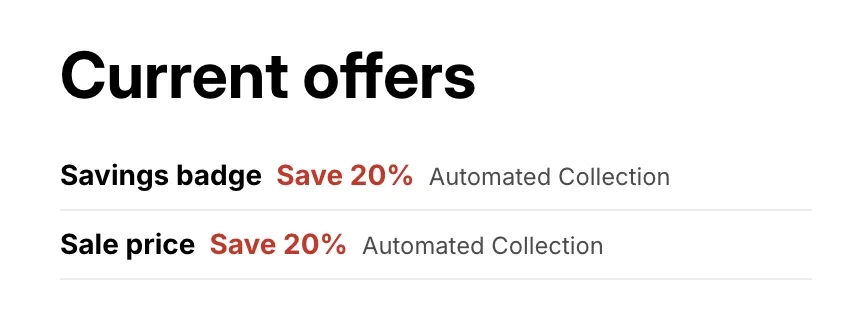
The current offers widget shows a list of the deals running in your store right now, and what each one takes off. Example: “Autumn sale, Save 20%, Storewide”.
Made by: no discount of its own. It lists every discount you switch on under Promotions > Storefront widgets. You add it from the Current offers list card in the promotion gallery.
For developers: Code · Styling
What shoppers see
A heading, then one row per deal. Each row has:
- The deal’s name, like “Autumn sale”.
- The deal line, like “Save 20%”. A deal with a condition says “on qualifying orders” or “on orders over $50.00”. A code deal says “Use code AUTUMN15” with a copy button.
- What it covers, like “Storewide”, the name of one collection, or “Selected collections”. Deals on picked products have no scope text.
A code that is already in the shopper’s cart shows “✓ Code AUTUMN15 applied” instead.
On a product page
The list leaves out the deals that the product’s own sale price and savings badge already show. So the same deal is never shown twice on one page. Deals on other products still show. That makes the list a “what else is on sale” box.
Where it goes
Any template: the product page, the home page, a collection page, a regular page, and more.
Add the block
Note App blocks need an Online Store 2.0 theme. On an older (vintage) theme, this block can’t be added. See Theme requirements.
The AndOr Offers block draws the current offers list. You can add it to any template in the Shopify theme editor.
From the promotion gallery
-
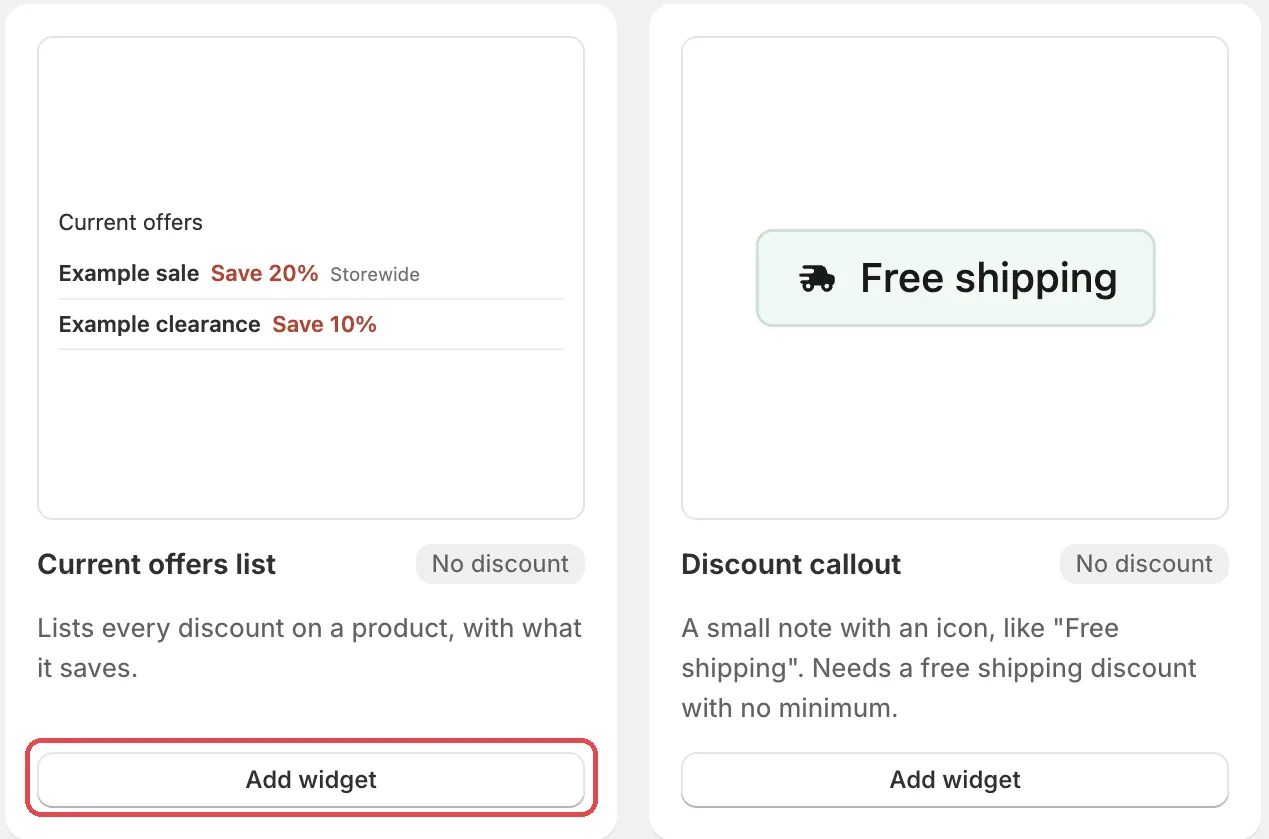
Open Promotions, click Create promotion, then click Add widget on the Current offers list card.
It is under Promotions with storefront widgets, with a No discount tag. The Storefront blocks page opens.
-
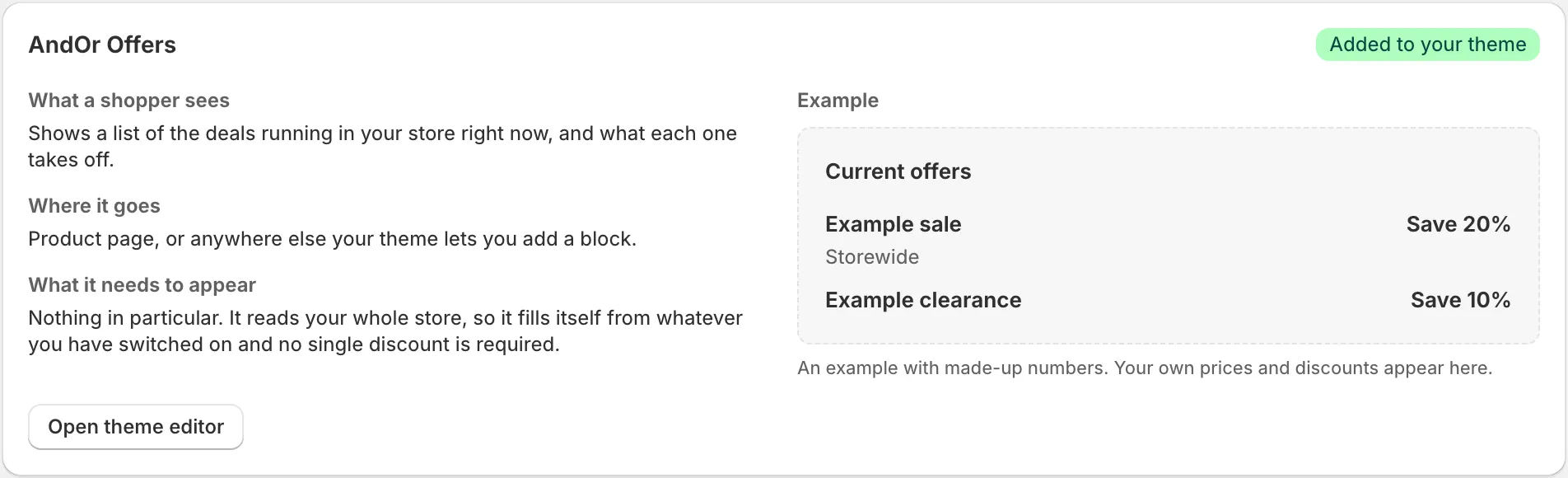
Find AndOr Offers and click Add to theme.
Each block on the Storefront blocks page explains What a shopper sees, Where it goes and What it needs to appear. Add to theme opens your theme editor with the block added.
-
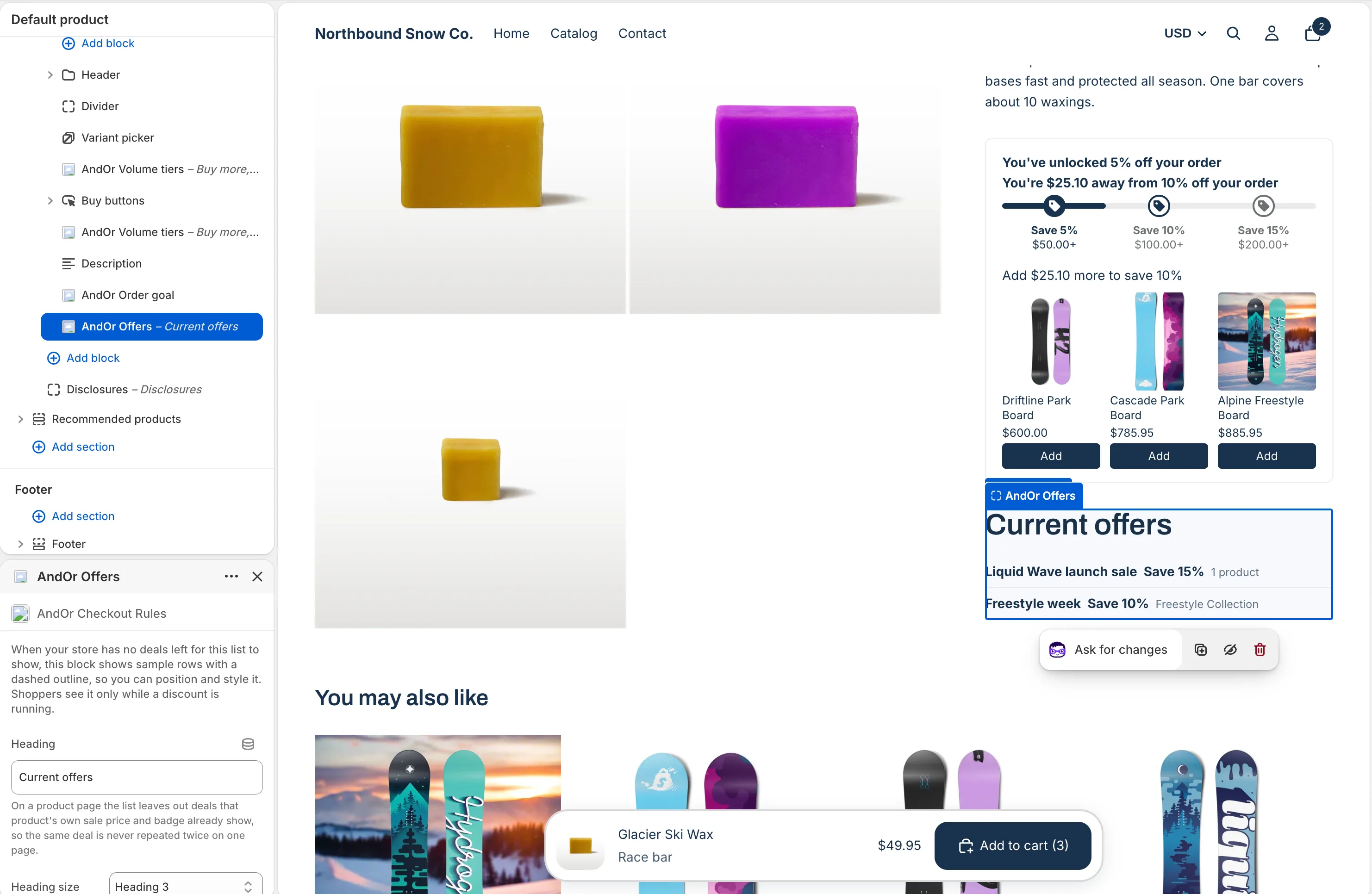
Move the block where you want it and click Save.
Or add it in the theme editor
-
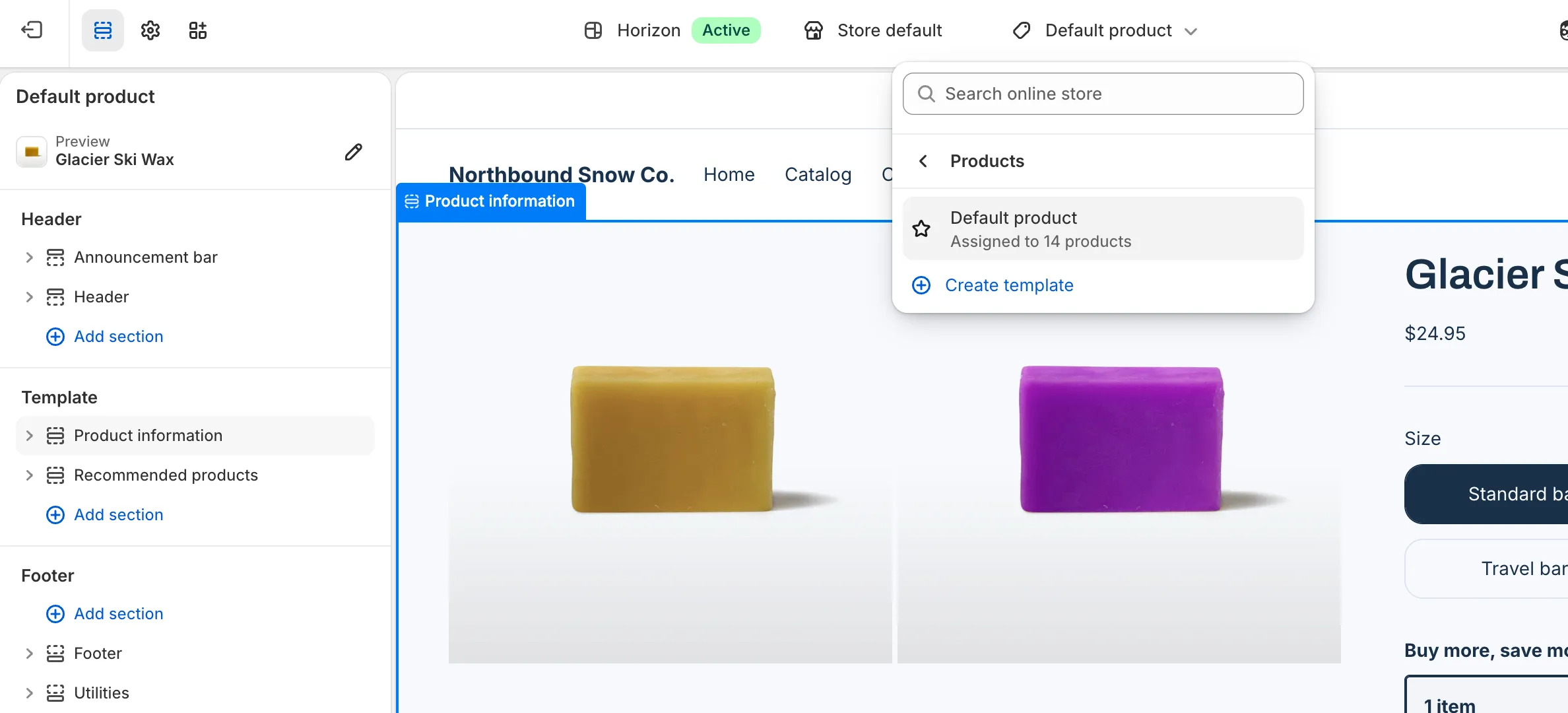
Open the theme editor on the template you want.
In Shopify, go to Online Store > Themes and click Edit theme. For example, pick Home page, or Products > Default product.
-
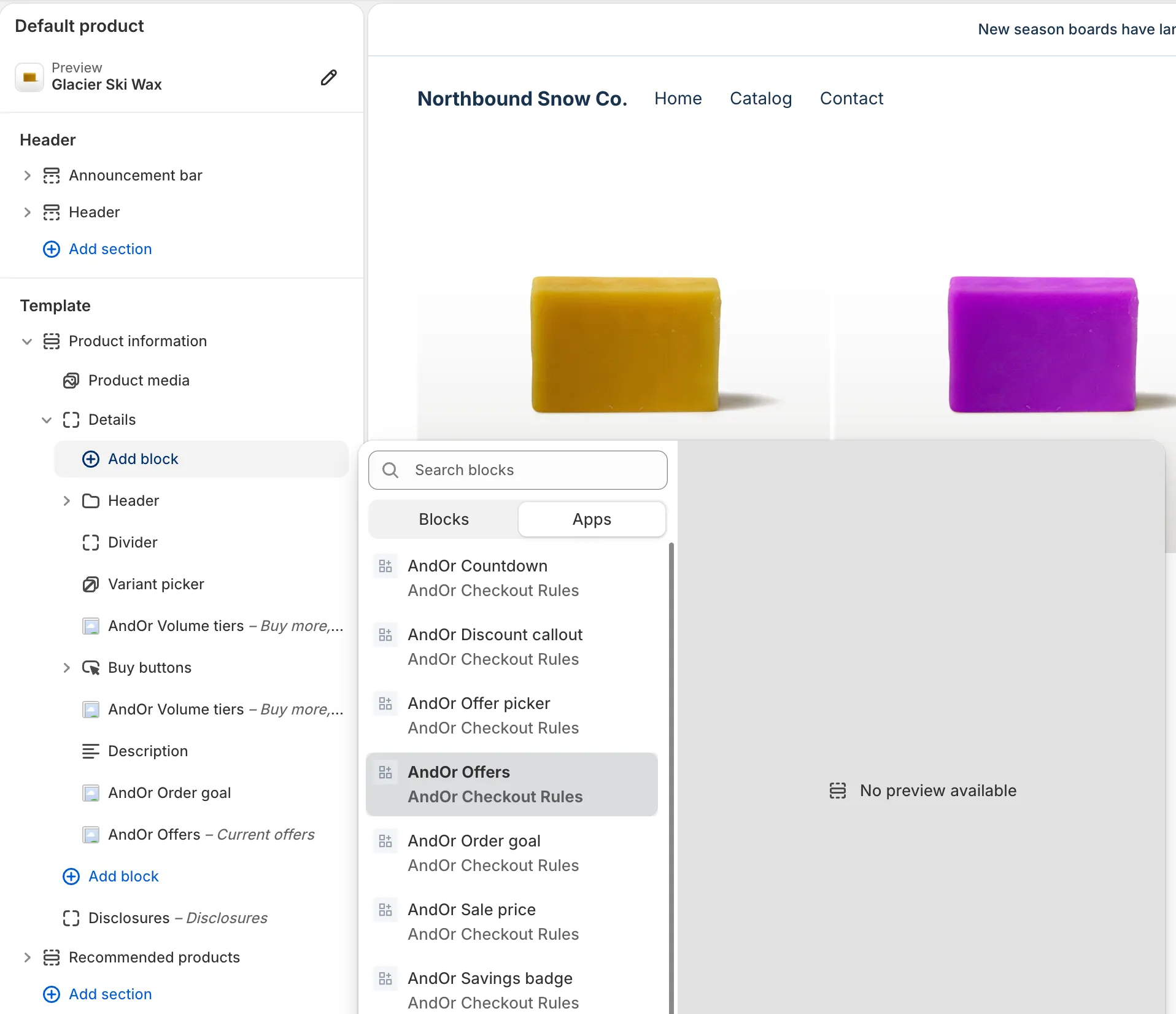
Click Add block, open Apps and pick AndOr Offers.
On templates without a block area, add an Apps section first, then add the block inside it.
-
Drag the block where you want the list, then click Save.
Tip In AndOr, Promotions > Storefront widgets > See all blocks has an Add to theme button. It opens the theme editor with this block ready to place.
Note When your store has no deals left for the list to show, the block shows sample rows with a dashed outline. That way you can place and style it. Shoppers see it only while a discount is running.
Block settings
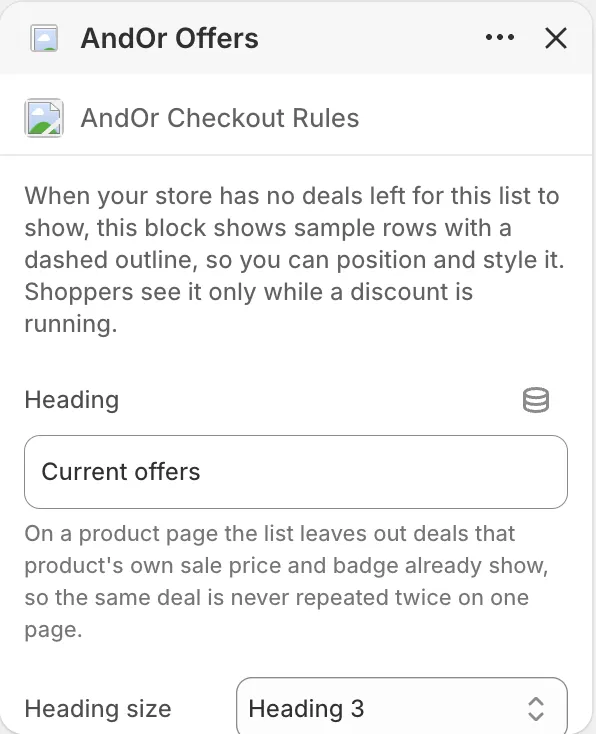
Heading
The title above the list. Leave it empty for no heading.
Default: Current offers.
Heading size
Match your section’s heading structure. Pick Plain text when the block sits inside a card that already has its own heading.
Options: Heading 2, Heading 3, Heading 4, Plain text. Default: Heading 3.
Include discount codes
When off, deals that need a discount code are left out of the list.
Default: on.
Maximum deals shown
The most rows the list shows.
Options: 1 to 12. Default: 5.
Accent
The color of each deal line. This color is used exactly as set. It does not follow your brand color.
Default: #c0392b.
Divider line
The hairline under each deal in the list.
Default: black at 8% opacity (rgba(0, 0, 0, 0.08)).
Text size
Sized against the text around the block, so 100% matches your theme.
Options: 70% to 200%, in steps of 5. Default: 100%.
Space above
Empty space above the list.
Options: 0 to 64 px, in steps of 4. Default: 0 px.
Space below
Empty space below the list.
Options: 0 to 64 px, in steps of 4. Default: 0 px.
What it needs to appear
- Optional: the app embed. The block shows without it. The embed adds your shared look settings, text changes, the cart drawer parts and one-line tags.
- The AndOr Offers block is in your theme.
- At least one discount is switched on under Storefront widgets and running now.
- JavaScript is on in the shopper’s browser.
When no deal is left to show, the whole block hides. Shoppers never see an empty list.
Show it in more places (code)
To show it where your theme has no slot for the block, paste a line of code. See Current offers: Code.
Limits
- It shows at most 12 deals. The default is 5.
- A new deal shows on the next page load. A deal that ends hides right away.
- A code applied at checkout is not seen by the list. Only a code that reached the cart shows as applied.
- With Include discount codes off, deals that need a code are left out.