 See it in action
 Bundle card: Code
On this page
Use this code where your theme has no slot for the app block. It comes from the theme code library on the app’s Storefront blocks page. To open it, go to Promotions > More actions > See all blocks.
For every widget’s code in one place, see Add AndOr with code.
One-line tag
Each tag is one line. The app embed fills it in with the same widget as the matching app block.
Note Every tag needs the AndOr Discount Display app embed turned on. With the embed off, the tag shows nothing. See what works without the app embed.
Where to paste a tag:
- Horizon: in the theme editor, add a Custom Liquid block to the product template and paste the tag into it.
- Dawn and similar themes: paste the tag into the product section
code, usually
sections/main-product.liquid.
Offer picker, one line
The AndOr Offer picker block as a single tag. It shows the Frequently bought together card, the Buy X get Y banner and the gift banner for the product on the page.
<andor-offer-picker></andor-offer-picker>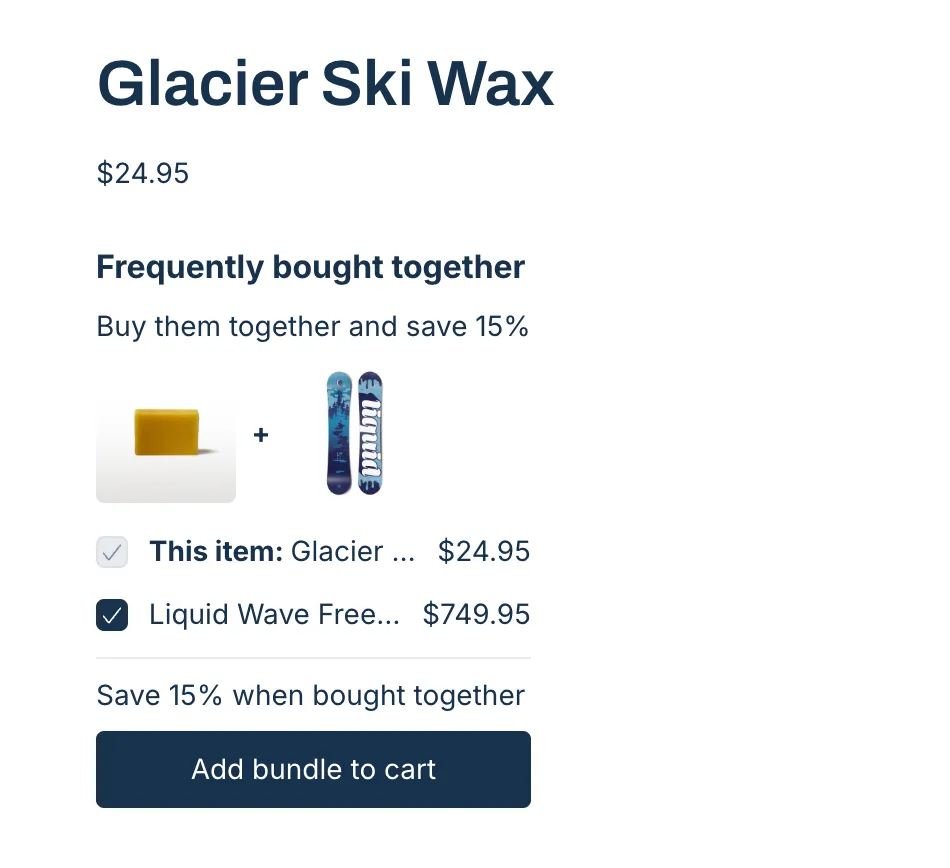
Where it goes: On a product page, wherever you want the card. The usual spot is under the add-to-cart button in sections/main-product.liquid. It has to be on a product TEMPLATE. Do not put it inside a product card or a related-products loop. There it would offer this page’s deal beside a different product.