 See it in action
 Checkout validation: block orders
On this page
“Validate checkout fields and show custom error messages.” A validation rule stops the shopper from completing checkout and tells them why. For example, block PO Box addresses, or require a minimum order amount.
Caution A validation rule can stop real orders. Always test it as a draft first.
Before you start
- Write the error message you want shoppers to read. Say what is wrong and how to fix it.
- Decide between Block and Allow. Allow is an allow-list. It blocks every cart that does not match. See Actions.
Set it up
-
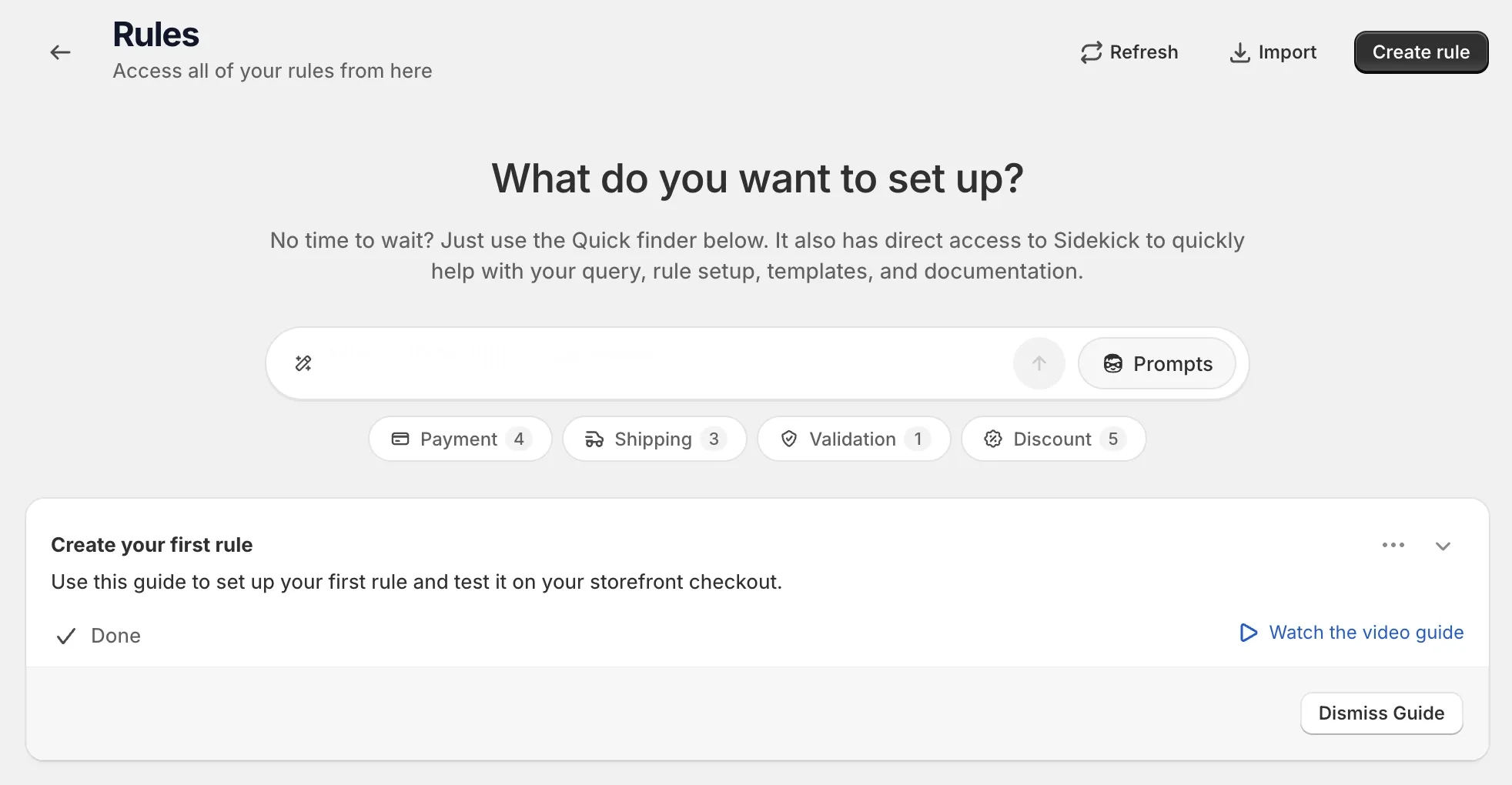
Open Rules and click Create rule.
-
Under Validation, find Checkout validation and click Select.
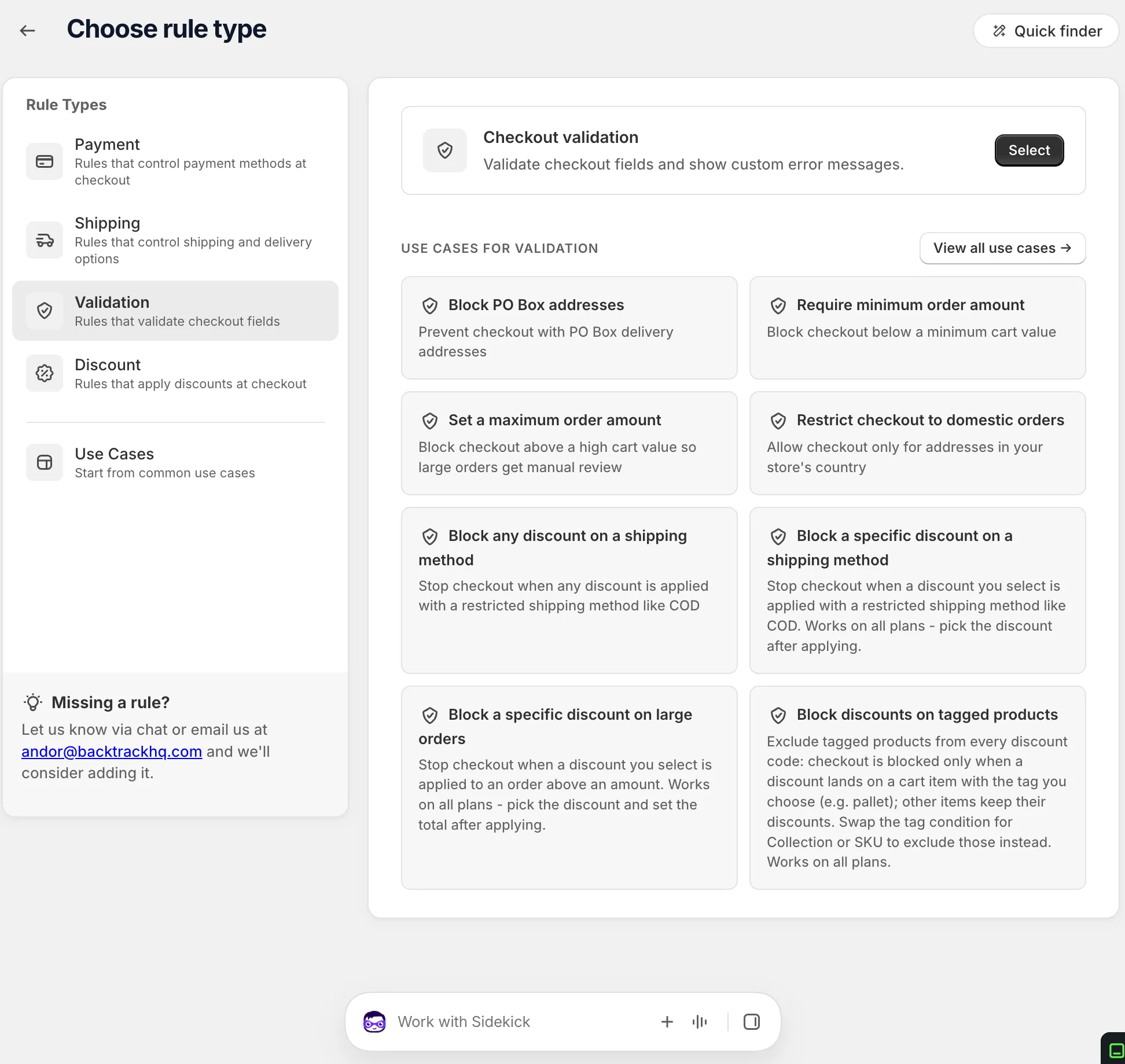
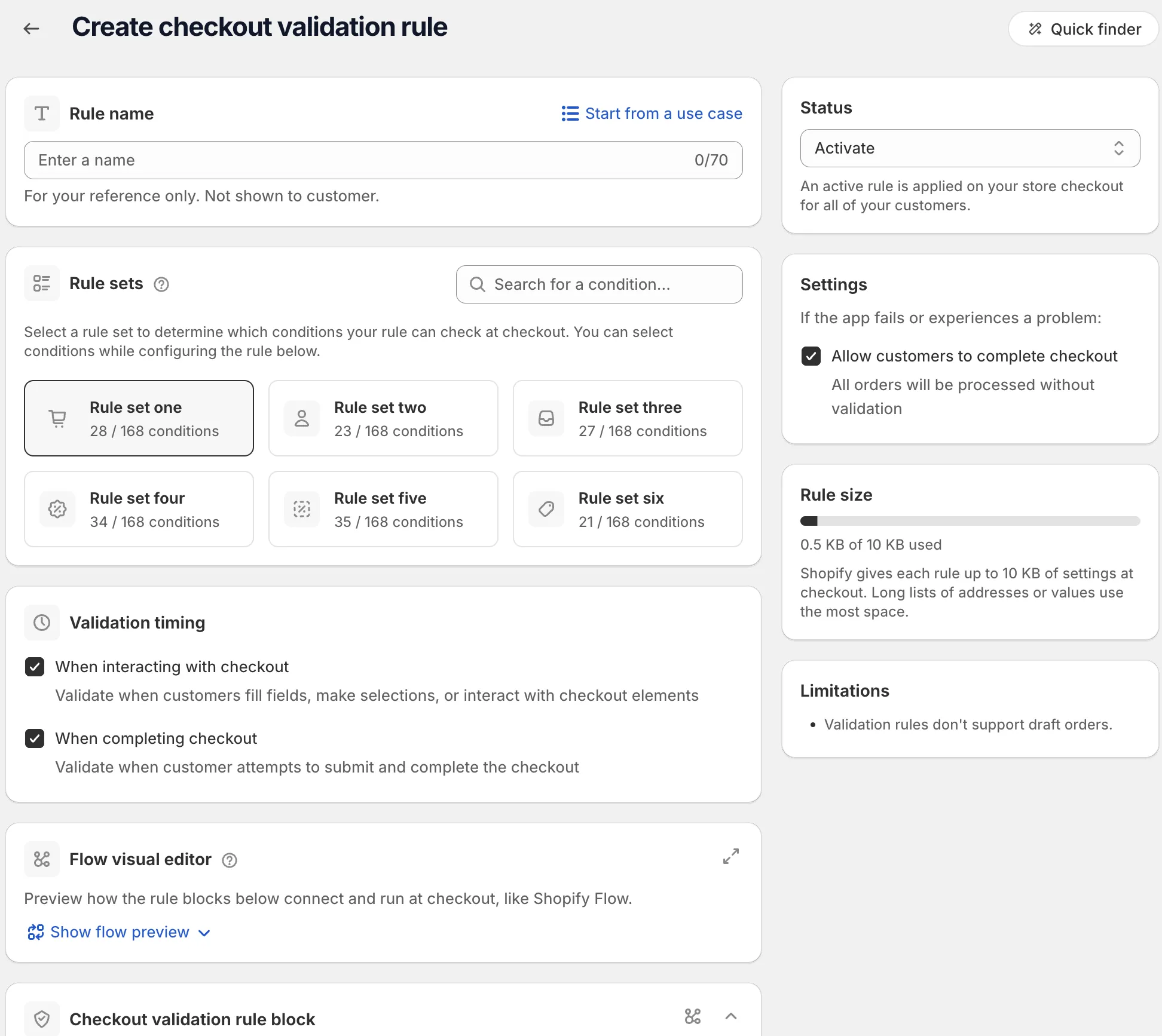
On the rule page, name the rule, or click Start from a use case. The name is for your reference only. See Start from a use case.
-
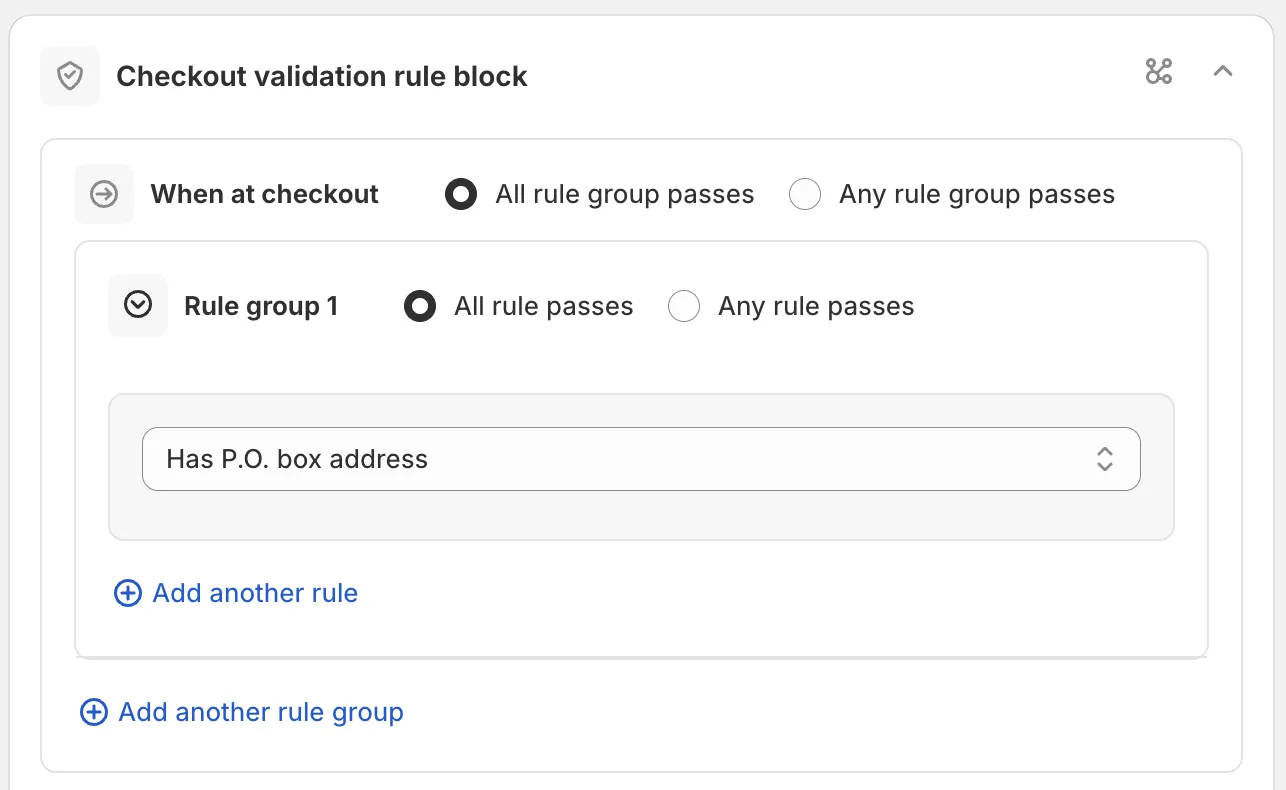
Pick a rule set, set the timing and add your conditions.
In Rule sets, pick the set with the conditions you need. For example, discount conditions are in their own rule set. Under Validation timing, choose when Shopify checks the rule. Both options are on by default. See Settings. Then add your conditions under When at checkout, for example Has P.O. box address. See Conditions, groups and blocks.
-
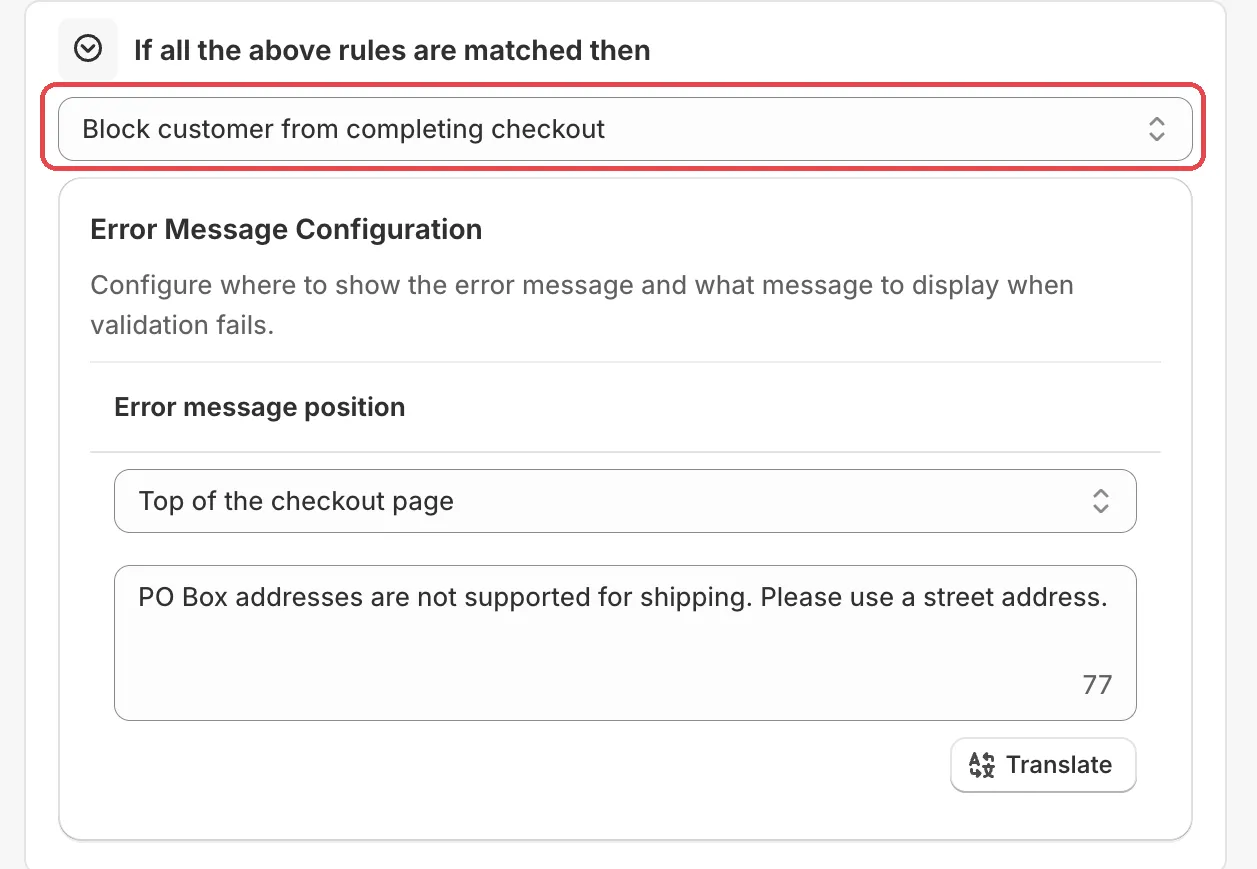
Pick Block or Allow, then add the error message.
Under Error Message Configuration, pick an Error message position and type the Error message. Use Add error message configuration to show the message in more than one place.
-
Save it as a draft, test it, then activate it.
In the Status card, choose Draft and save. Then go to checkout on your store and enter the test email from the rule’s Status card. Only this email sees a draft rule. Try a cart that should be blocked and one that should pass. Check that the message shows where you chose.
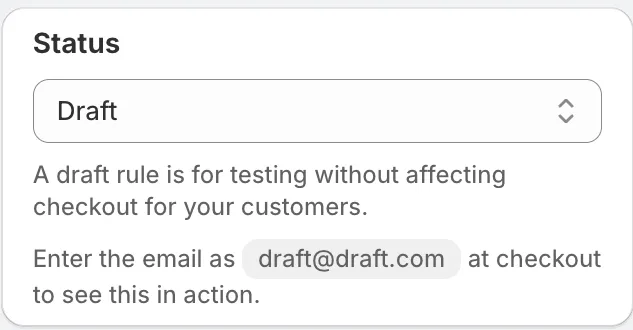
When it works, choose Activate in the Status card and save.
Actions
Block customer from completing checkout
Blocks checkout when the conditions match. Everything else can check out.
Example: conditions “Has P.O. box address”. Result: carts shipping to a PO Box are blocked. All other carts pass.
Allow customer to complete checkout
An allow-list. Checkout is allowed only when the conditions match. Every cart that does not match is blocked and sees your error message.
Example: conditions “Country code has any of these values: United States”. Result: US addresses can check out. Every other country is blocked.
Caution Allow never just “lets something through”. It blocks everything that does not match. If you only want to stop one case, use Block.
Settings
Error message position
Where the error shows at checkout.
Options: Top of the checkout page, or below one of the input fields: Country, Email, Customer phone number, Shipping phone number, Company, Address line one, Address line two, City, Province, Zip code, First name, Last name.
Error message
The text shoppers see. It has a Translate button for other languages. See Translate shopper messages.
Validation timing
When Shopify runs the check. Pick at least one. Both are on by default.
- When interacting with checkout: “Validate when customers fill fields, make selections, or interact with checkout elements”.
- When completing checkout: “Validate when customer attempts to submit and complete the checkout”.
Allow customers to complete checkout
In the Settings card, under “If the app fails or experiences a problem:”. This setting only matters if the app itself fails or times out at checkout. It does not change how the rule works the rest of the time. Your conditions still allow checkout or show your error message.
- Ticked (default): customers can complete checkout without validation. The help text says “All orders will be processed without validation”.
- Unticked: checkout is blocked until the app responds.
Status
Options: Draft, Activate, Deactivate.
Examples
Open Start from a use case on the rule page and pick one of these:
- Block PO Box addresses: prevents checkout with PO Box delivery addresses. See Example: block PO box addresses.
- Require minimum order amount: blocks checkout below a minimum cart value.
- Restrict checkout to domestic orders: allows checkout only for addresses in your store’s country.
For discount codes, see Example: block discount codes.
Limits
The Limitations card on the rule page lists: “Validation rules don’t support draft orders.” In Shopify, validation rules also run on draft orders. See Limits.
Conditions marked “(Plus required)” need checkout extensibility, which means Shopify Plus or a development store. They don’t match in accelerated checkouts such as Apple Pay or Google Pay. See Limits.