 See it in action
 Metrics
Each metric card on the Analytics page has a name and a tooltip. Hover the name to read what it counts and a short example. This page lists every metric with the same meaning and example, plus why it matters and what to do with it.
Note The app shows the examples in your store currency. Here we write the amounts as plain numbers, like 20.00.
How to read a card
Each card shows:
- The metric name. Hover it for the meaning and an example.
- The number for your Date range.
- With Compare to on, the change against the earlier period.
Click a card to draw it on the chart. Remove it with the small x. Add cards back with the Metrics card. See Analytics overview.
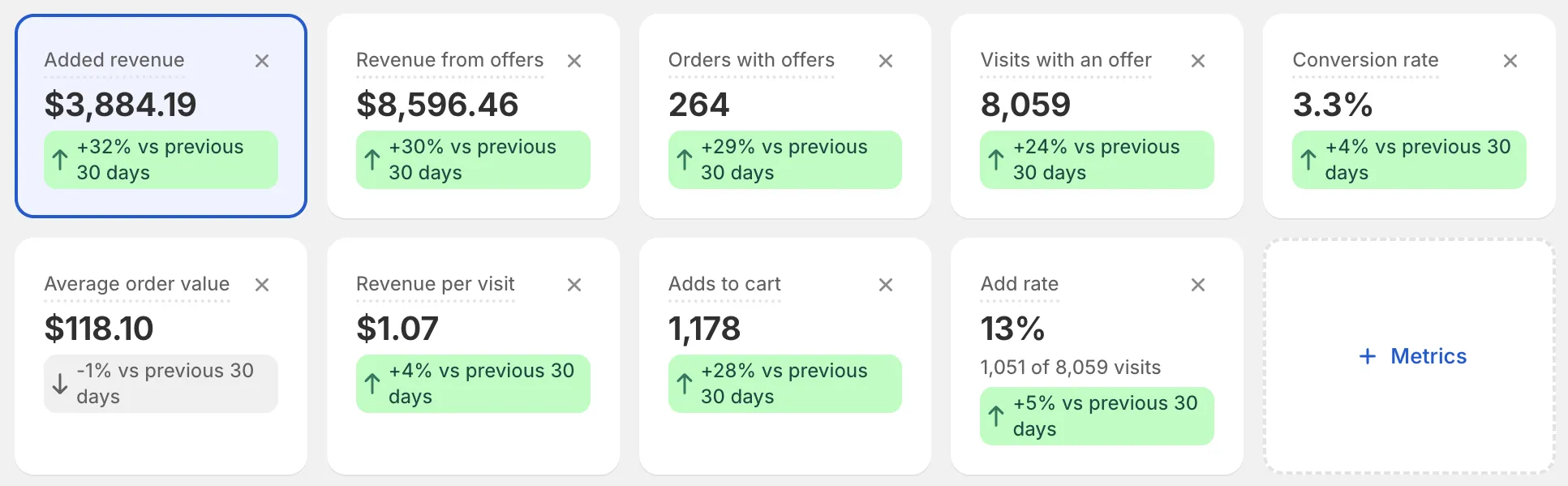
Default cards
Analytics first shows Added revenue, Revenue from offers, Orders with offers, Visits with an offer, Conversion rate, Average order value, Revenue per visit, Adds to cart and Add rate. Add or remove cards with Metrics.
Discount metrics
These count orders where one of your AndOr discounts applied.
Added revenue
What it is: extra revenue your deals brought in. For volume, Buy X get Y and bundle deals, it is what the deal paid, minus one item at full price (for bundles: the main item). For add-on offers, it is the whole added item. Gifts and order goals add nothing. It is never below 0.
Example: 3 items of 20.00 at 10% off paid 54.00. Minus one item at 20.00: 34.00.
Why it matters: it is the best single answer to “did my deal make shoppers buy more?”. It leaves out the item the shopper came for.
How to use it: compare it with Discounts given. If added revenue is much higher, the deal pays for itself. If it is close to zero, try a smaller first tier or a different product.
Extra spend from discounts
What it is: what shoppers spent above one full-price item, from volume and Buy X get Y discounts. It is close to Added revenue.
Why it matters: it shows if your discount rules make shoppers add more items, even before you use promotions.
How to use it: read it like Added revenue above.
Orders with your discounts
What it is: orders where one of your AndOr discounts applied, with or without an upsell offer. Shopify’s own discounts and other apps’ discounts don’t count. Each order counts once.
Example: 5 orders used a volume discount and 2 used a bundle: 7.
Why it matters: it shows how often shoppers actually use your deals.
How to use it: if it is low, shoppers may not know the deal exists. Turn on a storefront widget so they see it.
Revenue with your discounts
What it is: the whole totals of orders where one of your AndOr discounts applied, before refunds.
Example: two orders of 20.00 each: 40.00.
Why it matters: it shows how much of your sales run through your deals.
How to use it: it counts the whole order, so it is always bigger than Added revenue. Use Added revenue to judge if a deal brings extra money.
Discounts given
What it is: what your AndOr discounts took off those orders.
Example: 10% off a 20.00 item, in 3 orders: 6.00.
Why it matters: this is what your deals cost you.
How to use it: keep it well below Added revenue. If it grows faster, lower the discount or raise the minimum.
Profit
What it is: what the items in orders with your discounts paid, minus their unit cost in Shopify. Only orders where every paid item has a cost count. It is before refunds, shipping and fees. Under the number, the card says how many of the orders it could use (“From … of … orders”).
Example: an item paid 18.00 and costs 12.00: 6.00.
Why it matters: revenue can grow while profit shrinks. This card shows if a deal still makes money.
How to use it: add a cost to your products in Shopify (on each product’s variant, Cost per item).
Upsell offer metrics
Revenue from offers
What it is: what offer items sold for in orders, after discounts and before refunds. Only the offer’s own lines count, not the rest of the order.
Example: a shopper buys a 20.00 offer item at 10% off: 18.00 counts.
Why it matters: it is real money from your upsell offers.
How to use it: check the Revenue column of the By upsell offer table to find your best offer. Copy what works to other products.
Orders with offers
What it is: orders that had an offer item or an offer’s discount. Each order counts once.
Example: 3 orders took a bundle and 1 took a gift: 4.
Why it matters: it shows how many shoppers took an offer all the way to checkout.
How to use it: if adds are high but orders are low, shoppers drop off at checkout. Check that the discount applies there.
Conversion rate
What it is: orders with offers, out of visits that saw an offer. Visits count only shoppers we could track, so this can look high.
Example: 4 orders from 23 visits: 17.4%.
When orders are more than visits, the card shows a dash, because the rate would not be real.
Why it matters: it shows how well an offer turns lookers into buyers.
How to use it: watch the trend, not the exact number. A drop after you change an offer means the old version worked better.
Average order value
What it is: the average total of orders with offers. It uses the whole order, not only the offer items. Before refunds.
Example: 4 orders worth 4,708.00 in all: 1,177.00.
Why it matters: offers aim to make carts bigger. This shows if they do.
How to use it: compare it with your store’s usual order value in Shopify. If it is higher, your offers lift cart size.
Revenue per visit
What it is: revenue from offers, divided by visits that saw an offer. Visits count only shoppers we could track.
Example: 460.00 of offer revenue over 23 visits: 20.00.
Why it matters: it joins two things in one number: how often shoppers buy, and how much.
How to use it: use it to compare two offers with very different traffic. The higher one earns more for each shopper who sees it.
Value added to carts
What it is: the full price of items added through offers, before any discount, counted on every add. Many carts never check out, so this is an estimate and higher than revenue. The card has an Estimate badge.
Example: a 50.00 item added twice: 100.00.
Why it matters: it shows interest right away, before orders come in.
How to use it: use it for a quick read on a new offer. Judge the offer on Revenue from offers, not on this.
Adds to cart
What it is: every time a shopper added an offer item to the cart.
Example: a shopper adds the same gift twice: 2.
Why it matters: an add is the first sign an offer works.
How to use it: no adds after many views means the offer does not convince. Change the message or the products.
Add rate
What it is: visits where a shopper added an offer item, out of visits that saw an offer.
Example: 17 visits with an add out of 23: 73.9%.
Why it matters: it shows how tempting the offer is, no matter how much traffic you have.
How to use it: compare add rates across offers. Test a new message on the one with the lowest rate.
Visits with an offer
What it is: visits where a shopper saw at least one upsell offer. Only shoppers we could track count.
Example: a shopper who comes back the next day counts twice.
Why it matters: an offer nobody sees can’t sell. This is your reach.
How to use it: if it is zero for a live offer, the theme block is likely missing. See Widgets not showing.