 See it in action
 Example: hide shipping by address
On this page
This example hides one shipping method when the shopper’s address is on your list of streets or areas. For example, hide “Standard” for areas your courier doesn’t reach. It uses the Hide a shipping method for listed street or area names use case.
How it works
The rule is a Hide shipping methods rule with:
- Rule set: rule set two.
- Condition: Address line 1 and 2 contains a
comma-separated list, for example
Main St, Oak Ave, Riverside. The condition matches when the address contains any one of them. - Action: Hide the delivery methods added below, with a
sample method named
Standard.
Set it up
-
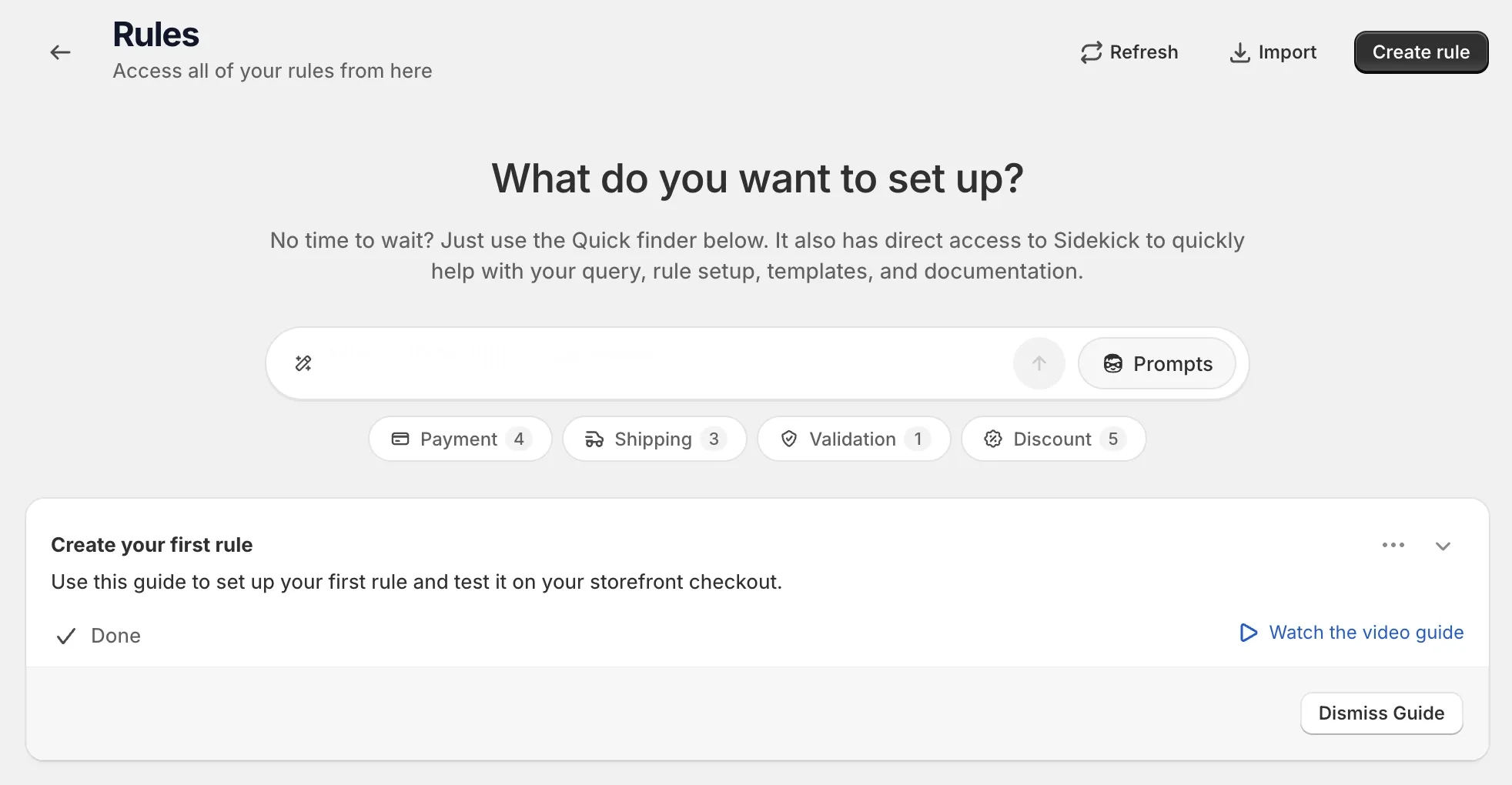
Open Rules and click Create rule.
-
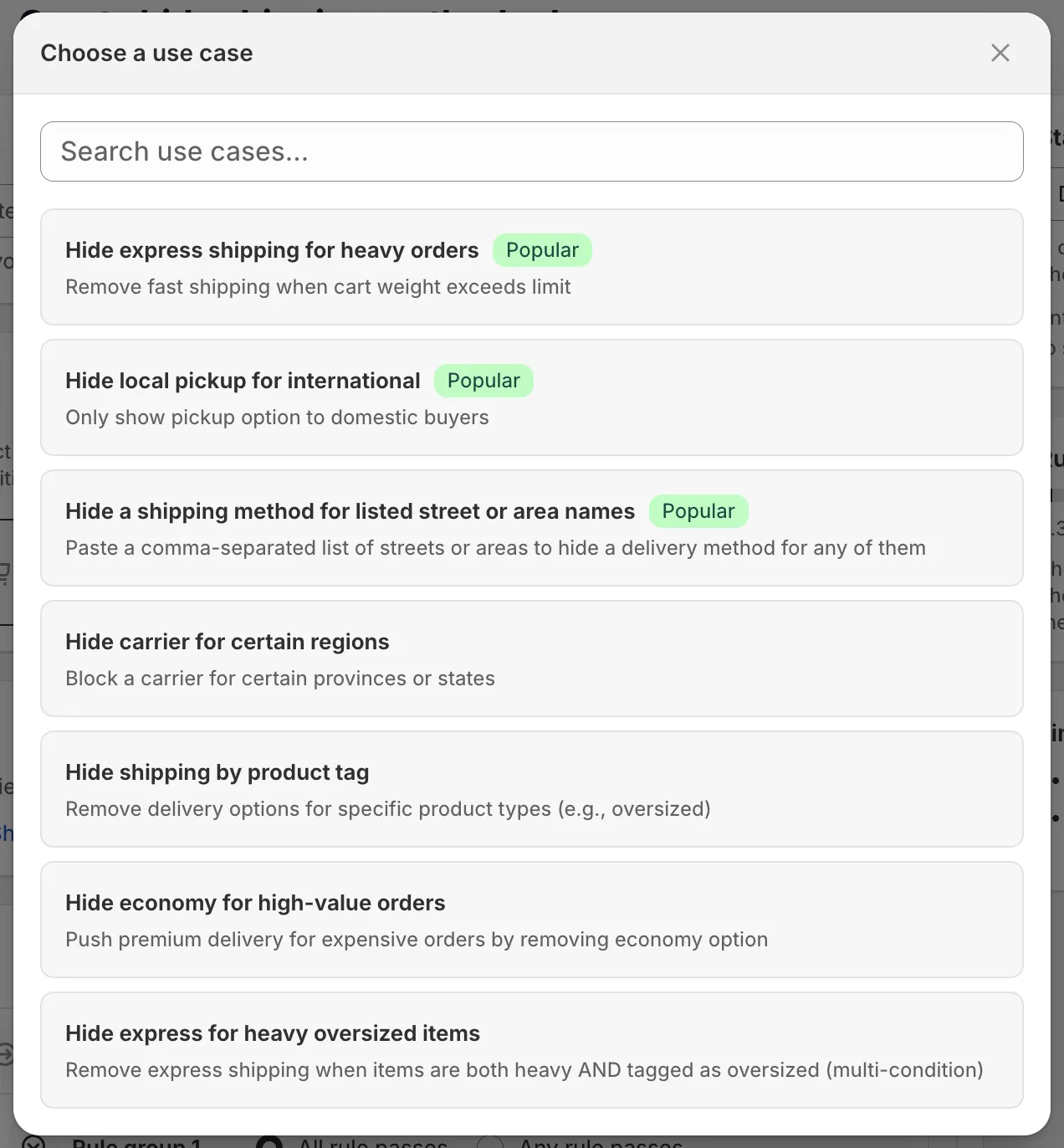
Under Shipping, find Hide shipping methods, click Select, then click Start from a use case and pick Hide a shipping method for listed street or area names.
-
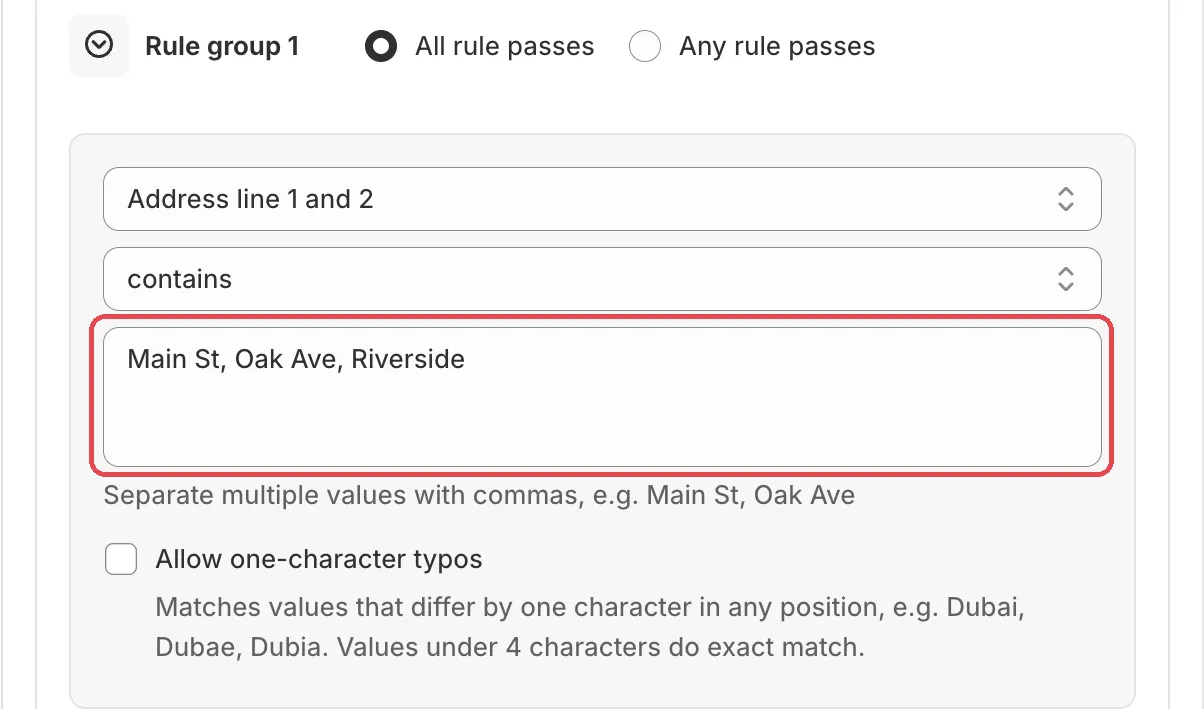
Paste your list of streets or areas.
In the Address line 1 and 2 field, replace the sample values. Separate values with commas. Case doesn’t matter, and spaces around commas are ignored. See Several values in one field.
If you like, tick Allow one-character typos. Shoppers often mistype street names. With this on, a value one character off still matches, for example “Dubai”, “Dubae” and “Dubia”. Values under 4 characters still need an exact match. See One-typo matching.
Caution With does not contain or is not, a typo now counts as a match, so the rule fires less often. Use exact matching if that could give a cheaper method to the wrong area.
-
Set the shipping method to hide, and watch the rule size.
Change the sample
Standardto your rate’s name, using Name contains or Name is. Long lists use the most space. If the Rule size card gets close to the limit, split the list into two rules. See Rule size.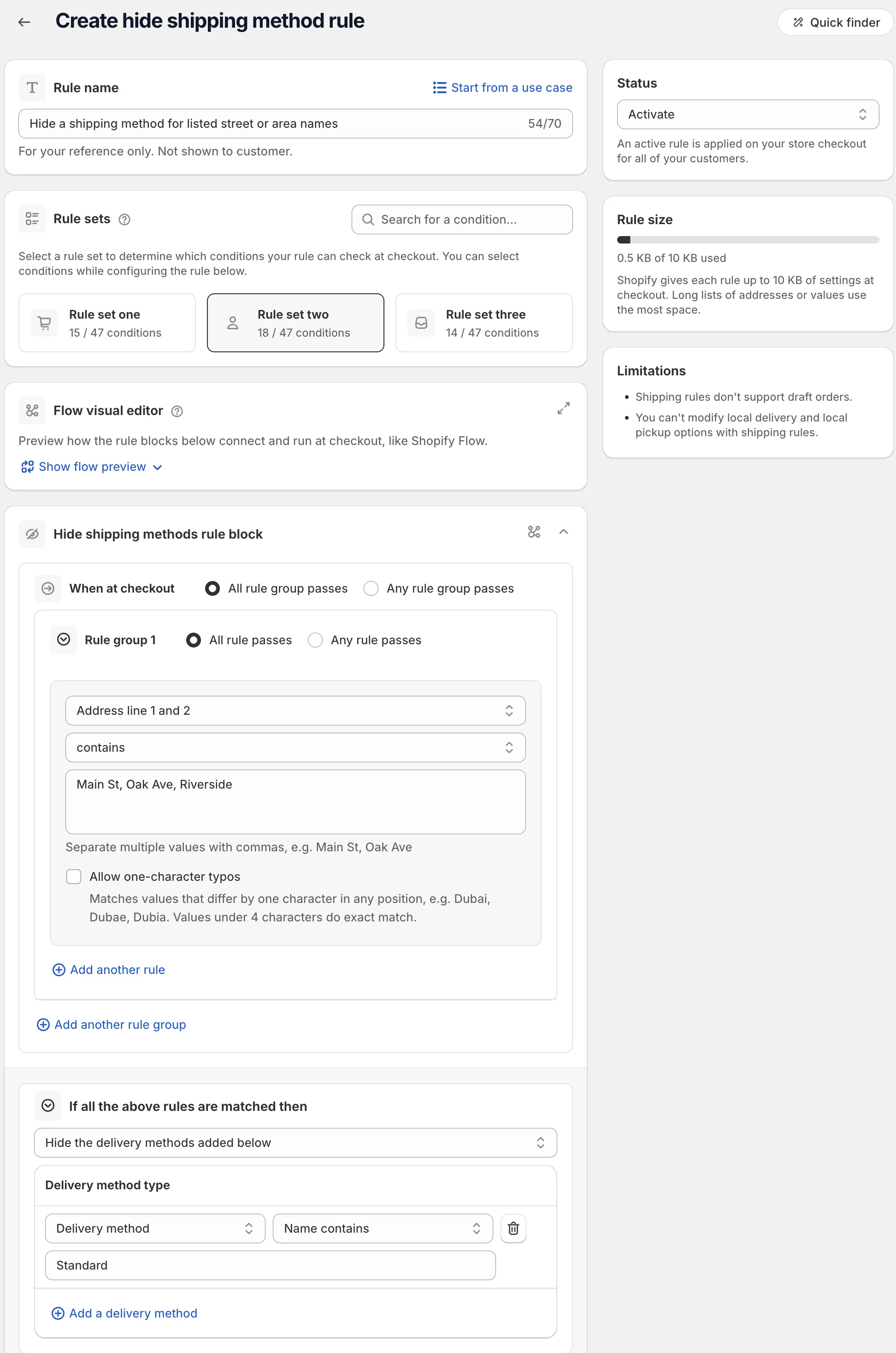
-
Save it as a draft, test it, then activate it.
In the Status card, choose Draft and save. At checkout, enter the test email from the rule’s Status card and an address on your list. The method should be gone. Try an address with one typo if you turned that on.
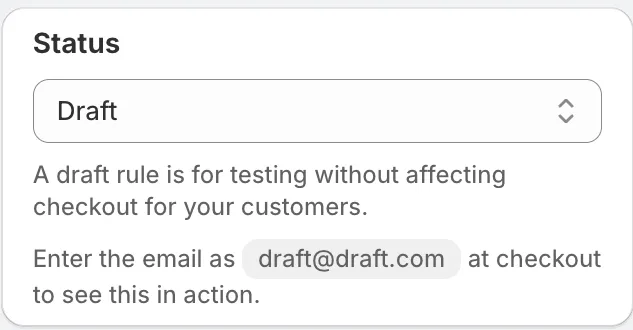
When it works, choose Activate in the Status card and save.
Variations
- Match by city instead: in rule set one, use City / Area. It also has Allow one-character typos.
- Block checkout instead of hiding a method: use a Checkout validation rule with an address condition. One-typo matching is only in hide shipping rules.
- Hide a carrier for whole states: use Hide carrier for certain regions.
Limits
- Allow one-character typos works only in Hide shipping methods rules, on City / Area (rule set one) and Address line 1 and 2 (rule set two).
- Each rule has 10 KB of settings at checkout. Very long lists need two rules.
- Local delivery and local pickup options can be hidden too.