 See it in action
 Install and turn on the app embed
On this page
Install AndOr from the Shopify App Store, then turn on its app embed in your theme.
Note Checkout rules do not need the app embed. They run inside Shopify’s checkout. The embed is only for storefront widgets and upsell offers.
Note AndOr’s blocks need an Online Store 2.0 theme. Every theme in the Shopify Theme Store is one today. The cart drawer parts need Horizon 4.0+, Dawn 15.5+ or another theme that sends Shopify’s storefront cart events. See Theme requirements.
Install the app
-
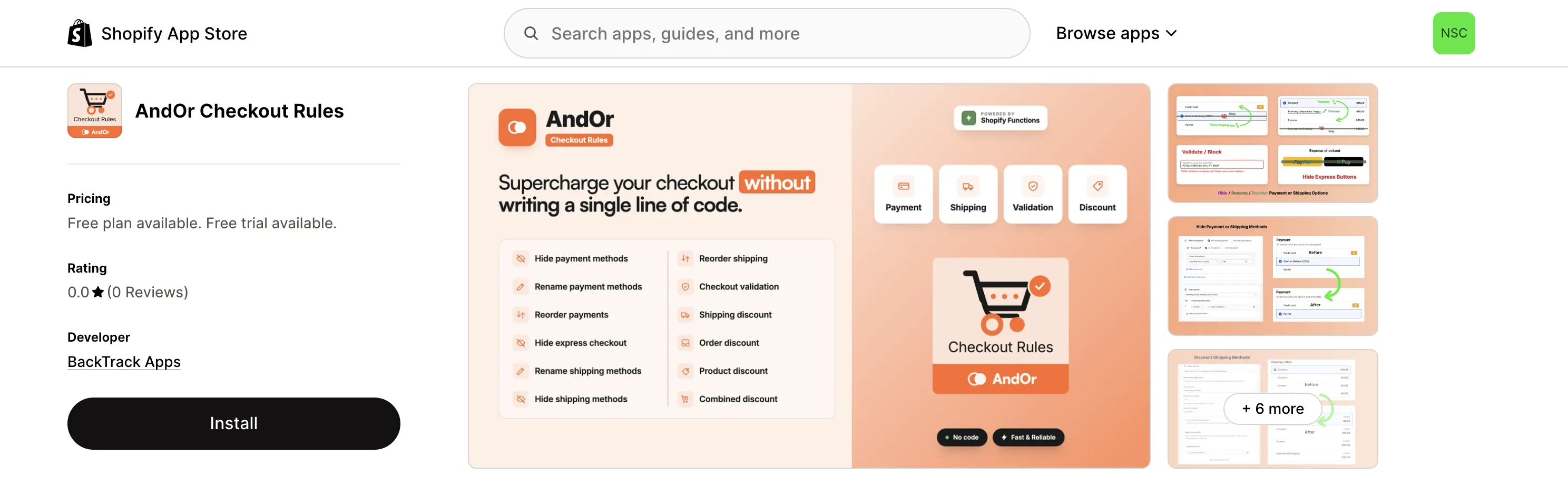
Open AndOr on the Shopify App Store and click Install.
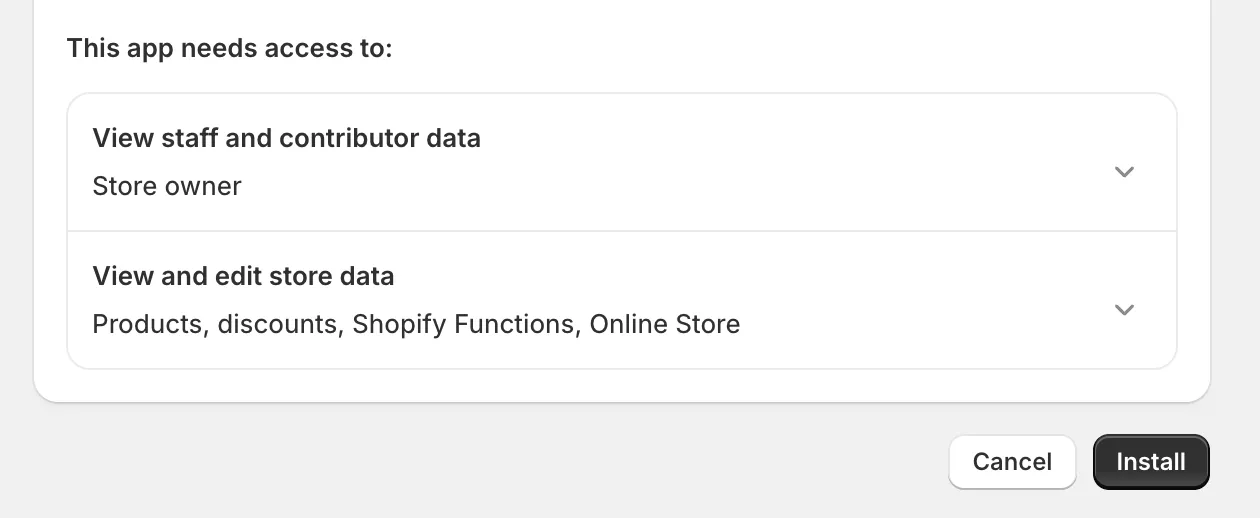
Go to AndOr on the Shopify App Store. Shopify asks you to approve the app’s access to your store. The list includes reading your orders. AndOr uses your orders to bill you by your store’s orders a month and to show Analytics. Check the list and click Install.
Already logged in to Shopify? Install on your store opens your active store with an Install button.
-
Wait for AndOr to open in your Shopify admin.
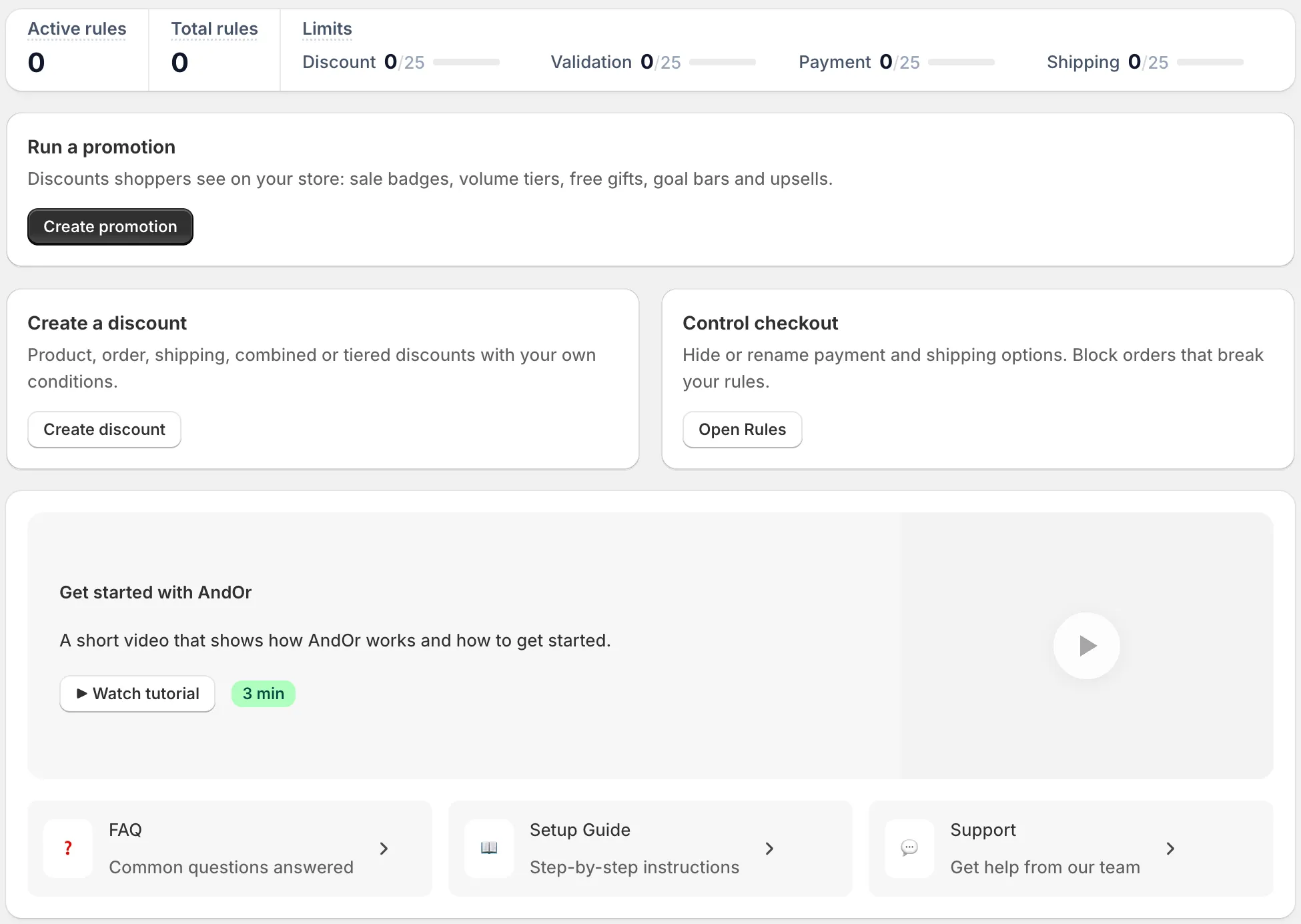
A fresh install opens on Home. You find it later under Apps in your Shopify admin. On a new store, Home’s cards are where you start.
Pick what to do first
Home shows three cards. You can do the others later.
- Run a promotion: “Discounts shoppers see on your store: sale badges, volume tiers, free gifts, goal bars and upsells.” Click Create promotion to open Promotions.
- Create a discount: “Product, order, shipping, combined or tiered discounts with your own conditions.” Click Create discount.
- Control checkout: “Hide or rename payment and shipping options. Block orders that break your rules.” Click Open Rules.
Below the cards, Get started with AndOr has a video, then links to the FAQ, the setup guide and support.
While a setup guide is not finished, Home shows Finish setup, with how many steps you have done, for example Promotions: … done with Continue on Promotions, or Your first rule: … done with Continue on Rules.
Turn on the app embed
The app embed is called AndOr Discount Display. Turn it on once per theme.
Blocks show without the app embed, using the default colors and text. The embed adds the cart drawer parts, one-line tags, your brand color and your text changes. See the Works without / Needs the app embed table. We recommend turning it on. It takes one click.
-
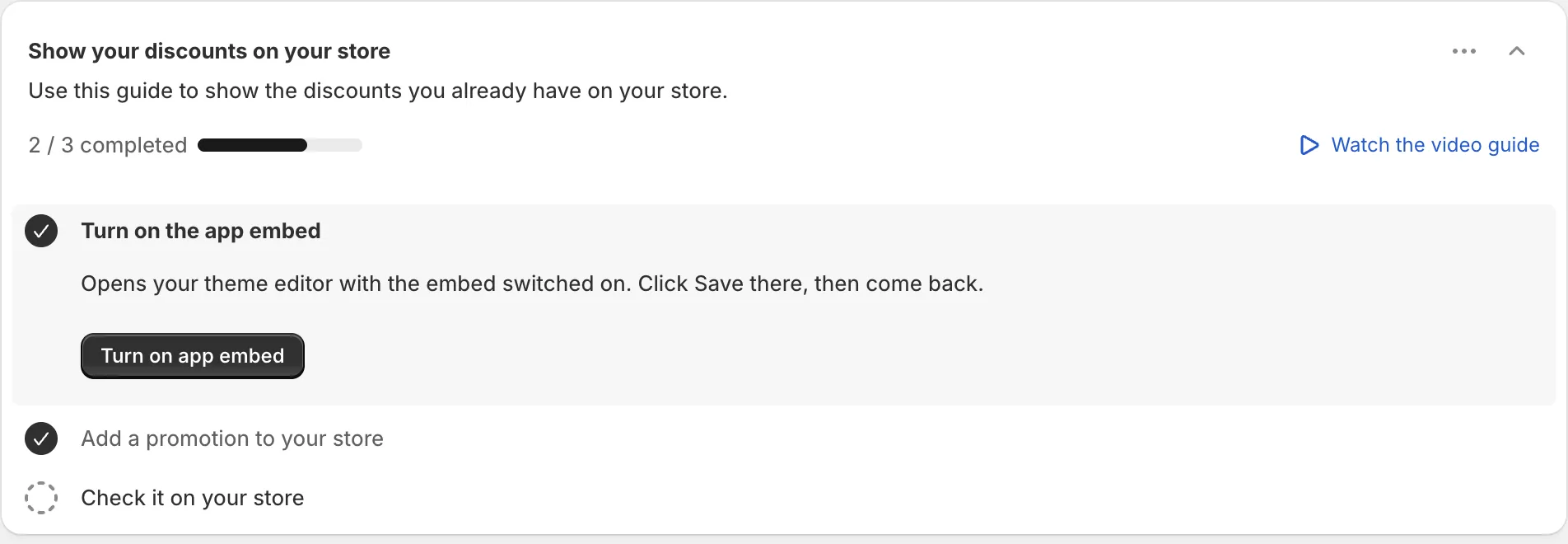
On Promotions, click Turn on app embed.
This is step 1 of the Create your first promotion guide at the top of the Promotions page: Turn on the app embed. The app says: “Opens your theme editor with the embed switched on. Click Save there, then come back.”
-
In the theme editor, check that AndOr Discount Display is on, then click Save.
Open App embeds in the left panel. The AndOr Discount Display switch should be on. The embed is not on until you save. Then go back to the AndOr tab.
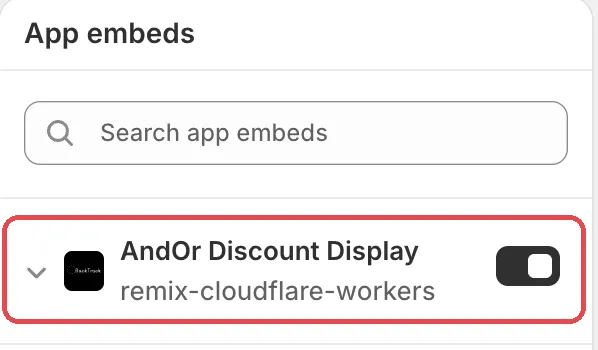
Tip You can also turn on the embed from Promotions > Storefront widgets. The setup card there has the same Turn on app embed button.
Caution If you change or publish a new theme, turn the embed on in that theme too. Each theme has its own app embeds.
What needs the app embed
Without the embed, these don’t work:
- One-line tags. They show nothing.
- The cart drawer: claim rows, the gift slot and the gift chooser in the drawer, and the goal bar in the drawer when the cart is empty.
- The shared look settings (Sale price color, Original price color, Corner radius, Style preset, Custom CSS). Widgets use the default look instead.
- Your text overrides and translations. Widgets show the default text.
- The
andor:widget:*andandor:display:changeDOM events.
To change the embed’s settings, see App embed.
Next: add the widget blocks
The embed alone adds no widgets. Each widget is a theme block that you add where you want it, for example under the product price. When you make a promotion, the What’s next panel opens the theme editor for you. See Your first promotion.