 See it in action
 Rename payment methods
On this page
“Rename or translate payment methods shown at checkout.” For example, show “Credit Card (+2% fee)” instead of “Credit Card”, or add a note to Cash on Delivery.
Before you start
- Note the payment method names as shoppers see them at checkout.
- Methods shown as a logo (Shop Pay, PayPal, Apple Pay, Google Pay, Amazon Pay and similar) can’t be renamed. See Limits.
Set it up
-
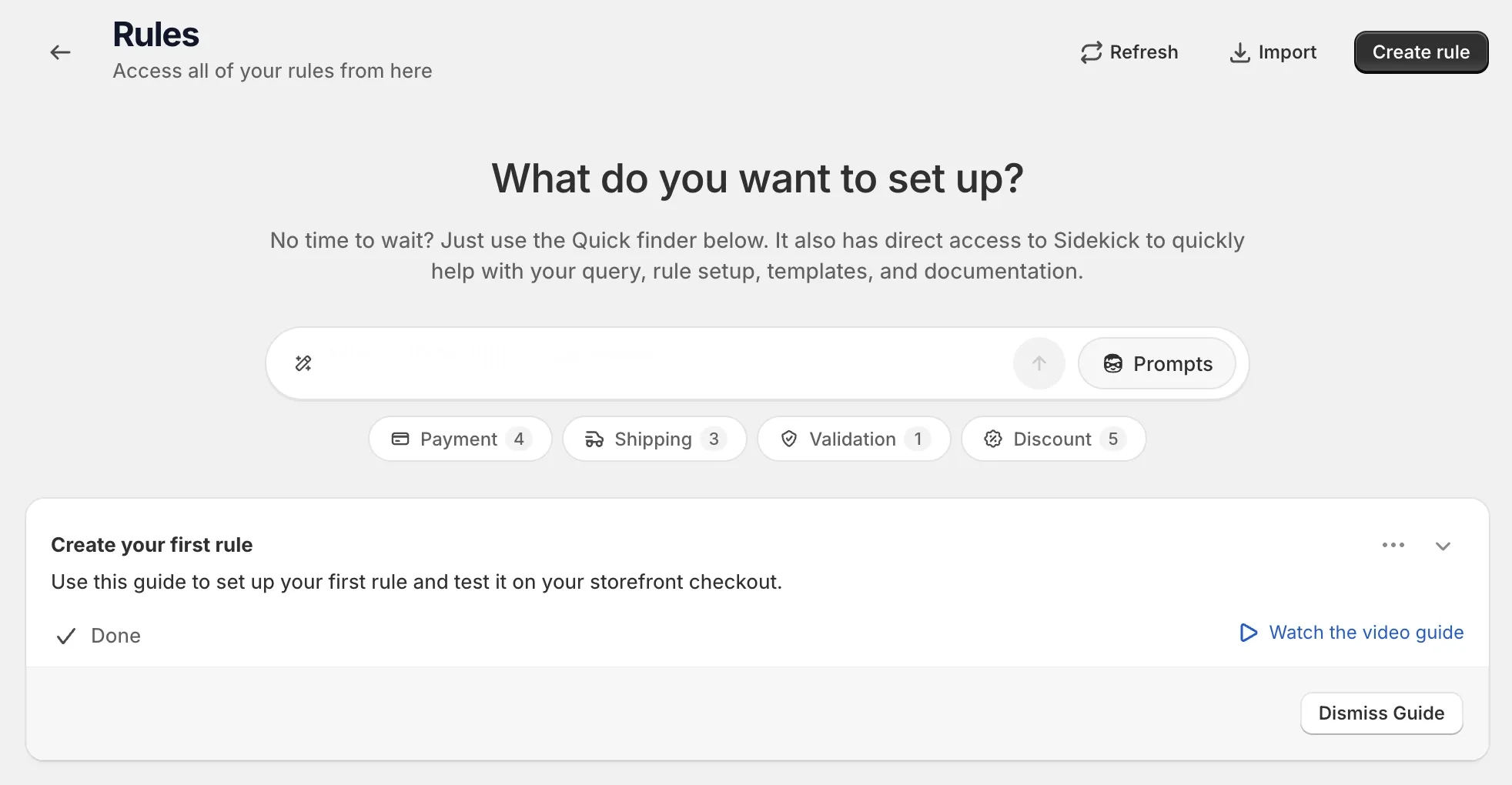
Open Rules and click Create rule.
-
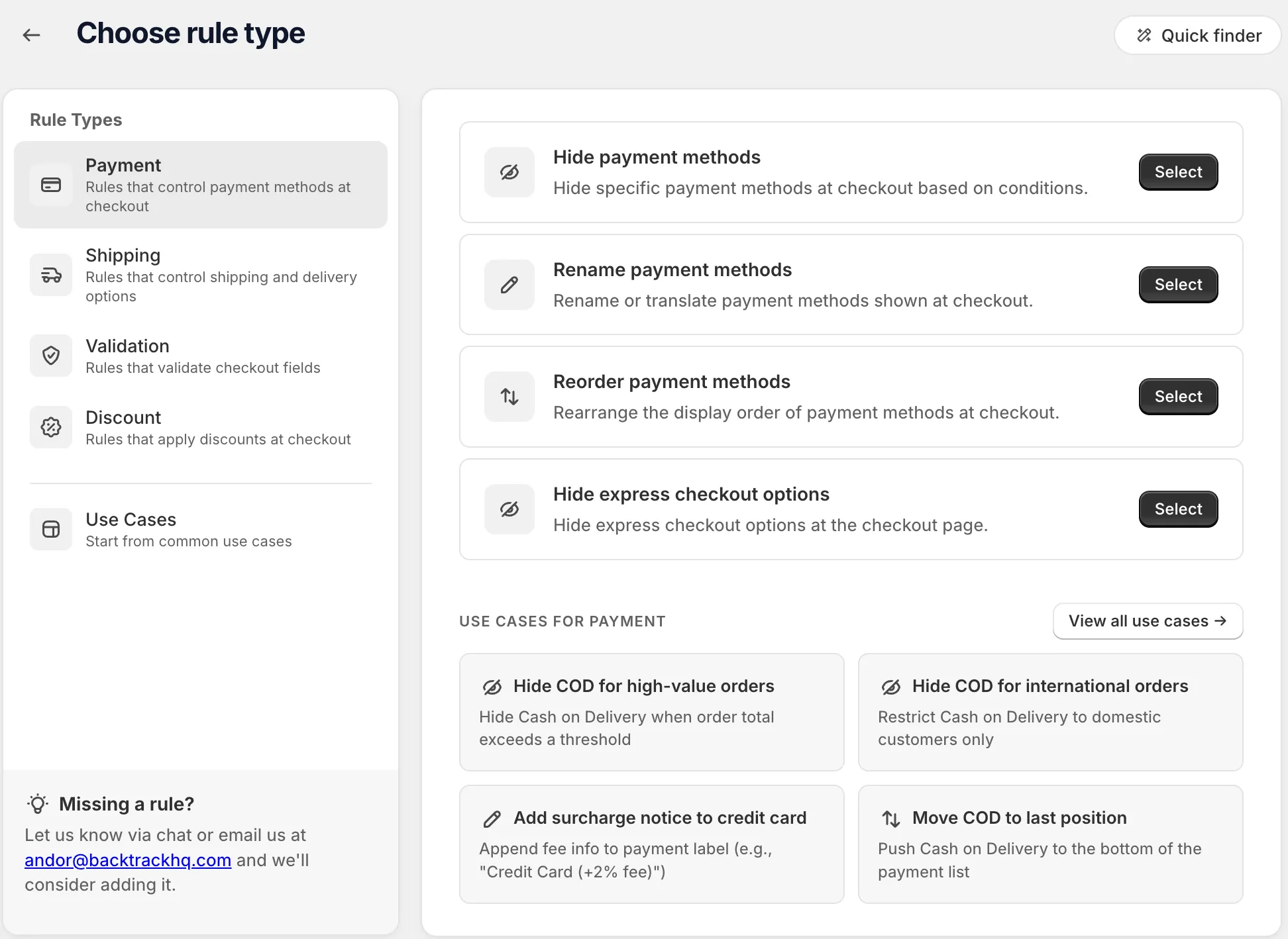
Under Payment, find Rename payment methods and click Select.
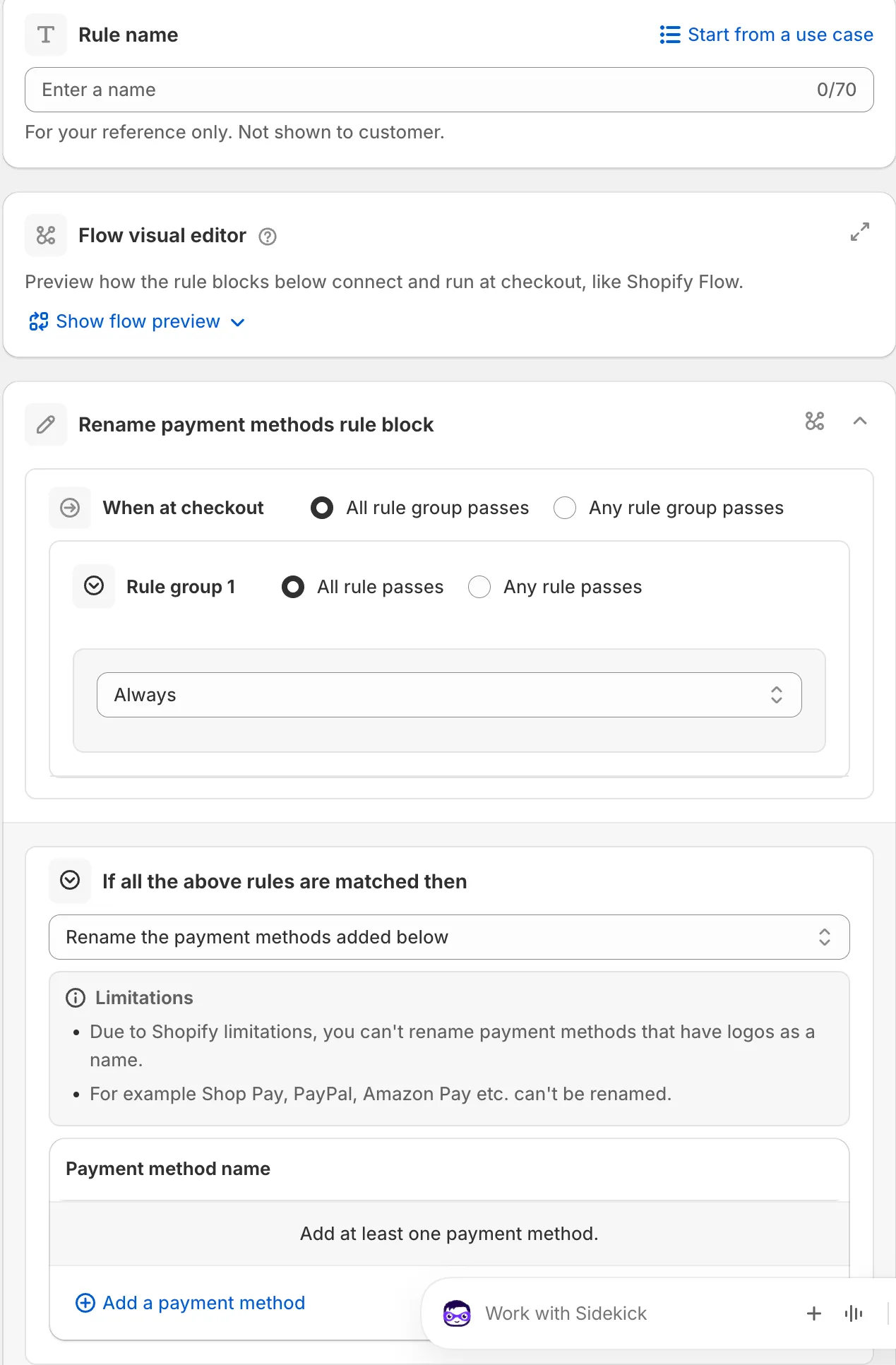
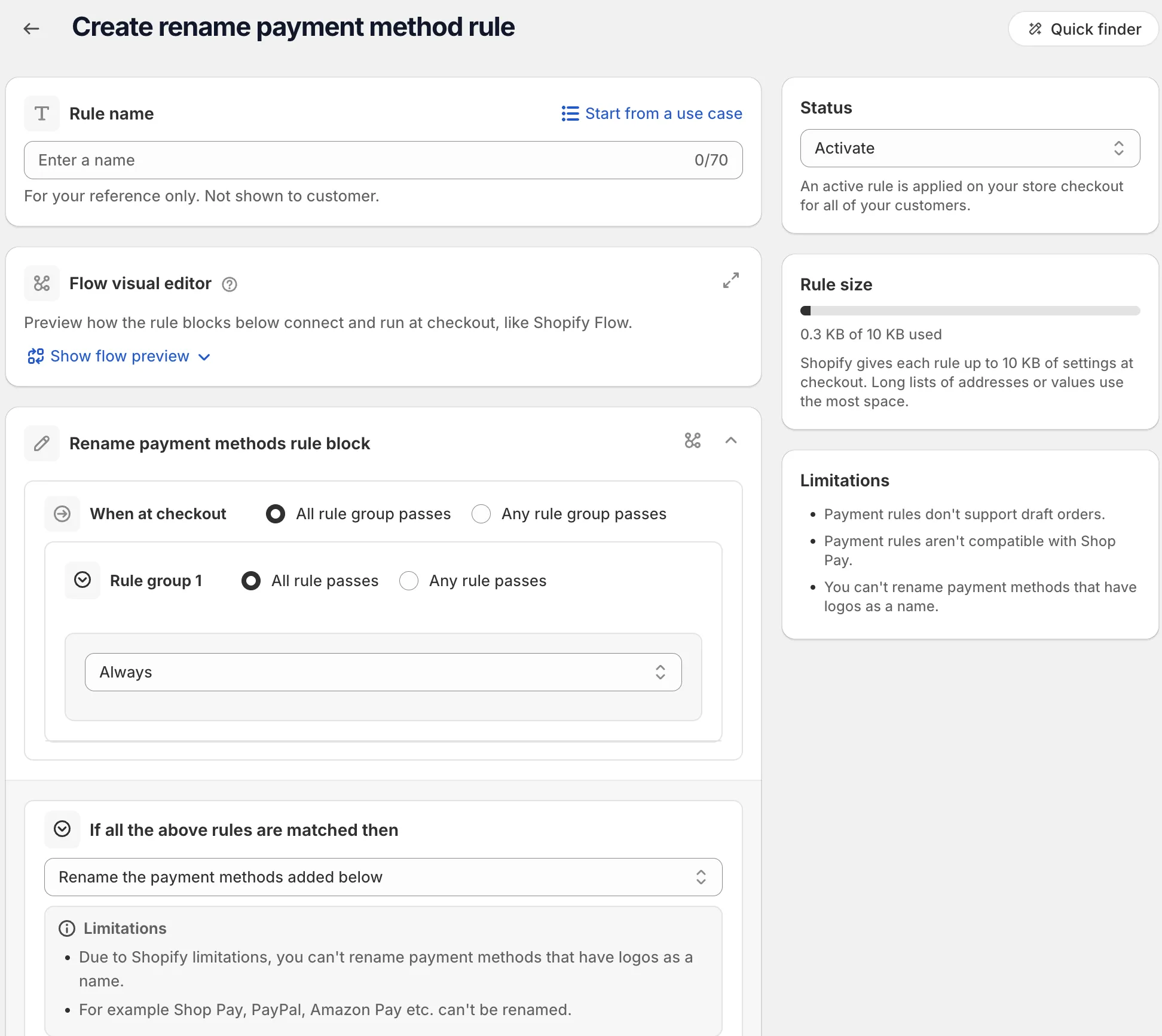
On the rule page, name the rule, or click Start from a use case to fill in the whole form. The name is for your reference only. Shoppers don’t see it. See Start from a use case.
-
Add your conditions under When at checkout.
For example Order total amount is greater than or equals an amount, or Country code. Rename rules have no Rule sets card. The conditions list is fixed. See Conditions, groups and blocks.
-
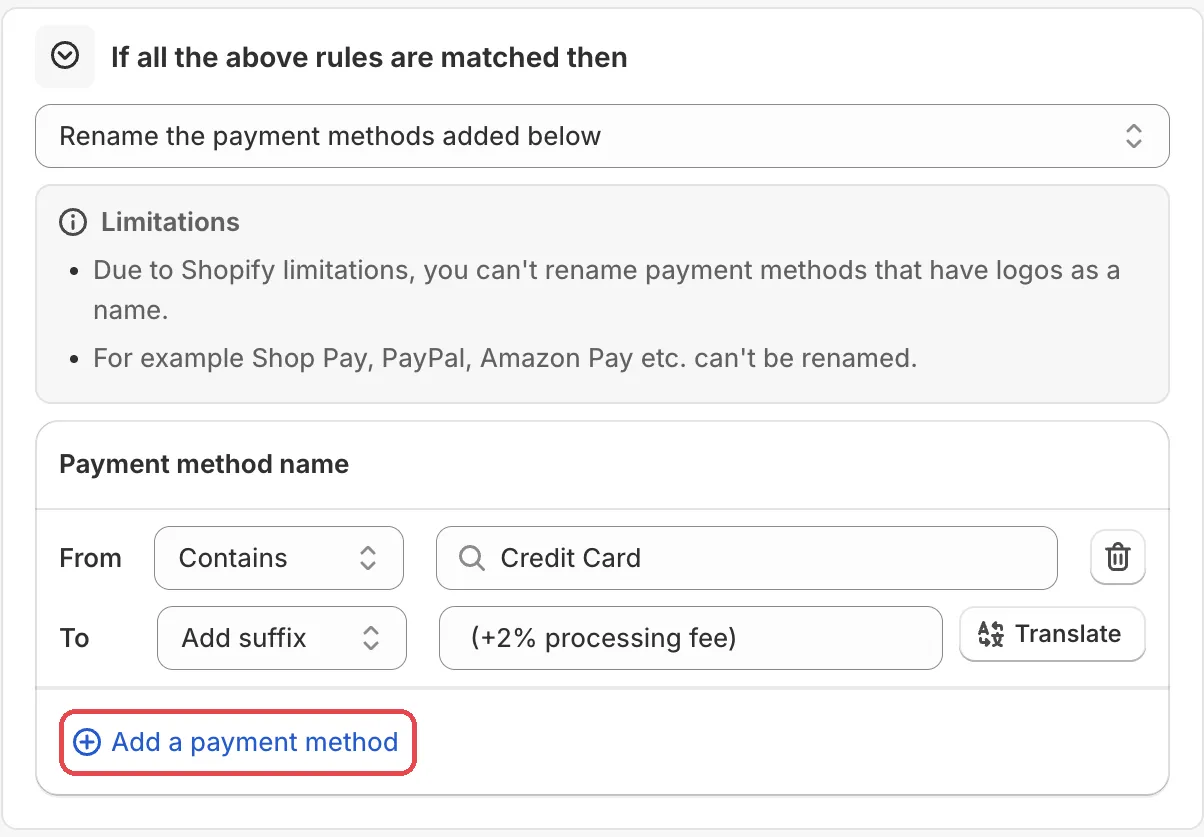
Add the payment methods and their new text.
The action is Rename the payment methods added below. Click Add a payment method. In each row pick how to find the method (From) and what to do (To), then type the new text. If you sell in more than one language, click Translate next to the text. See Translate shopper messages.
-
Save it as a draft, test it, then activate it.
In the Status card, choose Draft and save. Then go to checkout on your store and enter the test email from the rule’s Status card. Only this email sees a draft rule. Check the payment method names.
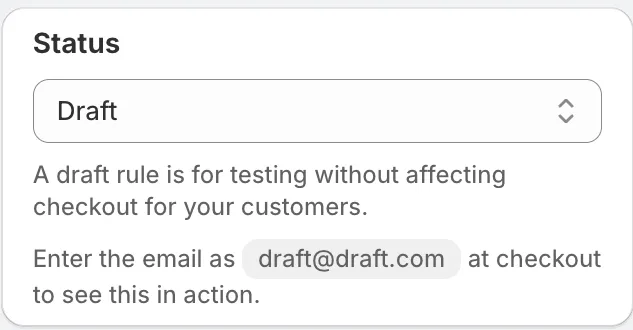
When it works, choose Activate in the Status card and save.
Actions
Rename the payment methods added below
The only action for this rule type. It changes the label of each method you add to the list.
Settings
From
How the rule finds the payment method by its name.
Options: Is, Contains, Not contains, Start with, End with. Default: Contains.
To
What to do with the name.
Options: Rename to, Add message, Add prefix, Add suffix. Default: Rename to.
- Rename to: replaces the whole name.
- Add message: adds a line of text to the method.
- Add prefix: adds your text before the name.
- Add suffix: adds your text after the name.
Rename text
The new name, message, prefix or suffix. It has a Translate button for other languages.
Status
Options: Draft, Activate, Deactivate.
Examples
Open Start from a use case on the rule page and pick one of these:
- Rename COD based on cart total: shows a different Cash on Delivery label for high-value orders, for example “COD, fee applies”.
- Add surcharge notice to credit card: adds fee text to the card label, for example “Credit Card (+2% fee)”.
- Rename payment for international customers: shows a local name for shoppers outside your country.
Limits
The Limitations card on the rule page lists:
- “Payment rules don’t support draft orders.”
- “Payment rules aren’t compatible with Shop Pay.”
- “You can’t rename payment methods that have logos as a name.”
For example Shop Pay, PayPal and Amazon Pay can’t be renamed. See Limits.