 See it in action
 One-typo matching
On this page
Shoppers mistype addresses. “Dubae” instead of “Dubai” makes an exact match miss, so a rule that should hide a shipping method does nothing. Allow one-character typos lets a condition match values that are one character off.
Where it is available
The checkbox only appears in Hide shipping methods rules, on two conditions:
- City / Area, in Rule set one.
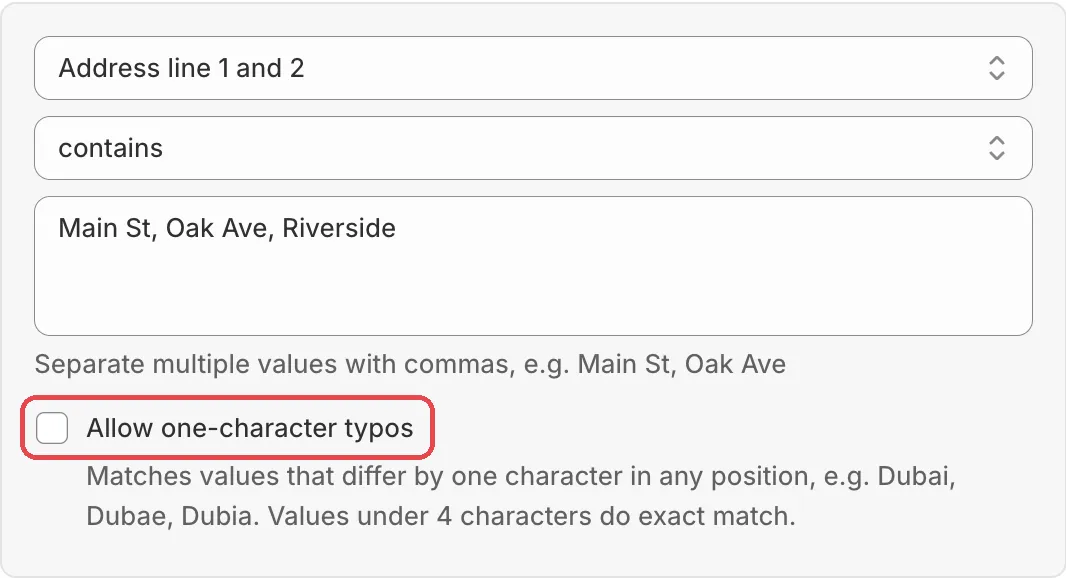
- Address line 1 and 2, in Rule set two.
Every other condition and rule type matches exactly. Zip codes, phone numbers and company names always match exactly, because one wrong digit is a different place.
Turn it on
-
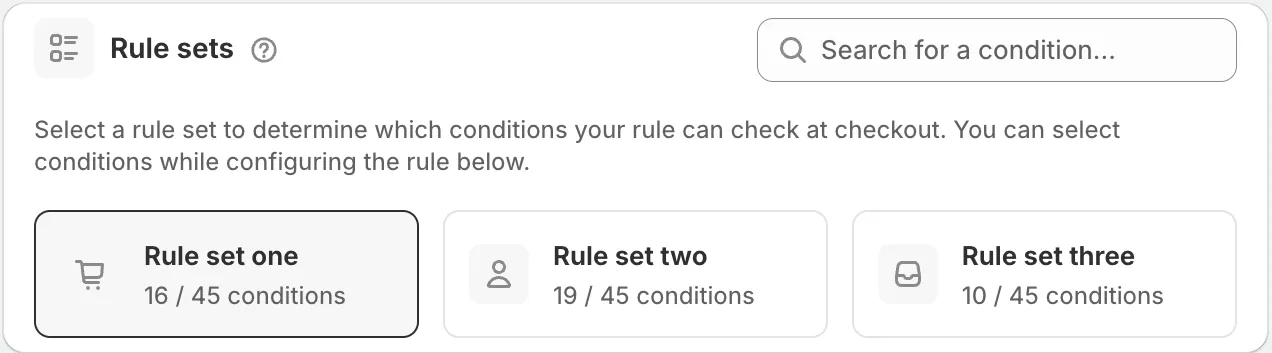
Open a Hide shipping methods rule and pick Rule set one or Rule set two.
-
Add the City / Area or Address line 1 and 2 condition, type your values and tick Allow one-character typos.
You can type several values separated by commas. See Several values in one field. Allow one-character typos is off by default. Then save the rule.
What counts as one typo
One of these, anywhere in the value:
- One wrong character: “Dubae” for “Dubai”.
- One extra character or one missing character.
- Two neighbour characters swapped: “Dubia” for “Dubai”.
Upper and lower case never matter. With the box ticked, hyphens, dots, commas, apostrophes and slashes count as spaces, so “Al-Gadheer” and “Al Gadheer” are the same.
Everything that matched before still matches. The checkbox only adds near misses.
Short values stay exact
Values under 4 characters always match exactly. “RAK” never matches “RAS”.
Careful with negative operators
Caution With does not contain or is not, a value one character off now counts as a match. So the rule fires less often. The app shows a warning under the checkbox when you pick these operators. Use exact matching if a miss could give a cheaper shipping method to the wrong area.
Tip Put the checkbox on the rule that hides the cheap method for costly areas. Then the worst case is that a shopper sees paid shipping.
In the flow editor
The flow visual editor and the rule summary add “(typos allowed)” after the operator, for example “contains (typos allowed)”. So you can see at a glance which conditions accept typos.