 See it in action
 Tables and funnel
Paid planThe breakdown tables are on paid plans, Starter and up. The funnel is on every plan, the Free plan too.
On this page
Below the chart, the Analytics page breaks your results down. The Funnel shows where shoppers drop off. Four tables split the results by promotion, upsell offer, placement and offer type.
All of them follow the Date range, Compare to and filter at the top of the page. See Analytics overview.
Funnel
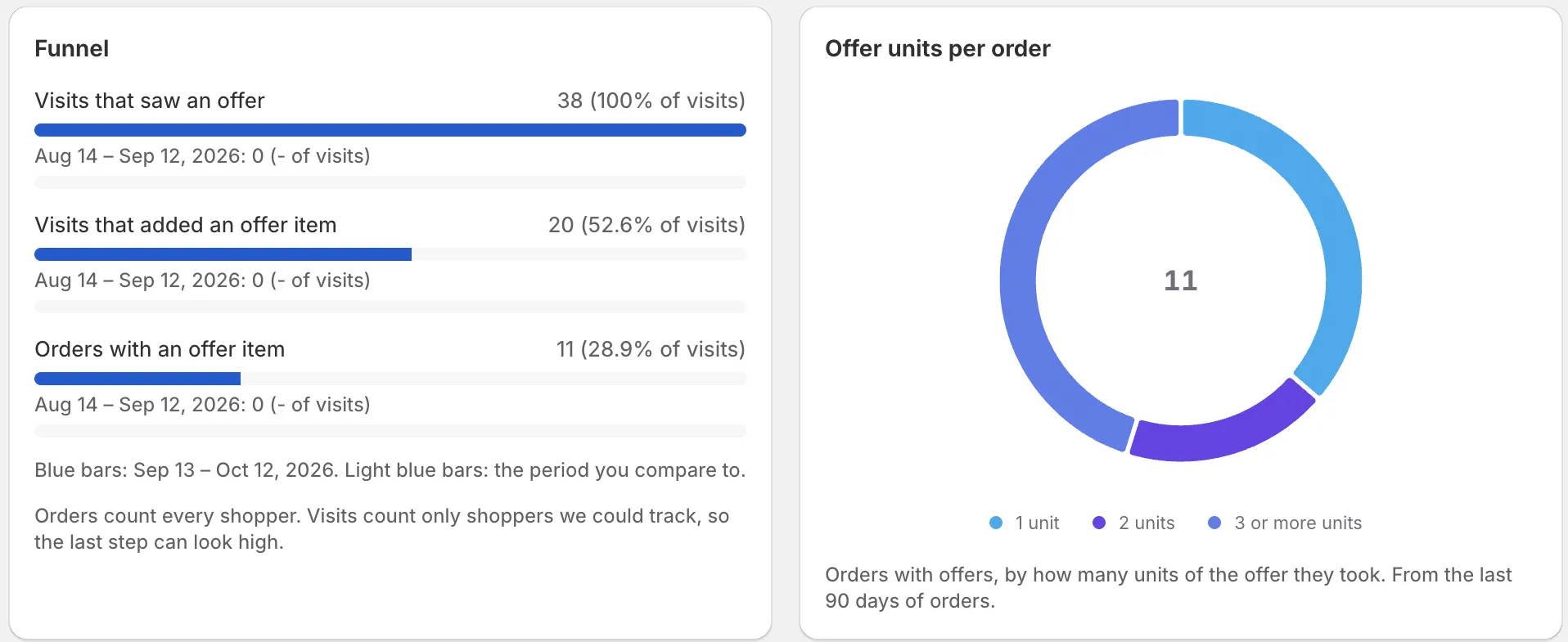
What it is: the Funnel card has three steps:
- Visits that saw an offer
- Visits that added an offer item
- Orders with an offer item
Each step shows its count and, in brackets, its share of the visits that saw an offer. The bar length matches the share.
With Compare to set to Previous period, each step has a second, lighter bar for the earlier period. “Blue bars: … Light blue bars: the period you compare to.”
Why it matters: it shows the step where shoppers give up. That is the step to fix.
How to use it:
- Big drop from step 1 to step 2: shoppers see the offer but don’t add. Try a clearer message or other products.
- Big drop from step 2 to step 3: shoppers add but don’t buy. Check that the discount applies at checkout and combines with your other discounts.
Note “Orders count every shopper. Visits count only shoppers we could track, so the last step can look high.” See How we count.
Offer units per order
What it is: this card sorts orders with offers by how many units of the offer they took: 1 unit, 2 units or 3 or more units. It uses the last 90 days of orders. With no orders it says “No orders with offers in these days.”
Why it matters: it shows if shoppers go for your higher tiers.
How to use it: if almost every order takes 1 unit, your volume tiers may ask for too much. Try a lower second tier.
Breakdown tables
Every table has the same number columns, so they read alike.
How to use them: click Columns to hide columns you don’t need. The name column always shows. The CSV export still has every column. To sort the rows, export the CSV and sort it in a spreadsheet.
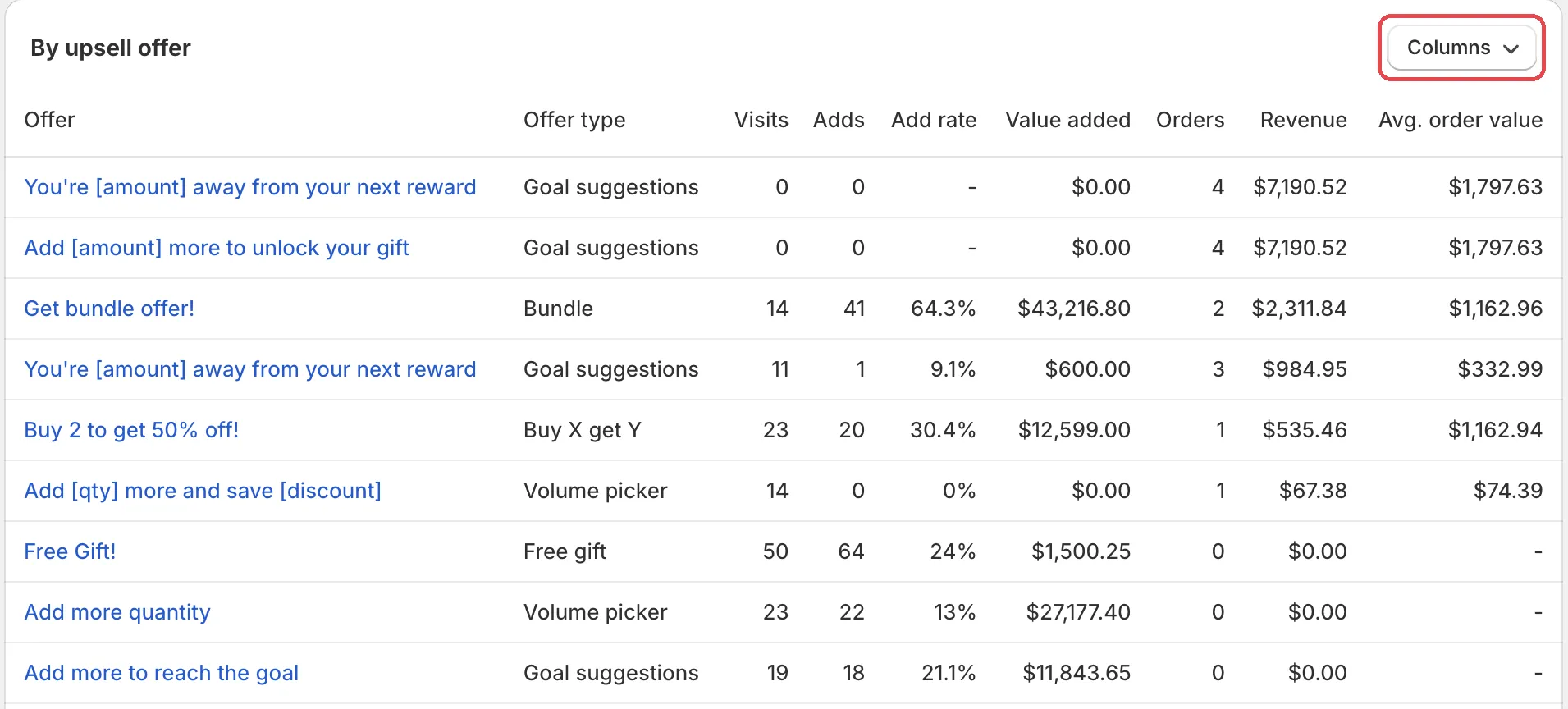
Table columns
Offers
How many upsell offers the promotion has. By promotion only.
Added revenue and Discount orders
Added revenue, and orders where the promotion’s discount applied. By promotion only. “Added revenue and discount orders come from orders where your AndOr discount applied, from the last 90 days.”
Visits
Visits that saw the offer. Use it to check reach.
Adds
Times shoppers added an offer item.
Add rate
Visits with an add, out of visits that saw it. Use it to compare offers with different traffic.
Value added
The price of items added through offers. An estimate, higher than revenue.
Orders and Revenue
Orders with an offer item, and what those items sold for. These are the real results.
Avg. order value
“Avg. order value is the whole order total of orders with this offer, before refunds. From the last 90 days of orders.”
See Metrics for the full meaning of each.
By promotion
What it is: one row per promotion. The name links to the promotion. Columns: Offers, Added revenue, Discount orders, Visits, Adds, Add rate, Value added, Orders and Revenue.
- A name with a star (
*) has an offer linked to two promotions. “One offer here is linked to two promotions, so it counts under both. These rows can add up to more than the total.” - With no offers yet: “No promotion has an upsell offer yet.”
Why it matters: it compares whole promotions: the discount and its offer together.
How to use it: find the promotion with the highest Added revenue. That one brings the most extra money. Click its name to open it and copy what works.
By upsell offer
What it is: one row per offer. The name opens the offer form. Columns: Offer type, Visits, Adds, Add rate, Value added, Orders, Revenue and Avg. order value.
Why it matters: it shows which single offer works best.
How to use it: look for offers with many visits but a low add rate. Click the name and try a new message.
By placement
What it is: one row per place: Product page, Cart page and Cart drawer. Columns: Visits, Adds, Add rate and Value added.
“Orders have no placement, so this table shows storefront activity only.” A visit counts once for each place where the shopper saw the offer.
Why it matters: it shows where on your store offers work best.
How to use it: if one place has a much lower add rate, untick it in the offer’s Where it shows. See Message and where it shows.
By offer type
What it is: one row per offer type, like Goal suggestions or Free gift. Columns: Visits, Adds, Add rate, Value added, Orders, Revenue and Avg. order value.
Why it matters: it shows which kind of offer suits your shoppers.
How to use it: if one type clearly wins, use it on more products. See Offer types.