 See it in action
 Collection banner promotion
On this page

A collection banner promotion takes a percent off a collection and shows a banner with the saving at the top of that collection’s page.
At a glance
| Gallery group | Promotions with storefront widgets |
| Discount | Percentage off one collection. Default: 20% off. |
| Theme block | AndOr Collection banner, on the collection page |
| Upsell offer | None |
| What the app embed adds | Shared look settings and your Storefront text. The block shows without it. |
Before you start
- Pick the collection that goes on sale. The banner shows on that collection’s own page.
- Turn on the app embed if you want shared look settings or your own wording. See Install and turn on the app embed. For what works without it, see the app embed table.
Set it up in the app
-
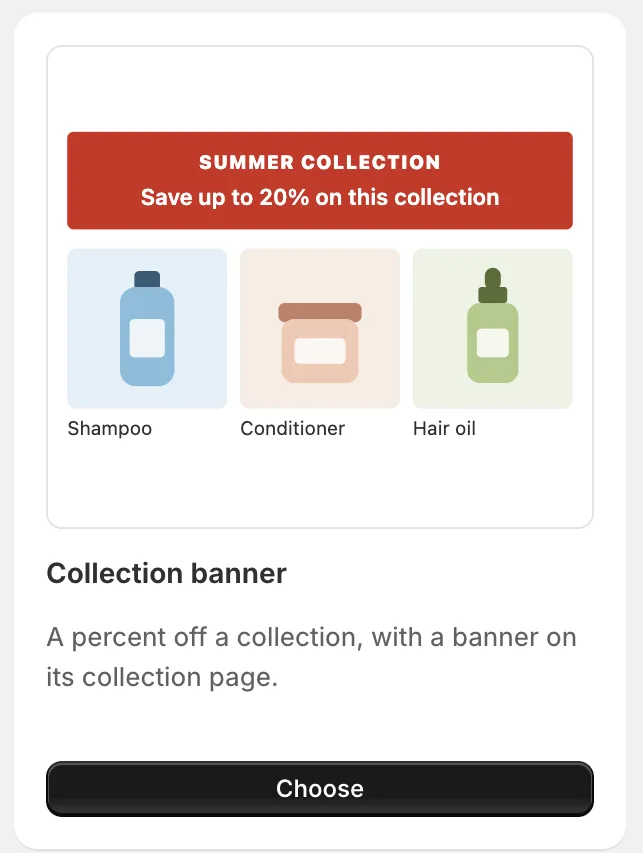
Open Promotions, click Create promotion, then click Choose on the Collection banner card.
It is under Promotions with storefront widgets.
-
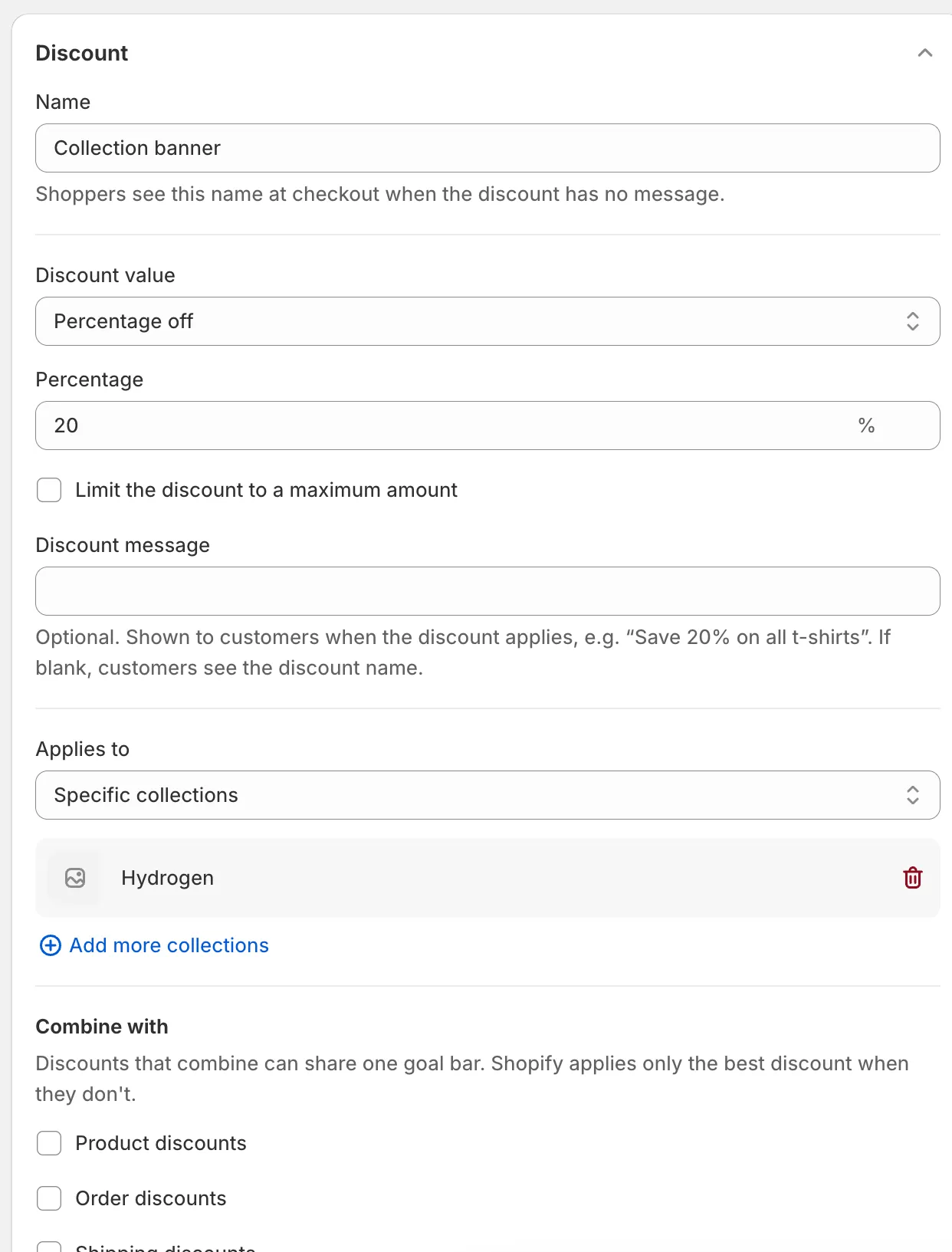
Pick the collection and set the discount in the Discount section.
The page starts at 20% off a collection you pick. A banner says “Pick the collection for this promotion. Storefront widgets can’t show a product tag.”
Until you pick, Make it live won’t save. It says “Pick a collection under Discount first.”
-
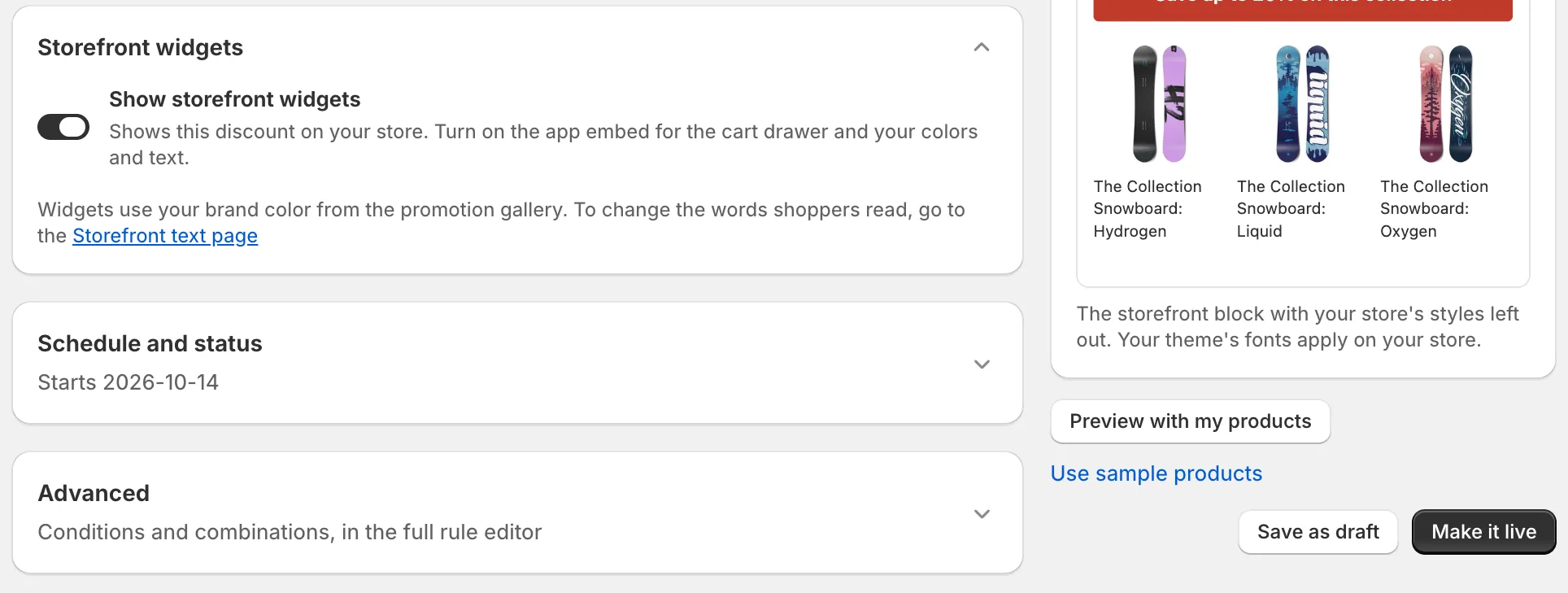
Check the Storefront widgets section.
Show storefront widgets is on by default. Leave it on.
-
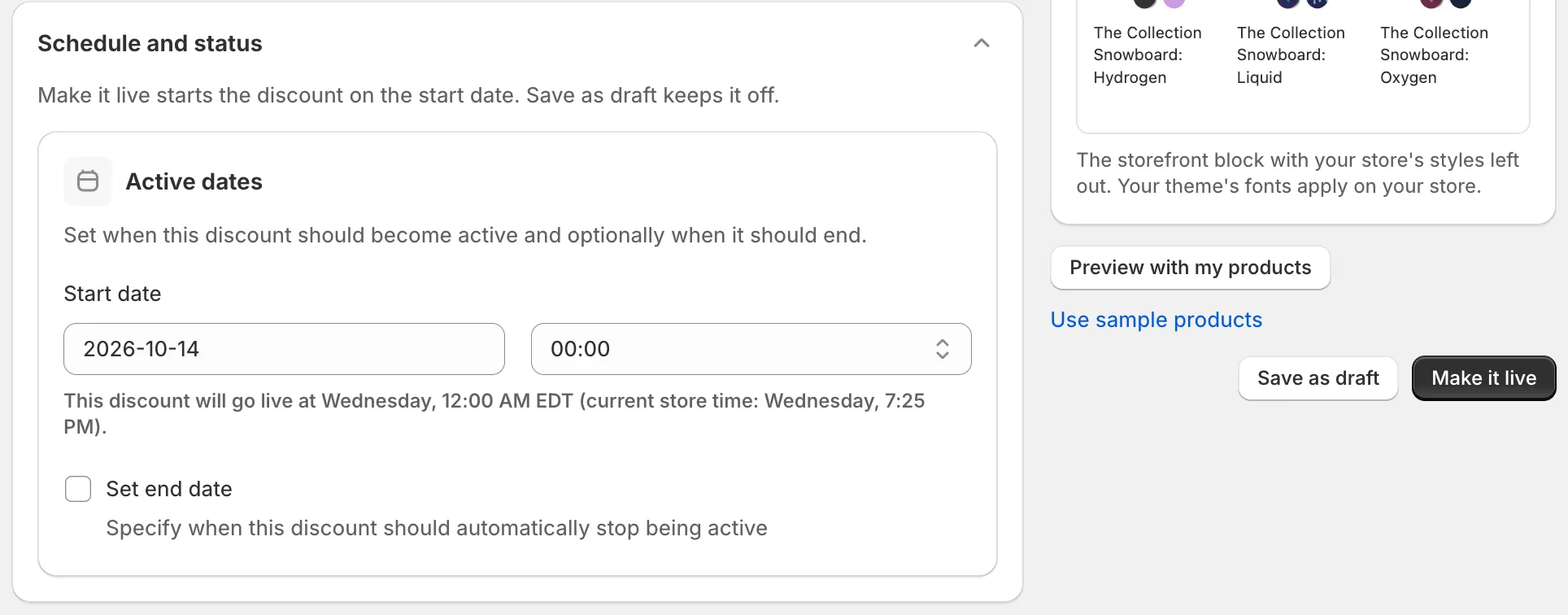
Set the dates in Schedule and status, then click Make it live.
Or click Save as draft to finish later.
Add it to your theme
Note What’s next appears after you click Make it live, not after Save as draft. It goes away when you dismiss it or leave the page. No What’s next panel? Open Promotions. In the row’s Storefront widgets column, click Add block. It shows when the block isn’t in your theme yet.
-
Under What’s next, click Open theme editor.
Add the widget to your theme names the AndOr Collection banner block. The link opens your theme editor with the block added.
-
Drag the block above the product grid, then click Save.
The block works on the collection template only. It shows on every collection that uses that template and has a qualifying discount.
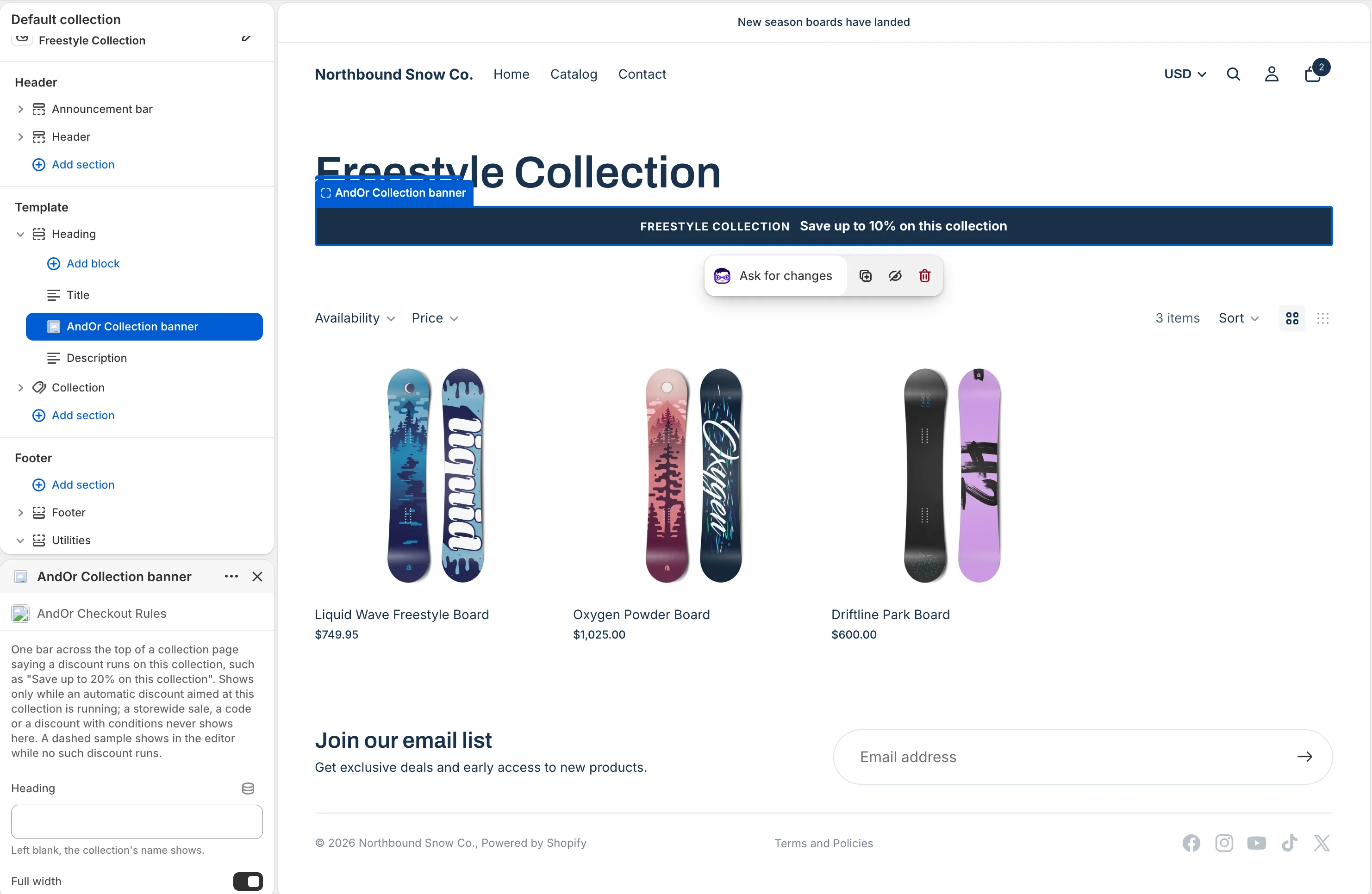
The dashed prices in the editor preview are samples. They show until a discount applies to the products you preview.
-
Set the Heading, if you like.
Left blank, the banner shows the collection’s name. Turn off Full width for a bar only as wide as its text.
All block settings are on the Collection banner widget page.
Check it on your store
-
Under What’s next, click View on store.
It opens the collection from this discount in a new tab. You see the banner above the products, for example “Save up to 20% on this collection”.
-
Under Try it at checkout, click Open store, add a product to the cart, then check out.
The discount comes off at checkout.
Not showing?
- The block is not on the collection template, or you didn’t click Save in the theme editor.
- The discount is not running yet. Check its dates.
- The discount is aimed at some products inside the collection, not at the collection itself.
- The discount needs a code or has conditions.
- It is a storewide sale. Use the Discount callout or Current offers widget instead.
See What it needs to appear and Widgets not showing.
Turn the widget on or off
In Promotions, use the row’s Storefront widgets switch. The discount keeps working at checkout.
Settings and limits
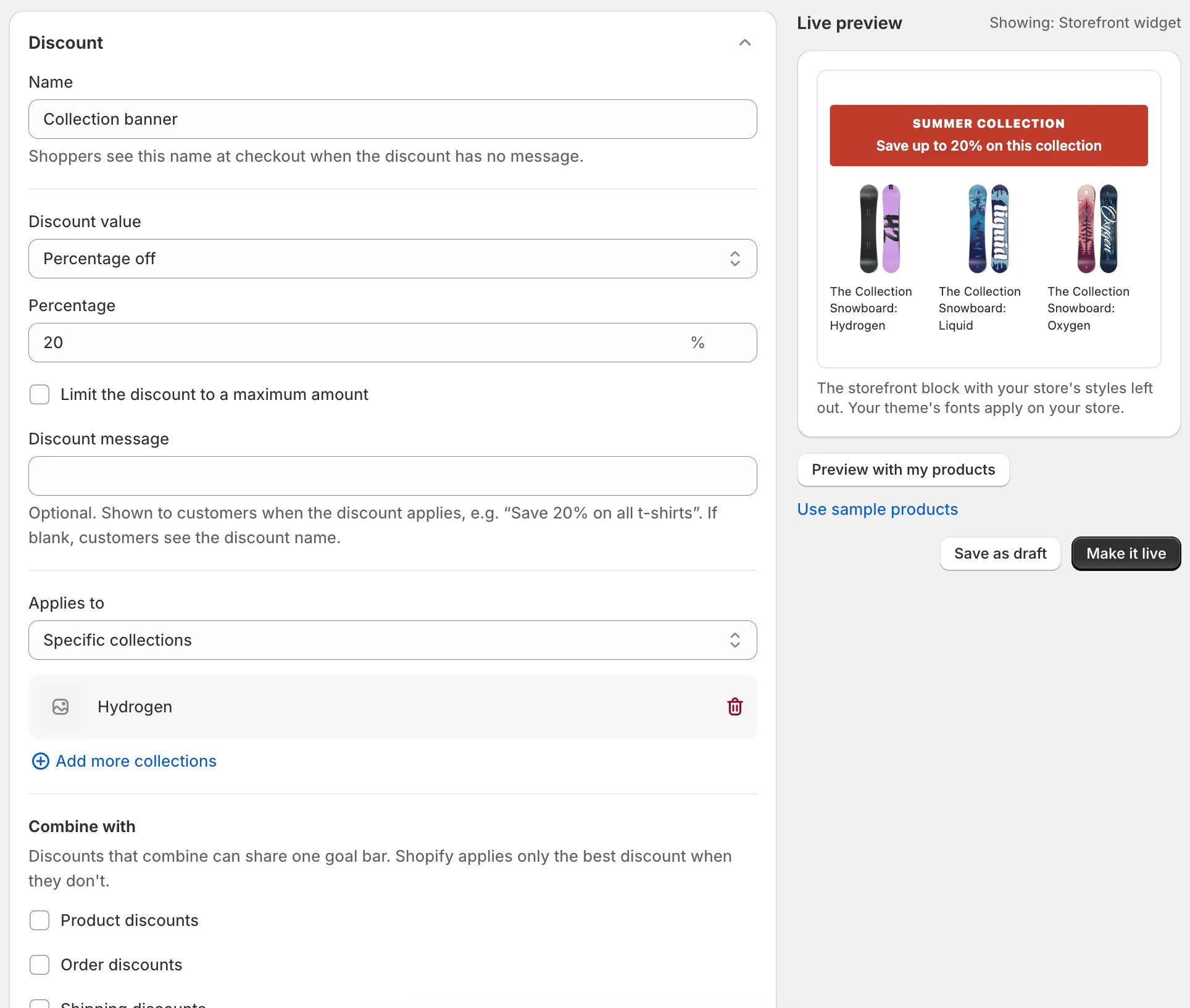
| Setting | What it does | Default |
|---|---|---|
| Name | Shoppers see it at checkout when the discount has no message. Up to 60 characters, and different from your other discounts’ names. | Collection banner |
| Discount value | Percentage off, Fixed amount off, Set fixed price, or Free (100% off). | Percentage off |
| Percentage | The percent off. | 20 |
| Limit the discount to a maximum amount | Caps the saving at a Maximum discount amount. Only for Percentage off. | Off |
| Applies to | Which products get the discount. | Specific collections: pick one |
| Combine with | Tick Product discounts, Order discounts or Shipping discounts. | None |
Limits:
- Set fixed price can’t show: “its discount value cannot be shown as a sale price or a badge.”
- With Limit the discount to a maximum amount on, widgets can’t show it. The saving would look bigger than it is.
- For widgets, Applies to must be all products, specific products, specific collections or specific variants. Tags, product types, SKUs and the “Exclude” options can’t show.
- AndOr Collection banner works on the collection template only.