 See it in action
 Goal suggestions (AndOr Order goal block)
On this page
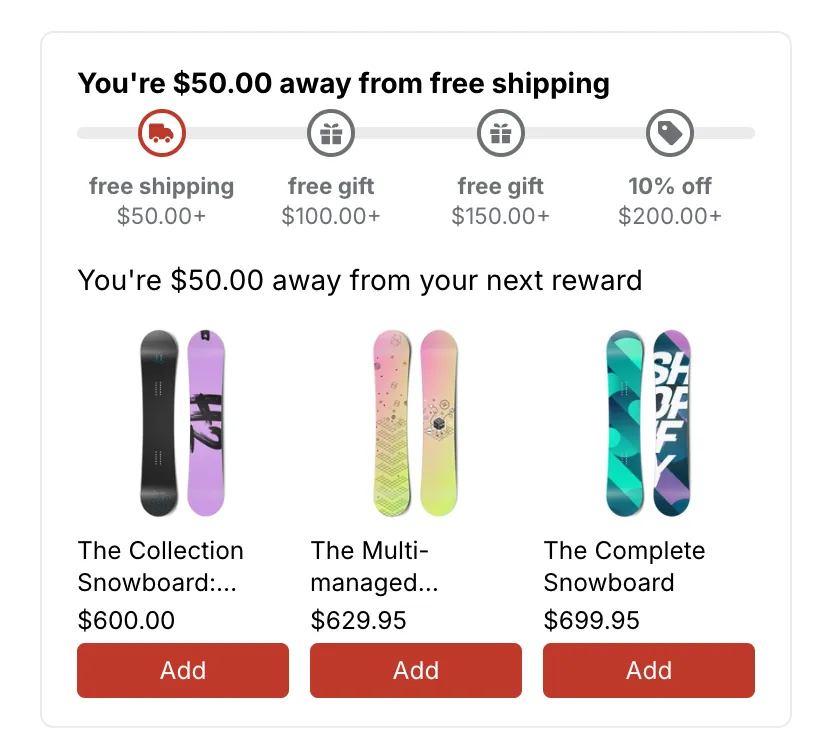
Goal suggestions are up to three products shown under the goal bar, each with an Add button. They help a shopper reach the next reward. They come from a Goal suggestions upsell offer and live inside the goal bar, so they go wherever the bar goes.
Made by: a Goal suggestions upsell offer on the goal discount. The Order goal, Free shipping goal and Tiered rewards promotions add one by default. See Offer types.
For developers: Styling
What shoppers see
- Your offer message, for example “You’re $40.00 away from your next reward”.
- Up to three product cards. Each shows a picture, the product name, the price and an Add button.
Add puts one of that product in the cart. The theme’s cart drawer opens, and the bar and the suggestions update to the new total.
Which products show
The products come from the offer’s Products to suggest setting:
- Shopify recommendations (default): products Shopify recommends for the page’s product, or for the first item in the cart on the cart page and in the drawer.
- A collection: products from one collection.
- Chosen products: products you pick, up to 10.
Then AndOr:
- Leaves out products already in the cart, the page’s own product, gift cards and products with nothing available.
- Uses each product once, with its first available variant.
- Sorts them by how close their price is to the amount still needed, and keeps three.
Example: the shopper needs $40 more. A $38 product comes before a $55 one, and both come before a $10 one.
Where it goes
Wherever the goal bar is, for each place ticked in the offer’s Where it shows section:
| Place | Needs |
|---|---|
| Product page | the AndOr Order goal block on the product template |
| Cart page | the AndOr Order goal block on the cart template |
| Cart drawer | Also show in the cart drawer on the block |
Each place shows its own offer. Example: one offer on the product page and another in the cart drawer.
Note The cart drawer, and updates the moment the cart changes, need a theme that sends Shopify’s storefront cart events. Horizon 4.0+ and Dawn 15.5+ do. On other themes, shoppers see this widget on the cart page and product page. It updates on the next page load. See Theme requirements.
Add the block
Note App blocks need an Online Store 2.0 theme. On an older (vintage) theme, turn on the app embed and paste the one-line tag instead. See Theme requirements.
Goal suggestions have no block of their own. They show inside the AndOr Order goal block, from a Goal suggestions upsell offer. A promotion made from the gallery already has the offer when Add an upsell offer was on. To add one later:
-
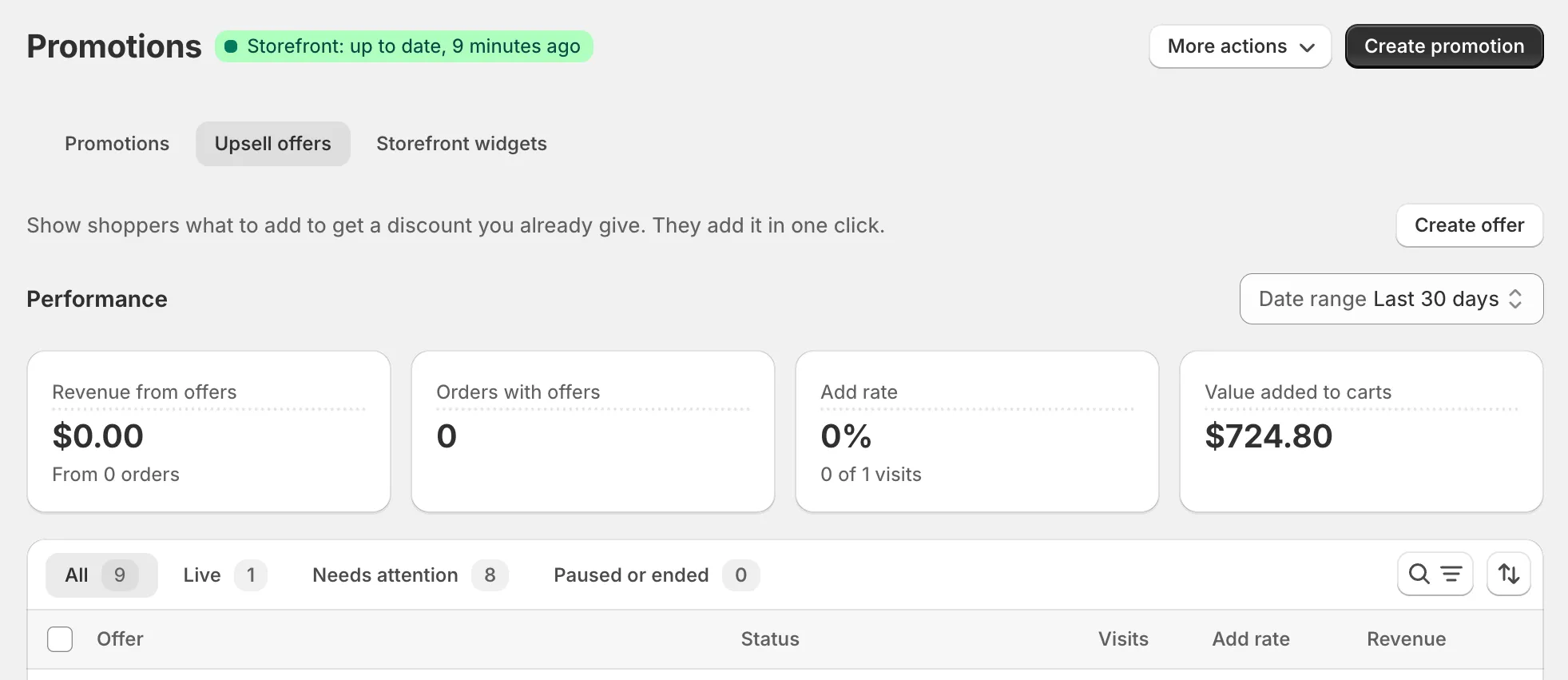
In AndOr, open Promotions, then the Upsell offers tab, and click Create offer.
-
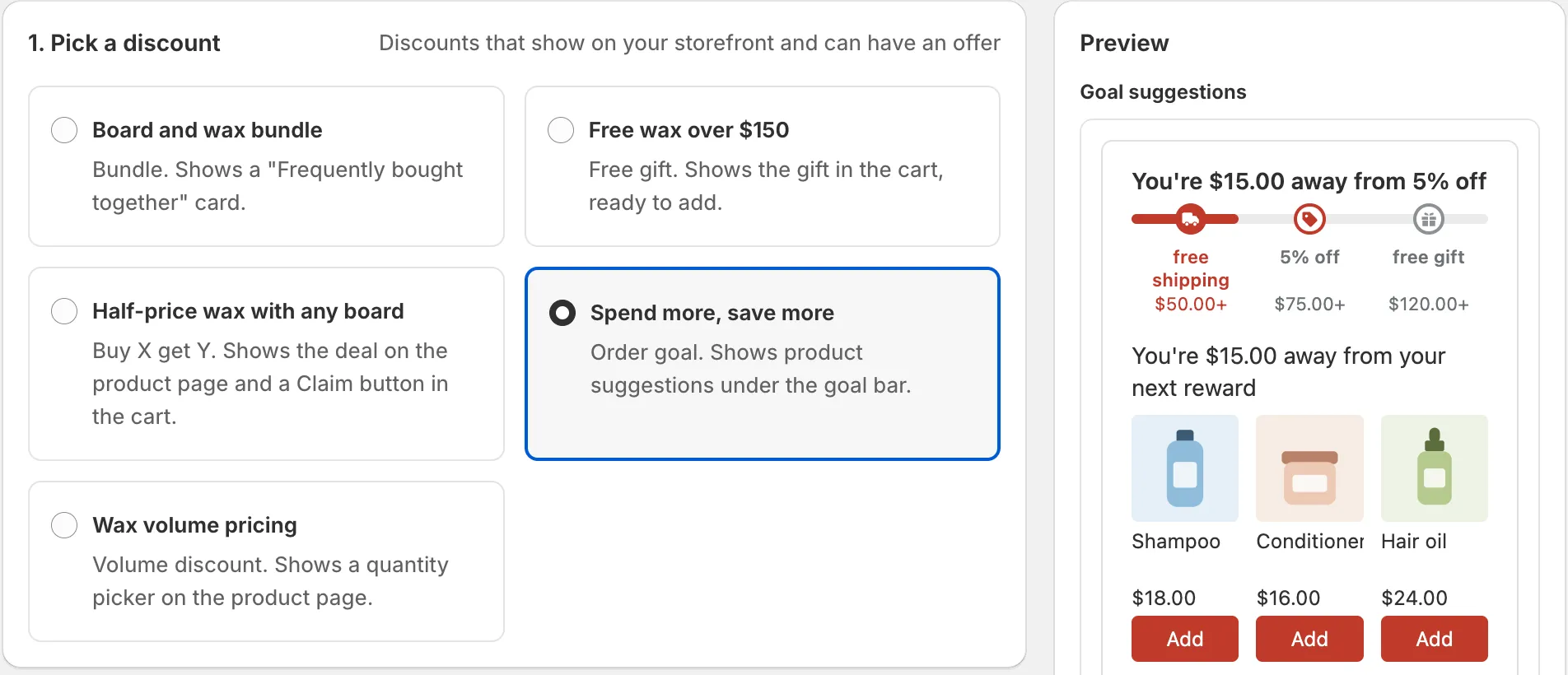
Pick the goal discount the bar shows.
The offer type, Goal suggestions, follows the discount.
-
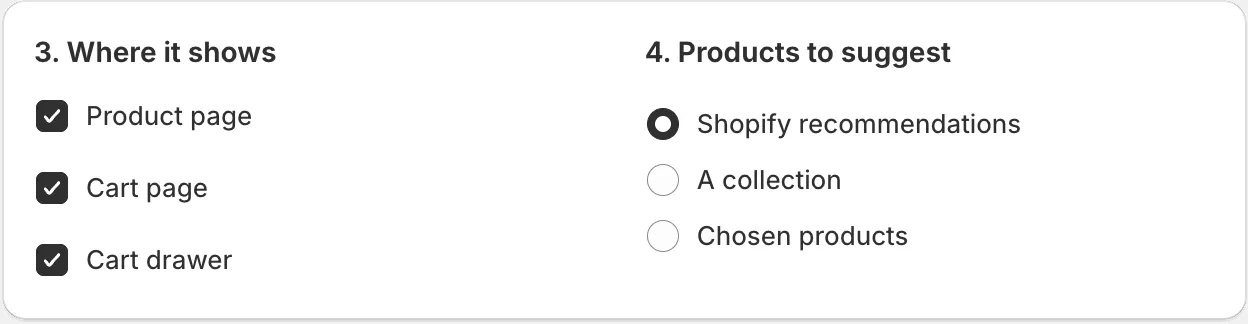
Pick where it shows and which products to suggest, then click Save offer.
Tick Product page, Cart page or Cart drawer. Under Products to suggest, pick Shopify recommendations, A collection or Chosen products.
-
Add the AndOr Order goal block to each page you ticked, then click Save.
For the cart drawer, turn on Also show in the cart drawer on the block. See Goal bar: Add the block.
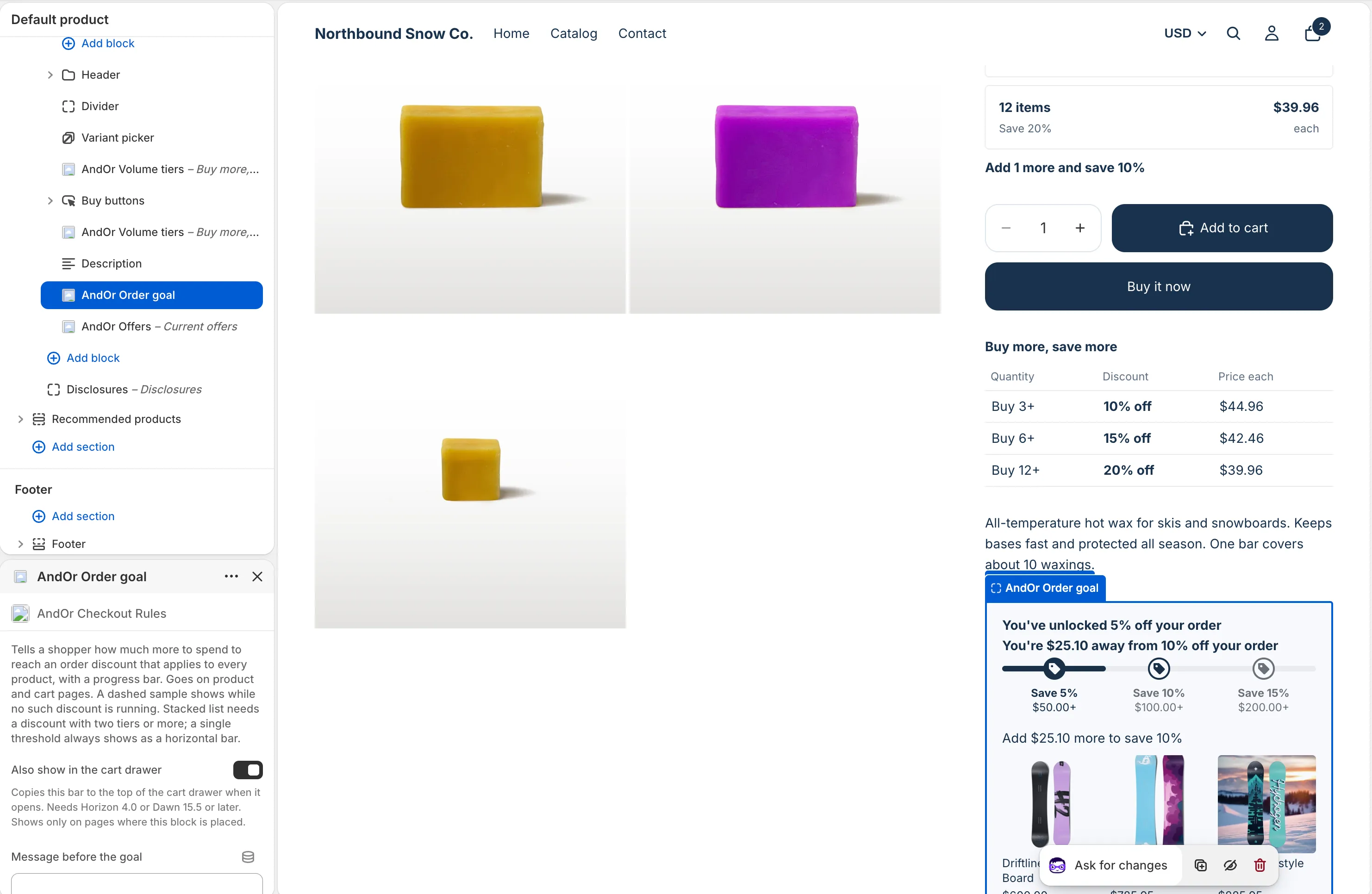
Block settings
The row has no settings in the theme editor. The Add buttons use the goal bar’s Bar color. Everything else (the message, the places, the products and the dates) is set on the offer in AndOr. The Add button’s word can be changed per language on the Storefront text page.
What it needs to appear
- The goal bar shows on the page.
- A live Goal suggestions offer is linked to the bar’s discount and placed on this page.
- The cart has not reached the top step yet. Once every reward is reached, the row hides. Saying a reward is unlocked is the bar’s job.
- At least one product can be offered.
Limits
- Three products at most.
- The message can use Amount still needed and Next discount. Quantity still needed has no meaning for a spend goal: a message that uses it hides the row.
- There is no switch in the theme editor. To stop the row, pause or delete the offer in AndOr.
- A goal bar pasted on a page type other than product or cart (for example a collection page) shows no row.
- The row hides when the bar hides, for any reason, and when the offer’s end date has passed.