 See it in action
 Your first promotion
On this page
Your first promotion takes three steps: turn on the app embed, create the promotion, and check it on your store. The Create your first promotion guide at the top of the Promotions page walks you through each one.
Before you start
- Install AndOr and turn on the app embed. See Install and turn on the app embed.
- On Home, click Create promotion on the Run a promotion card. It opens Promotions.
The setup guide
The guide at the top of Promotions is called Create your first promotion: “Use this guide to put your first discount and its widgets on your store.” It shows “{completed} / {total} completed” and only the current step is open.
| Step | What it says | Button |
|---|---|---|
| 1. Turn on the app embed | “Opens your theme editor with the embed switched on. Click Save there, then come back.” | Turn on app embed |
| 2. Add a promotion to your store | “Pick a widget. You get a discount, its storefront widgets and an upsell offer.” | Create promotion |
| 3. Check it on your store | “Open your store and find the badge or widget. Then mark this step as done.” | Preview your store, then Mark as done |
When all steps are done, it says You’re live: “Your promotion and its widgets are on your store.” with View your store. Click Dismiss Guide to hide it. To hide it earlier, use Dismiss in its … menu. Show setup guide brings it back. Watch the video guide opens a short video.
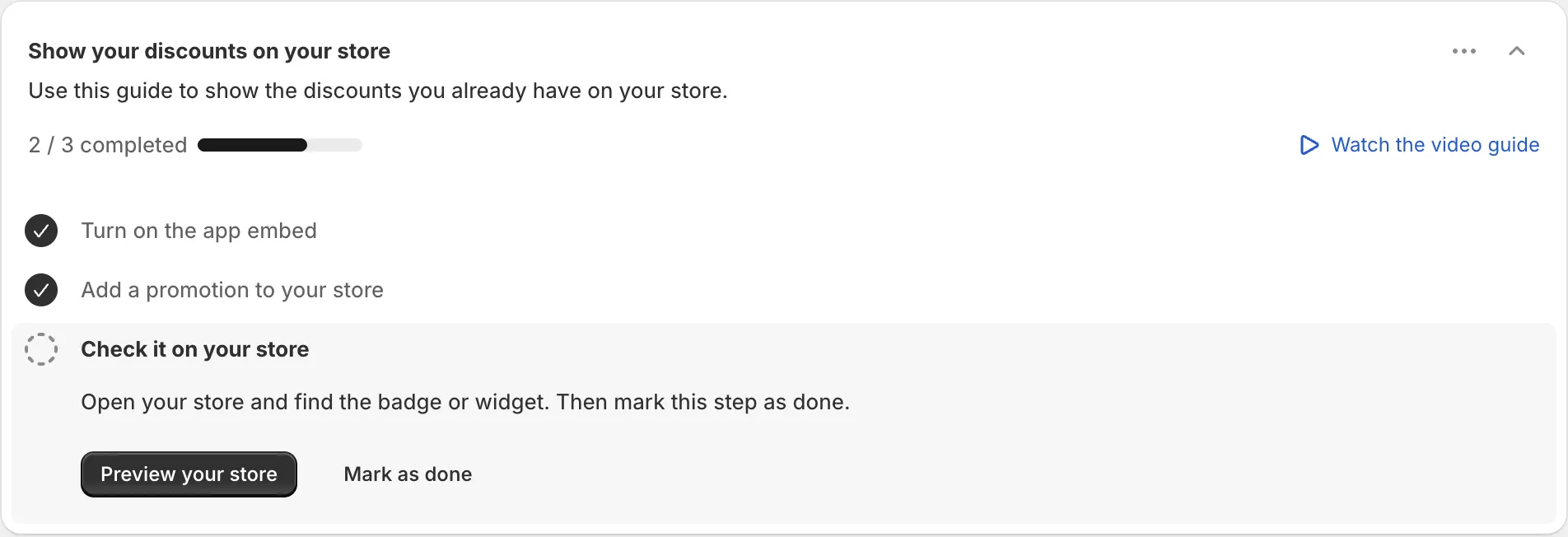
Note If your store already has discounts, the guide is called Show your discounts on your store: “Use this guide to show the discounts you already have on your store.” Step 2 is then Turn on a discount in the table below: “Turn on the Storefront widgets switch for a discount in the table below.” See Show discounts you already have.
With no promotions yet, the table under the guide says Create your first promotion: “Pick a widget in the gallery. The discount, its storefront widgets and an upsell offer are set up for you.”
Set it up in the app
-
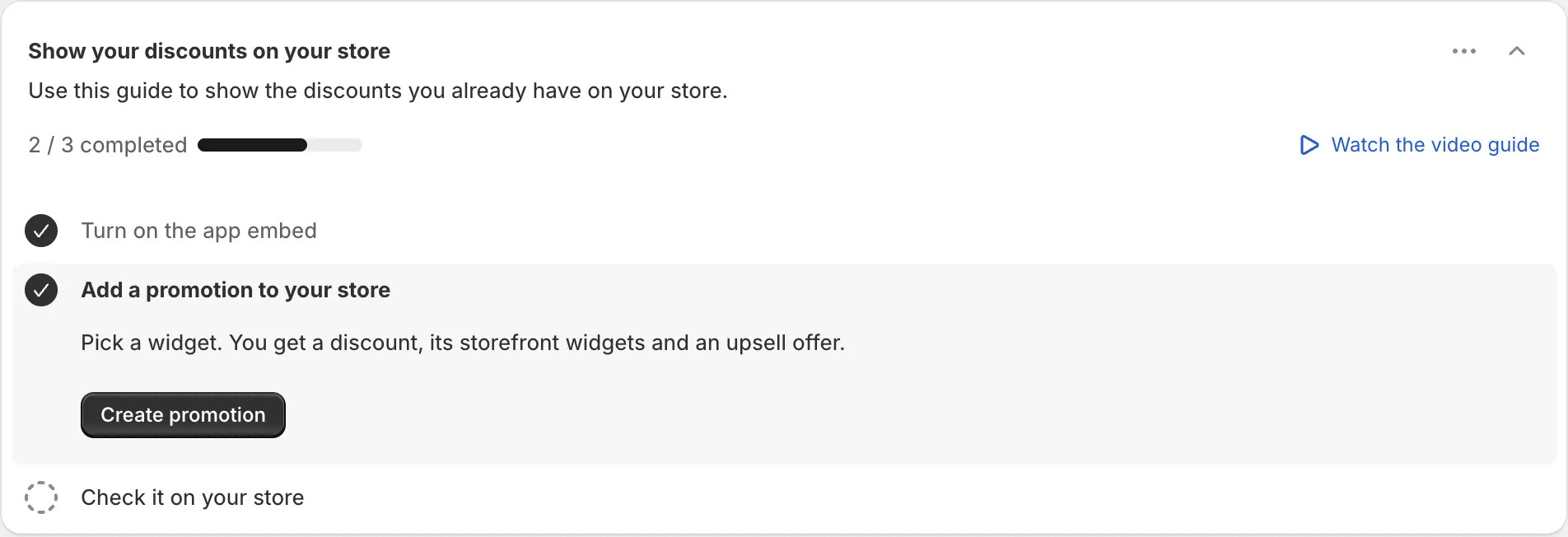
In the guide, click Create promotion.
This is step 2, Add a promotion to your store. It opens the promotion gallery. You can also click Create promotion at the top of the Promotions page.
-
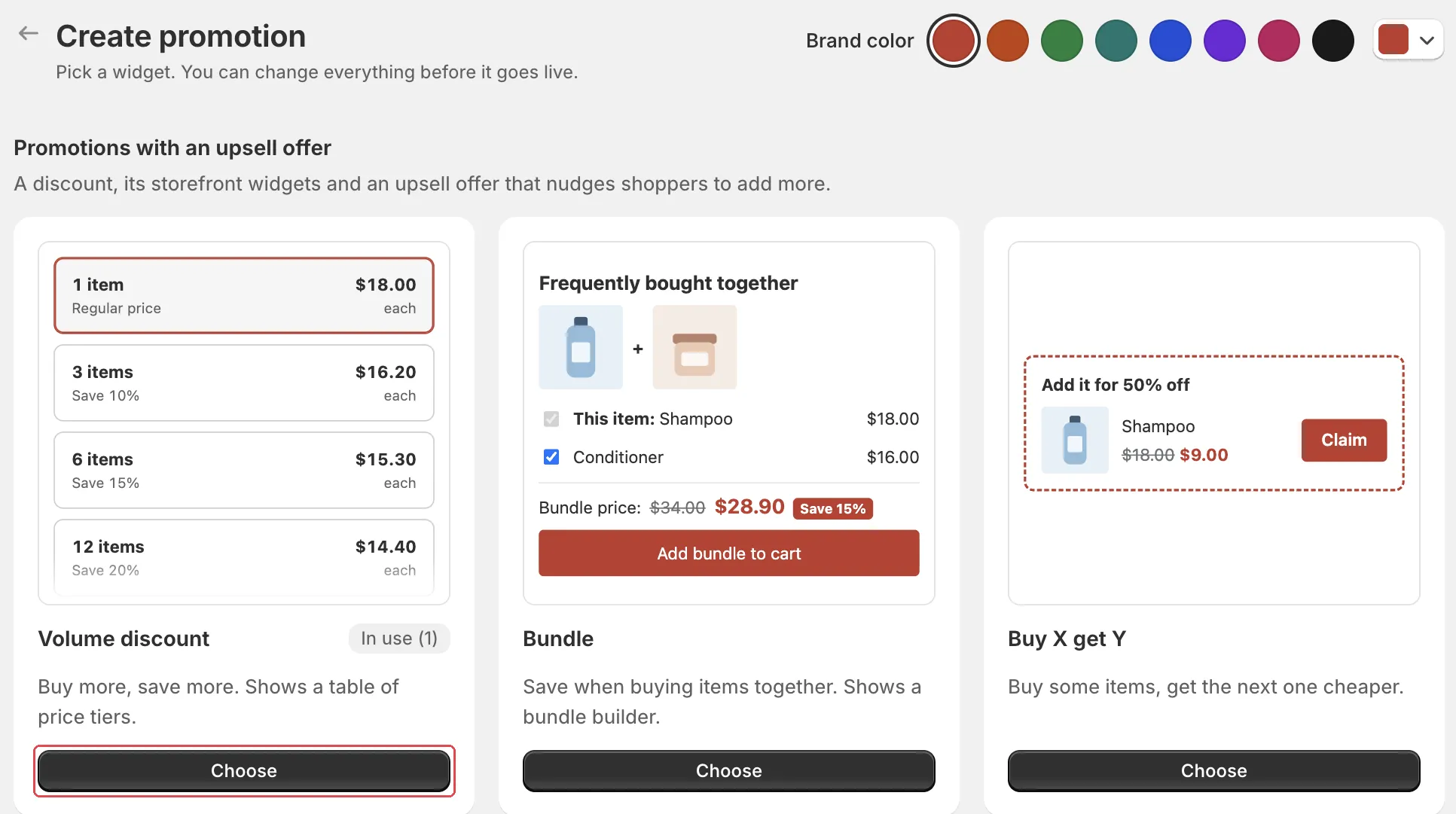
Pick a promotion and click Choose.
The gallery has two sections:
- Promotions with an upsell offer: Volume discount, Bundle, Buy X get Y, Free gift, Order goal, Free shipping goal and Tiered rewards.
- Promotions with storefront widgets: a discount with one widget and no upsell offer: Sale price, Savings badge, Countdown sale, Collection banner, Order goal bar and Volume price table.
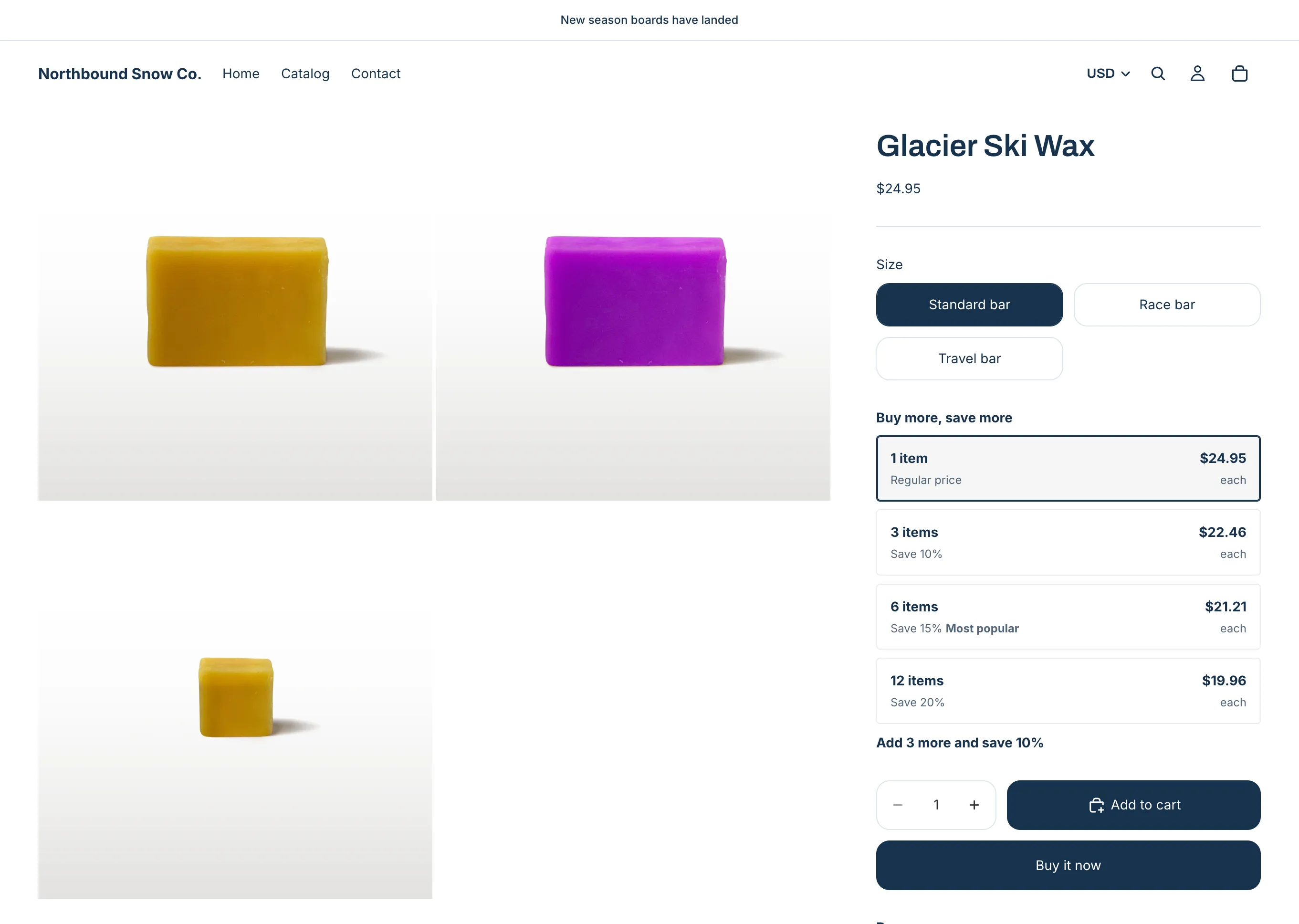
For a first try, Volume discount is a good start. Shoppers pick how many to buy and see the price at each step on the product page. See Volume discount. If you like, pick your Brand color at the top of the gallery first. It is saved for your store, and several widgets use it. A block color set in the theme editor wins over it.
-
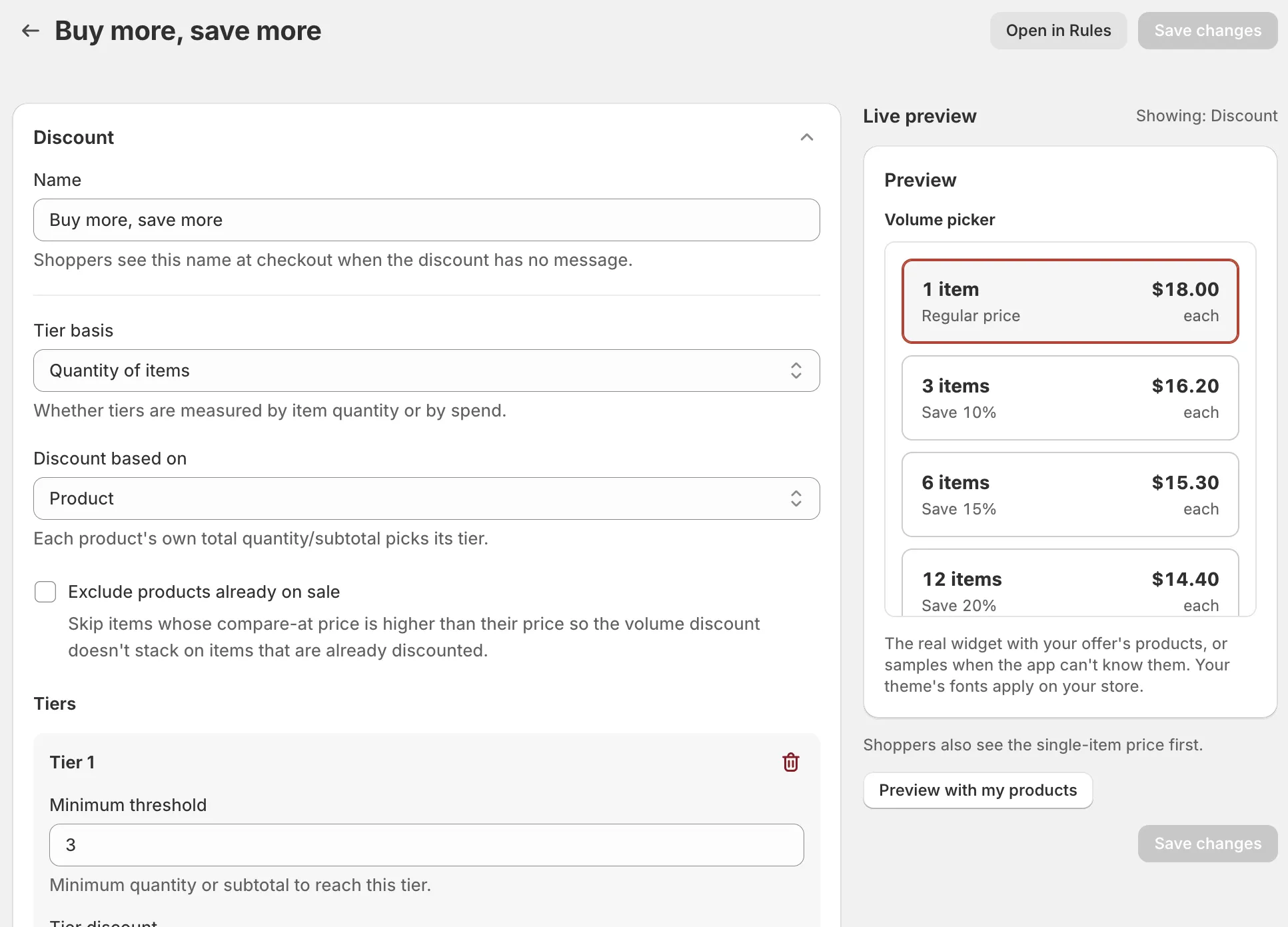
Set up the Discount section.
Give the promotion a Name. Shoppers see this name at checkout when the discount has no message. Then pick the products, the collection or the gift the promotion applies to. Each promotion type starts with sensible tiers or amounts that you can change.
-
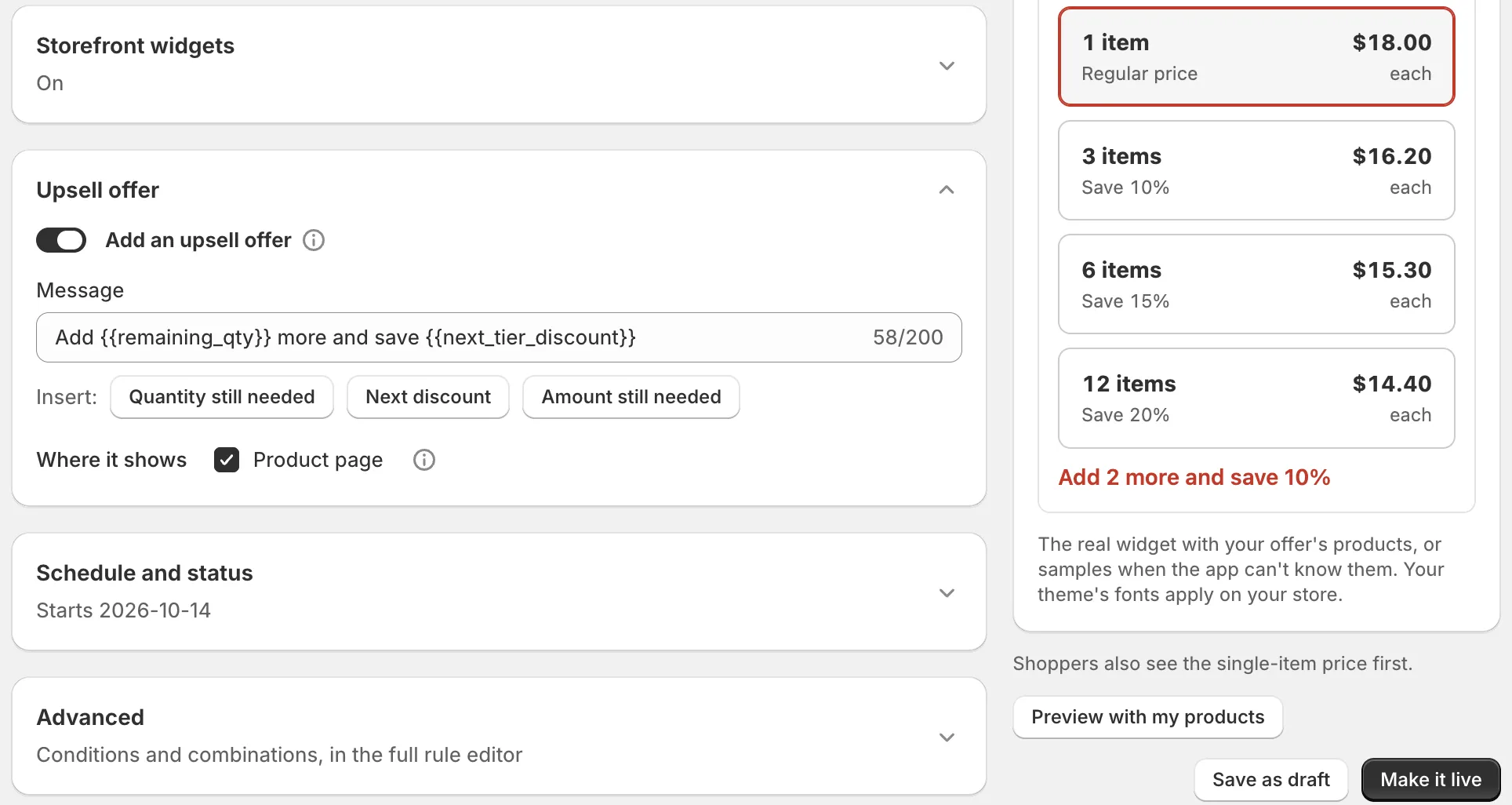
Check the Storefront widgets and Upsell offer sections.
Show storefront widgets is on by default. Add an upsell offer is on by default for promotions that have one. Change the upsell Message and Where it shows if you like. The Live preview on the right shows what shoppers see.
-
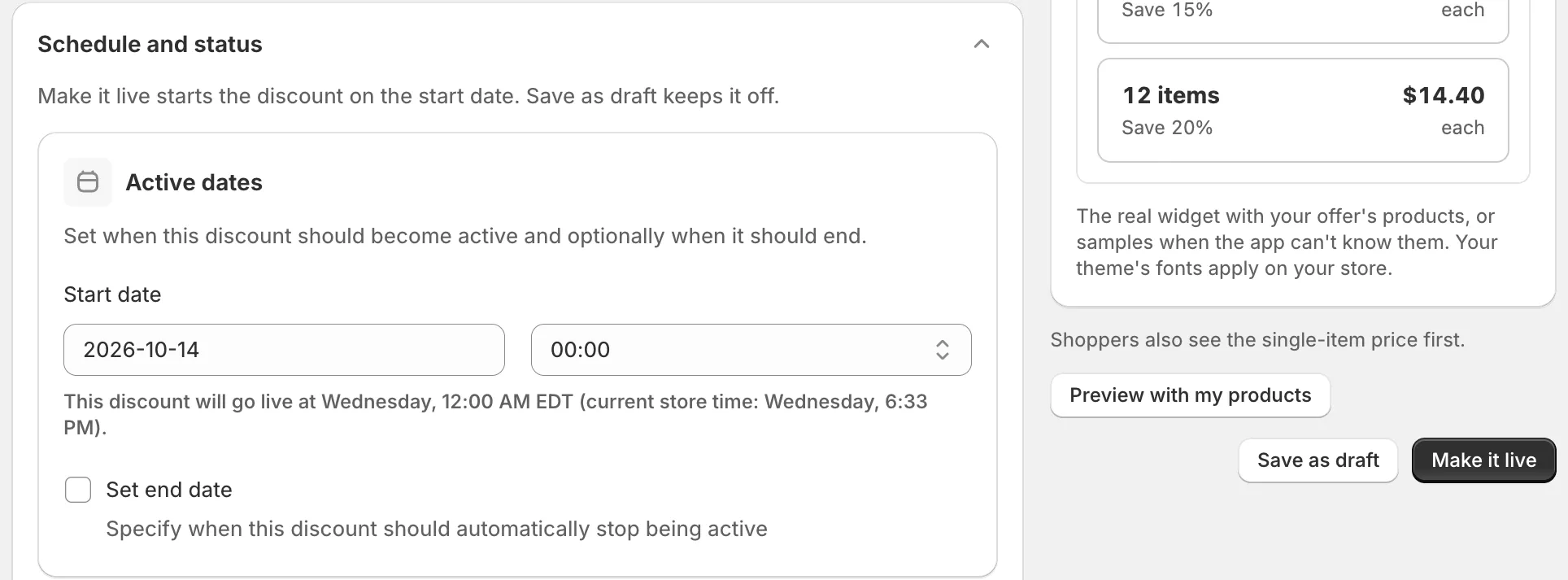
Set the dates under Schedule and status, then click Make it live.
The promotion starts on the start date. Turn on Set end date to end it on a date. Make it live creates the discount, its widgets and its upsell offer. To save without turning it on, click Save as draft instead.
Add the widget to your theme
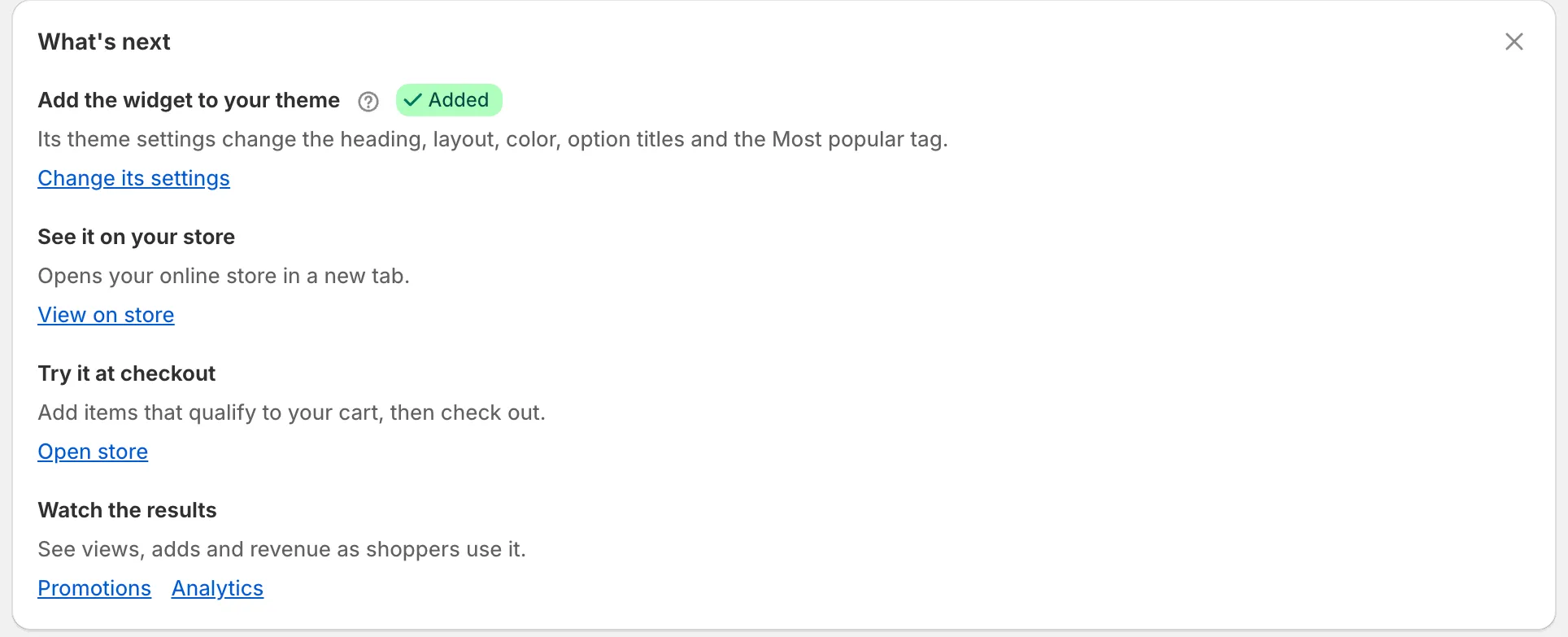
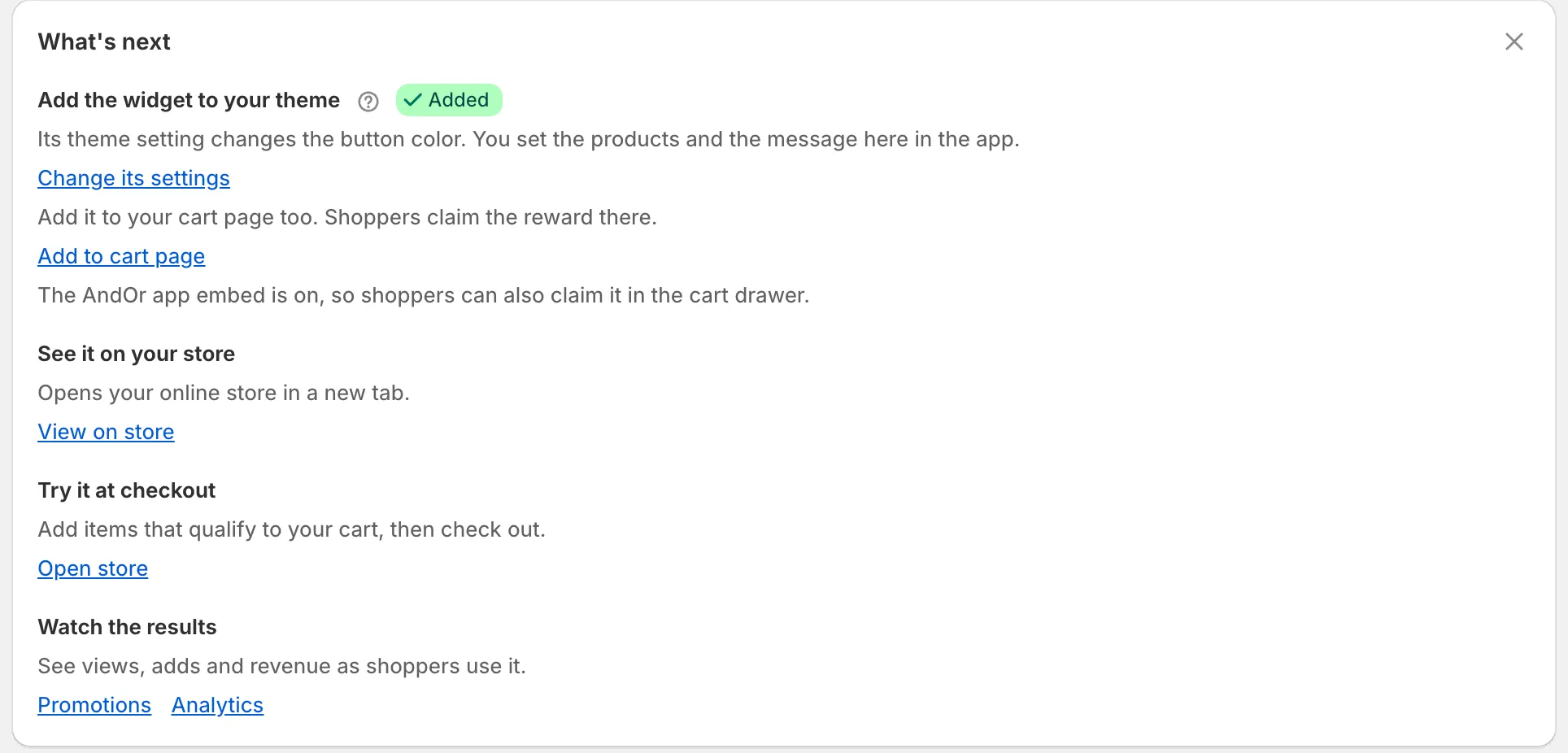
After you click Make it live, the What’s next panel shows on the promotion page. It does not show after Save as draft. No panel? Open Promotions. In the row’s Storefront widgets column, click Add block.
-
Under Add the widget to your theme, click Open theme editor.
The theme editor opens in a new tab, on the right page, with the block to add.
-
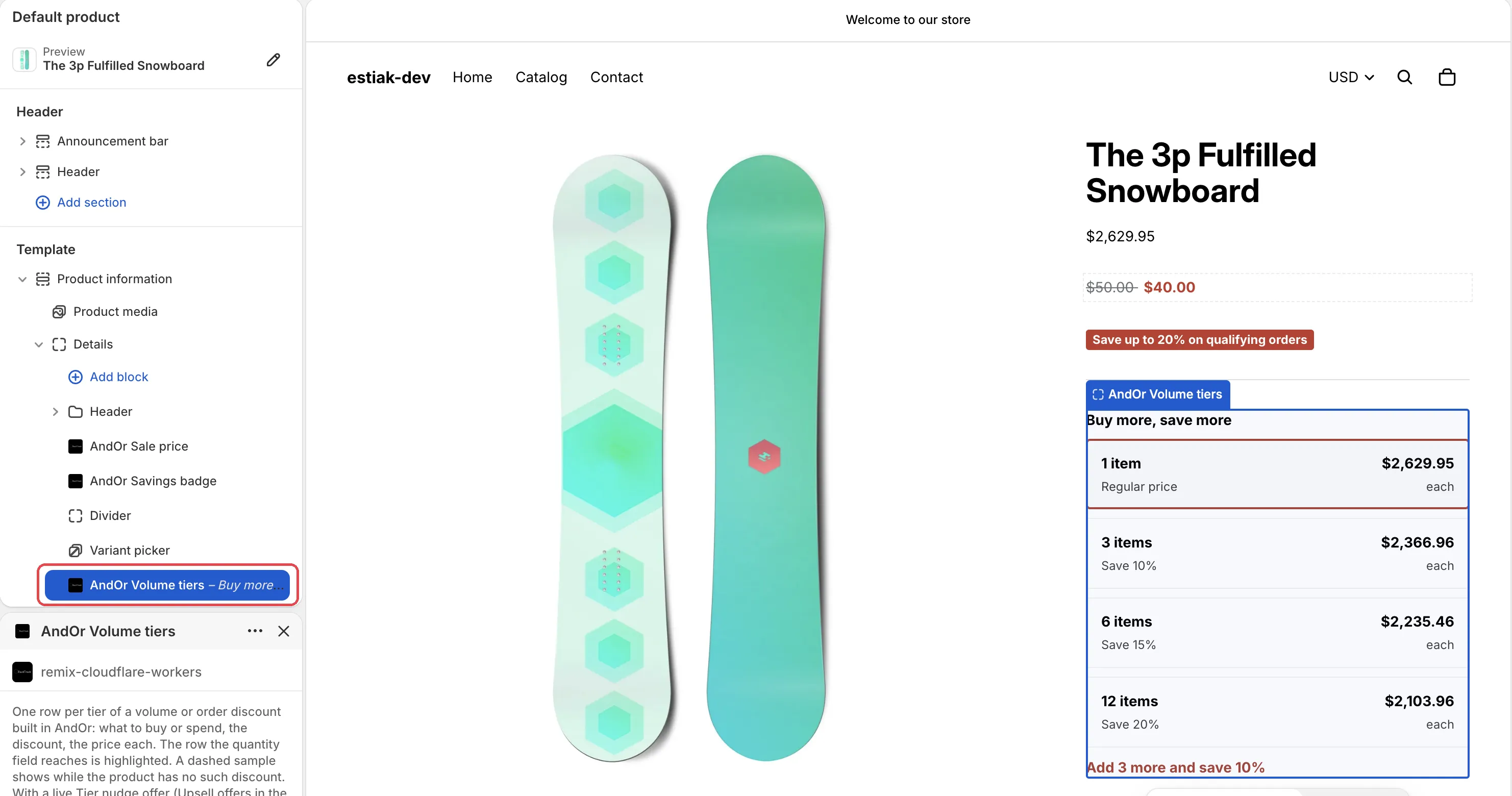
Drag the block under your price and click Save.
A new block lands at the bottom of the section. Drag it where you want it, for example under the product price. Then click Save in the theme editor.
-
For Buy X get Y and Free gift, also add the block to the cart page.
The panel shows Add to cart page for these. Shoppers claim the reward there. If the block is already on your cart page, the step shows an Added badge instead.
Check it on your store
-
Click View on store under See it on your store.
It opens your store, or a product or collection from this discount if you picked one. A free gift opens your store, and tiered rewards open your cart. Find the widget on the page.
-
In the guide, mark the last step as done.
Step 3 of the Promotions page guide is Check it on your store. Click Preview your store to open your store, then Mark as done. The guide then says You’re live.

What’s next
The What’s next panel has two more steps:
- Try it at checkout: click Open store, add items that qualify, then check out. If you picked specific variants, the button is Open cart and opens a cart with one of them.
- Watch the results: links to Promotions and Analytics, to see views and adds.