 See it in action
 Storefront text
On this page
The Storefront text page lets you change or hide the notes shoppers see in your discount widgets. For example, you can change “Add bundle to cart” to “Get the set”.
Before you start
- Every text already has a default in each shopper language. You only need this page to change the words.
- Changes reach your storefront when you click Save.
Open the page
-
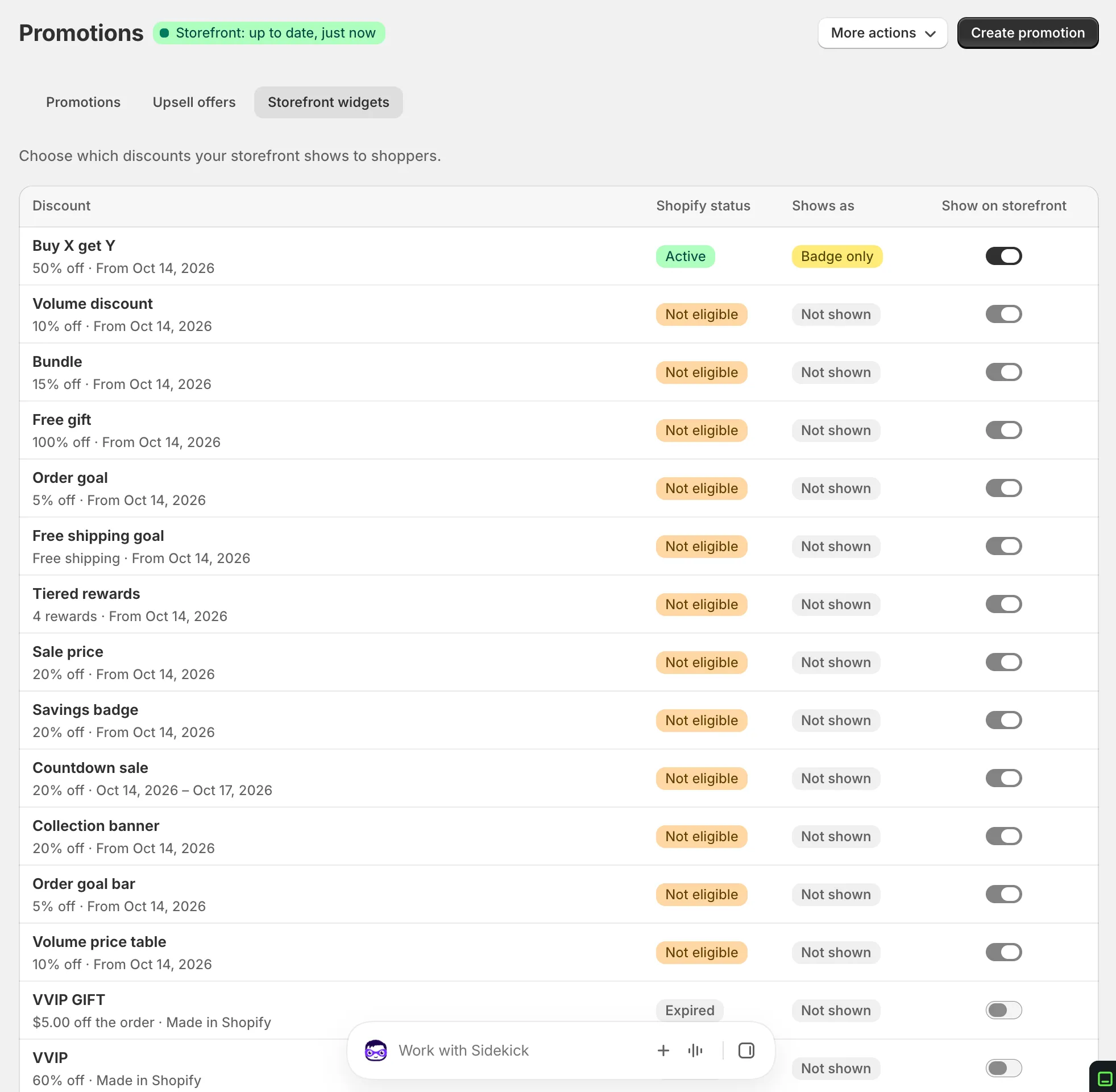
In AndOr, open Promotions and click the Storefront widgets tab.
-
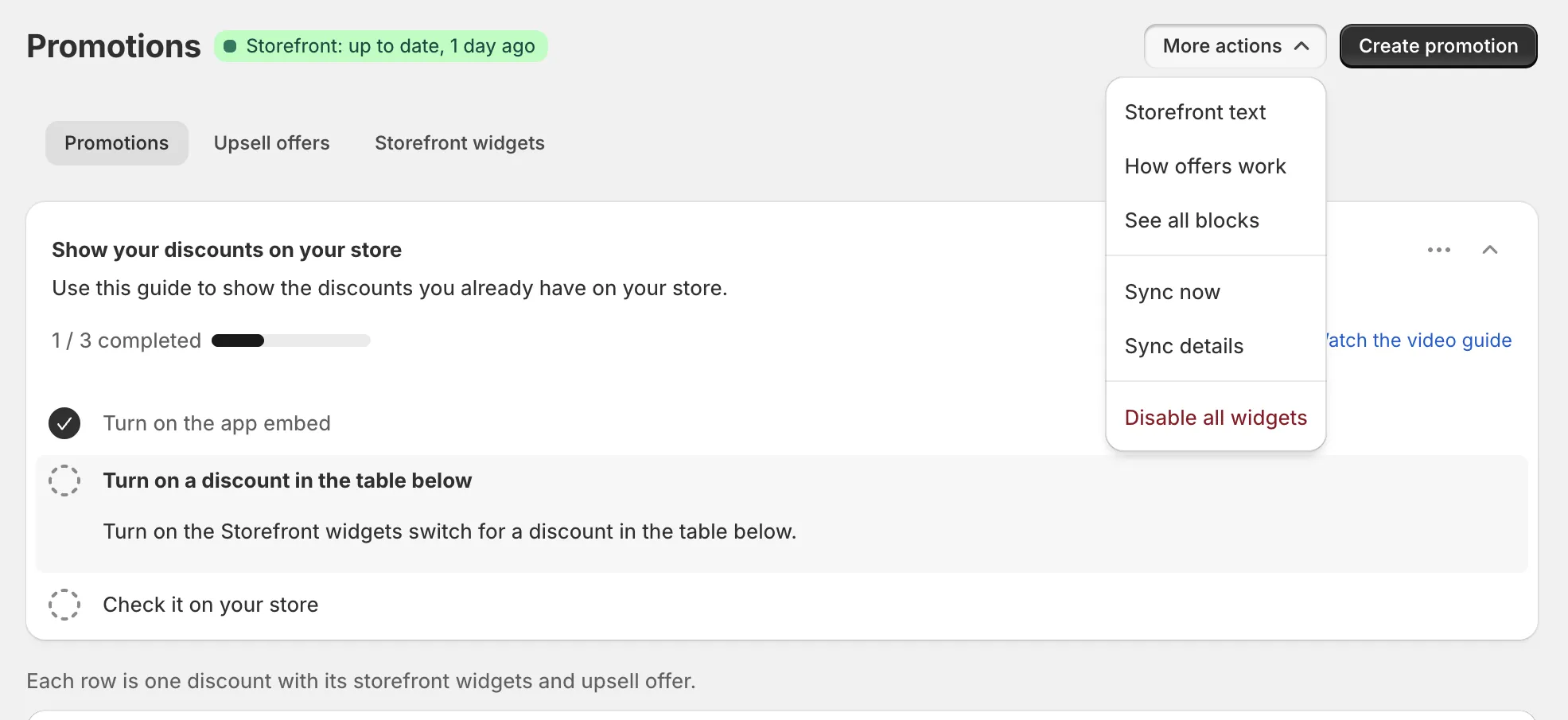
Click More actions, then Storefront text.
More actions is at the top of the Promotions page. You can also open it from the Storefront text page link at the bottom of the Storefront widgets section of any promotion page.
Change a text
-
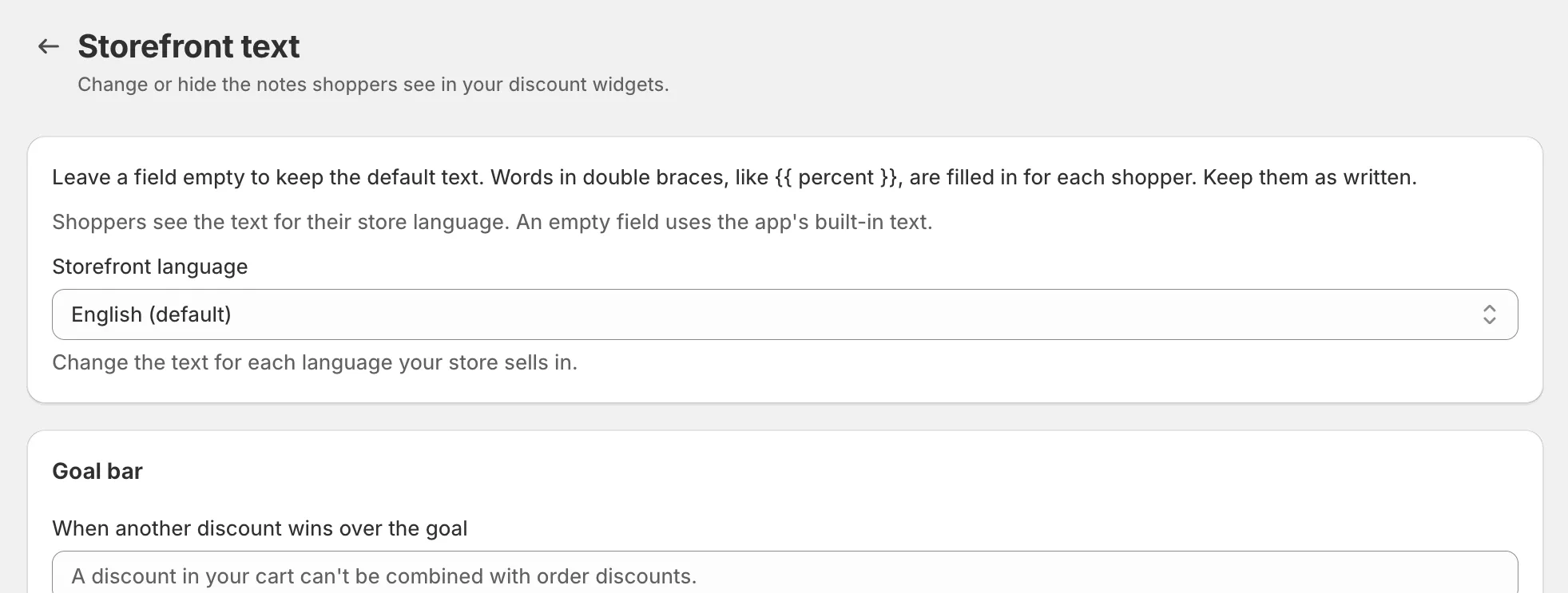
Pick the language.
If your store sells in more than one language, use Storefront language at the top. The default language is marked “(default)”.
-
Find the text in its group and type your text.
Texts are grouped by widget. Each field shows its default text in grey until you type. Keep any word in double braces, like
{{ percent }}, as written. AndOr fills it in for each shopper.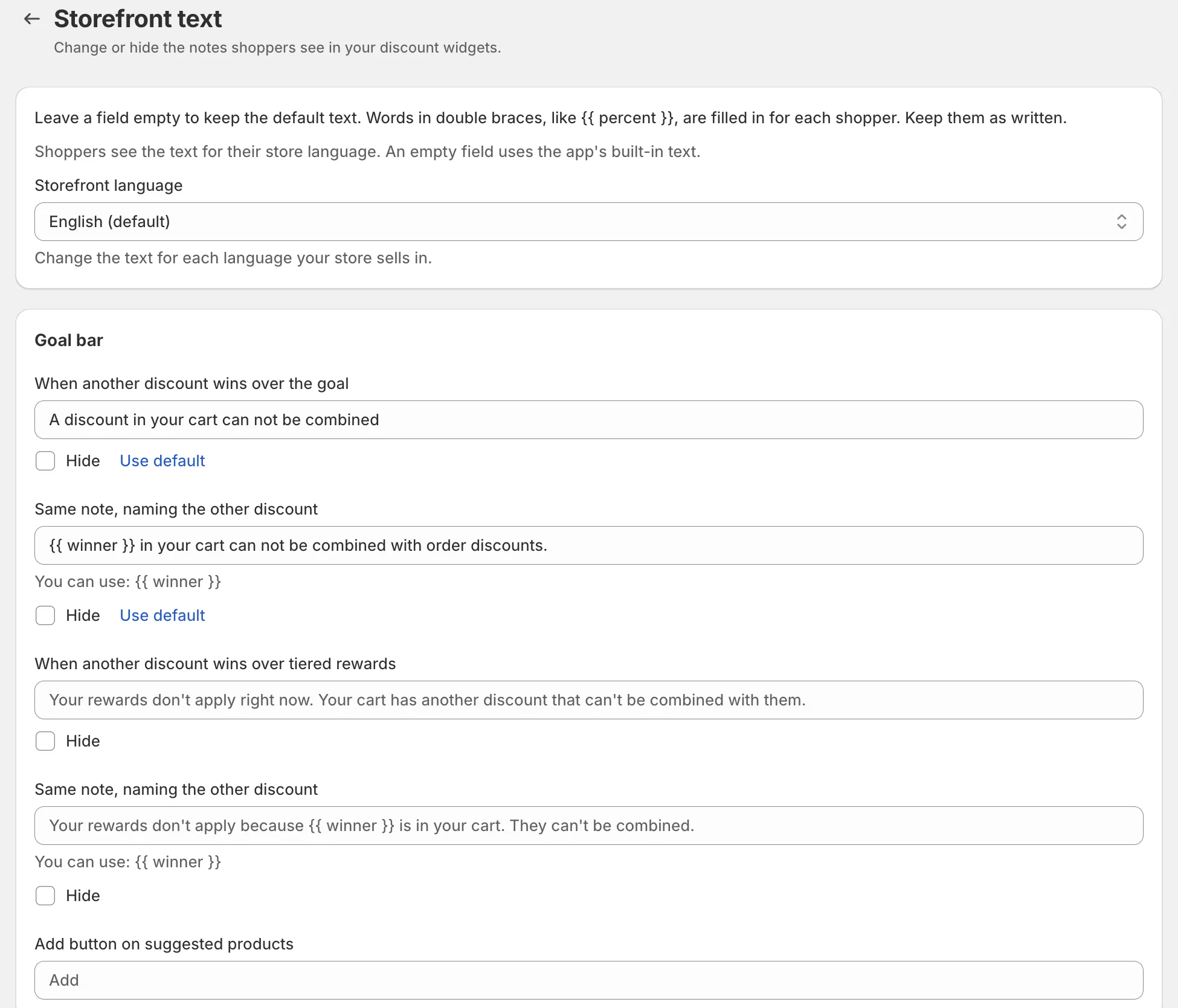
-
Click Save in the save bar.
A Storefront text saved message confirms it.
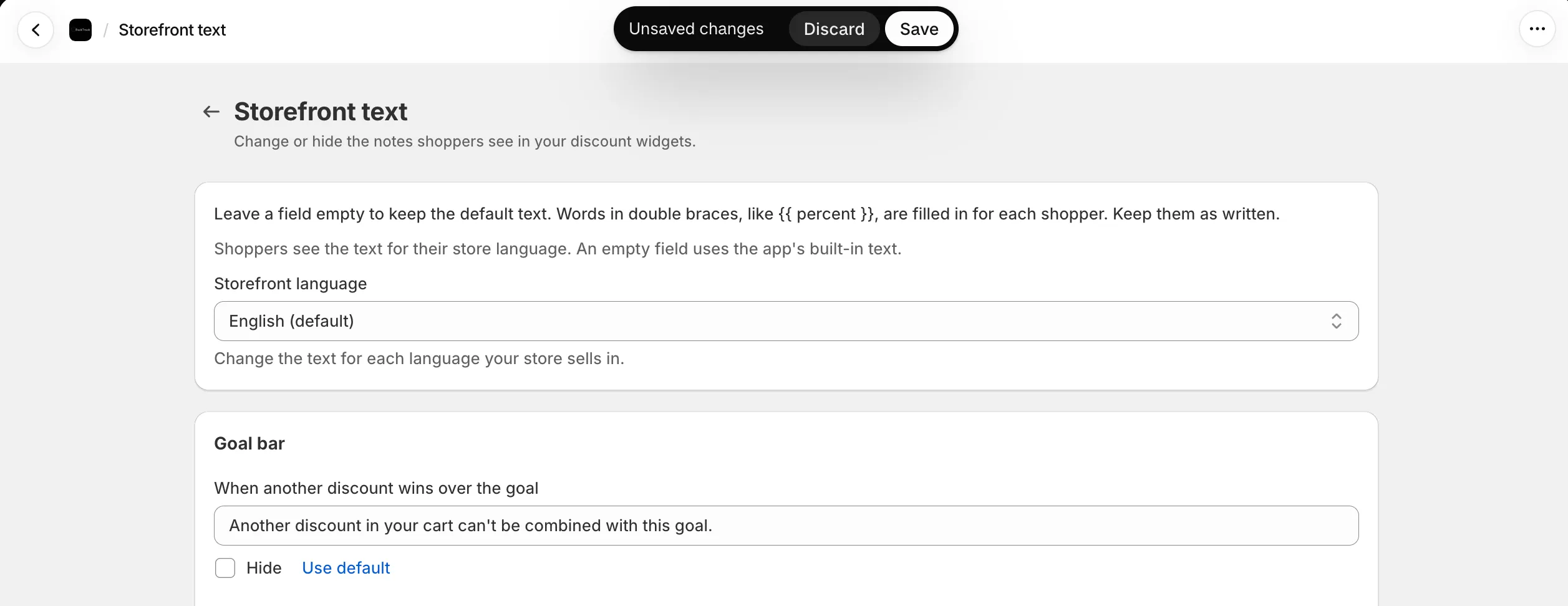
The groups
- Goal bar: Notes when another discount wins over the goal or tiered rewards, and the Add button on suggested products.
- Buy X get Y: “Deal applied”, “ready to claim”, the progress count, the cart claim title, the Claim button and notes when another discount wins.
- Free gift: “Gift applied”, the cart gift title, the Free label, notes when another discount wins, and every text in the gift chooser (each shown as Gift chooser: …).
- Bundle: The bundle heading (“Frequently bought together”), savings line, savings badge, “This item:”, “Bundle price:”, “In your cart”, and the add buttons.
- Volume picker: “Volume discount applied”, the You save line, the discount per item and the volume table column names.
Settings
Text fields
Each field is one note. An empty field keeps the default text. Under the field, You can use: lists the placeholders that work in that text.
Hide
Some notes have a Hide checkbox. Tick it and shoppers do not see that note. Hide applies to the language you are editing only.
On a note that names another discount (marked Same note, naming the other discount), Hide works a little differently. Shoppers then see the plain note, without the discount name.
Use default
Shows when you changed a text. Click it to go back to the default.
Placeholders
A placeholder is a word in double braces. AndOr swaps it for a real
value for each shopper. Example: “Deal unlocked: {{ percent }}% off”
shows as “Deal unlocked: 20% off”.
| Placeholder | Filled with |
|---|---|
{{ percent }} |
The discount percent |
{{ count }} |
A number of items |
{{ total }} |
The total number of items, as in “2 of 3” |
{{ amount }} |
A money amount, in your theme’s format |
{{ product }} |
A product name |
{{ winner }} |
The name of the other discount that applies instead |
Some texts must keep a placeholder. For example, “Progress count” must
keep both {{ count }} and {{ total }}.
Languages
- Shoppers see the text for their store language.
- In your default language, an empty field uses the app’s built-in text.
- In another language, an empty field uses your default language’s text first, then the app’s built-in text. Example: you change a text in English and leave French empty. French shoppers then see your English text.
- You can only edit languages that are published on your store.
Limits
- Each text can be up to 200 characters.
- A text that cannot be hidden cannot be empty. Use Use default instead.
- Do not use these characters:
@,#,|,[,]. The storefront uses them for its own markers. Single braces{and}are only allowed as part of a placeholder. - Use each placeholder only once in a text, and only the ones listed under the field.
- All your texts together must fit in 32 KB. If they do not, the save is refused with “Too much text to publish”. Use the default for some texts, then save.
- Theme editor block settings, like a block heading, are set in the theme editor, not here.
Note If you see “Saved, but your storefront did not update”, click Save again.