 See it in action
 Collection banner (AndOr Collection banner block)
On this page

The collection banner is one bar across the top of a collection page. It says a discount runs on that collection, for example “Save up to 20% on this collection”. It comes from the AndOr Collection banner block.
Made by: a Collection banner promotion, or any automatic discount aimed at a collection that you show on your storefront.
For developers: Styling
What shoppers see
- A heading: the collection’s name, or your own words.
- A sentence: “Save up to 20% on this collection”. When the collection has a fixed amount off and no percentage, it says “Save up to $5.00 on each item in this collection”.
The banner says “up to” because the collection can hold more than one discount. It names the best one. It does not show the discount’s name or its end date. For urgency, add a countdown on product pages.
The banner is drawn on the server, with no JavaScript, so it shows as soon as the page loads.
Layouts
The Full width setting on the AndOr Collection banner block picks the look.
Full width
The bar spans the whole width of the page. This is the default. Use it to make the sale the first thing shoppers see.
Setting: Full width on.

Fit to text
The bar is only as wide as its own text. Use it for a quieter note.
Setting: Full width off.

Where it goes
On collection pages only. Add the AndOr Collection banner block to the collection template. It shows on every collection that uses that template and has a qualifying discount.
Add the block
Note App blocks need an Online Store 2.0 theme. On an older (vintage) theme, this block can’t be added. See Theme requirements.
The collection banner comes from the AndOr Collection banner app block. It goes on the collection template only.
-
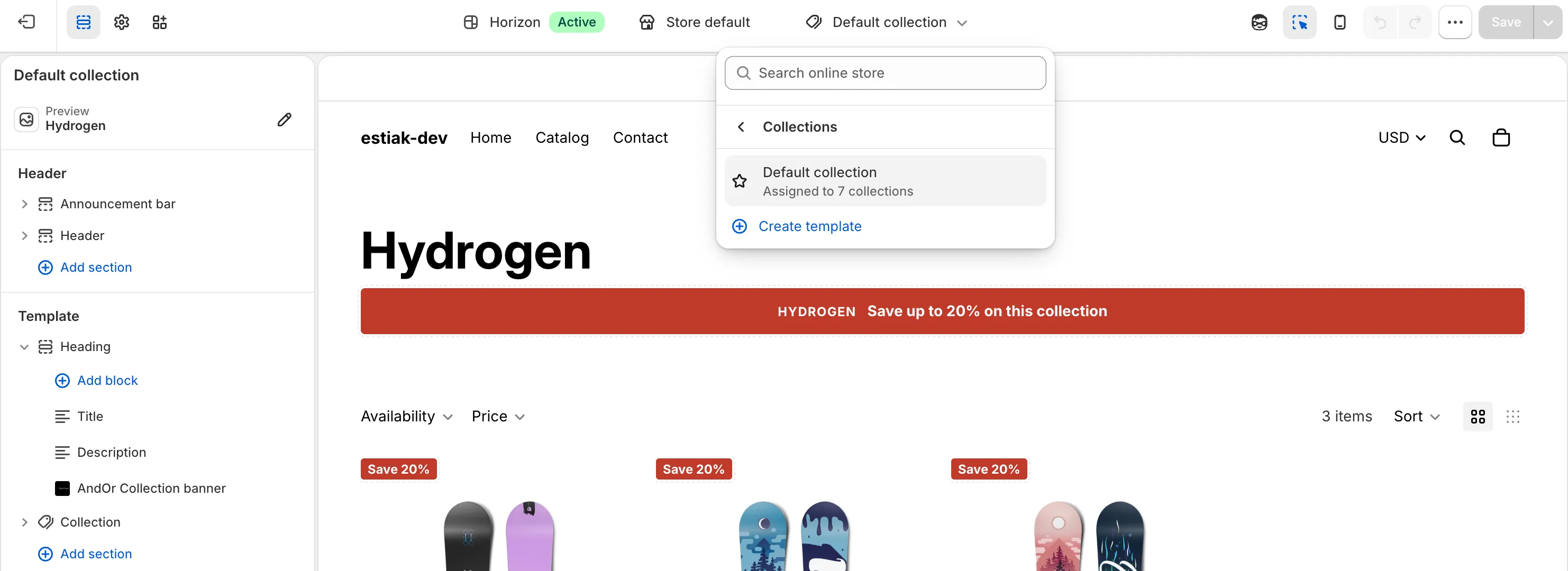
Open the theme editor on your collection template.
In Shopify, go to Online Store > Themes and click Edit theme. Pick Collections, then your collection template, in the page menu at the top. Open a collection that has the discount, so the preview shows the real banner.
-
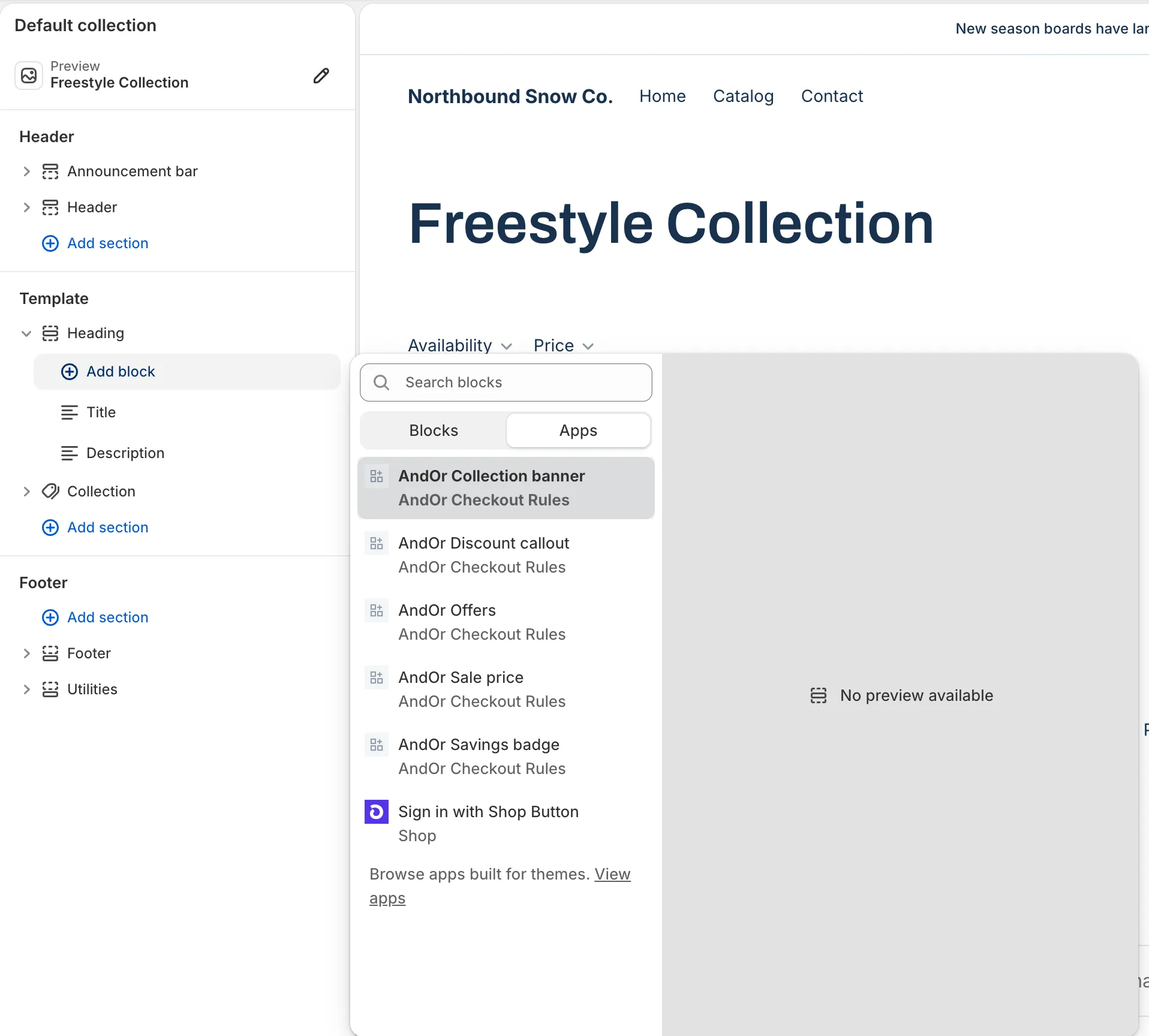
Click Add block, open Apps and pick AndOr Collection banner.
Add it in the collection’s banner or header section.
-
Drag the block above the product grid, then click Save.
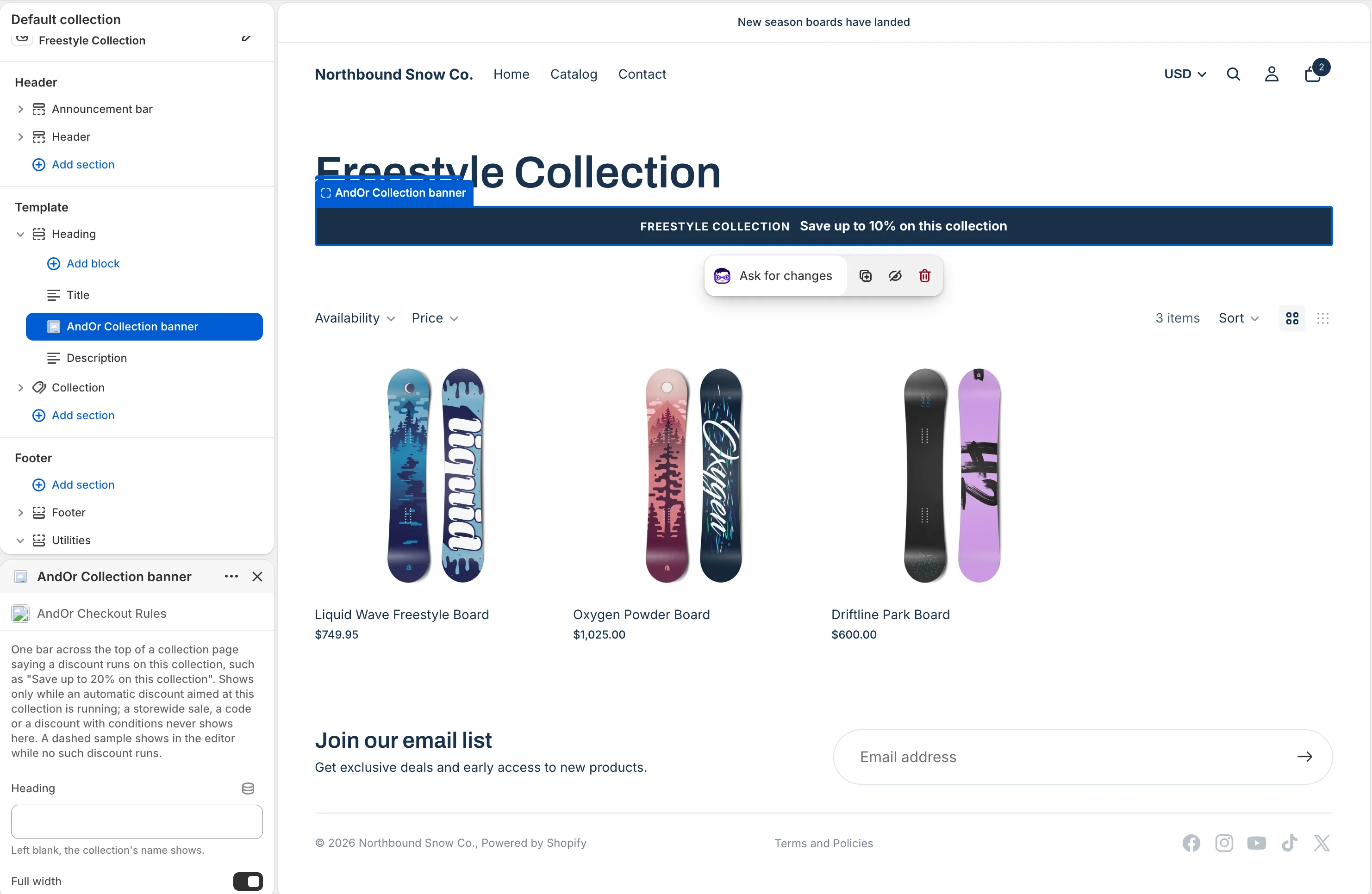
Note Some themes only allow app blocks in certain sections. If you can’t add the block where you want it, add an Apps section there first, or ask your developer.
Block settings
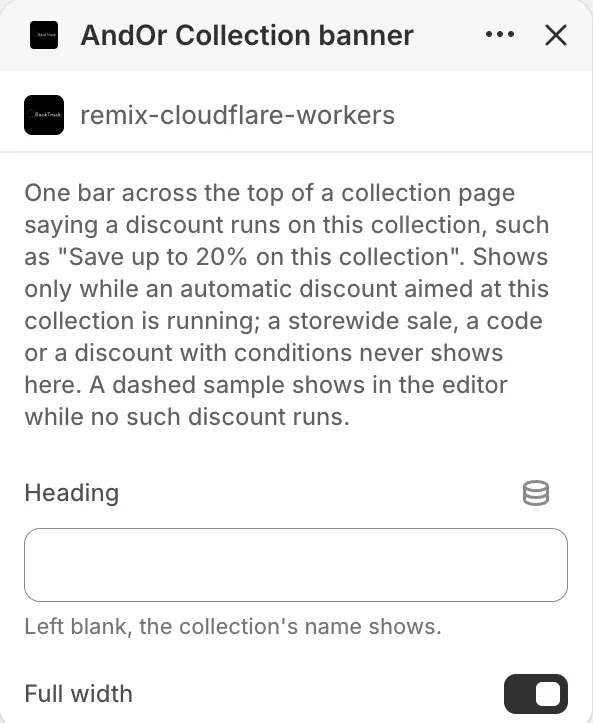
The block starts with a short paragraph about when it shows.
Heading
The bold line above the sentence. Left blank, the collection’s name shows. Example: type “Spring sale” to show that on every collection that uses this template.
Full width
On, the bar spans its section. Off, the bar is only as wide as its own text.
Default: on.
Bar color
The bar’s background color.
Default: #c0392b.
Text color
The color of the heading and the sentence.
Default: #ffffff.
Tip Pick colors with enough contrast. Light text on a light bar is hard to read.
What it needs to appear
- The discount shows on your storefront.
- The discount is automatic (no code) and has no conditions.
- The discount targets this collection itself.
- The discount is inside its active dates.
Note In the theme editor, a dashed sample banner shows while no such discount runs. Shoppers never see the sample.
Limits
- A storewide sale never shows here. Use the discount callout or the current offers list instead.
- A discount on some products inside the collection, rather than on the collection itself, does not show.
- A discount with a code or with conditions never shows.
- Product cards in the grid are drawn by your theme. The banner does not mark each card. See Product card recipes.