 See it in action
 Your first checkout rule
On this page
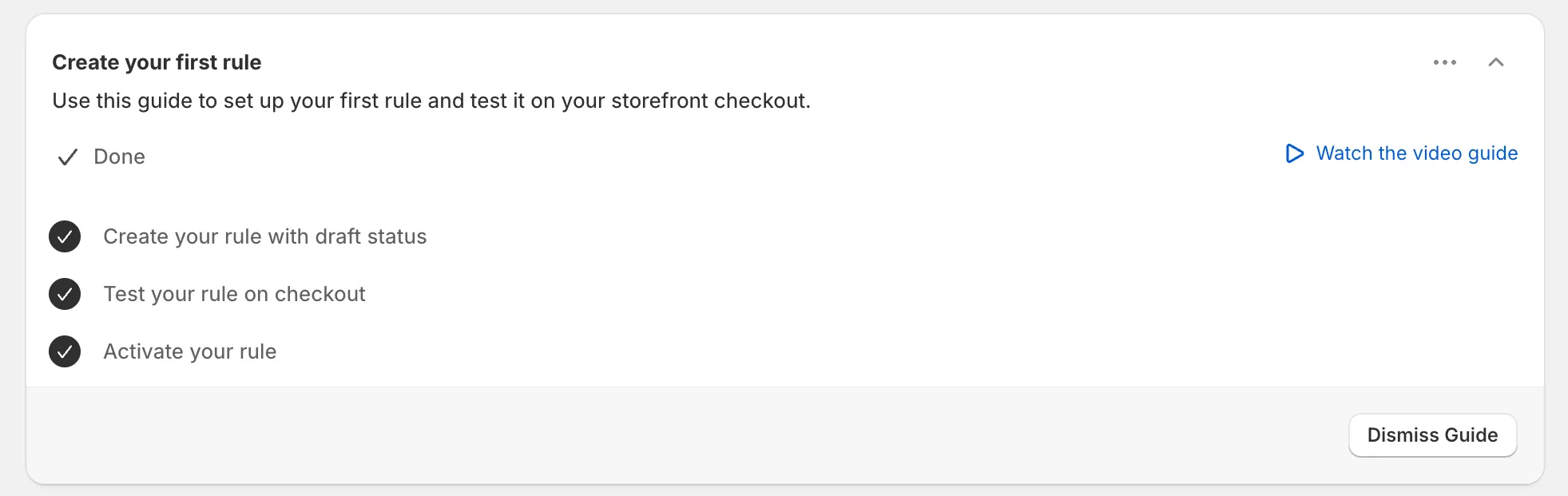
A checkout rule changes your checkout when its conditions match, for example “hide Cash on Delivery for international orders”. The setup guide on the Rules page, Create your first rule, walks you through it in three steps.
Note Checkout rules and discount rules work on every plan, the Free plan too, within its active rule limit. See Plans and billing.
Before you start
- Install AndOr. Checkout rules do not need the app embed.
- On Home, click Open Rules on the Control checkout card. Or open Rules from the app menu.
Step 1: create your rule as a draft
A draft rule runs only for you, so real shoppers are not affected.
-
On the Rules page, use the Quick finder or click Create rule.
The Quick finder asks What do you want to set up? Type what you need, for example “hide COD”, or pick a popular use case. Or click Create rule and choose a rule type, for example Hide payment methods.
-
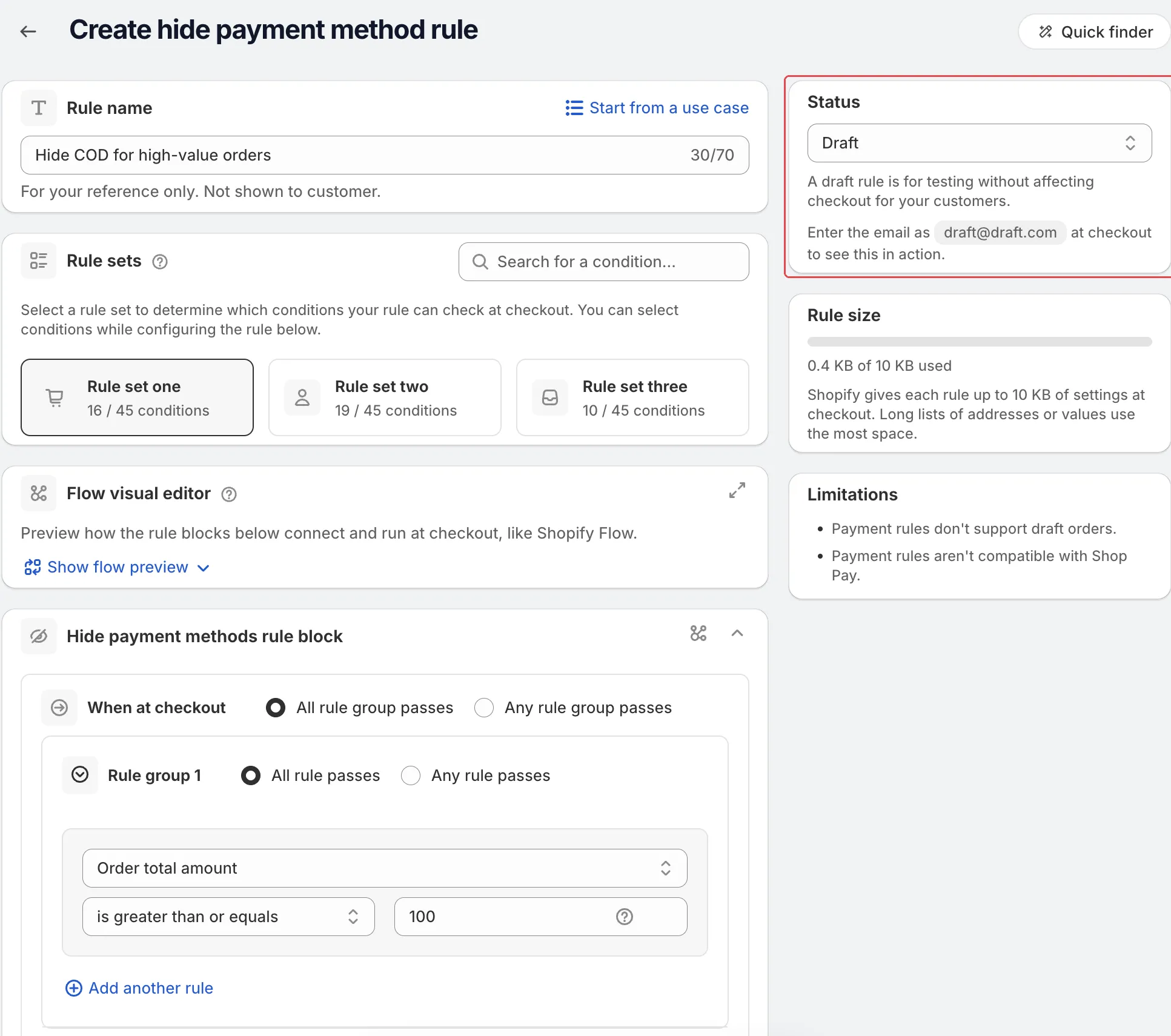
Name the rule and set its conditions.
Give it a clear Rule name. To save time, click Start from a use case and pick a ready-made rule, then change the values. Set the conditions that decide when the rule runs, and the action, for example which payment method to hide.
-
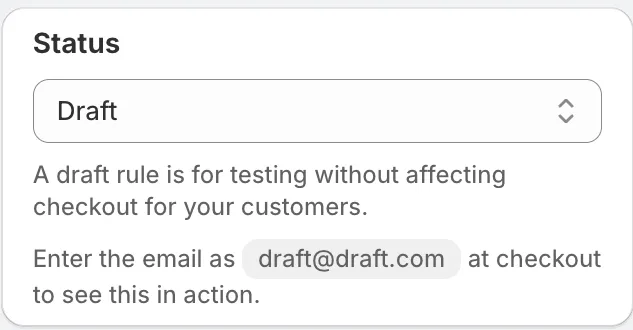
Keep the Status as Draft and click Save rule.
The Status card shows a hint with the test email. Enter it at checkout to see the draft in action.
Step 2: test it at checkout
-
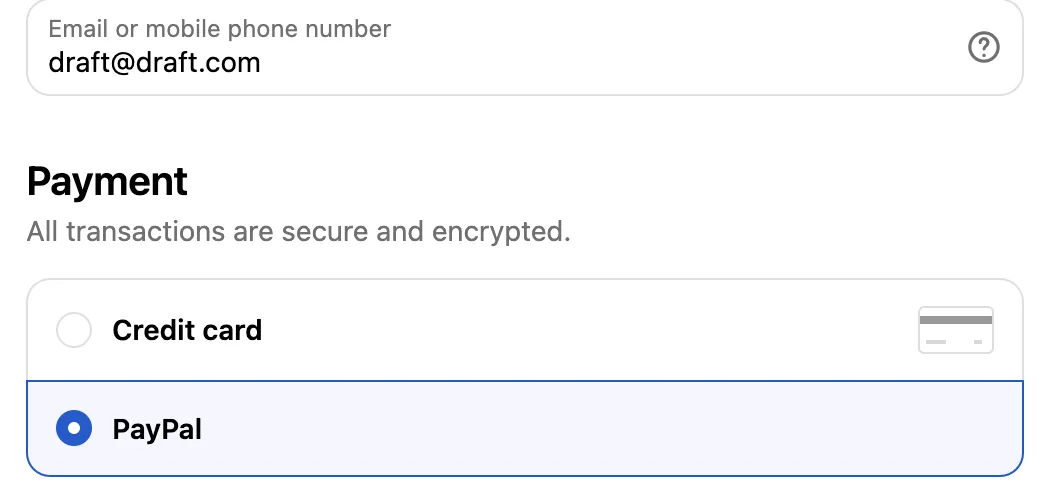
Add products that match your rule to the cart, go to checkout and enter the test email from the rule’s Status card.
For example, if the rule hides a payment method over an order total, make the cart bigger than that total. Draft rules run only for that test email. Check that the rule did what you expect, for example that the payment method is hidden.
Tip Test from your storefront, not with a draft order in the admin. Payment and shipping rules don’t show while you build a draft order. Give the checkout a few seconds to refresh after you save.
Step 3: activate the rule
-
On the Rules page, select your rule and click Activate.
Tick the checkbox next to the rule in the rules table, then click Activate. The rule now runs for all shoppers. You can edit it later.
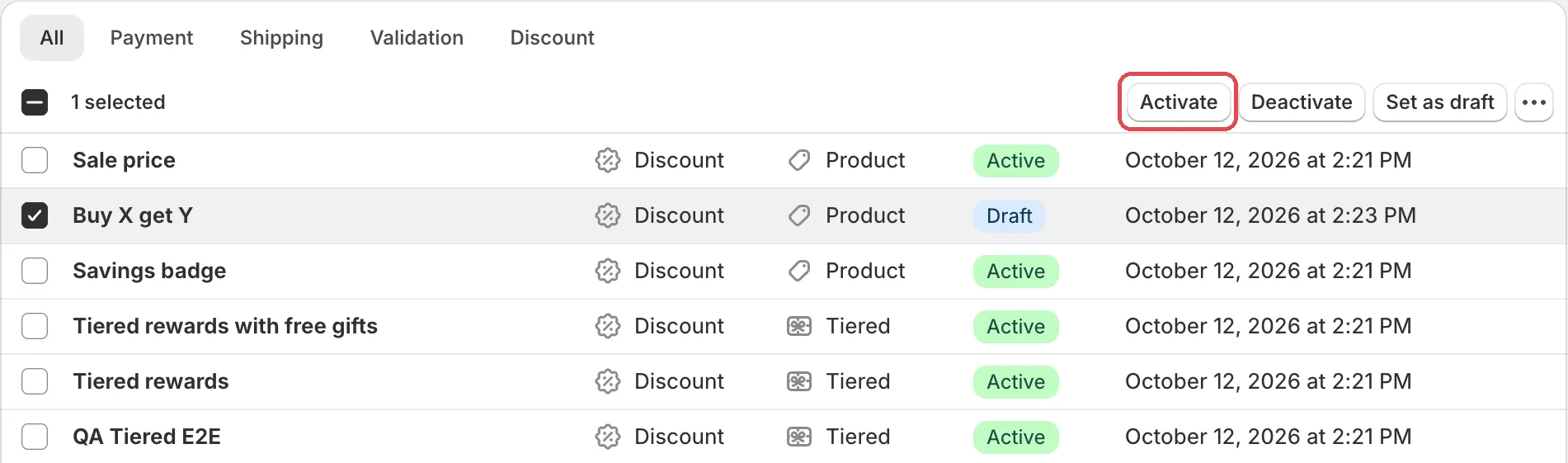
To turn a rule off without deleting it, select it and click Deactivate.