 See it in action
 Show discounts you already have
On this page
You do not need a new promotion to show a discount on your store. The Storefront widgets tab lists the discounts you already have, and one switch shows each one to shoppers.
The page says: “Choose which discounts your storefront shows to shoppers.”
Why use it: many shoppers never learn about a discount until checkout. Showing it on the product page, as a sale price or a badge, helps them decide to buy.
What it covers
“This list covers automatic discounts and discount codes from your Shopify admin, plus the discounts you build in AndOr.”
- An automatic discount shows as a sale price, a badge, a goal bar or a tier table, depending on the discount.
- A discount code shows a “Use code” badge rather than a sale price, because shoppers only save once they enter it.
- An order discount, like 10% off orders over $50, shows in the goal bar and the cart, never as a badge.
- “Discounts from other apps, and rules that use conditions, are not shown here yet.” One condition is the exception: a minimum cart subtotal (“Order subtotal amount” set to “is greater than or equals”). The goal bar uses it as the goal, and a free gift can use it as the amount that unlocks the gift.
Showing a discount does not change your prices in Shopify. “Stop showing it and we take that back off your product pages.”
Set it up
-
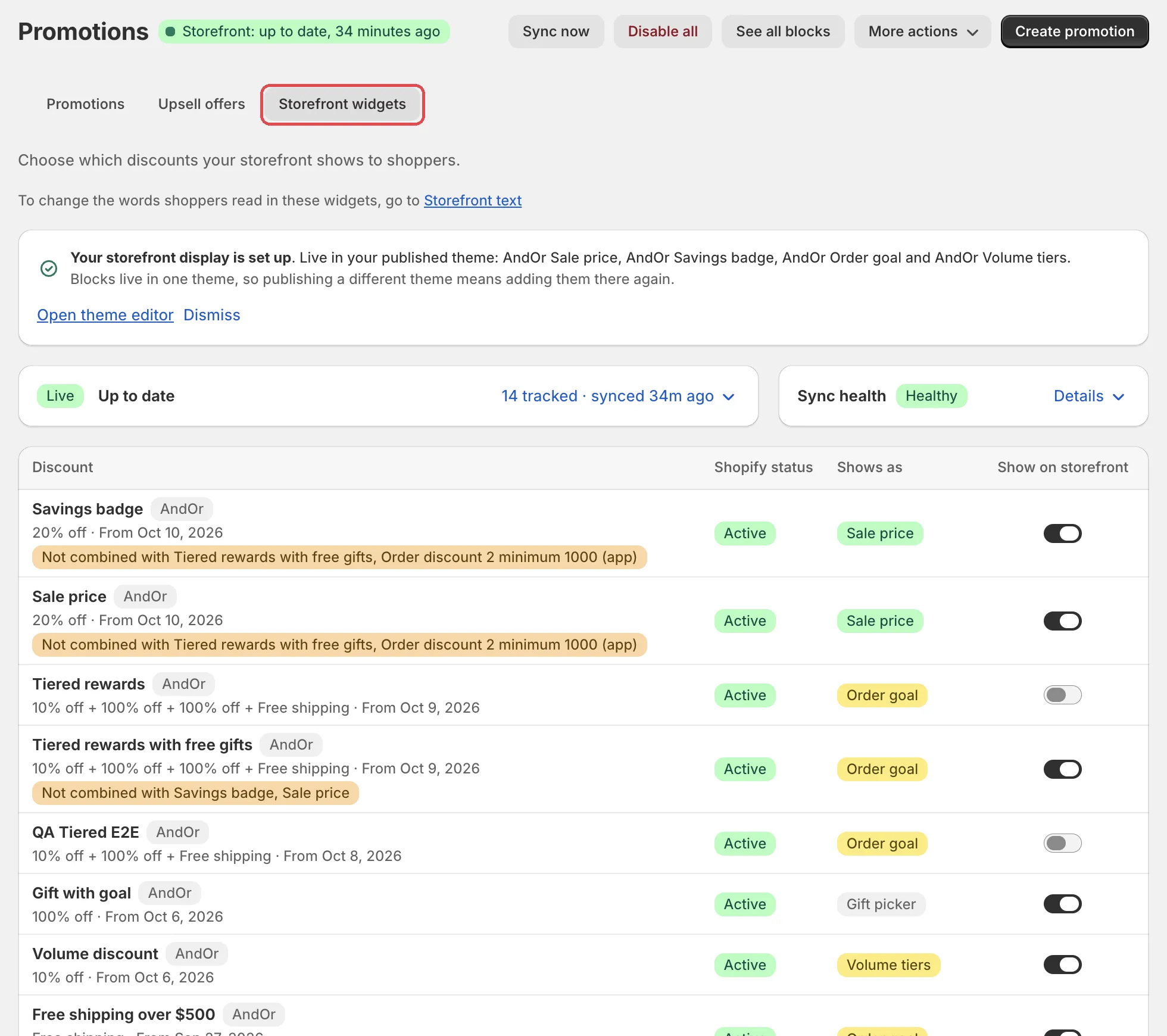
Open Promotions and click the Storefront widgets tab.
The admin title bar reads Storefront display.
-
Turn on the app embed.
Step 1 of the setup card: “Switch on AndOr Discount Display under App embeds and press Save. Blocks show without it, but it adds the cart drawer and your colors and text.” Click Turn on app embed, then click Save in the theme editor.

-
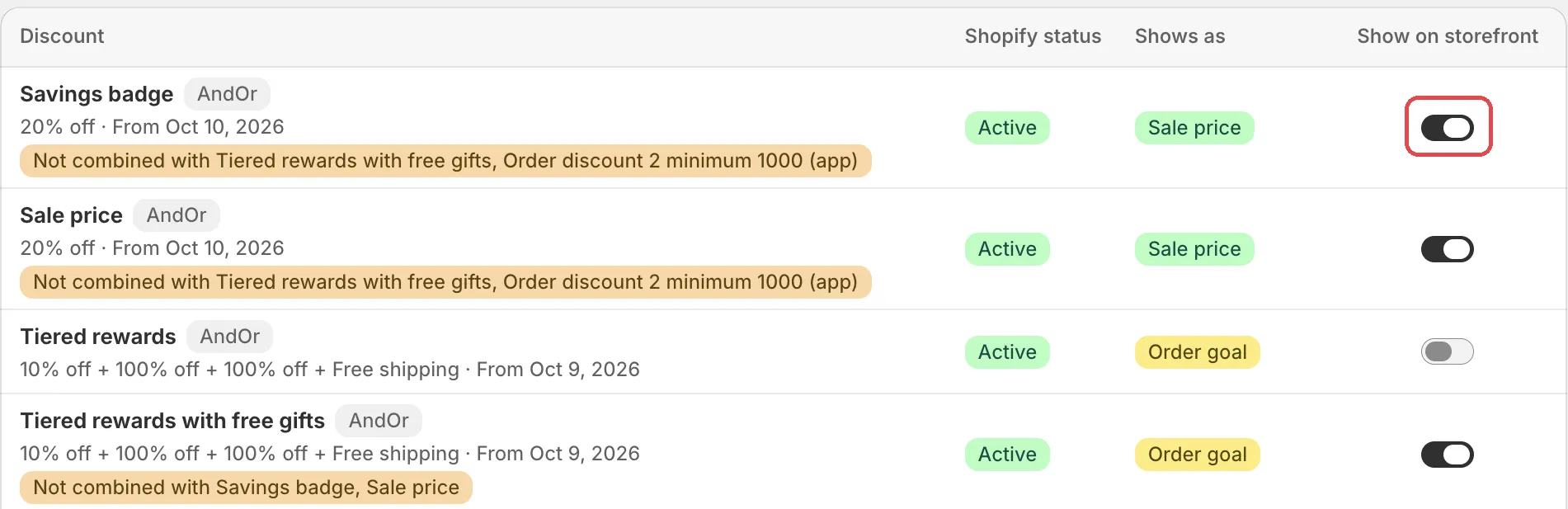
Turn on Show on storefront for a discount.
Step 2 of the setup card: “Turn a discount on in the table below, then finish step 3 before shoppers see it.”
-
Add the block to your theme, drag it under your price and click Save.
Step 3 of the setup card names the block your discount needs, for example Add sale price. “The button below opens your theme editor with the block added. It lands at the bottom, so drag it under your price and press Save.”
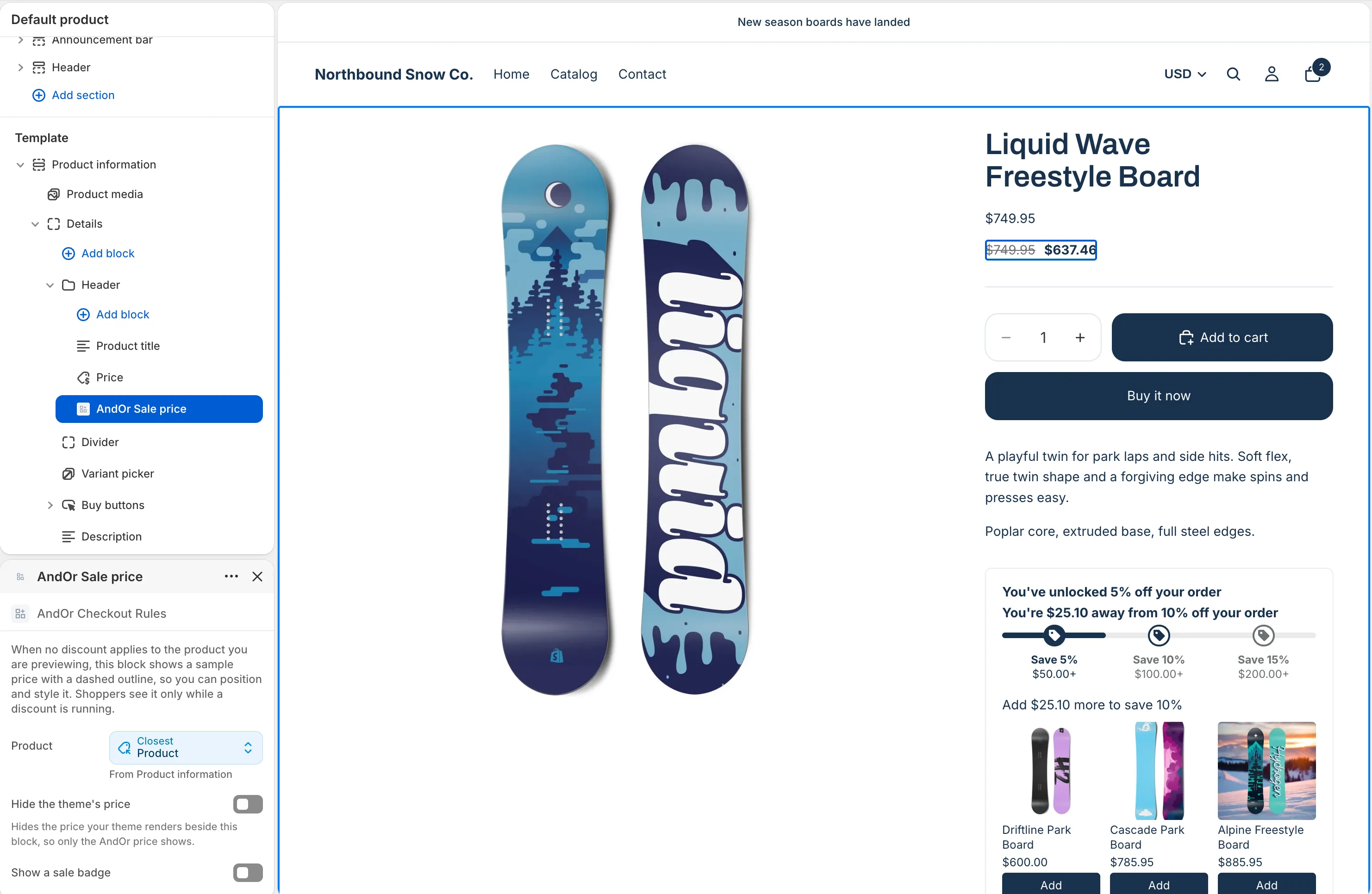
The dashed price in the editor preview is a sample. It shows until a discount applies to the product you preview.
When all steps are done, the card shrinks to “Your storefront display is set up” and lists the blocks that are live in your published theme.
Note Blocks live in one theme. If you publish a different theme, add them there again.
The table
The table has four columns. Read it from left to right: which discount, is it running in Shopify, how it looks, and is it on.
Discount
The discount’s name, its value and its dates. A code discount also shows its code. Rows built in AndOr have an AndOr badge.
A row can carry a badge:
- Not combined with [discount name]: checkout applies only the bigger of this sale and a spend discount. The goal bar and volume table show only savings the shopper will actually get. Let the two combine to give both.
- Hidden from the goal bar: a free shipping step the goal bar leaves out, because checkout pays another discount and drops this one.
How to use it: a badge means shoppers may see less than they think. Fix it by letting the discounts combine, in the rule editor or in Shopify. See “Can’t be combined” notes.
Shopify status
Options: Active, Scheduled, Expired, Deleted, Not eligible.
Not eligible means the discount no longer qualifies for storefront display. A rule set back to draft, or one that gained a condition, is the usual reason.
How to use it: only Active discounts show to shoppers. If a row says Not eligible, open the rule and undo the change, or read why under “When a discount can’t show” below.
Shows as
What form the discount takes on your store. Hover the badge to see a picture of what a shopper sees.
Options: Sale price, Badge only, Order goal, Volume tiers, Shipping callout, Gift chooser, Not shown.
Why it matters: it tells you which theme block the discount needs. For example, Sale price needs the sale price block on your product page.
An order discount says Order goal only when the goal bar can show it: a minimum spend, on all products, with no code and no customer restriction. Otherwise it says Not shown, with the reason.
Show on storefront
The switch. On: shoppers see the discount. Off: they don’t. Nothing reaches your storefront until you show a discount here.
If a discount stops qualifying, its switch is greyed out. “Your choice is kept and takes effect again when it qualifies.”
How to use it: turn on the discounts you want shoppers to notice. Turn off one you want to keep quiet, for example a staff discount code. The discount still works at checkout.
Tip “If two discounts apply to the same product, checkout always gives the shopper the better one. Show your biggest discount here, or your product pages advertise less than shoppers actually get.”
Sync now
Changes reach your storefront on their own. Click Sync now at the top of the page to update the storefront right away.
The status strip under the setup card shows the sync state: Live, Working, Check or Action needed. It also shows how many discounts are tracked and when they last synced.
How to use it: you rarely need Sync now. Use it after a big change in Shopify, for example new prices, when you want to check the storefront at once.
Pause live sync
-
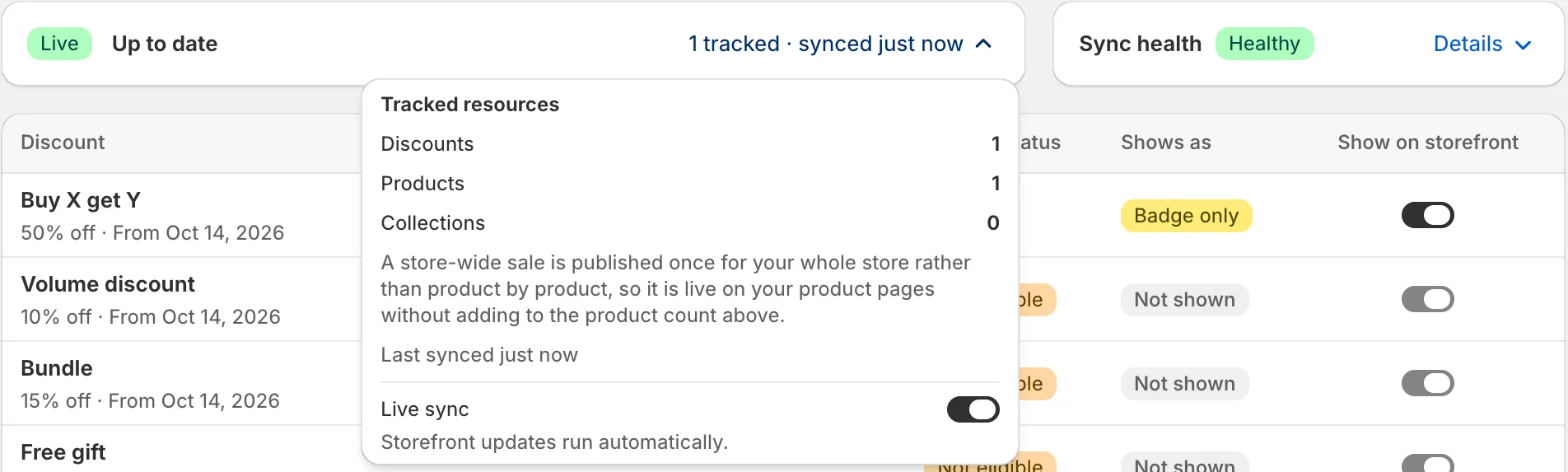
Click the tracked count in the status strip.
A popover lists the tracked Discounts, Products and Collections, and a Live sync switch.
-
Turn off Live sync, then click Pause live sync to confirm.
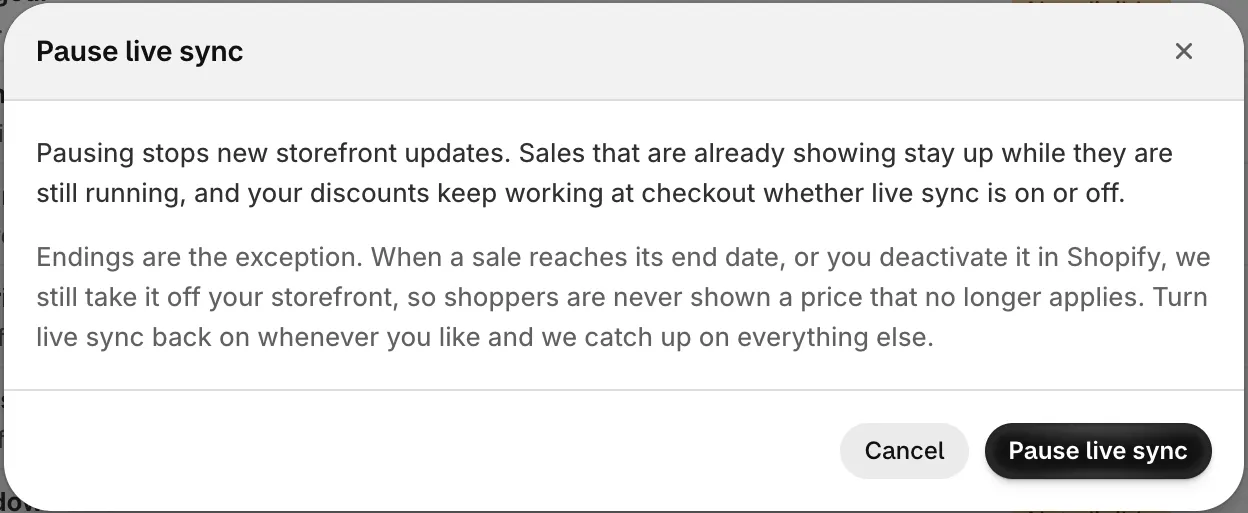
“Pausing stops new storefront updates. Sales that are already showing stay up while they are still running, and your discounts keep working at checkout whether live sync is on or off.”
Endings still apply: when a sale reaches its end date, or you deactivate it in Shopify, AndOr still takes it off your storefront. Turn Live sync back on whenever you like. AndOr then catches up.
When to use it: while you make many changes in a row, for example editing a large catalog. Turn it back on when you are done.
Disable all
Caution Disable all stops showing every discount on your storefront and removes the sale-price data AndOr added to your products. Your discounts keep working at checkout. You can show them again whenever you like.
When to use it: only when you want every AndOr storefront display gone at once, for example before you remove the app. To hide one discount, use its switch instead.
More from this page
The page header has more actions:
- See all blocks: the Storefront blocks page, with every block AndOr can show.
- Upsell offers: offers that point at discounts you show here.
- Storefront text: change the words shoppers read. See Storefront text.
- Show setup guide: brings back the setup card after you dismiss it.
When a discount can’t show
Some discounts cannot show on the storefront. The rule editor and the promotion page say why, in one sentence. Common reasons:
- “it only applies when a condition is met.”
- “it has more than one rule block.”
- “it has a maximum discount amount, and the storefront cannot show that limit, so the saving would look bigger than it is.”
- “it rejects discount codes.”
- “it applies to subscription purchases only, and a product page cannot tell a subscription shopper apart.”
- “it only applies to some shipping rates, and the storefront cannot know which rate a shopper will pick.”
- “its conditions are joined with “any”.”
Each one starts with “Storefront display is not available for this discount because”. Some have a fix in the sentence. For example: “one of its rule groups holds more than one condition. Move each condition into its own rule group and the storefront can read them.”
Limits
- The list covers automatic discounts and discount codes from Shopify, and discounts built in AndOr. Not discounts from other apps.
- A store-wide sale is published once for your whole store, so it does not add to the product count.