 See it in action
 Manage promotions
On this page
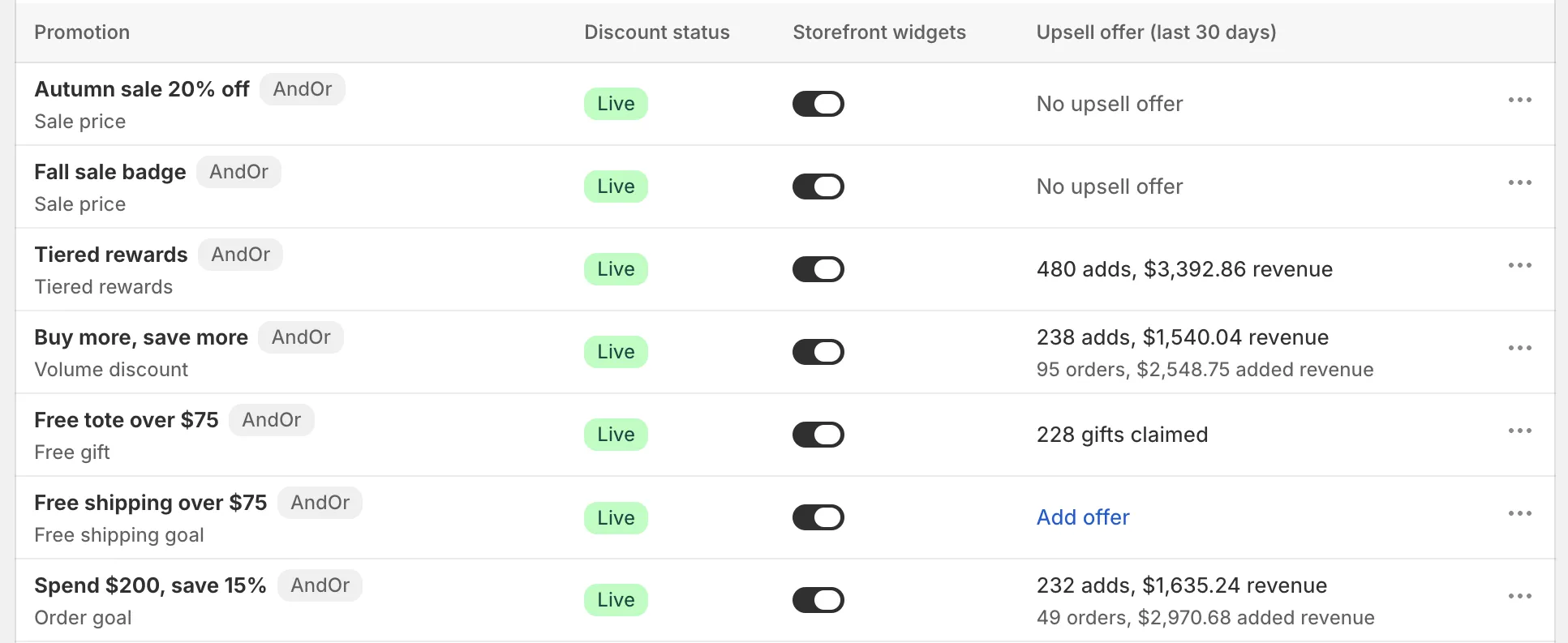
Open Promotions. The page says “Each row is one discount with its storefront widgets and upsell offer.”
It is the one place to see every deal you run, whether it shows on your store, and what it earns.
The page header has three tabs: Promotions, Upsell offers and Storefront widgets.
“Discounts made in Rules or in Shopify show here too. Click a row to open it, or open its menu to add what it is missing.”
A weekly routine
-
Open the Needs attention tab and fix each row.
When it is empty, every live promotion shows as it should. See Needs attention.
-
Check the storefront sync pill.
It should say Storefront: up to date. See The storefront sync pill.
-
Compare the Upsell offer column.
Click Add offer on a promotion with good traffic and no offer yet.
Upsell results
What it is: the card at the top. It sums up what your upsell offers did, with its own Date range.
How to use it: change the range to see a week or a month. Click See analytics for the full picture. See Offer and rule stats.
List tabs
What they are: quick views of the list.
- All: every promotion.
- Live: running promotions.
- Needs attention: promotions with a problem to fix.
- Off: promotions that are not running, for example drafts, scheduled and ended ones.
How to use them: open Needs attention first. See Needs attention.
Columns
Promotion
The discount name. Click the row to open the promotion page.
Discount status
The state of the discount itself, not of its widgets or offer.
- Live: the discount is running.
- Scheduled: it starts later.
- Draft: saved, not running.
- Ended: its end date has passed.
- Off: it is turned off.
A short label under the badge tells you when the row needs attention.
Storefront widgets
What it is: a switch, “Show [discount name] on your storefront”. On: shoppers see the discount on your store. Off: they don’t. The discount still works at checkout either way.
Why it matters: a discount shoppers don’t see can’t change what they buy.
How to use it:
- Click the switch. It reads Updating… while it saves.
- If the theme block is missing, an Add block link shows. Click it to open the theme editor with the block, then click Save there.
- A greyed-out switch has a reason. Hover it. For example Discount is off (“Turn the discount on to show its widgets.”) or “This discount has ended, so its widgets cannot show.”
- Not available means storefront widgets can’t show this discount, for example a discount aimed at a product tag. Hover it for the reason.
Upsell offer (last N days)
What it is: the offer’s results for the days in Upsell results. It reads, for example:
- “… orders, … revenue” or “… adds, … revenue”.
- “… adds, … added” before orders come in.
- “… gifts claimed” for a gift offer.
- Upsell offer paused when you paused it.
Under it, a second line shows the discount’s own orders and added revenue, for example “… orders, … added revenue”.
With no offer it shows Add offer, or “Turn on widgets to add an offer” when widgets are off. Some rows say No upsell offer.
Why it matters: you can compare promotions without opening each one.
How to use it: click Add offer on a promotion with good traffic and no offer yet. See Create an upsell offer.
Actions
The row menu. See Row menu.
Needs attention
A row lands in Needs attention with one of these reasons:
- Theme block missing: the widget’s block is not in your theme. Click Add block in the row.
- Sync issue: the storefront could not be updated. Click the sync pill at the top to see why.
- Offer can’t show: the upsell offer cannot show right now. Open the Upsell offers tab for the hint.
Row menu
Open a row’s … menu. Items show only when they apply to that row.
View details
Opens a window with each linked offer’s funnel and money. All offer analytics opens the full numbers.
Edit
Opens the promotion page, the same as clicking the row.
Open in Shopify
For discounts made in Shopify. Opens the discount in the Shopify admin.
See analytics
Opens the Analytics page, filtered to this promotion.
Pause offers or Resume offers
Pauses or resumes every upsell offer of this promotion. The discount and its widgets keep running. Use it to test the discount without the offer.
Duplicate
Makes a copy with “Copy of” before the name, for example “Copy of Volume discount”. Use it to start a similar deal, for example the same tiers on another collection.
Open in Rules
Opens the full rule editor, with conditions, combinations and limits.
Delete
For promotions made in AndOr. It deletes the discount, so it stops applying at checkout. Its storefront widgets stop showing, and its upsell offer is removed.
- In the row menu, click Delete.
- Tick Also delete its stats to remove its numbers from Analytics too. Leave it unticked to keep them.
- Click Delete promotion.
Rows for discounts made in Shopify have no Delete. They have Open in Shopify: delete those discounts in Shopify.
More actions
The More actions menu at the top of the page has the same entries on every Promotions tab:
- Storefront text: change the words your widgets show. See Storefront text.
- How offers work: a short guide to upsell offers.
- See all blocks: every AndOr theme block, including ones no discount uses yet.
- Sync now: send your latest discounts to your store right away.
- Sync details: when your store was last updated, and any problems.
- Disable all widgets: turn off the storefront widgets of every discount at once. Your discounts keep working at checkout.
The storefront sync pill
The page header shows how up to date your storefront is:
- Storefront: up to date (with the time of the last update)
- Storefront: updating
- Storefront: 1 issue (or a count of issues)
- Storefront updates are paused
- Storefront updates paused until tomorrow
Click the pill to open the sync status.
Why it matters: a change you make, like a new tier, reaches your store widgets through this sync. If it is stuck, shoppers may see old savings. Checkout always uses the real discount.
How to use it: after you save a promotion, wait for Storefront: up to date. If it shows an issue, click it to see which discount and why.