 See it in action
 Conditions, groups and blocks
On this page
Every checkout rule is built from conditions. You put conditions in rule groups, put groups in rule blocks, and give each block an action. This page explains how the pieces fit together.
Note The same builder is used for payment, shipping, validation and discount rules. Only the conditions and actions change.
The parts of a rule
From the outside in:
- Rule set: picks which group of conditions the rule can use.
- Rule block: a set of conditions plus one action. A rule can have several blocks.
- Rule group: a list of conditions inside a block. A block can have several groups.
- Condition: one check, for example Order total amount is greater than or equals 100.
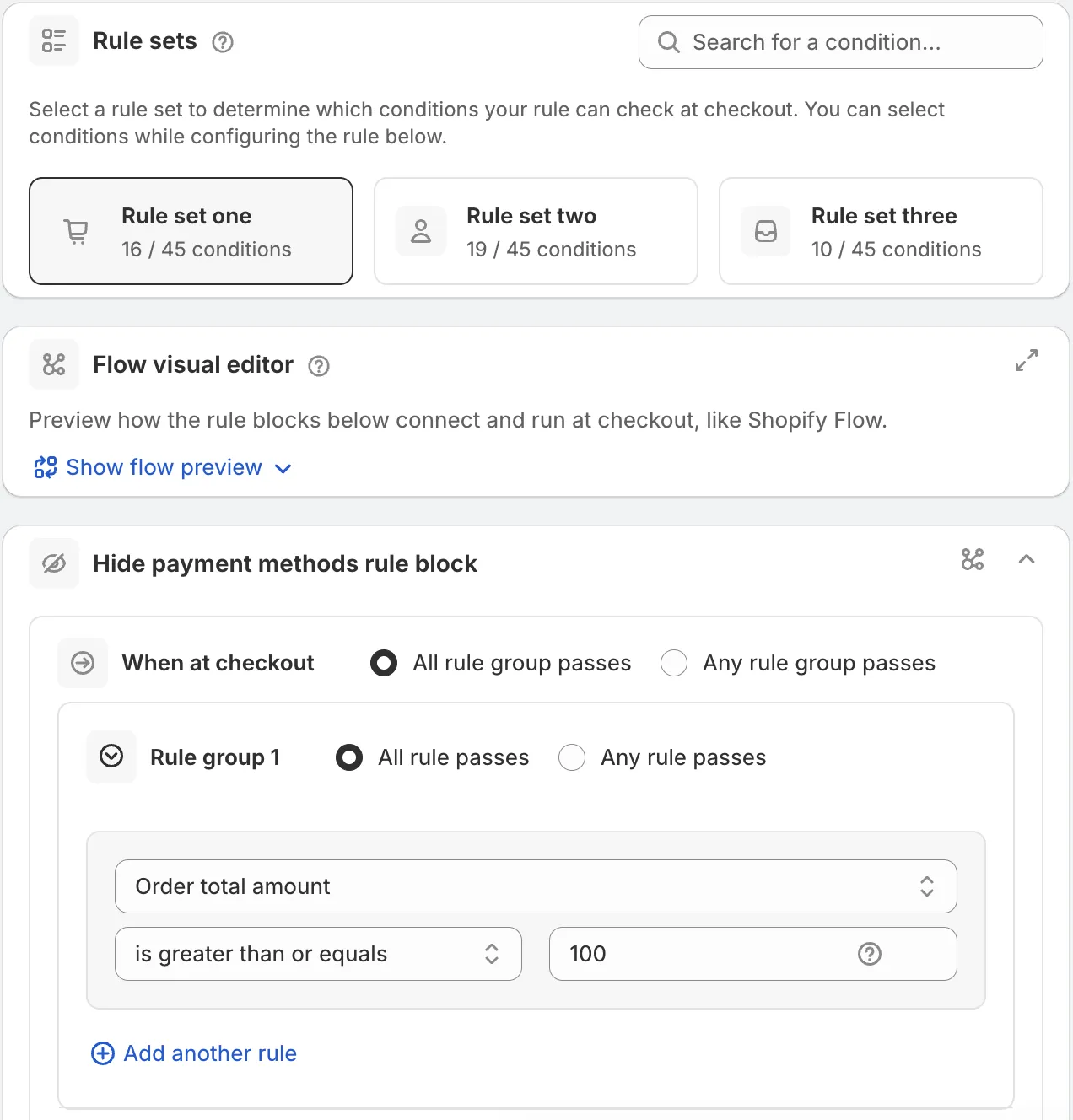
Rule sets
The Rule sets card sits above the rule blocks. Each rule set (Rule set one, Rule set two, and so on) offers a different group of conditions. This split exists because Shopify limits how much data a checkout function can read.
- Hover a rule set to preview its conditions.
- Use Search for a condition… to find which set has the condition you need.
- Each set shows how many of all conditions it offers, as “conditions available”.
Pick the rule set first. The condition list in every block depends on it. See the Condition reference.
Rule groups and All or Any
Inside a rule group, you choose how its conditions combine:
- All rule passes: every condition in the group must be true (AND).
- Any rule passes: at least one condition must be true (OR).
Click Add another rule to add a condition to the group.
When a block has more than one group, you also choose how the groups combine:
- All rule group passes: every group must pass.
- Any rule group passes: at least one group must pass.
Click Add another rule group to add a group. Each group is labelled Rule group 1, Rule group 2, and so on.
The action
Below the groups, the heading If all the above rules are matched then introduces the action. The action depends on the rule type. For example:
- Hide payment methods: Hide the payment methods added below.
- Hide shipping methods: Only show the delivery methods added below.
- Checkout validation: Block customer from completing checkout.
Rule blocks and Or
Click Add another rule block to add a second block. Blocks are joined by an Or badge. Each block has its own conditions and its own action. A block’s action runs when that block’s conditions match.
Use blocks when two different situations need two different actions. Use groups when one action has a more complex condition.
View in flow editor on a block opens the same rule as a diagram. See Flow visual editor.
Worked example
Goal: hide Cash on Delivery for a new customer with a big order, or for any VIP customer. The use case Hide COD: new high-spend OR VIP builds this rule for you.
-
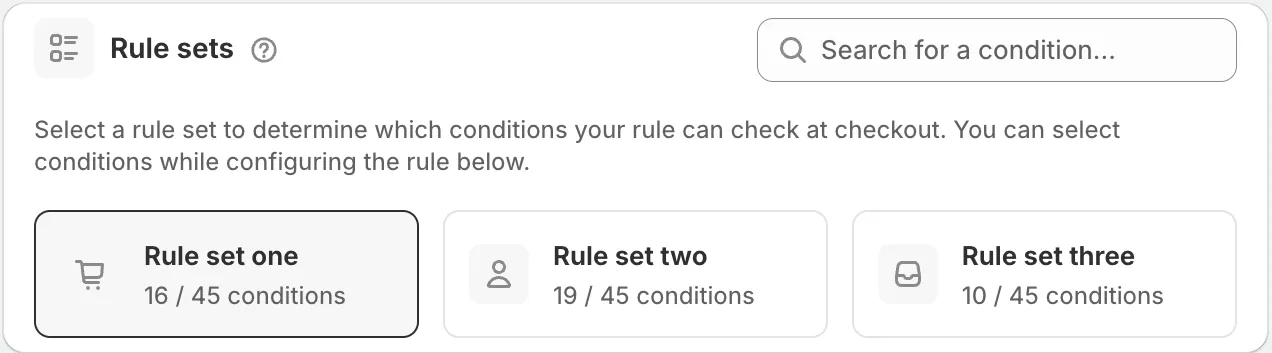
Create a Hide payment methods rule and pick a rule set.
Pick a rule set that has New customer, Order total amount and Customer tags.
-
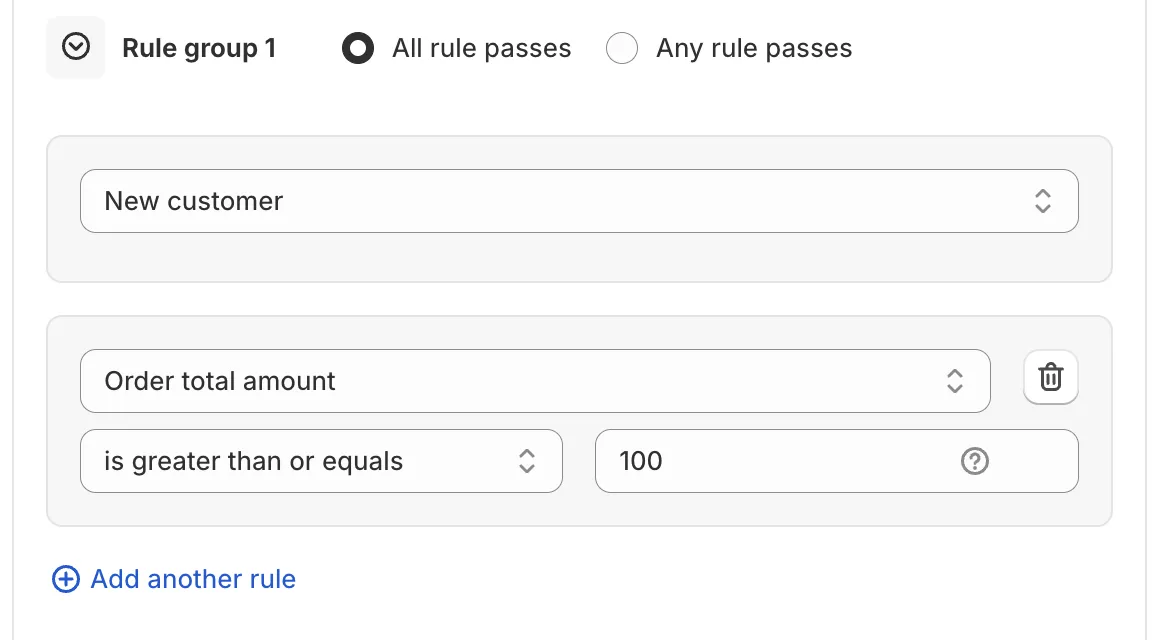
Build Rule group 1 for new customers with big orders.
Set it to All rule passes. Add New customer. Add Order total amount is greater than or equals 100.
-
Add Rule group 2 and join the groups with Any.
Click Add another rule group, then add Customer tags with the tag
VIP. Set the block to Any rule group passes. Now the block matches if group 1 OR group 2 passes.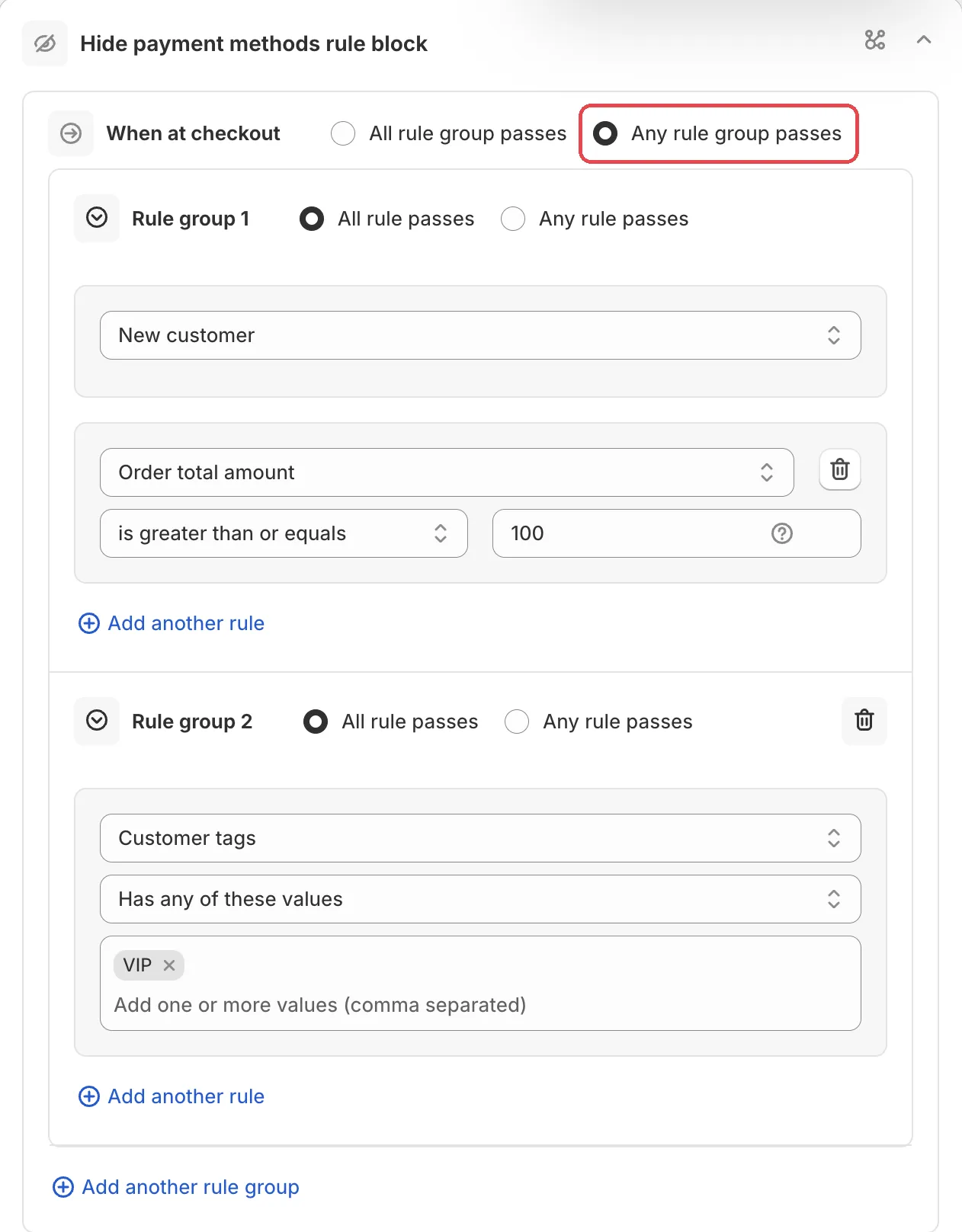
-
Choose the action.
Pick Hide the payment methods added below and add Cash on Delivery.
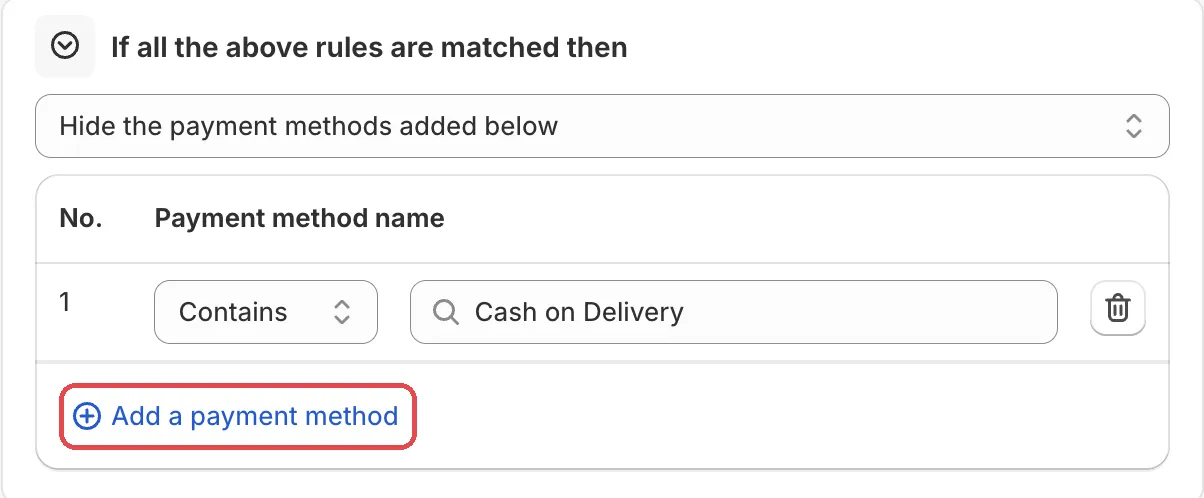
In plain English: “When a new customer spends 100 or more, or when the customer is tagged VIP, hide Cash on Delivery.”
Need two different actions? Add a second rule block. The use case Hide COD international, hide PayPal low-value shows this: block one hides Cash on Delivery, block two hides PayPal.
Limits
- The number of rule blocks per rule depends on your plan: 2 on Free, 5 on Starter, 8 on Growth, 10 on Pro and 15 on Scale. When you reach it, you see “You’ve reached the limit of … rule blocks on your current plan.” See Plans and billing.
- Every condition and value adds to the rule’s size. See Rule size.