 See it in action
 Bundle card: frequently bought together (AndOr Offer picker block)
On this page
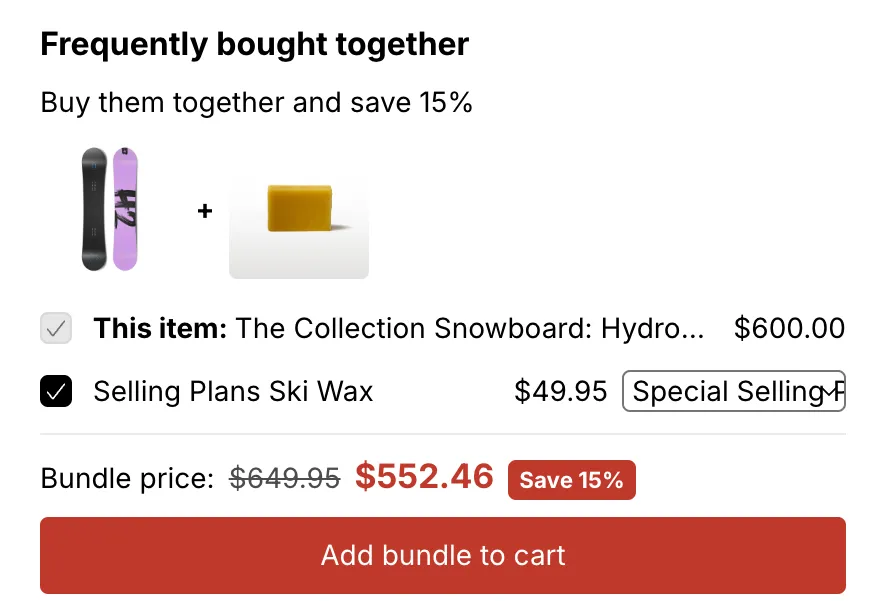
The bundle card shows a “Frequently bought together” box on the product page, with the products you pick for the bundle. Shoppers tick the products they want and add the whole bundle to the cart in one click.
Made by: a Bundle promotion and its Bundle upsell offer, shown on the product page.
For developers: Code · Styling · Events
What shoppers see
Example, for a “Board pair” bundle at 15% off:
- The heading Frequently bought together and your offer message, like “Buy the pair and save 15%”.
- A picture of each product, joined by “+”.
- One row per product, with a checkbox and a price. This page’s product comes first, ticked and locked, marked “This item:”. A product already in the cart says “In your cart”.
- The price line. When AndOr is sure checkout gives the bundle, it shows Bundle price: with the regular total crossed out, the bundle total, and a “Save 15%” chip. Otherwise it says “Save 15% when bought together”, with no money amount.
- The Add bundle to cart button. It adds the ticked products that are not in the cart yet, then opens the theme’s cart.
Once the cart holds the full bundle and checkout applies it, the card says “Bundle unlocked: 15% off” and the button goes away.
You can reword these texts per language on the Storefront text page, in the Bundle group.
Where it goes
Product page. The AndOr Offer picker block also works on the cart page, but the bundle card shows on the product page only.
Note On a theme that doesn’t send Shopify’s storefront cart events, the page reloads after a shopper adds the bundle. Horizon 4.0+ and Dawn 15.5+ send them. See Theme requirements.
Add the block
Note App blocks need an Online Store 2.0 theme. On an older (vintage) theme, turn on the app embed and paste the one-line tag instead. See Theme requirements.
The AndOr Offer picker block draws the bundle card. You add it to the product template in the Shopify theme editor.
The same block also draws the Buy X get Y and free gift widgets. The live upsell offer decides what it shows:
- On a product page: the bundle card, a Buy X get Y banner, or a gift banner.
- On the cart page: the Buy X get Y claim row and the free gift slot.
-
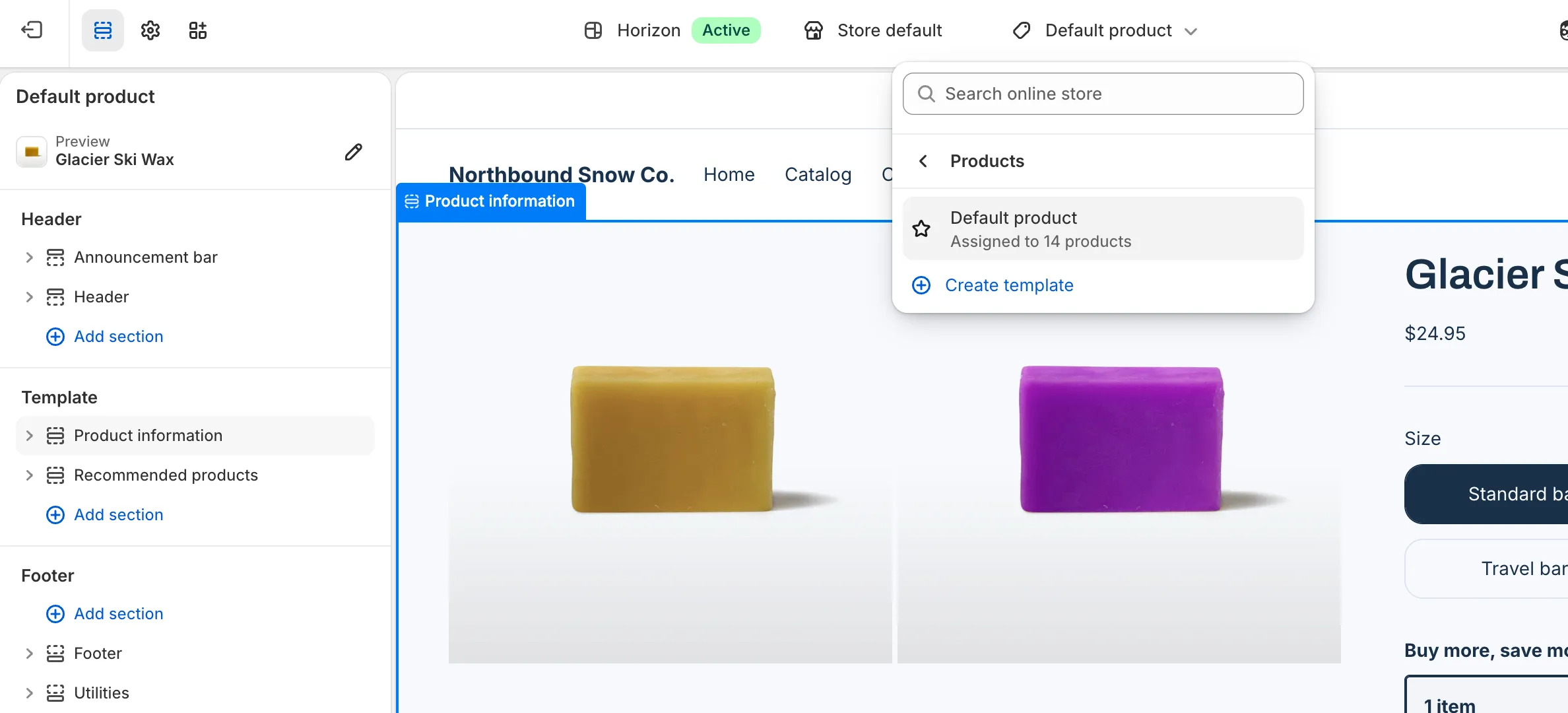
Open the theme editor on the product template.
In Shopify, go to Online Store > Themes and click Edit theme. Pick Products, then Default product, in the page menu at the top.
-
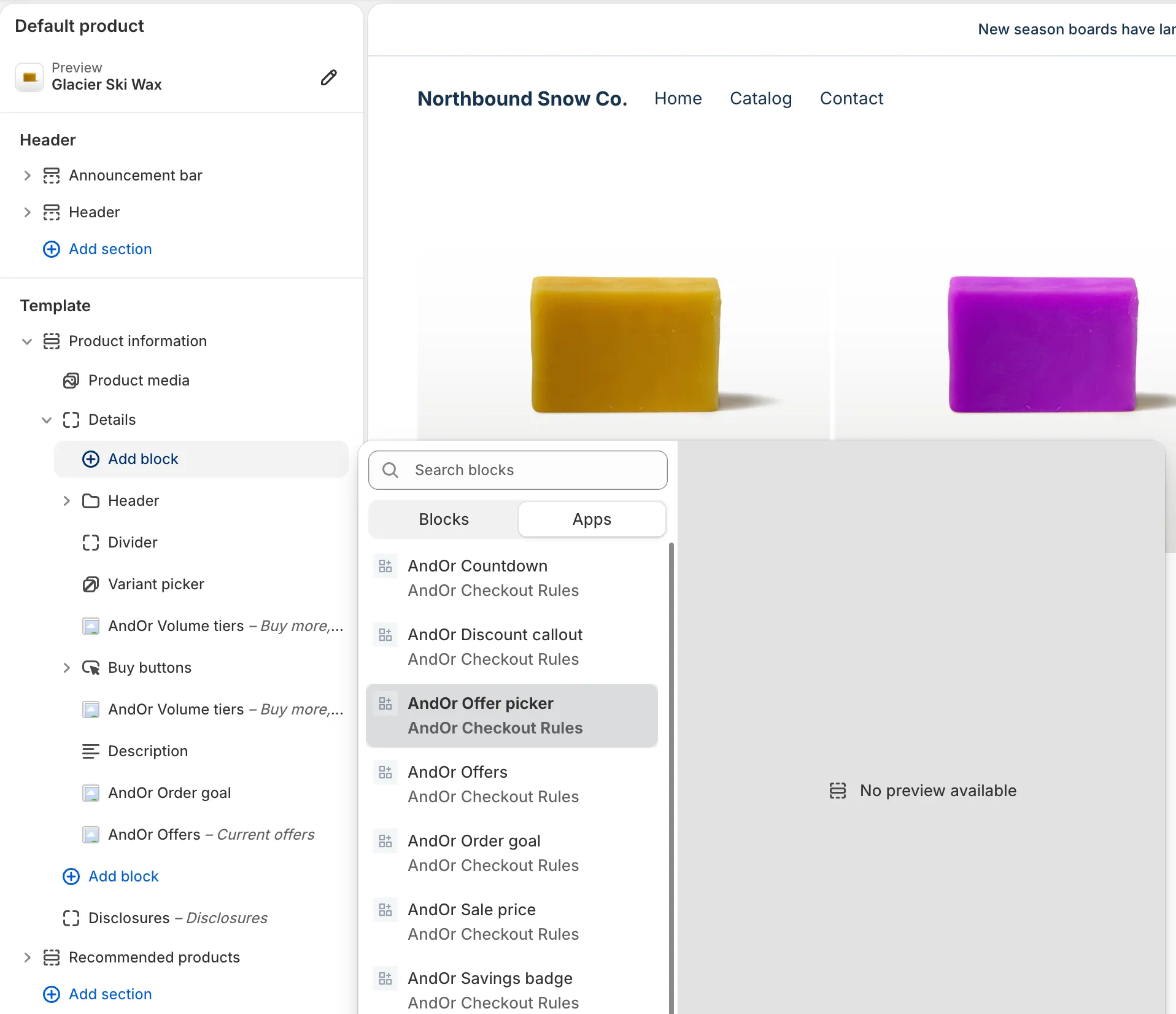
Click Add block, open Apps and pick AndOr Offer picker.
Add it inside the product information section.
-
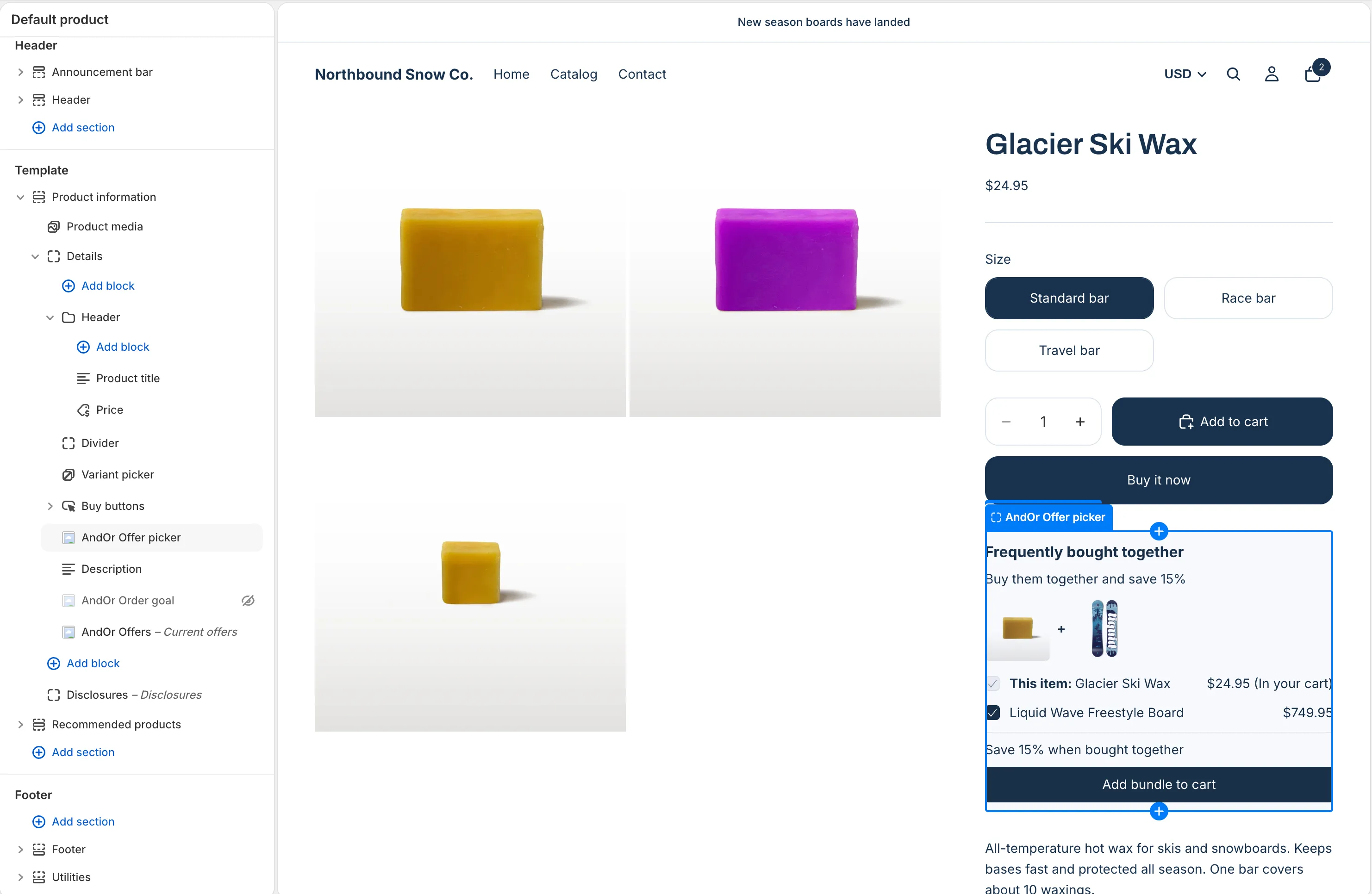
Drag the block where you want the card, then click Save.
Under the Add to cart button works well.
Tip After you save a promotion, What’s next has an Open theme editor button that opens the editor for you.
Note When there is no upsell offer to show, the theme editor shows the note “No upsell offer to show here yet. Create one in AndOr. Only you see this note, in the theme editor.” Shoppers never see it.
Block settings
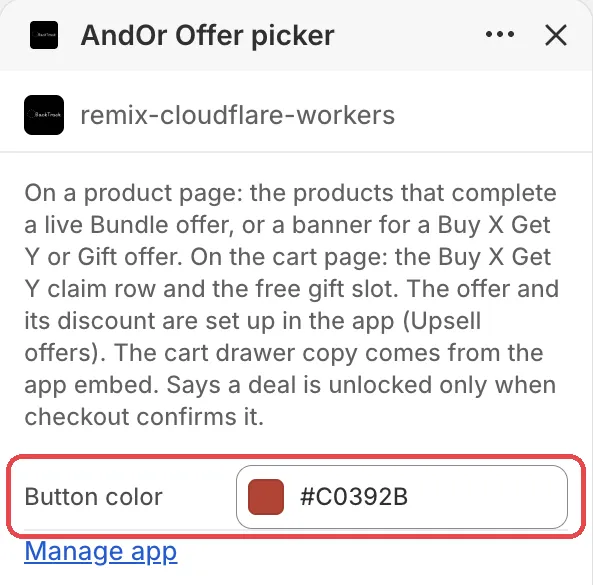
Button color
The color of the Add bundle to cart button, the bundle total and the “Save” chip. Left on the default, it follows the app embed’s Sale price color, and then your brand color.
Default: #c0392b.
The heading, buttons and notes come from the app. To reword them, use the Storefront text page.
What it needs to appear
- Optional: the app embed. The block shows without it. The embed adds your shared look settings, text changes, the cart drawer parts and one-line tags.
- The AndOr Offer picker block is on the product template.
- The bundle discount is switched on under Promotions > Storefront widgets, and it is running now.
- A live Bundle upsell offer, linked to that discount, with Product page in Where it shows.
- The bundle is a percentage discount that works without a code and has no customer conditions.
- This product is in one of the bundle’s groups, and every other group has at least one product the shopper can buy.
Show it in more places (code)
To show it where your theme has no slot for the block, paste a line of code. See Bundle card: Code.
Limits
- The card shows up to 3 products for each other group.
- A group lists at most 50 products. A product past that cap gets no card.
- Groups picked by SKU or by product type get no card. Pick products, variants, collections or tags instead.
- Drafts, archived products and gift cards are never listed.
- The card cannot see a sale on the other products until they are in the cart. A sale that does not combine could still win at checkout.
- Give each bundle its own checkout message. Two live discounts with the same message can confuse the “Bundle unlocked” line.