 See it in action
 "Can't be combined" notes
On this page
Shopify applies two discounts together only when both allow it. When they can’t be combined, checkout pays one and drops the other. AndOr widgets then show a short note instead of promising a reward the shopper won’t get.
What shoppers see
The note appears in the widget, in place of the reward. For example:
- Goal bar: “A discount in your cart can’t be combined with order discounts.”
- Free gift: “Your gift isn’t free right now. Your cart has another discount that can’t be combined with it.”
- Buy X get Y: “10% off isn’t applied. Your cart has another discount that can’t be combined with it.”
- Tiered rewards: “Your rewards don’t apply right now. Your cart has another discount that can’t be combined with them.”
When the other discount’s name is known, the note names it, for example “Summer sale in your cart can’t be combined with order discounts.”
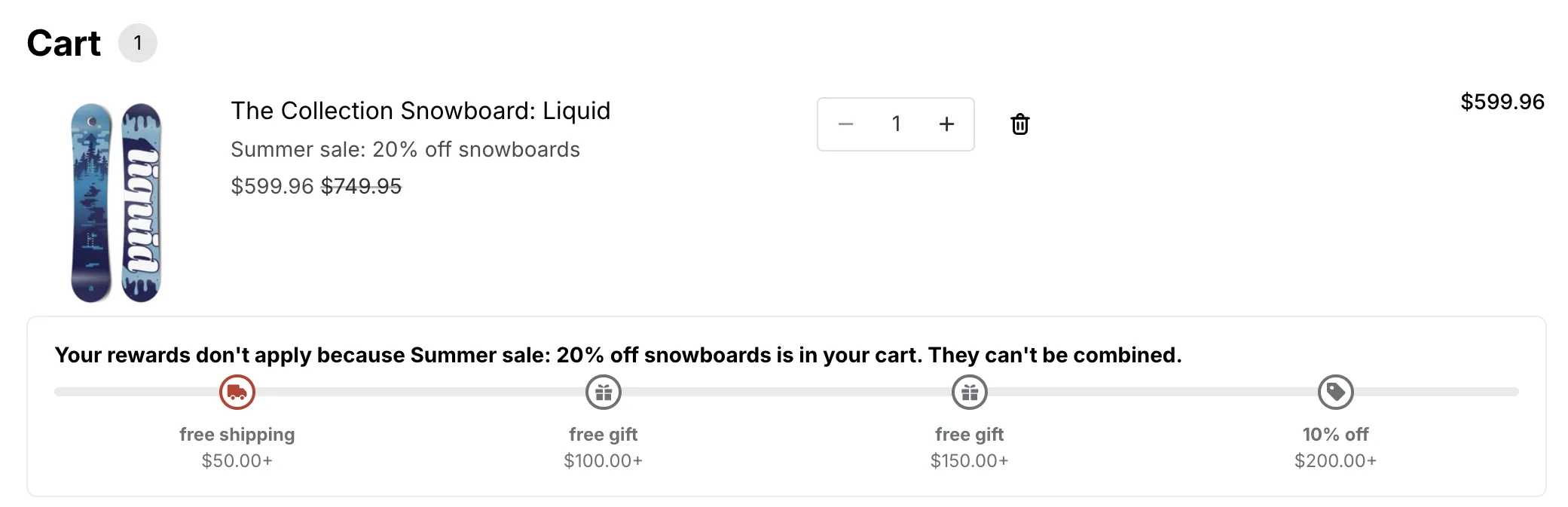
You can change or hide these notes on the Storefront text page. Look for labels like When another discount wins over the goal. See Storefront text.
Why it happens
Each discount must allow the other
Every Shopify discount has Combinations settings. Two discounts apply together only when each one allows the other’s type. If one says no, Shopify applies just one of them.
Product and order discounts: the bigger one wins
When a product discount and an order discount can’t be combined, Shopify applies the one that saves the shopper more.
Example: a 20% “Summer sale” on a product, and an order discount of 10% over a cart total. They don’t combine. When the cart reaches the total, checkout keeps the 20% sale. So the goal bar doesn’t promise the extra 10%.
Shipping discounts always lose
When a shipping discount can’t be combined with a product or order discount, Shopify applies the product or order discount. It does this even when free shipping would save the shopper more. The shopper may see “You already have a better combination” at checkout. This is Shopify’s rule, not a bug.
A shopper typed a discount code
A widget can’t know if a shopper will type a code. If the code can’t be combined with the discount the widget shows, checkout applies only one of them.
A discount you did not show still applies
The Show on storefront switch only decides what AndOr shows. Every active discount still applies at checkout. A discount you did not turn on can still beat the one you did.
A discount for some customers only
A discount for new customers or a customer tag can win for those shoppers only. Widgets can’t tell who is shopping, so for those shoppers the widget can be off.
What you see in the app
On Promotions > Storefront widgets, two badges warn you:
- Not combined with and a discount name: checkout applies only the bigger of this sale and the spend discount. The goal bar and volume table show only savings the shopper will actually get.
- Hidden from the goal bar: a free shipping step the goal bar leaves out. Its note says which discount wins and how to fix it.
Fix it
Pick one:
-
Let the two discounts combine.
Open each discount and allow the other’s type in its Combinations settings. Do it on both, because each must allow the other. Then both apply and the widget shows the full reward.
- In Shopify, open Discounts, open the discount, and use the Combinations card.
- In AndOr, use Combine with on the promotion page, or the Combinations card in the rule editor.
-
Show the other discount too.
Turn on Show on storefront for it on the Storefront widgets tab. Then AndOr knows about both and words the widget correctly.
-
Turn off the discount you don’t want.
If it was not meant to be running, deactivate it.
Note Turning the widget off and on, or editing its message, does not fix this. The widget shows what checkout will really pay.