 See it in action
 Create an upsell offer
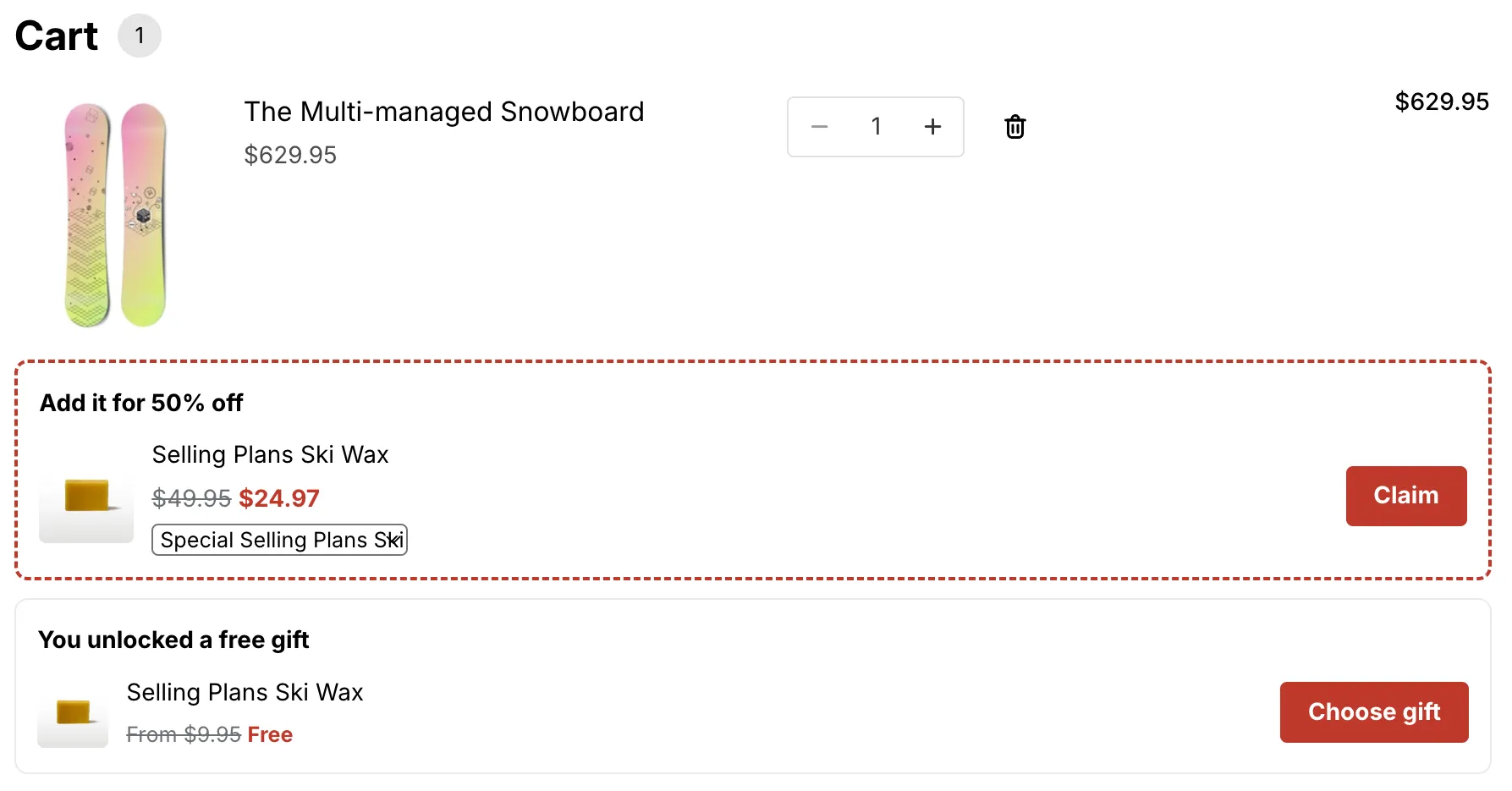
Use this page for a discount you made in Rules or in the Shopify admin. You pick the discount, and the app fills in the message, the places and the products. You can change any of it before you save.
Tip A promotion from the gallery makes its own offer. Promotions in Promotions with an upsell offer create the discount, its widgets and the offer in one go, so you don’t need this page. See How promotions work.
Before you start
- Have a discount that can have an offer: a volume discount, an order goal, a free shipping goal, tiered rewards, a bundle, a Buy X get Y or a free gift.
- Make it show on your storefront. For a rule, turn on Show on storefront in the rule editor. For a discount made in Shopify, see Show discounts you already have.
- For offers in the cart drawer, turn on the app embed. See What needs the app embed.
Set it up
-
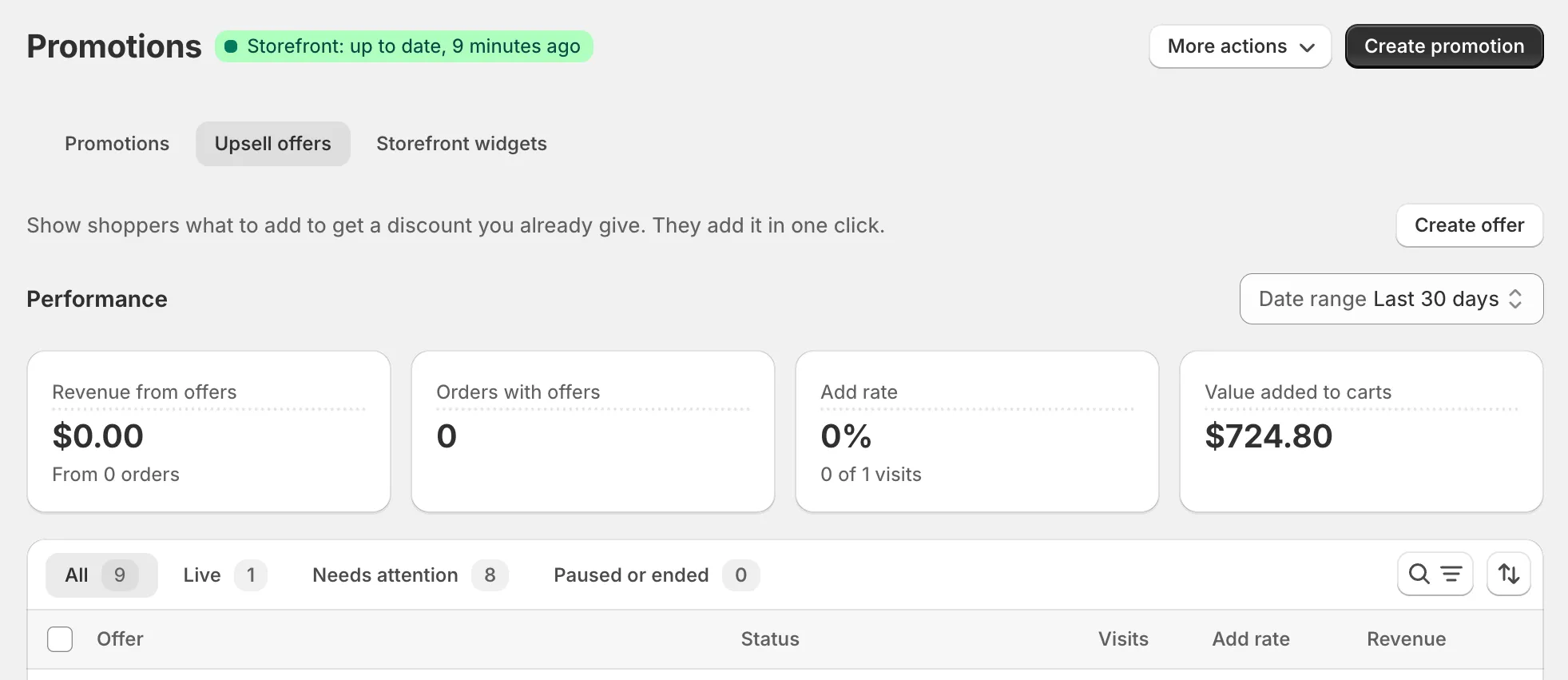
Open Promotions, then the Upsell offers tab, and click Create offer.
Create offer is greyed out when no discount can have an offer yet.
-
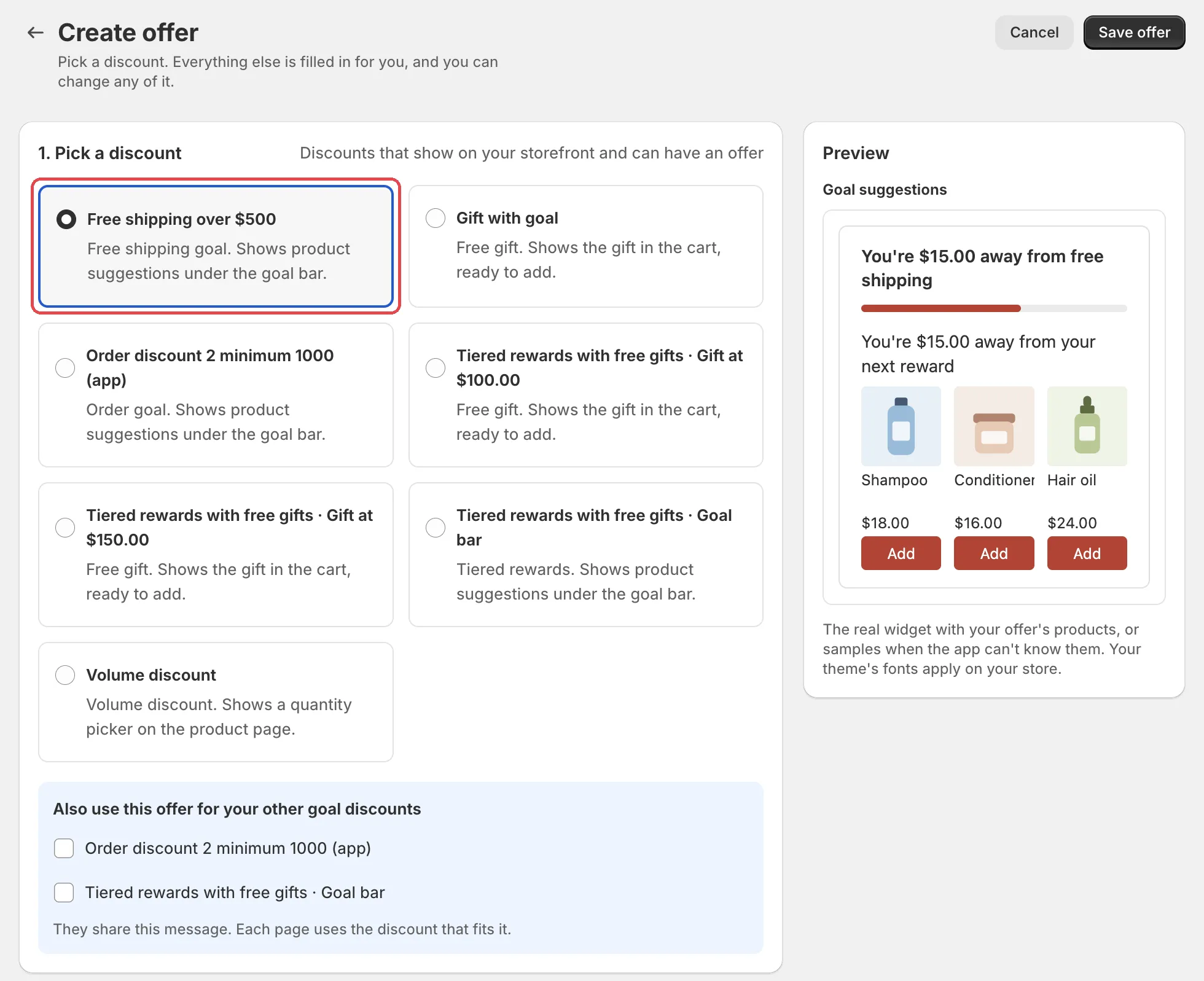
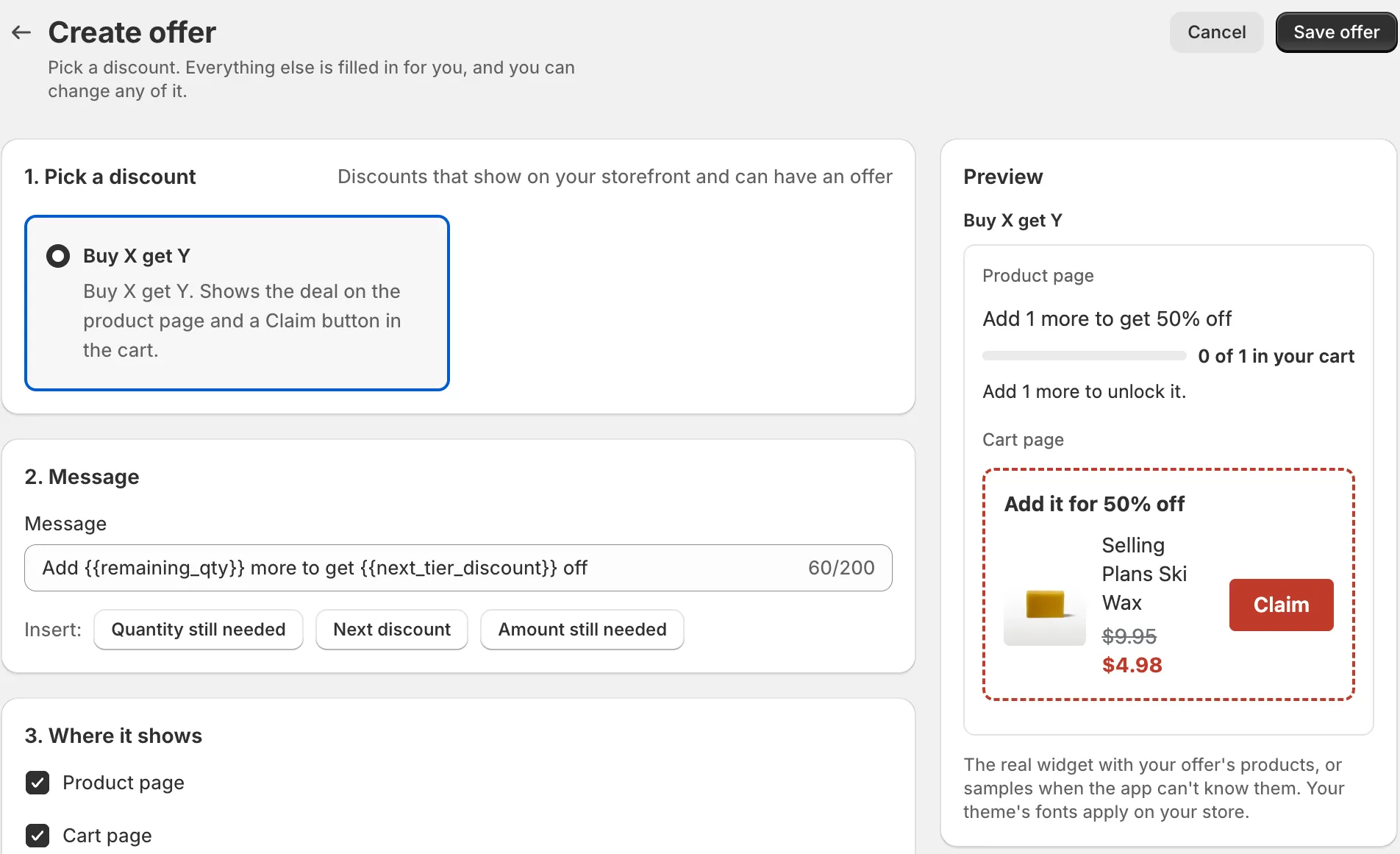
Under 1. Pick a discount, click the discount’s card.
The list shows “Discounts that show on your storefront and can have an offer”. Each card says what its offer shows. For example: “Volume discount. Shows a quantity picker on the product page.” The discount you pick sets the offer type.
Optional: under Also use this offer for your other … discounts (for example “your other volume discounts”), tick the other discounts. They share this message. Each page uses the discount that fits it. You can link up to 20 discounts to one offer.
-
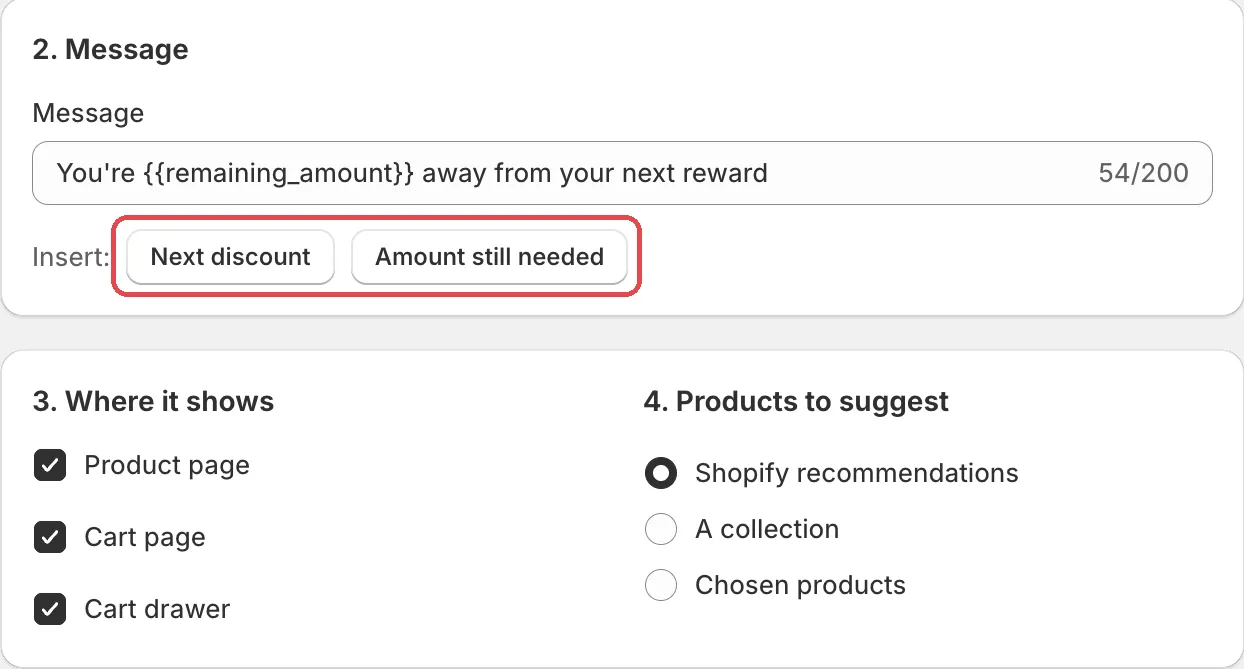
Check the message under 2. Message.
It starts with a default message for the offer type. Use the Insert: buttons to add a number that changes with the cart, like Quantity still needed. See Message and where it shows.
Free gift only: under the message, use Gift settings to decide if the app adds the gift or shoppers choose it. See Gift settings for every setting.
-
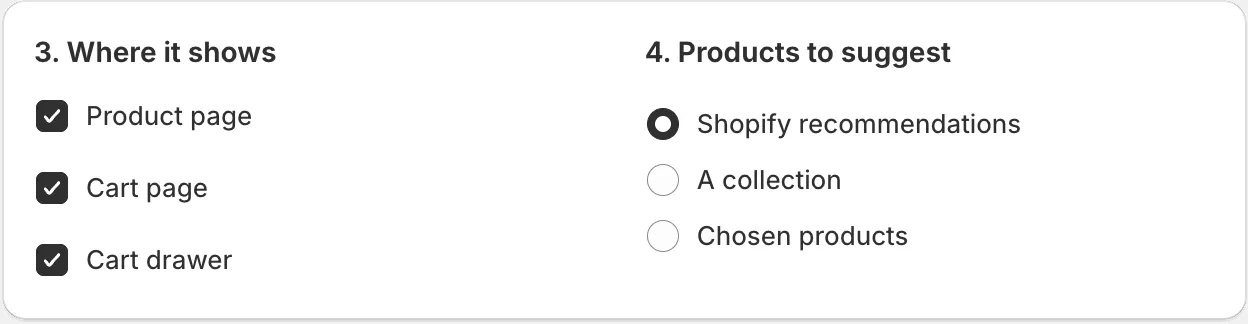
Pick the places under 3. Where it shows.
A new offer starts with every place its type can use. Untick the places you don’t want.
Goal offers only: pick the products under 4. Products to suggest. Goal suggestions show products under the goal bar. Choose Shopify recommendations, A collection or Chosen products. Other offer types use the products in the discount.
-
Set the status in the last section, Status.
Active is on by default. Start (optional) and End (optional) give the offer its own dates. Leave them empty to run the offer as long as its discount runs.

-
Check the preview and click Save offer.
The Preview on the right shows the real widget with your offer’s products, or samples (Shampoo, Conditioner, Hair oil) when the app can’t know them. Your theme’s fonts apply on your store.
You see “Offer saved”. The offer appears in the table on the Upsell offers tab.
Add the block to your theme
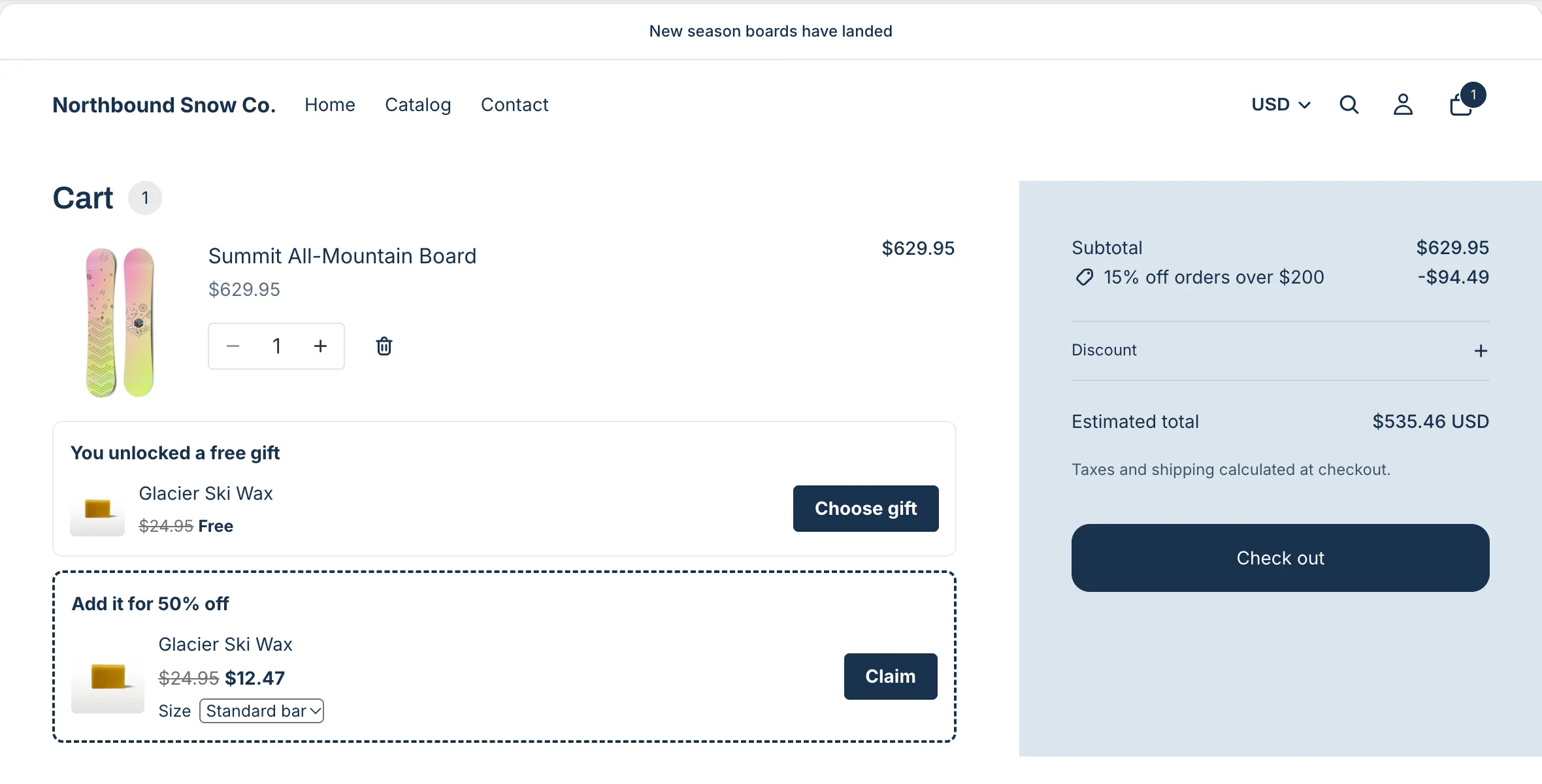
The offer shows inside an AndOr theme block. To see which block each offer type uses and where it can show, see Offer types.
Other ways to start an offer
- From a rule. In the rule editor, the Upsell offers card has Create offer. Save the rule first, and turn on Show on storefront.
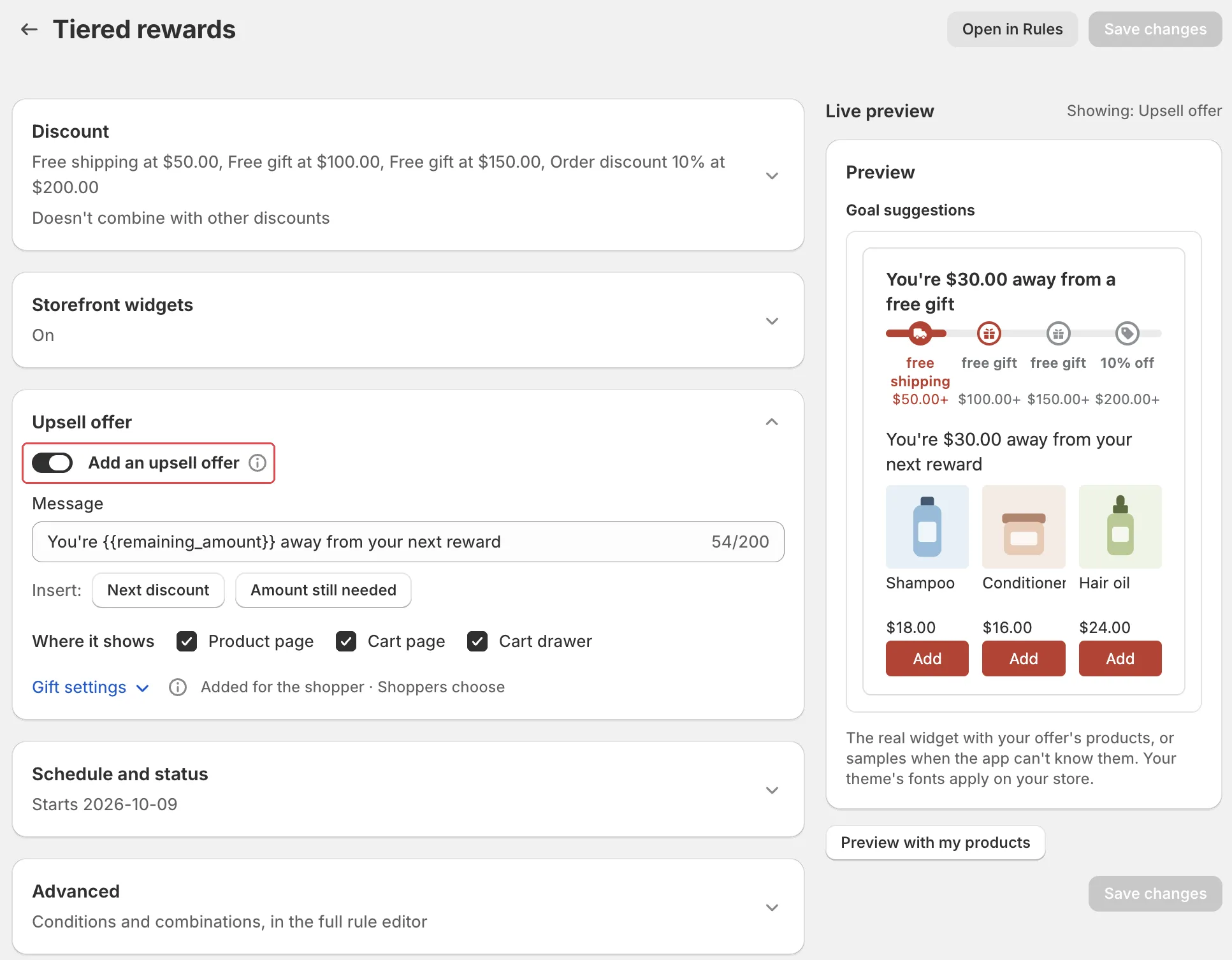
- From a promotion. On the promotion page, open Upsell offer and turn on Add an upsell offer. It needs Show storefront widgets on: “Turn on storefront widgets first. The upsell offer shows inside them.”
- From the promotions list. In a row with no offer, use Add offer.
- From Home. When some discounts have no offer, the Upsell offers card says so, with a Create offers link. It opens the Discounts without an offer card. See Manage offers.
Limits
- One offer can link to up to 20 discounts. All of them must lead to the same offer type. An order goal and a free shipping goal may share one offer.
- The message can be up to 200 characters.
- Chosen products holds up to 10 products.
- The end date can’t be before the start date.