 See it in action
 Order discount
On this page
“Apply automatic discounts to orders based on conditions.” An order discount takes money off the order subtotal. For example, 10% off when the subtotal is over an amount, with bigger discounts at higher spend.
Before you start
- Decide if shoppers get the discount automatically, or must enter a code. You can’t change this after you save.
- Decide which products count toward the subtotal.
Set it up
-
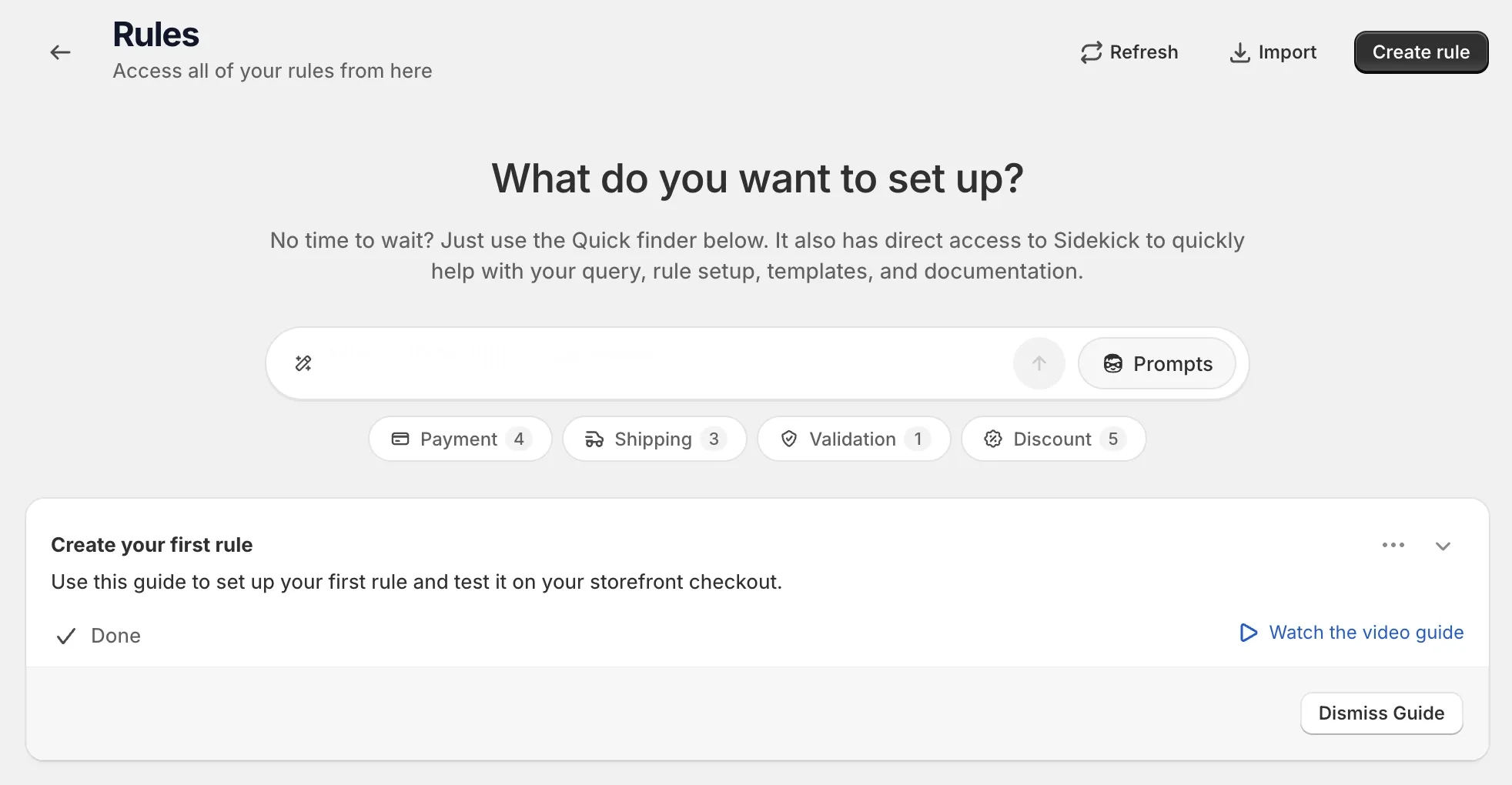
Open Rules and click Create rule.
-
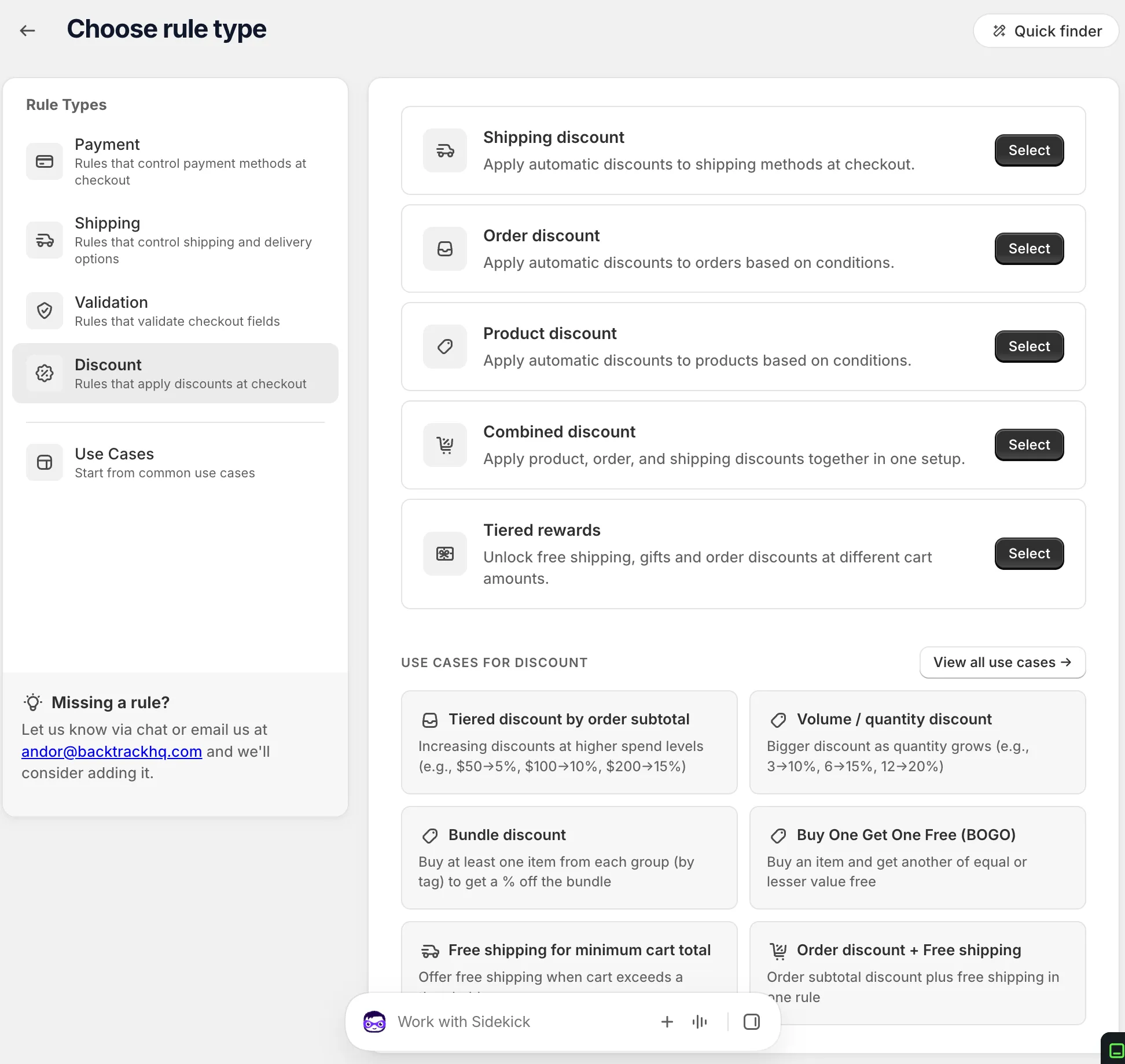
Under Discount, find Order discount and click Select.
-
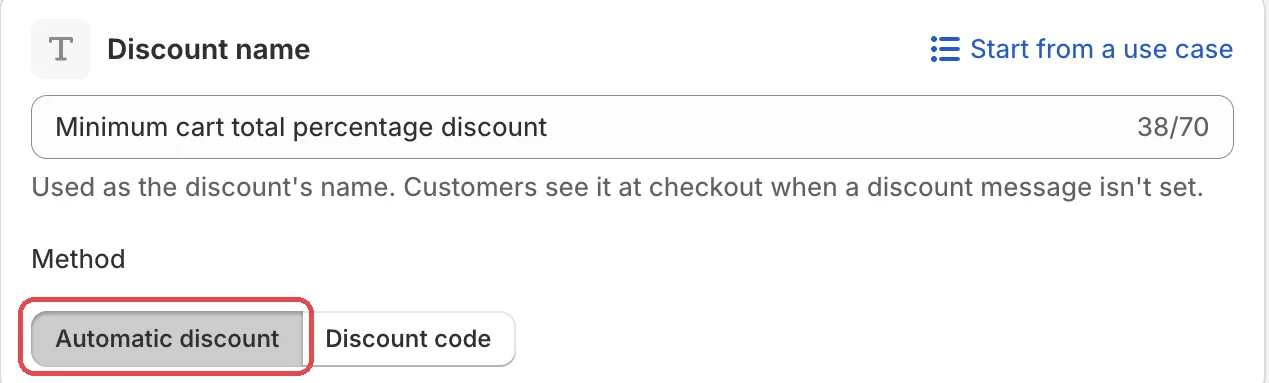
Name the discount and pick the Method.
Choose Automatic discount or Discount code. For a code, type it or click Generate random code. Or click Start from a use case to fill in the whole form. See Start from a use case.
-
Pick a rule set and add your conditions.
In Rule sets, pick the set with the conditions you need. Tag-based product eligibility needs rule set two. Then, under When at checkout, add your conditions. For example Customer tags has any of these values
VIP. See Conditions, groups and blocks.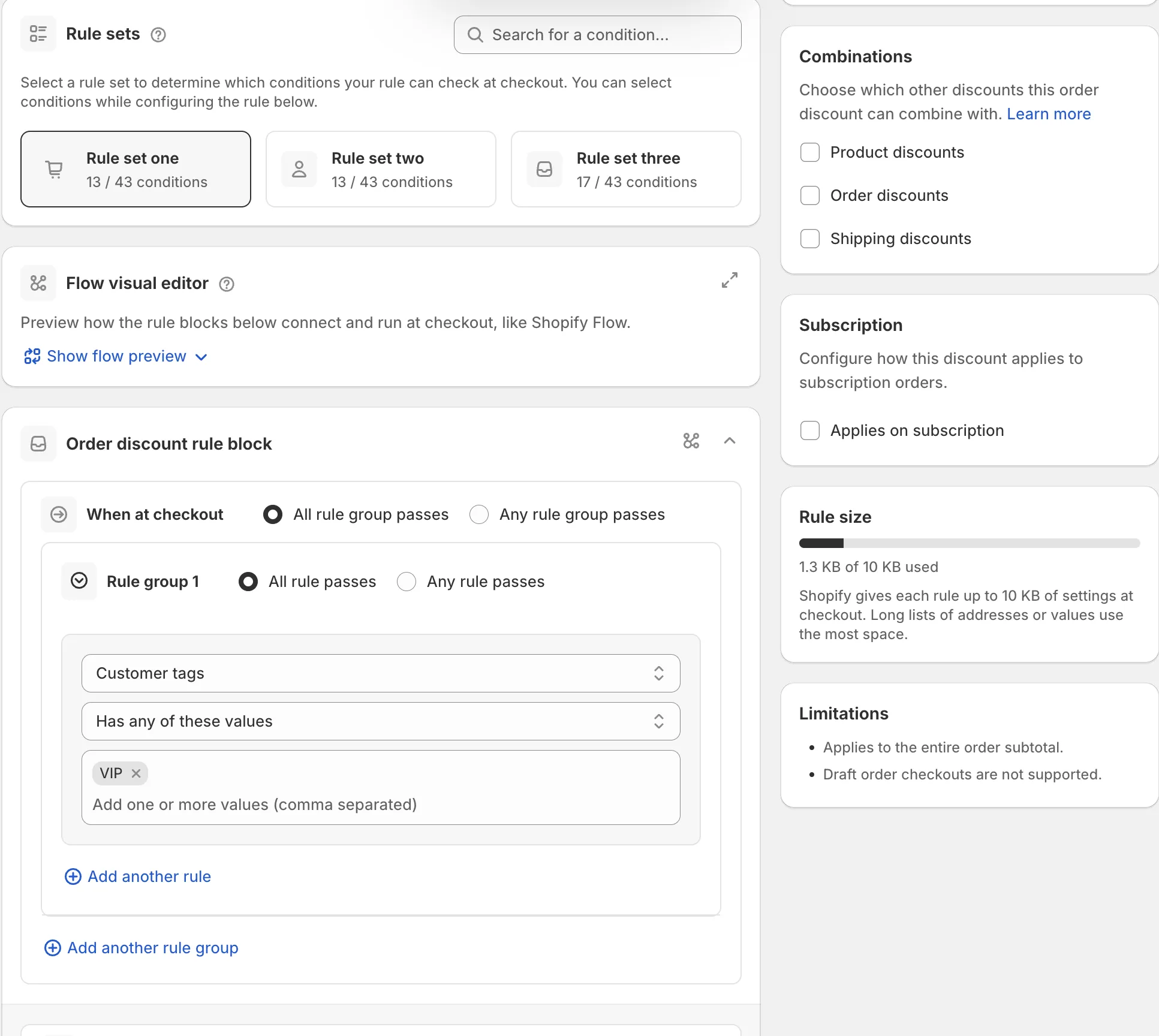
-
In Discount Configuration, set Product eligibility and the Discount tiers.
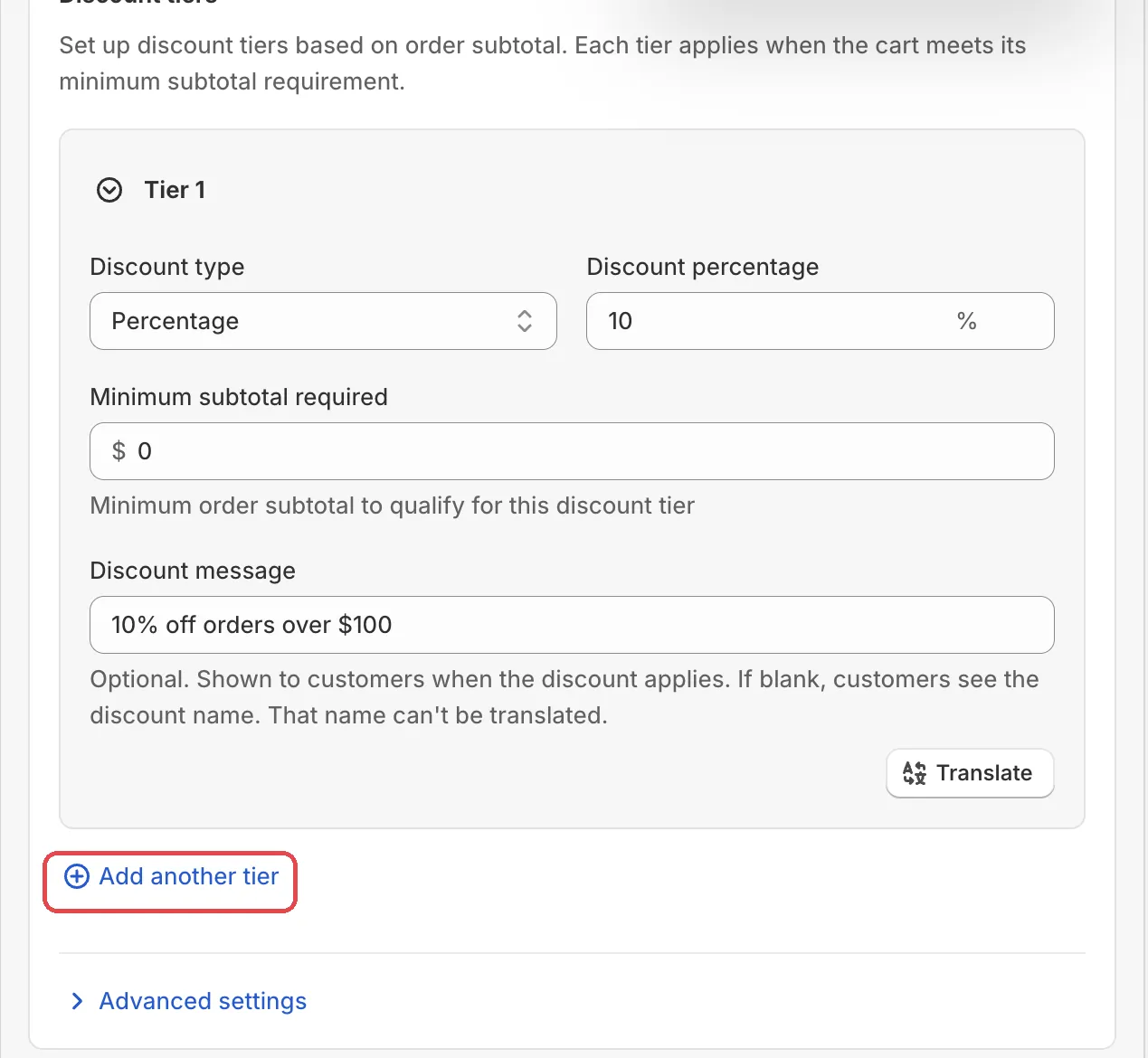
Each tier has a discount and a Minimum subtotal required. Use Add another tier for more. If you need them, open Advanced settings to add Discount conditions or turn on Discount code rejection (automatic discounts only). Then set the side cards: Combinations, Discount strategy and, if needed, Active dates.
-
Save it as a draft, test it, then activate it.
In the Status card, choose Draft and save. Then go to checkout on your store and enter the test email from the rule’s Status card. Only this email sees a draft rule. Build a cart over your tier minimum.
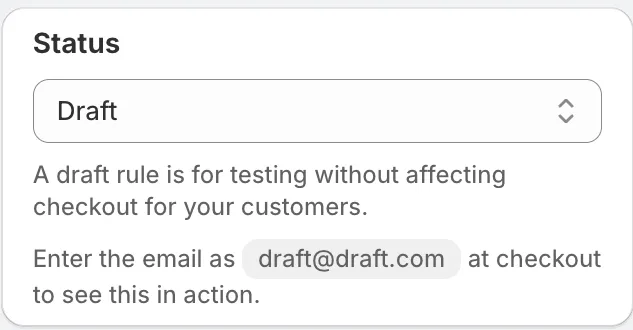
When it works, choose Activate in the Status card and save.
Actions
Apply order discount based on conditions
The only action for this rule type. When the conditions match, the reached tier applies to the order subtotal.
Settings
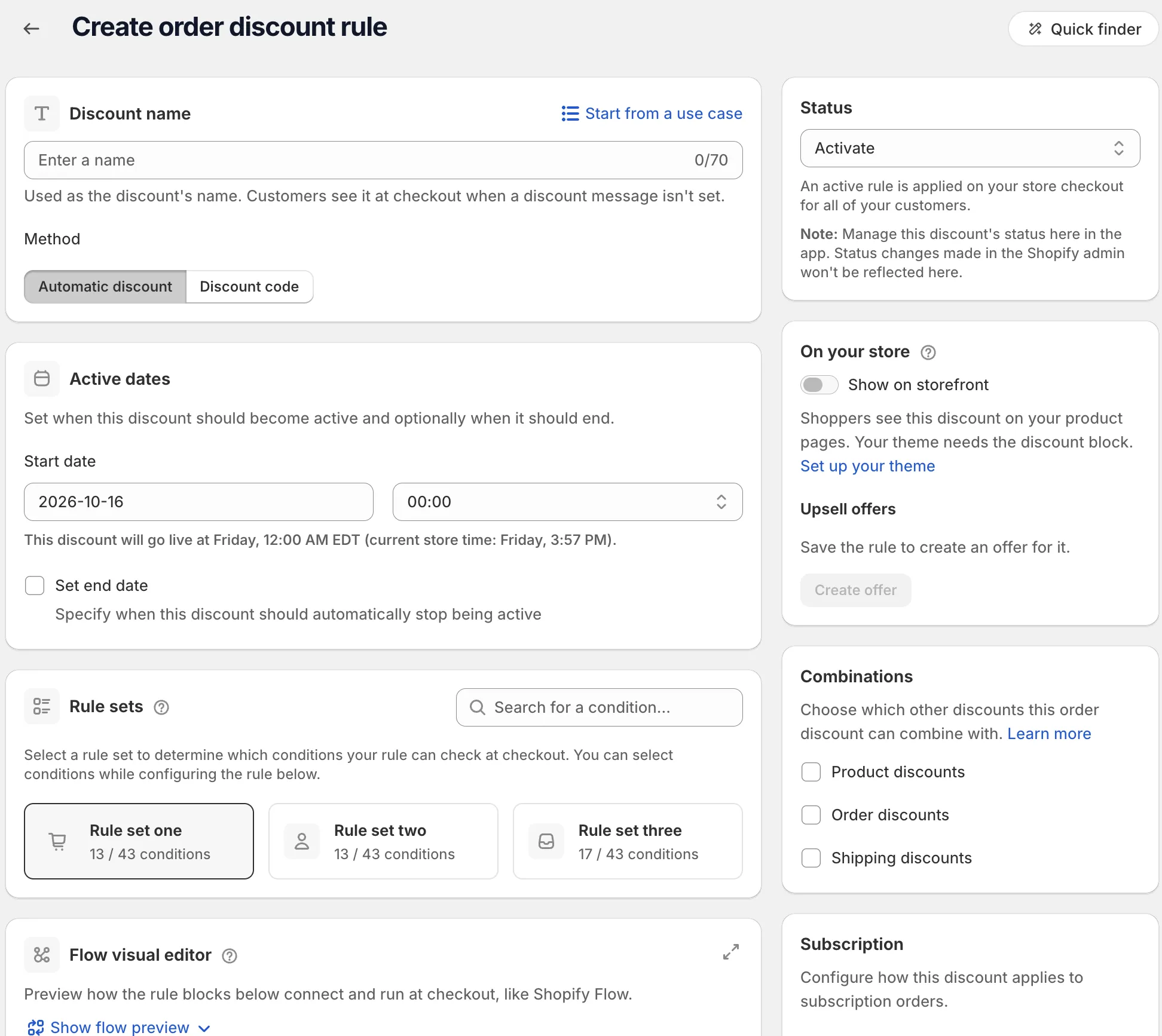
Discount name and Method
Same as for product discounts. See Product discount.
Product eligibility
Which products count toward the discount.
Options: All products, Specific products, Exclude products, Specific collections, Exclude collections, Specific tags, Exclude tags. Default: All products.
Specific tags and Exclude tags need rule set two. For
example, exclude the tag pallet so pallet items don’t count toward
the subtotal.
Discount tiers
“Set up discount tiers based on order subtotal. Each tier applies when the cart meets its minimum subtotal requirement.”
Each tier has:
- Discount type: Percentage or Fixed amount.
- Discount percentage or Discount amount.
- Minimum subtotal required: the order subtotal needed for this tier.
- Discount message: optional. If blank, shoppers see the discount name. It has a Translate button.
Discount conditions
Inside Advanced settings. Extra checks for the discount to apply:
- Require minimum quantity for specific products
- Require minimum subtotal for specific products
- Require minimum order subtotal
Discount code rejection
Inside Advanced settings, for Automatic discount only. “Reject specific discount codes when this automatic discount applies.”
- Enable discount code rejection
- Discount codes to reject: type a code and select it from the dropdown.
- Rejection message: “Message shown when a rejected code is entered”. It has a Translate button.
The rejection happens when the shopper enters the code. See Example: block discount codes.
Discount strategy
Options: First match, Maximum discount.
First match: only the first matching discount applies. Maximum discount: only the discount that saves the shopper the most applies.
Maximum discount uses, Active dates, Combinations, Subscription
These side cards work the same as on a product discount. See Product discount.
Examples
Open Start from a use case on the rule page and pick one of these:
- Minimum cart total percentage discount: a percentage off when the cart is over an amount.
- Tiered discount by order subtotal: increasing discounts at higher spend levels.
- VIP customer percentage discount: a percentage off for customers tagged “VIP”.
Limits
The Limitations card on the rule page lists:
- “Applies to the entire order subtotal.”
- “Draft order checkouts are not supported.”
See Limits.