 See it in action
 Example: block and reject discount codes
On this page
There are two ways to stop a discount code. Reject it when the shopper enters it, or block checkout while it is applied. This page shows both, and when to use each.
Which one do you need?
| You want to | Use |
|---|---|
| Stop a code stacking on your automatic order discount | Discount code rejection |
| Stop any discount with a shipping method, like COD | Block any discount on a shipping method |
| Stop one chosen discount with a shipping method | Block a specific discount on a shipping method |
| Stop discounts on some products, like pallet items | Block discounts on tagged products |
Note You can’t reject a code based on the shipping method. Shopify only lets an app reject a code at the moment the shopper enters it. To stop a code being used with a shipping method, block checkout with a validation rule instead (option 2).
Option 1: Discount code rejection
This is a setting on an automatic Order discount. While your automatic discount applies, the codes on your list are rejected with your message.
-
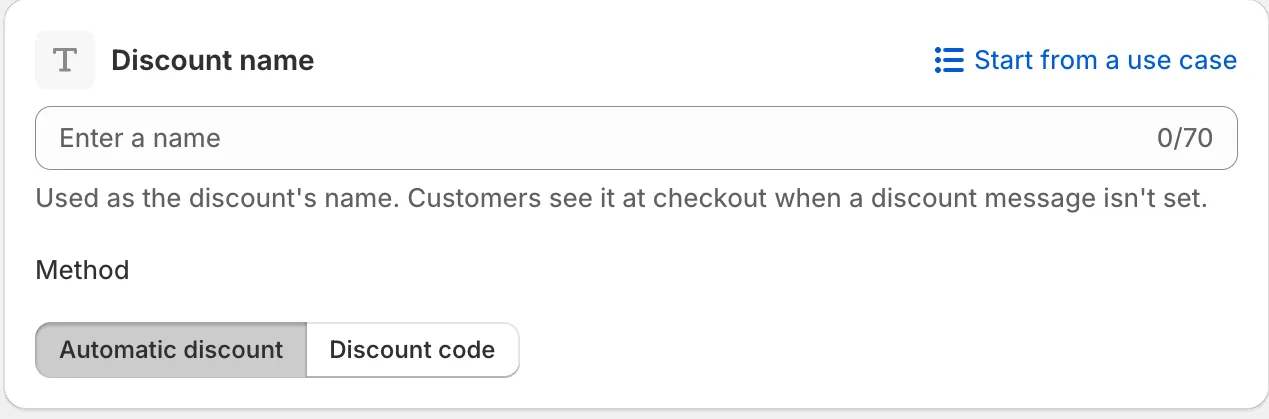
Open your automatic order discount, or create one.
See Order discount. The Method must be Automatic discount.
-
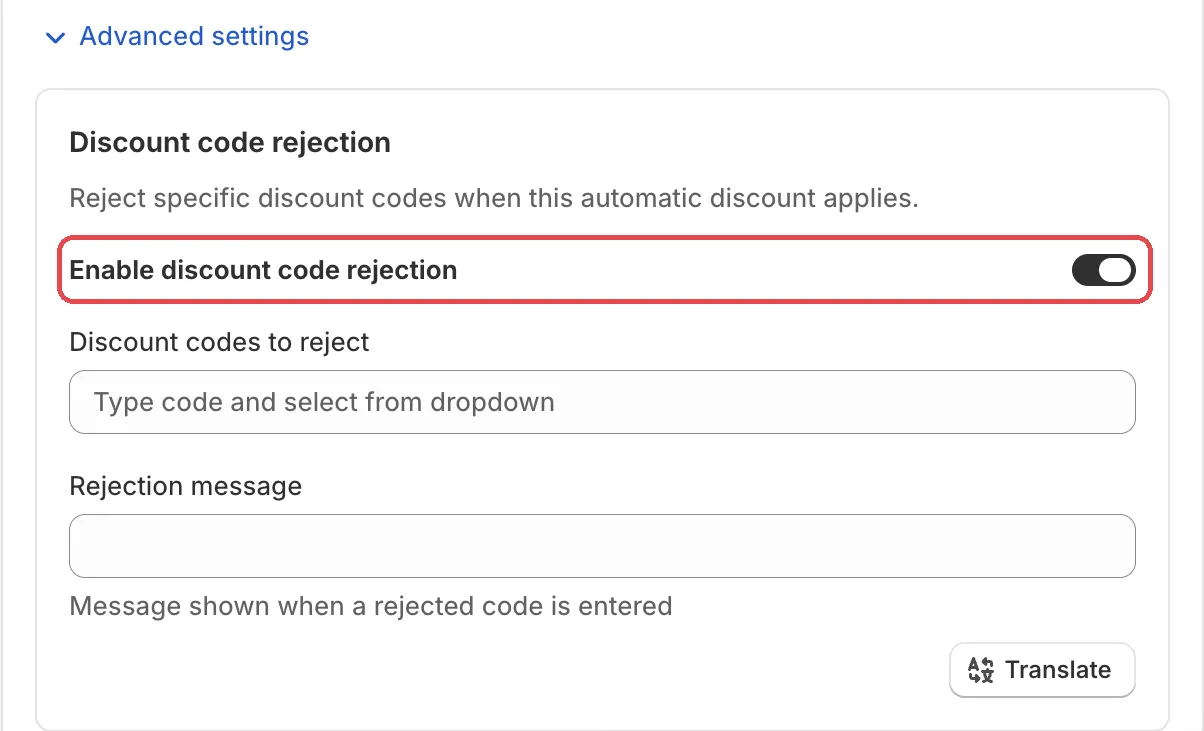
In Discount Configuration, open Advanced settings and set up the rejection.
Tick Enable discount code rejection. Add the codes in Discount codes to reject: type a code and select it from the dropdown. Then write the Rejection message, “Message shown when a rejected code is entered”. For example “This code can’t be used with our current sale.” Use Translate for other languages.
-
Save it as a draft, test it, then activate it.
In the Status card, choose Draft and save. At checkout, enter the test email from the rule’s Status card, reach your automatic discount, then enter one of the codes. It should be rejected with your message.
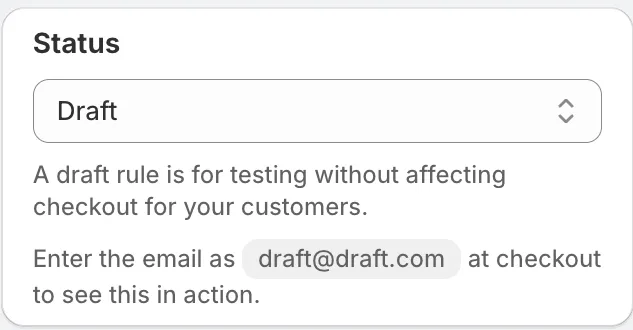
When it works, choose Activate in the Status card and save.
Caution The check happens only when the code is entered. It rejects codes that are typed while your automatic discount applies.
Option 2: Block checkout with a validation rule
A Checkout validation rule can stop checkout while a discount is applied. The shopper sees your message and can remove the code, or change what you blocked (for example the shipping method).
-
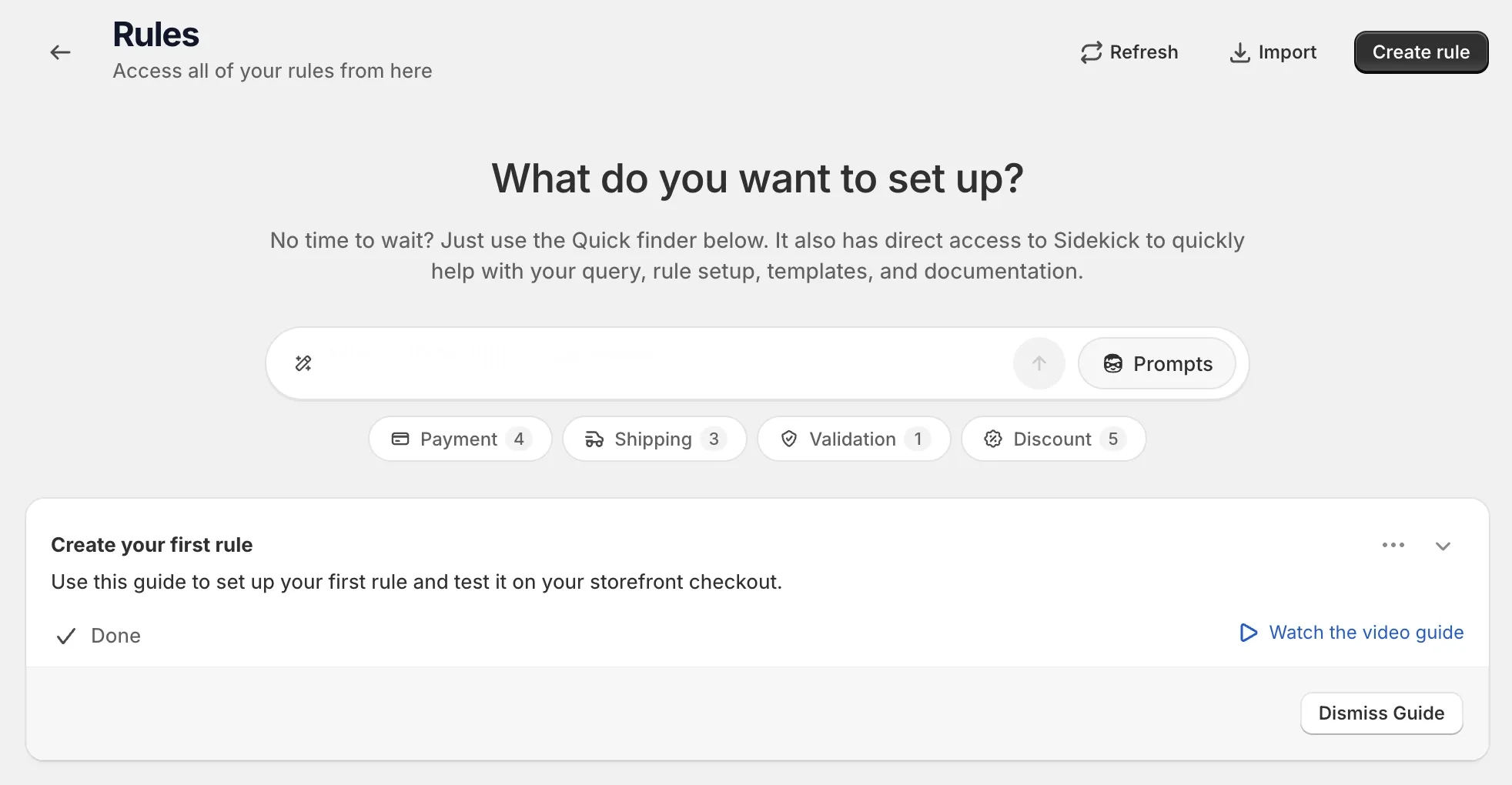
Open Rules and click Create rule.
-
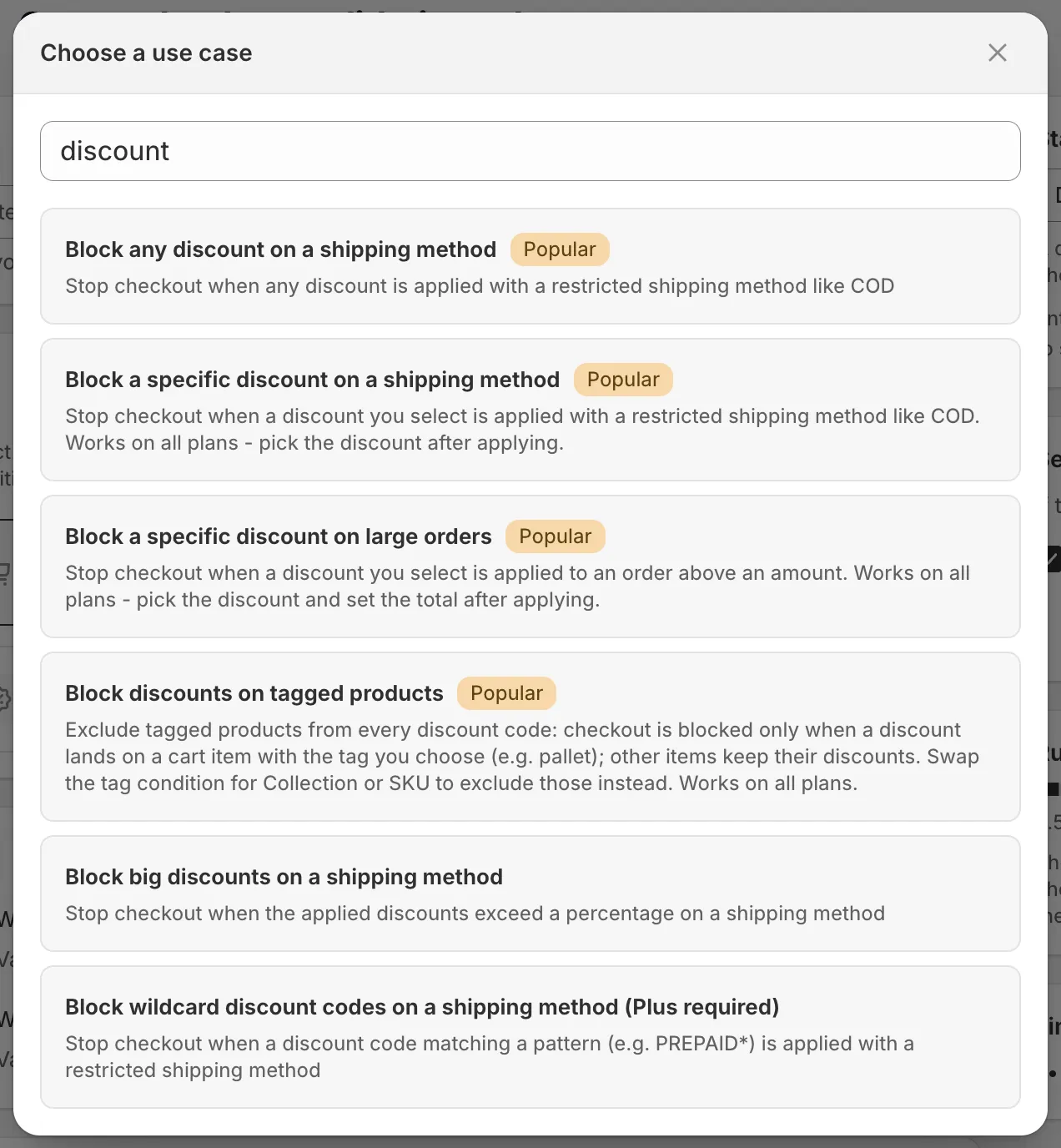
Under Validation, find Checkout validation, click Select, then click Start from a use case.
Pick one of the discount use cases below.
-
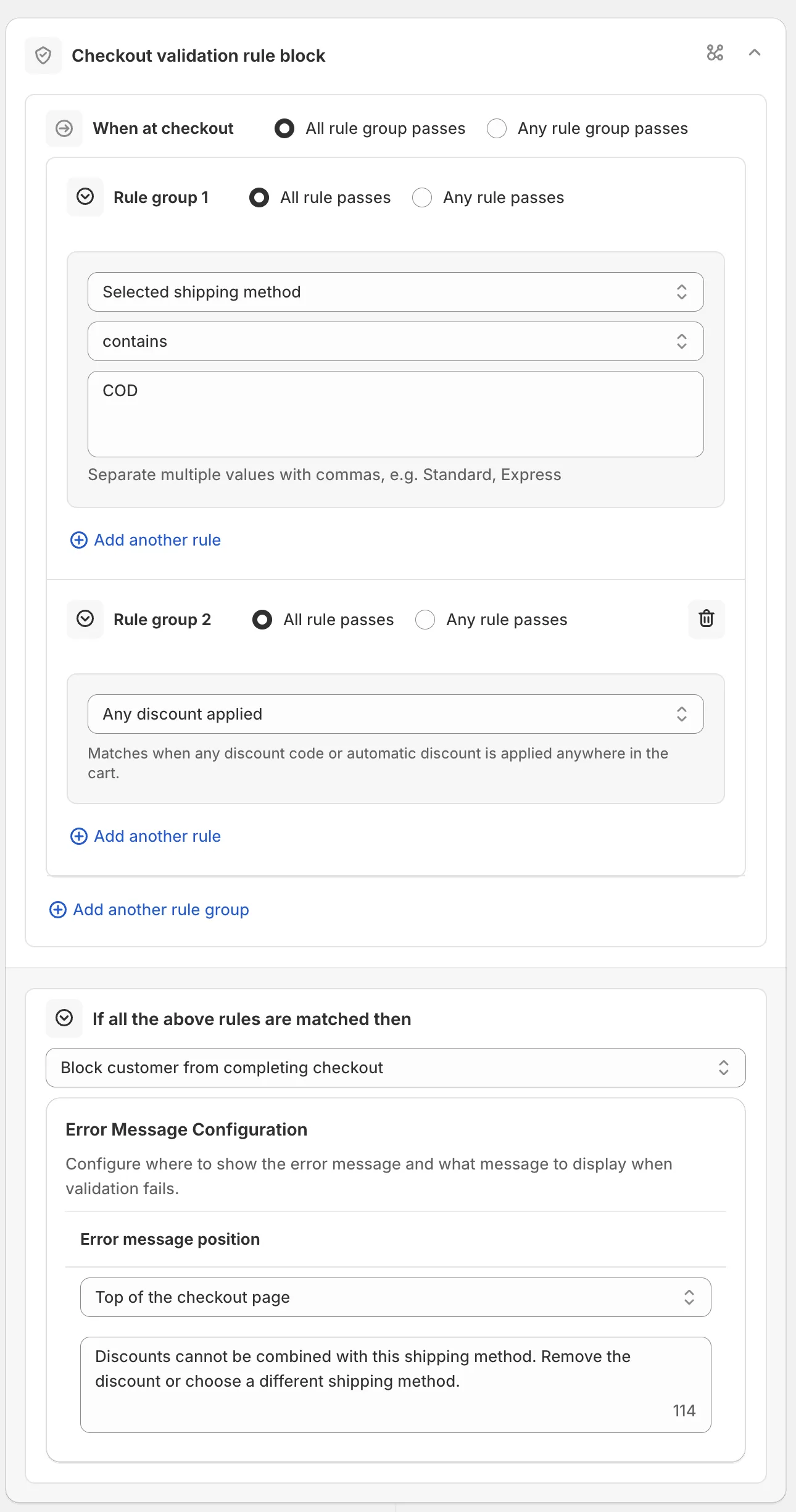
Change the sample values.
See each use case below for what to change.
-
Save it as a draft, test it, then activate it.
In the Status card, choose Draft and save. Test it at checkout with the test email from the rule’s Status card.
When it works, choose Activate in the Status card and save.
Block any discount on a shipping method
“Stop checkout when any discount is applied with a restricted shipping method like COD.”
- Rule set four.
- Conditions: Selected shipping method contains
COD, and Any discount applied. - Change
CODto the name of your shipping method.
Block a specific discount on a shipping method
“Stop checkout when a discount you select is applied with a restricted shipping method like COD.” Works on all plans.
- Rule set four.
- Conditions: Selected shipping method contains a sample method, and Discount code or automatic discount is one of the discounts you pick.
- Change the method name, then pick your discounts. The rule can’t be saved until you pick at least one.
Block discounts on tagged products
Checkout is blocked only when a discount lands on a cart item with
the tag you choose, for example pallet. Other items keep their
discounts. Works on all plans.
- Rule set six.
- Conditions: Cart item has a discount applied, and a group with
All conditions must match the same cart item turned on, holding
Product tags has any of these values
pallet. - Change
palletto your tag. You can swap the tag condition for Collection or SKU.
With Shopify Plus: wildcard codes
Block wildcard discount codes on a shipping method (Plus required)
matches codes by pattern, for example PREPAID* matches every code
that starts with PREPAID. It uses the Discount code or automatic
discount (wildcard, Plus required) condition. It needs checkout
extensibility, which means Shopify Plus or a development store. It
doesn’t match in accelerated checkouts such as Apple Pay or Google
Pay.
Limits
- Discount code rejection works only on an automatic order discount, and only when the code is entered.
- Rejecting a code by shipping method is not possible. Use option 2.
- Validation rules also run on draft orders. See Limits.
See Limits.