 See it in action
 Translate shopper messages
On this page
Some rules show text to shoppers: an error message, a renamed payment method, a discount message. If your store sells in more than one language, you can translate that text. Each shopper sees the text in their checkout language.
Before you start
- Publish your languages in Shopify first. AndOr only offers languages that are published on your storefront.
- The Translate button only appears when your store publishes more than one storefront language.
- To see the list, open Settings in AndOr and look at Storefront languages. Click Manage languages in Shopify settings to add one.
Translate a message
-
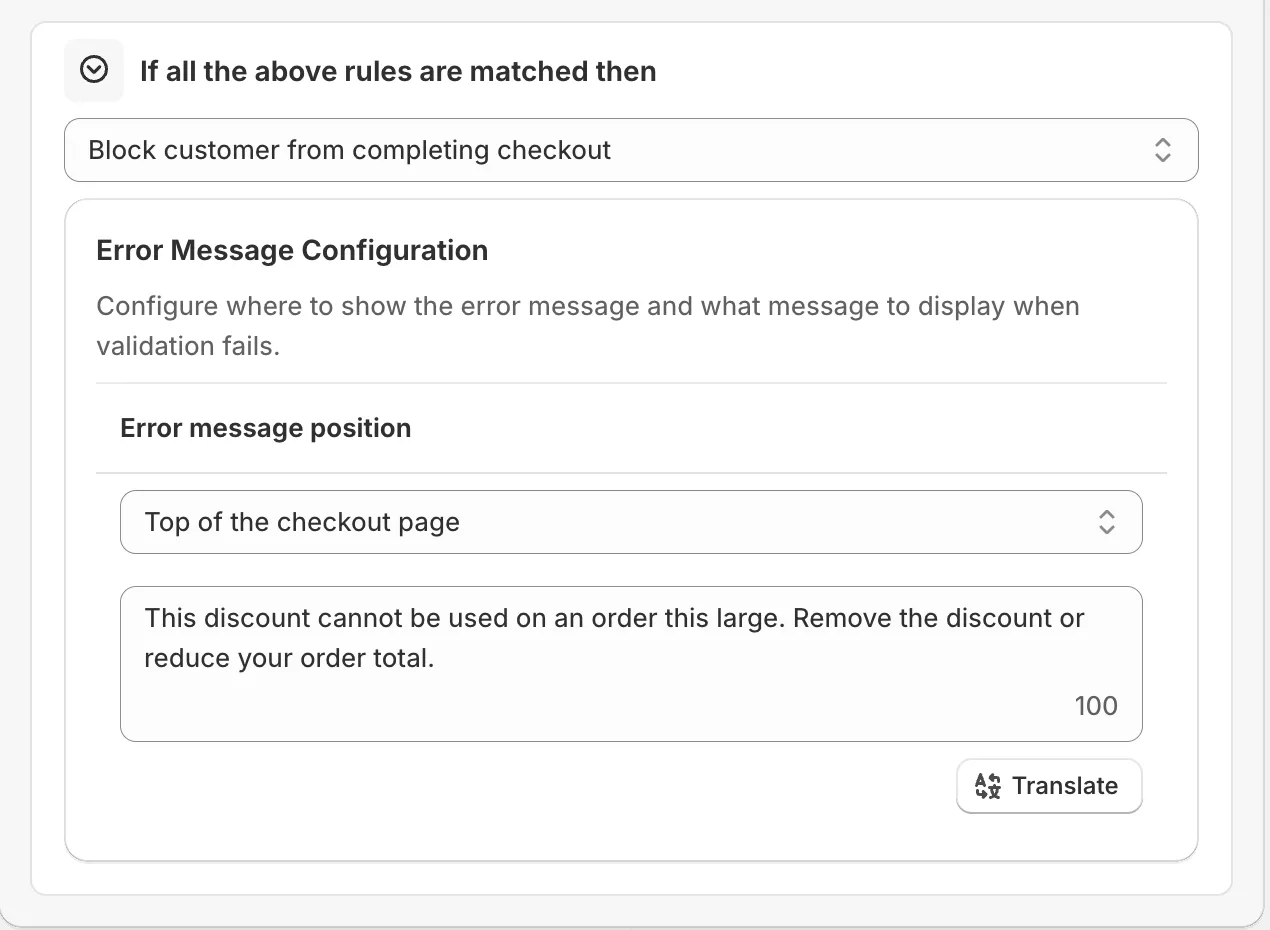
Open the rule and click Translate on the shopper-facing field.
The Translate button sits under the field (or beside it, in rename tables).
-
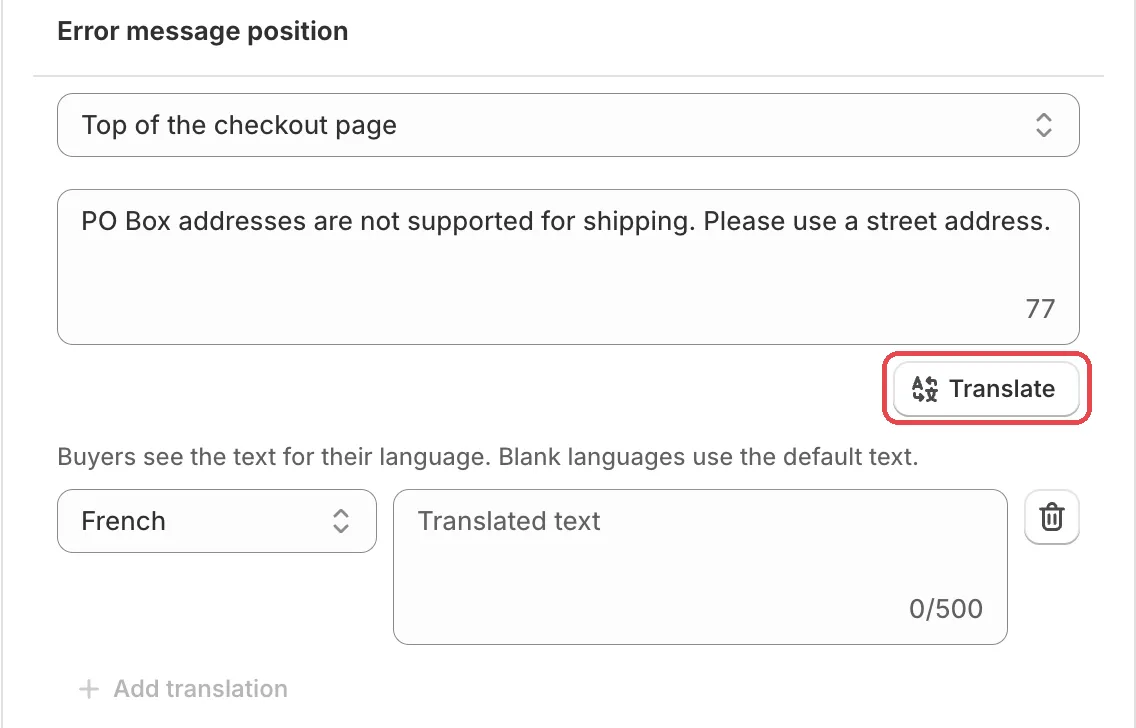
Click Add translation, pick a language and type the text.
Under a message field, the translation rows open right under the field. In rename tables, a window titled “Translate: …” opens instead. Its top row is your default language, marked “(default)”. Add one row per language.
-
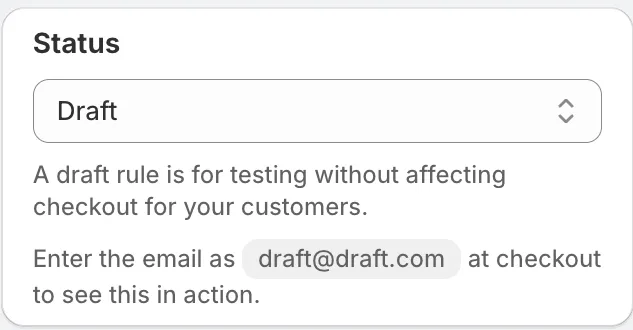
Save the rule.
In the window, click Done first. The translations save with the rule.
Once a field has translations, the button shows a count. Hover it to see how many languages are done, for example “2 of 3 languages translated”.
The translation rows
Each row is one language. You only add rows for the languages you want to translate.
Language
What it is: the language of this row. Pick one of the languages your store publishes.
How to use it: each language can have one row. When every language has a row, Add translation turns grey: “Every language already has a row”.
Translated text
What it is: the text shoppers see in that language. The box is empty until you type, and shows “Translated text” as a hint.
Why it matters: shoppers trust a checkout in their own language. An English error message on a French checkout looks broken.
How to use it: translate the whole meaning, not word for word. Keep it about as long as the default text. Empty the box to drop that translation.
Remove
What it is: the bin button at the end of a row. It removes the translation for that language.
How to use it: after you remove a row, shoppers of that language see your default text.
Default row
What it is: in the window, the top row shows your default text, marked “(default)”. If the field is still empty it says “No default text yet”. You edit the default text in the rule form, not here.
Why it matters: it is what every shopper sees when their language has no row.
Add translation
What it is: the button that adds a new row.
How to use it: click it once per language you want to add.
Which fields can be translated
- Rename text in Rename payment methods and Rename shipping methods.
- Error message in Checkout validation.
- Discount message in order, product, shipping and tiered rewards discounts.
- Rejection message in Discount code rejection.
What shoppers see
“Buyers see the text for their language. Blank languages use the default text.”
Limits
Caution Discount names can’t be translated. Shopify has no way to translate a discount title. If a discount message is blank, shoppers see the discount name in your default language. Fill in the discount message and translate it instead.
- Each translation adds to the rule’s size. See Rule size.
- If you just published a language and it is missing on a rule, open Settings again, then reload the rule.