 See it in action
 Offer and rule stats
On this page
You don’t have to open Analytics to see how something does. Offers, rules, the Promotions list and Home show their own short stats.
Use these for a quick check while you work. Use the Analytics page when you want to compare, filter or export. See Analytics overview.
Offer details
What it is: on Promotions, Upsell offers tab, click an offer row. The details window shows the offer’s numbers for the range in Date range.
Options: Last 7 days, Last 30 days, Last 90 days.
Why it matters: it shows one offer’s whole story in one place: who saw it, who added it and who bought.
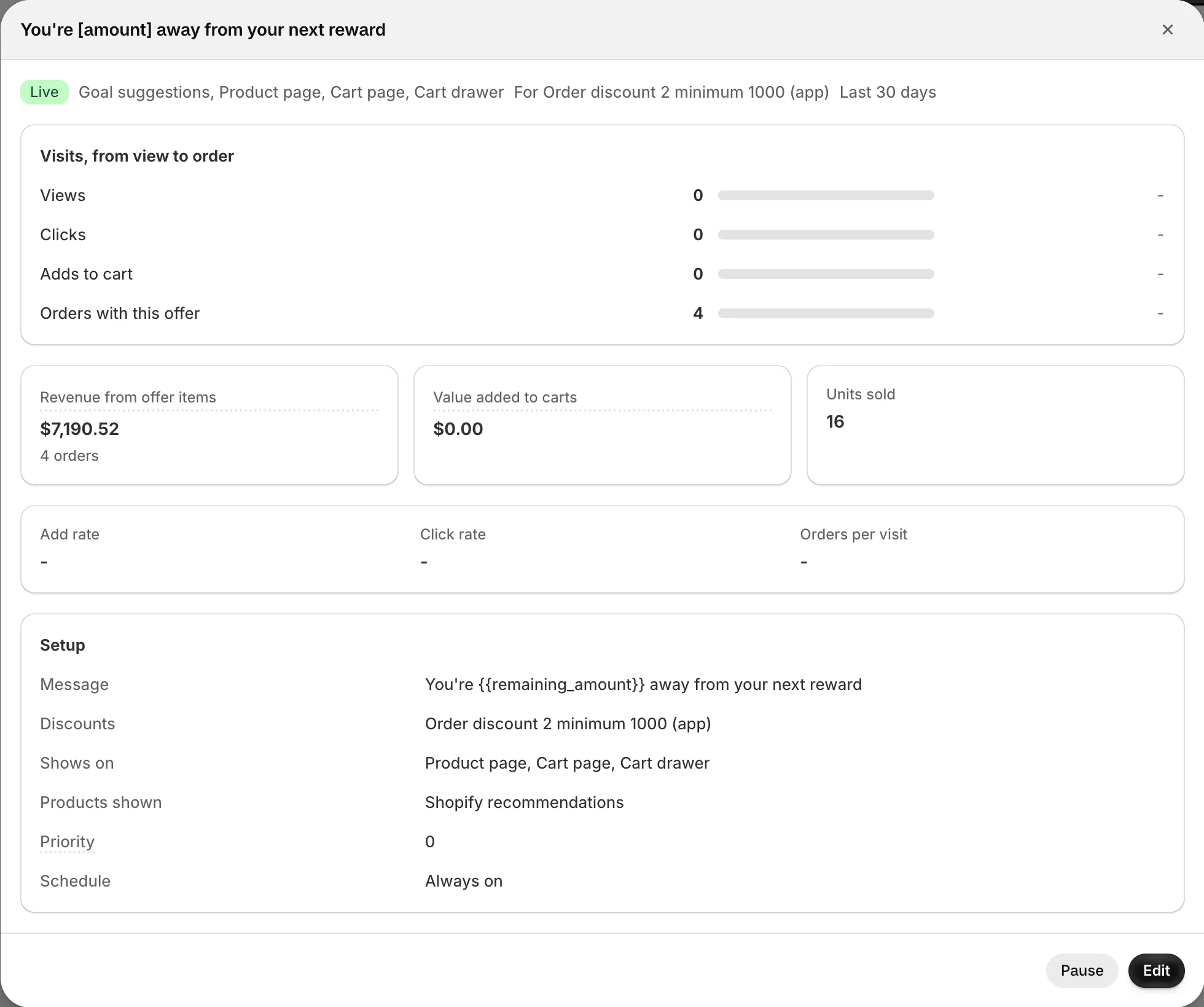
Visits, from view to order
Four steps: Views, Clicks, Adds to cart and Orders with this offer. Every step counts visits, so a visit that clicked three times counts once. Each share is out of the visits that saw the offer.
How to use it: find the step with the biggest drop. Many views and few clicks means the message does not catch the eye.
Revenue from offer items
“What this offer’s items sold for, after discounts.” The number of orders shows under it. This is the offer’s real result.
Value added to carts and Units sold
Value added to carts is the price of items added through the offer, counted on every add. It is an estimate, higher than revenue. Units sold is how many offer items were in orders.
Add rate, Click rate and Orders per visit
The share of visits that added, clicked or ordered. Use them to compare this offer with your others, whatever their traffic.
Discount uses
“All time, from Shopify. Includes uses without this offer.” It shows how popular the discount is on its own. Compare it with Orders with this offer to see how many uses the offer helped bring.
See Manage offers for the rest of the window.
While you edit an offer
The edit form has a Performance card next to the form. It shows Views, Add rate, Orders with this offer and Revenue from offer items for the same range, with a See analytics link.
Check it before you change a message. Then check it again a week later to see if the change helped.
Rule editor
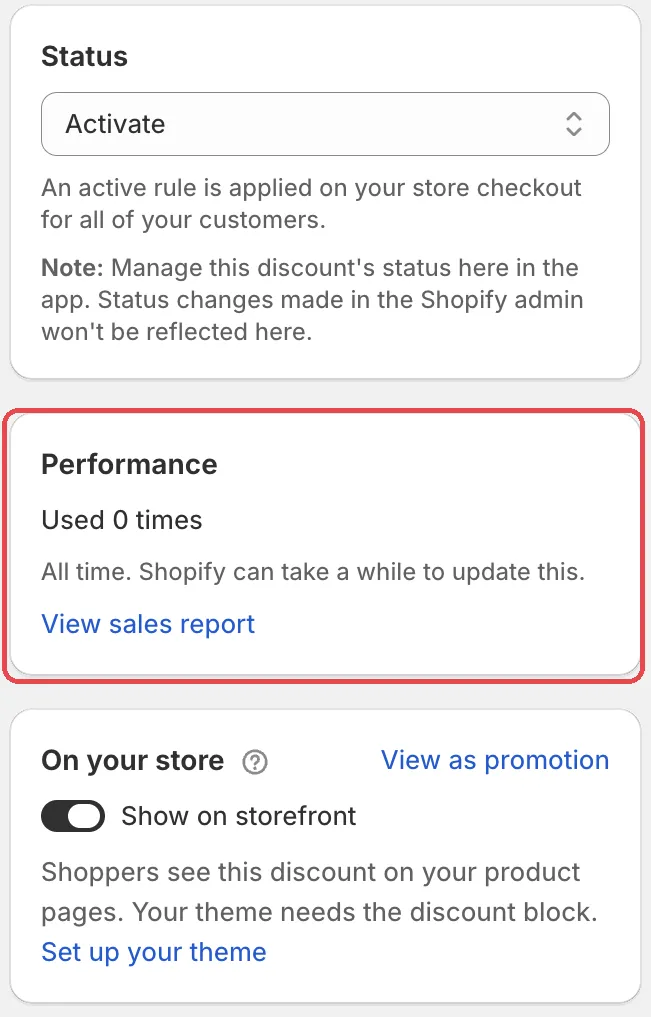
A saved discount rule has two cards about results.
Performance
What it is: “All time. Shopify can take a while to update this.” It shows how many times the discount was used, like “Used … times”, and its sales when Shopify reports them.
Why it matters: it shows if shoppers use the discount at all.
How to use it: click View sales report to open Shopify’s sales report for this discount. Zero uses after a few days? Check that the rule is active and that shoppers can see the deal.
Upsell offers
What it is: the rule’s offers for the Last 30 days: “Added to carts:” and the value, or revenue and orders once orders come in.
How to use it: with no offer yet, click Create offer. Manage offers and “See all … offers” open the Upsell offers tab.
Promotions list
The full list is on Manage promotions. These are its numbers.
Upsell results
What it is: at the top of the Promotions tab, Upsell results sums up your offers, with its own Date range. It shows the same cards as the Upsell offers tab and a See analytics link. With no results yet it says: “No upsell results yet. Add an offer to a promotion and its numbers show here.”
How to use it: glance at it when you open Promotions. Click See analytics for the full picture.
Upsell offer column
What it is: each row has an Upsell offer column for the same days. It reads, for example, “… orders, … revenue”, “… adds, … added”, or “… gifts claimed” for a gift offer. A promotion’s menu has See analytics.
How to use it: compare rows to see which promotion’s offer works. See How promotions work.
Home
Upsell offers card
What it is: the Upsell offers card on Home covers the Last 7 days:
- A big number: Revenue from offers, with its change against the previous 7 days.
- Orders with offers, Add rate and Value added to carts.
- Top offer: your best offer, with its type and results.
- A line when some discounts have no offer yet, with Create offers.
The header has How we count and View offers.
Why it matters: it is your weekly check in one card.
How to use it: if the change is down, open View offers and look for rows under Needs attention. If some discounts have no offer, click Create offers.
Note The stat bar on Home also has Discounts used. It counts uses all time, from Shopify. Click it to open the sales report for the last 30 days.