 See it in action
 Languages
AndOr speaks your language in two places: the app in your Shopify admin, and the widgets and messages your shoppers see. Each has its own setting.
Why it matters: your staff work faster in their own language. Your shoppers trust a store, and a checkout, that speaks theirs.
App language (admin)
The app is available in 22 languages:
| Language | Shown in the app as |
|---|---|
| English | English |
| French | Français |
| German | Deutsch |
| Spanish | Español |
| Italian | Italiano |
| Portuguese (Portugal) | Português (Portugal) |
| Portuguese (Brazil) | Português (Brasil) |
| Dutch | Nederlands |
| Swedish | Svenska |
| Danish | Dansk |
| Finnish | Suomi |
| Norwegian | Norsk |
| Polish | Polski |
| Czech | Čeština |
| Japanese | 日本語 |
| Simplified Chinese | 简体中文 |
| Traditional Chinese | 繁體中文 |
| Korean | 한국어 |
| Turkish | Türkçe |
| Vietnamese | Tiếng Việt |
| Thai | ไทย |
| Greek | Ελληνικά |
Change the app language
Open Settings from the app menu. Under App language, pick a Language and click Save. Automatic is the default. On automatic, each staff member sees their own Shopify account language. Choosing a language applies it to everyone in this store.
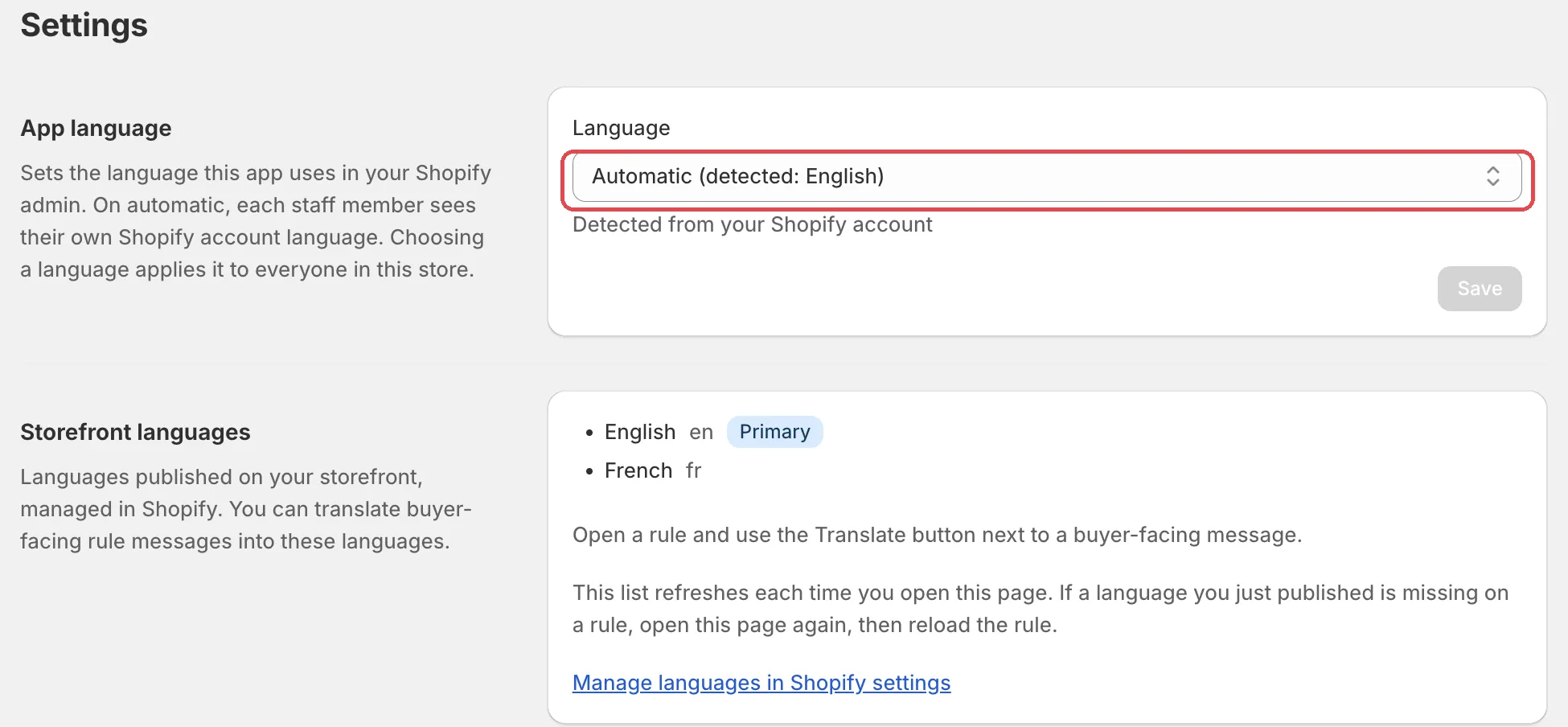
Tip When you pick a language, the page changes at once as a preview. Click Save to keep it.
Storefront widgets
Storefront widgets show their built-in text in 22 languages. They follow your store’s language: a shopper browsing your French store sees French text. There is nothing to turn on.
To change the words shoppers read, open the Storefront text page. Pick a Storefront language at the top, then edit the text for that language. An empty field uses the app’s built-in text. See Storefront text.
Note Block settings in the Shopify theme editor are in English only. This is only the text you see while setting up blocks. Shoppers still see their own language.
Rule messages at checkout
Rules can show text to shoppers, for example a validation error or a renamed payment method. You can translate that text for each language published on your store.
-
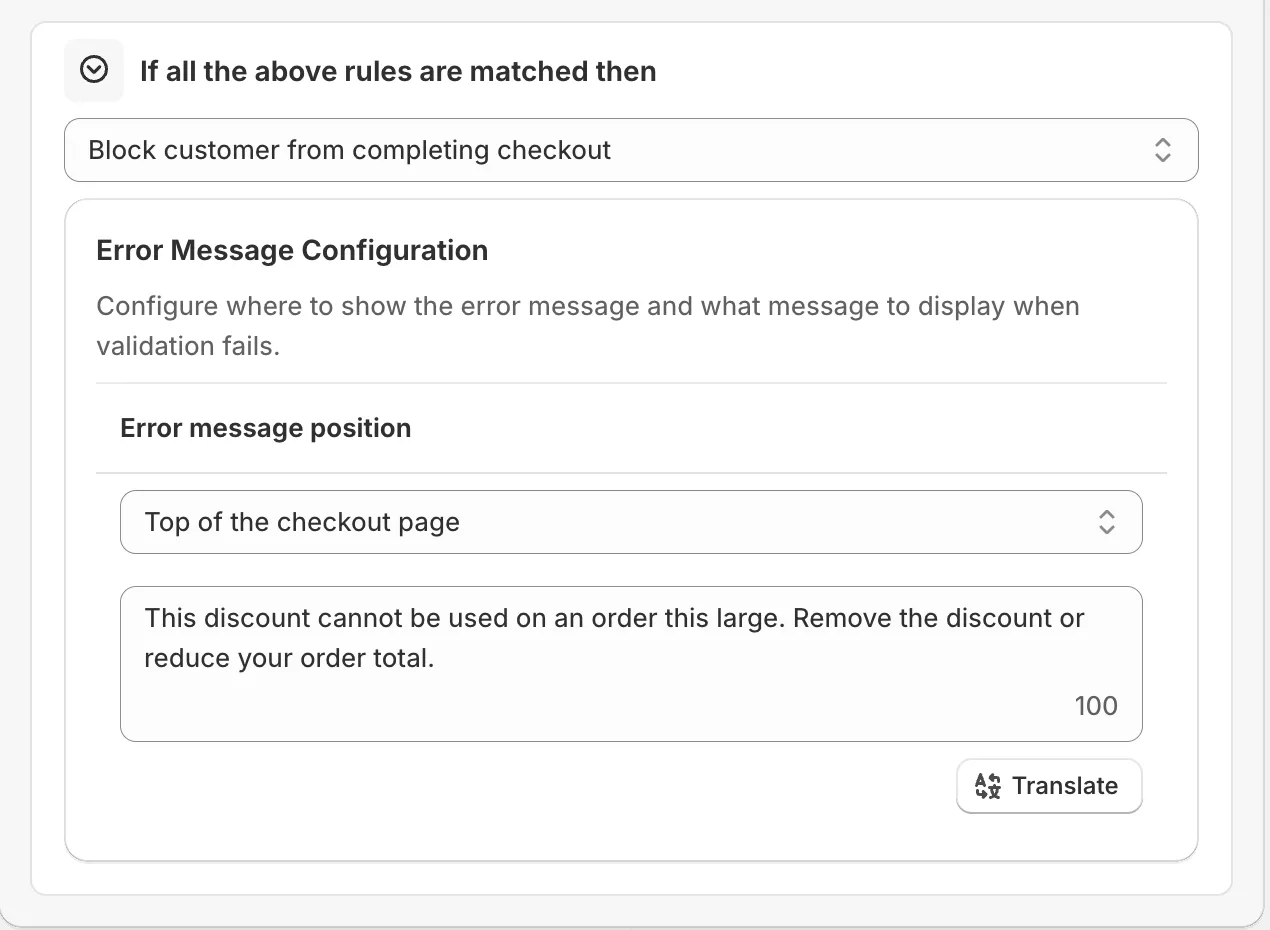
Open a rule and click Translate next to a shopper-facing field.
The translation rows open under the field. In rename tables they open in a window. Once a field has translations, hover the button to see how many languages are done.
-
Click Add translation, pick a Language and type the Translated text, then save the rule.
Each row is one language. The bin button removes a row. Shoppers see the text for their language. Blank languages use the default text. In the window, click Done first, then save the rule.
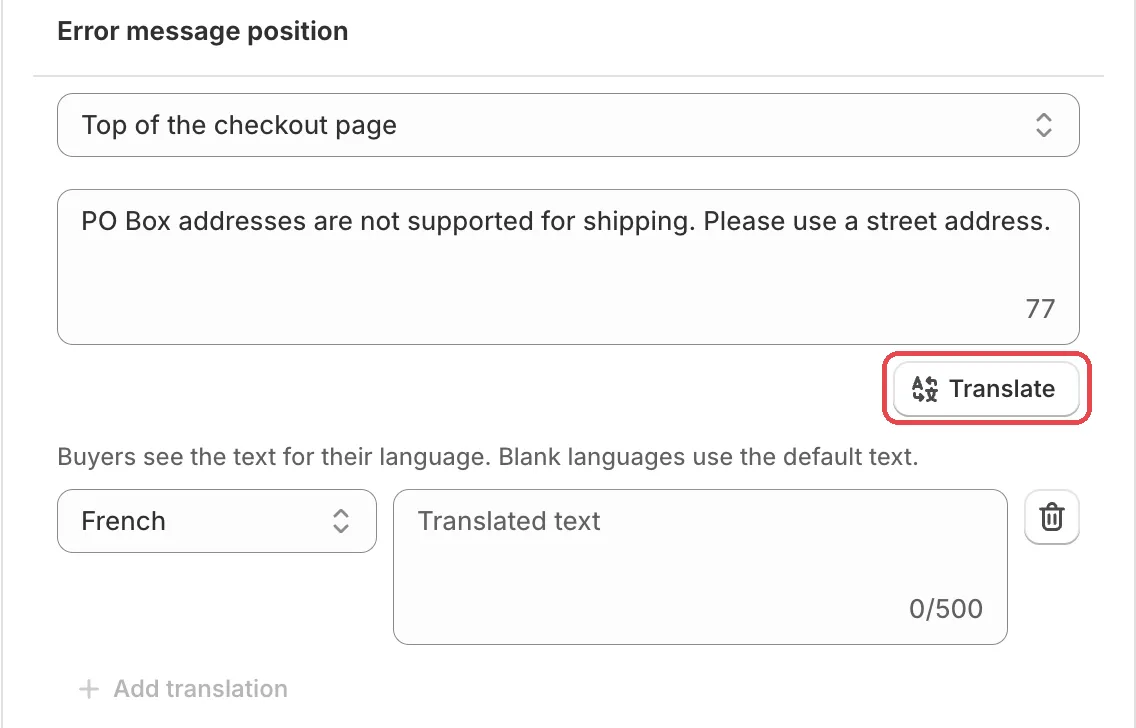
See Translate shopper messages for every part of the rows.
Note An automatic discount’s name can’t be translated.
Settings also lists your Storefront languages, the languages published on your store. You manage those in Shopify settings. If a language you just published is missing on a rule, open Settings again, then reload the rule.