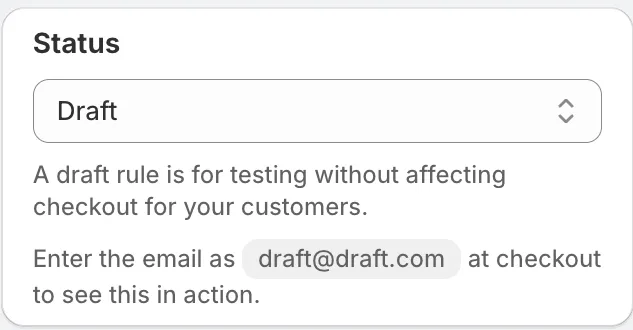
See it in action
 Refresh and restore
Paid planRefresh is on paid plans, Starter and up.
Refresh brings the Rules list back in line with what Shopify has. Restore brings back the rules you had before you uninstalled AndOr.
Refresh the Rules list
Use Refresh when the list looks out of date. For example, after someone changed or deleted a discount in the Shopify admin.
Open Rules and click Refresh. Then read the message at the bottom of the screen:
- “View is up to date”: nothing changed.
- “View refreshed, … rule(s) updated”: the list now matches Shopify.
- “View refreshed, … updated, … failed”: some rules could not be updated. Try again.
- “Couldn’t refresh, please try again”: the refresh did not run.
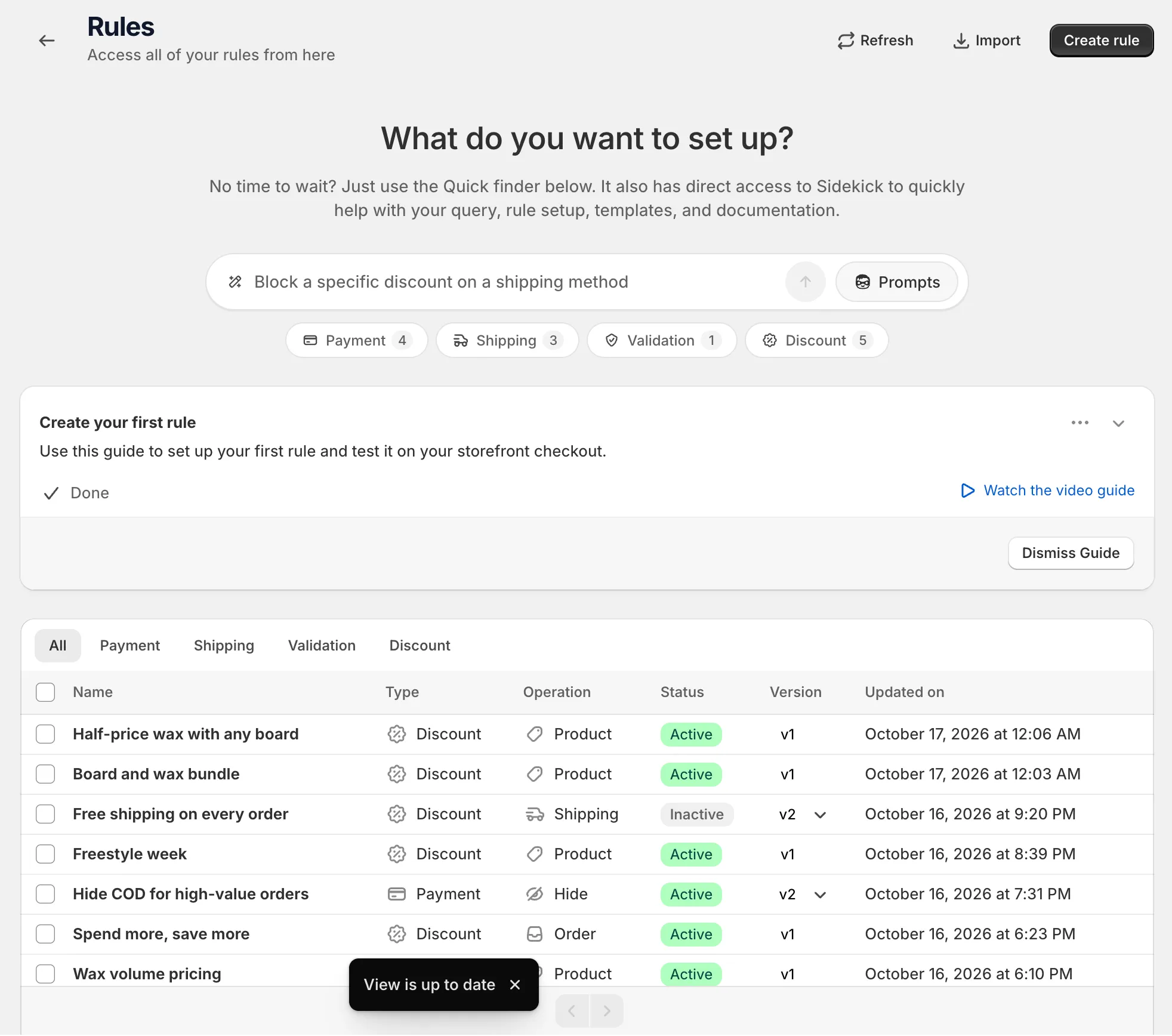
Note The list only shows rules created with AndOr.
Restore rules after a reinstall
When you uninstall AndOr, your rules are kept. When you install it again, the Rules page shows a Restore (…) button with the number of rules found.
-
Click Restore.
The Restore Previous Rules window says how many rules were found from before your last uninstall.
-
Click Restore in the window.
The rules are re-created in Shopify as Inactive.
-
Review each rule, then activate it.
Test it as a draft first if your checkout changed since you uninstalled. See Schedule and status.