 See it in action
 Sale price: strikethrough price (AndOr Sale price block)
On this page

The sale price widget shows the old price crossed out beside the price a
shopper pays today. Example: $40.00 $32.00.
Made by: a Sale price promotion, or any discount that lowers the product’s own price. You can also show discounts you already have.
For developers: Code · Styling · Events
What shoppers see
- The original price, crossed out, in a grey color.
- The sale price, in your sale color.
- An optional small badge after the price, for example “Sale”.
The price follows the shopper’s variant choice without a page reload. When the sale ends, the widget hides.
Looks
Two block settings change the look. See Block settings.
Price only
The struck original price and the sale price. This is the default.
Settings: Show a sale badge off, Hide the theme’s price off.
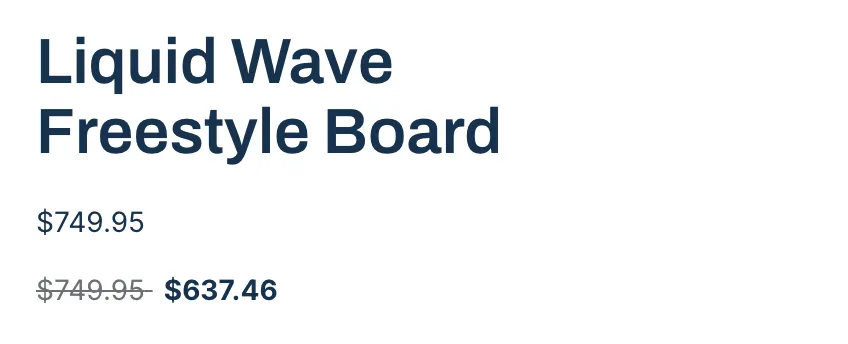
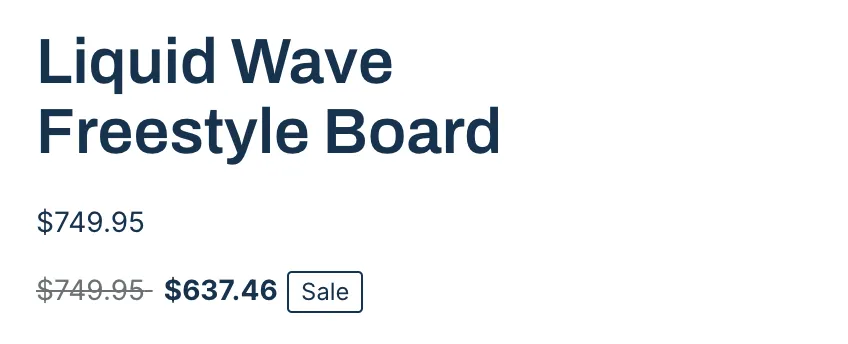
With a sale badge
A small badge after the price, with your Badge label.
Setting: Show a sale badge on.
Theme price hidden
Only AndOr’s price shows. The theme’s own price line is hidden.
Setting: Hide the theme’s price on.

Where it goes
- Product page, beside or under the price. This is what it is made for.
- Product cards on Horizon themes: add the block to the card in the theme editor.
- Any other template, with a product picked in the block settings.
For product cards on Dawn and similar themes, a developer can paste a recipe. See Product card recipes.
Add the block
Note App blocks need an Online Store 2.0 theme. On an older (vintage) theme, turn on the app embed and paste the one-line tag instead. See Theme requirements.
The AndOr Sale price block draws the sale price widget. You add it in the Shopify theme editor, usually right under the product price.
-
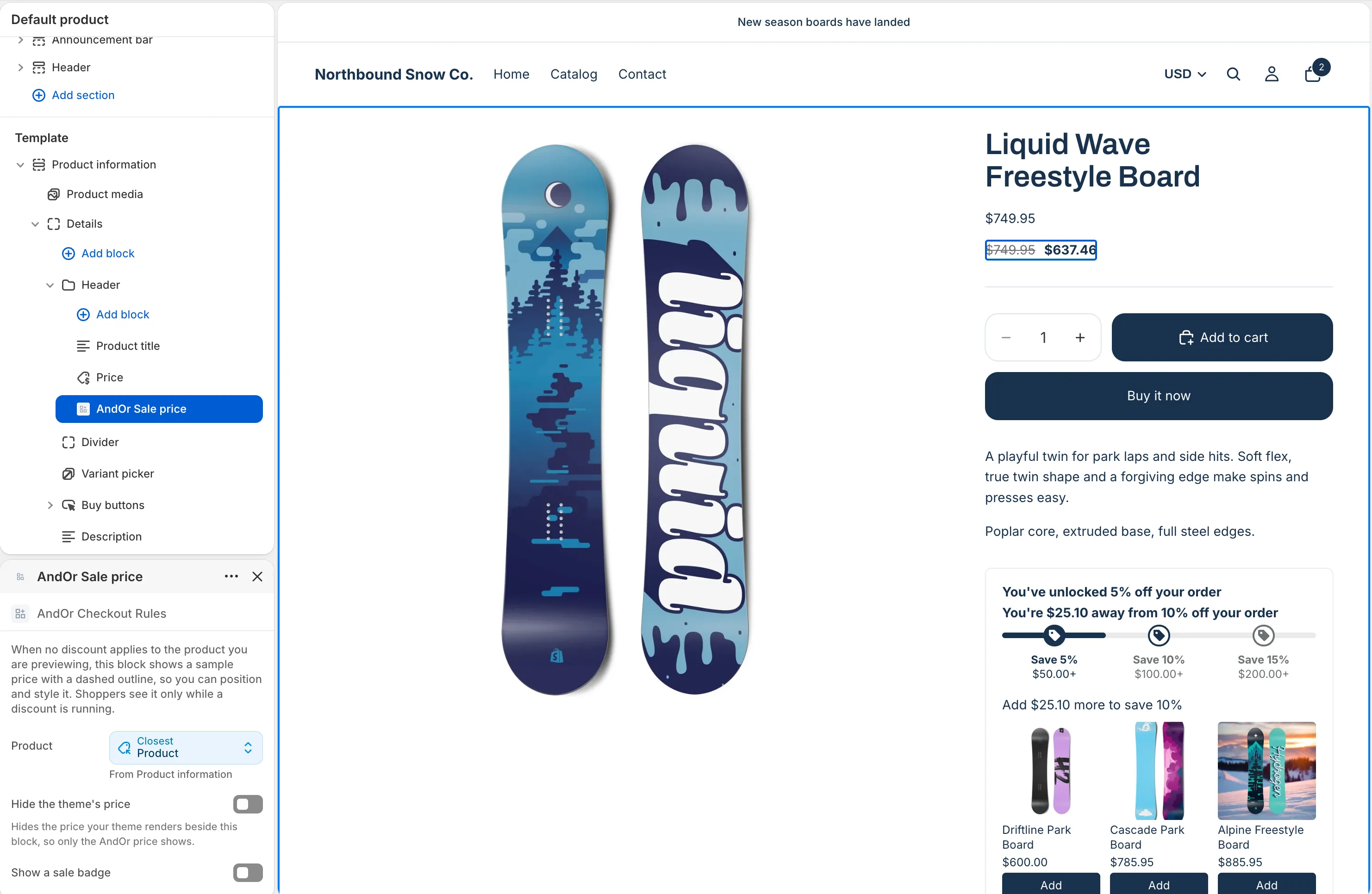
Open the theme editor on the product template.
In Shopify, go to Online Store > Themes and click Edit theme. Pick Products, then Default product, in the page menu at the top.
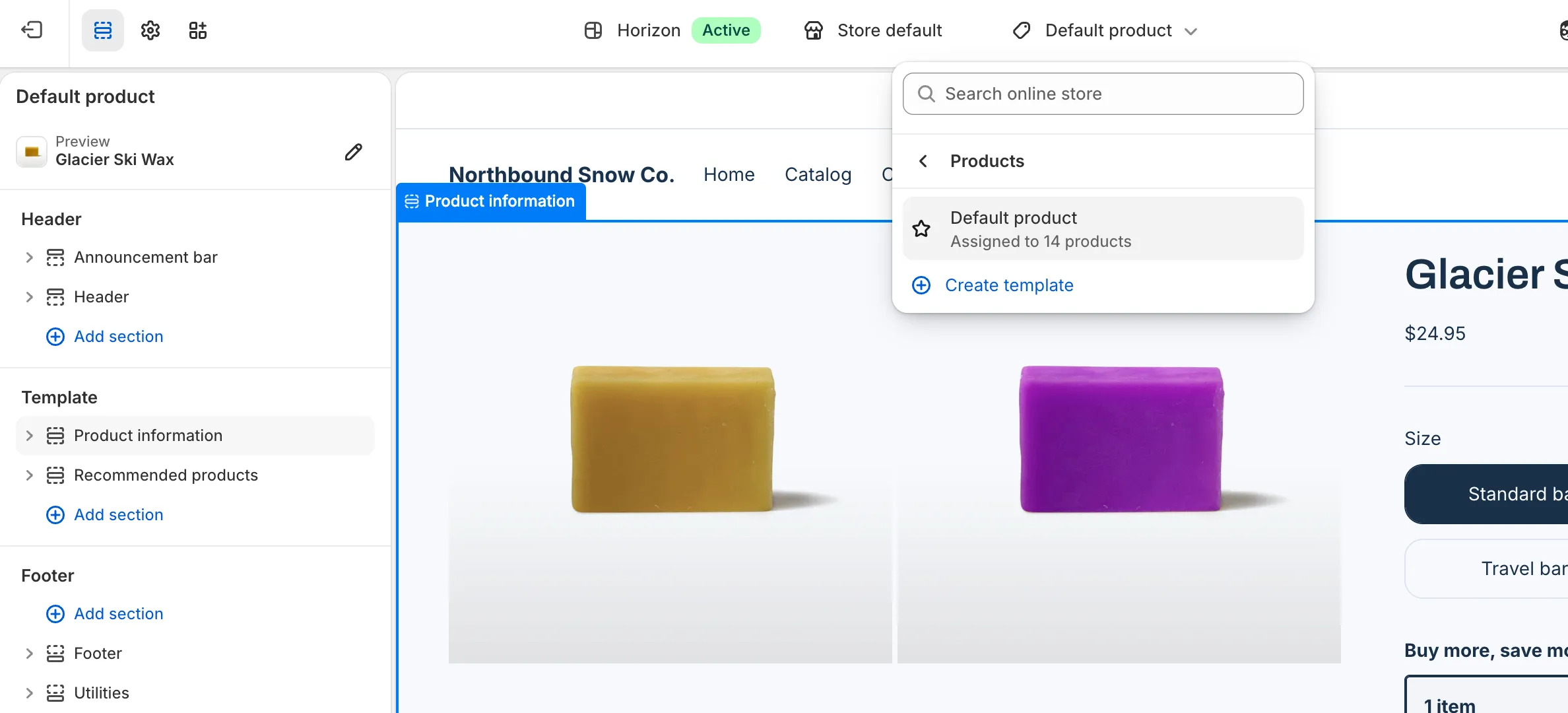
-
Click Add block, open Apps and pick AndOr Sale price.
Add it inside the product information section.
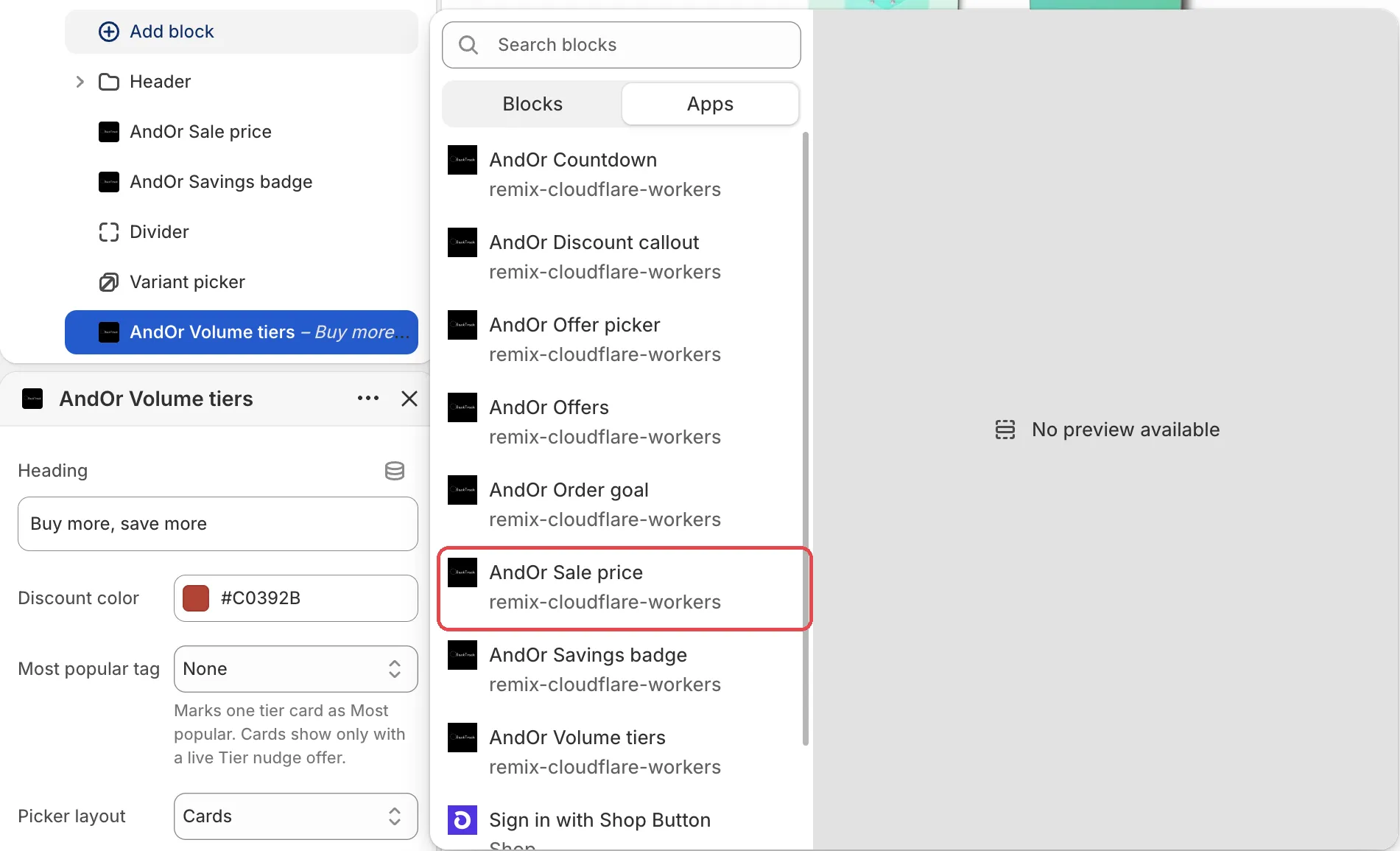
-
Drag the block under the price, then click Save.
Tip In AndOr, Promotions > Storefront widgets > See all blocks has an Add to theme button. It opens the theme editor with this block ready to place.
Note When no discount applies to the product you preview, the block shows a sample price with a dashed outline. That way you can place and style it. Shoppers see it only while a discount is running.
Or paste the tag
Where your theme has no slot for the block, a developer can paste one line on the product template:
<andor-price></andor-price>
Note A pasted tag needs the AndOr Discount Display app embed on. The embed fills the tag in, so with the embed off it shows nothing. See One-line tags.
Caution Do not paste it in
snippets/price.liquid(Dawn) orblocks/price.liquid(Horizon). Product cards use those files too, so every card would print this page’s price.
Block settings
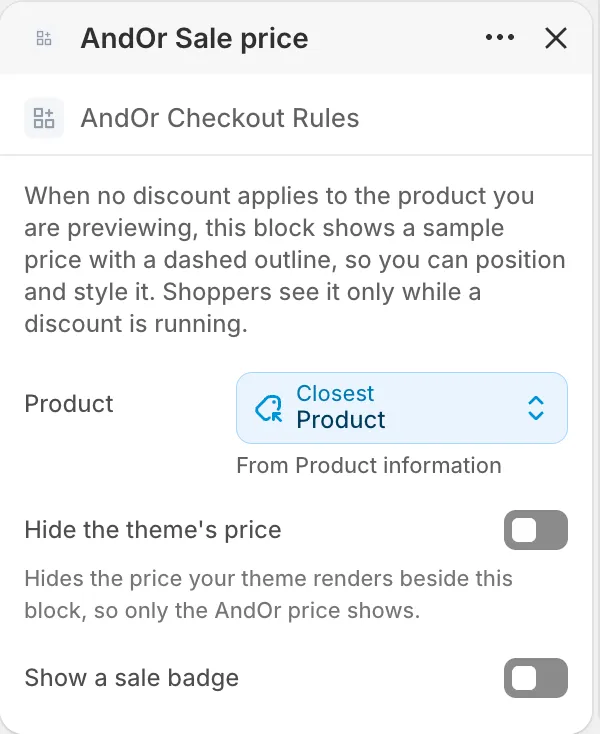
Product
The product to price. On a product page it fills itself from the page. Pick a product only when you place the block on another template.
Hide the theme’s price
Hides the price your theme shows beside this block, so only the AndOr
price shows. It works on themes whose price uses the .price class,
like Dawn and Horizon. If your theme names its price differently, both
prices stay on screen.
Default: off.
Show a sale badge
Adds a small badge after the price.
Default: off.
Badge label
The word inside the sale badge. Shows only when Show a sale badge is on.
Default: Sale.
Sale price color
The color of the sale price. Left on the default, this block follows the color set in the AndOr Discount Display app embed, and then your brand color.
Default: #c0392b.
Original price color
The color of the crossed-out original price.
Default: #6d7175.
Text size
Sized against the text around the block, so 100% matches your theme.
Options: 70% to 200%, in steps of 5. Default: 100%.
Space above
Empty space above the block.
Options: 0 to 64 px, in steps of 4. Default: 0 px.
Space below
Empty space below the block.
Options: 0 to 64 px, in steps of 4. Default: 0 px.
What it needs to appear
- Optional: the app embed. The block shows without it. The embed adds your shared look settings, text changes, the cart drawer parts and one-line tags.
- The AndOr Sale price block is in your theme.
- The discount is switched on under Promotions > Storefront widgets.
- The discount lowers what a shopper pays for the product. A discount that only comes off the total at checkout leaves the product price alone, so this widget has nothing to show.
- The discount is running now and covers the variant on screen.
It does not show for:
- discounts that need a code, a minimum order, or another condition the store page cannot check. Use the savings badge for those.
- gift card products, because Shopify does not discount them.
Tip Your theme may also show its own price next to the AndOr price. Turn on Hide the theme’s price on the block to show only the AndOr price. See Hide the theme’s price.
Show it in more places (code)
To show it where your theme has no slot for the block, paste a line of code. See Sale price: Code.
Limits
- On a product with more than 60 variants, the price does not follow a variant switch. The first price shown is still right for the variant that loaded.
- When the discount is in a different currency than the shopper sees, the sale price is converted in the browser. With JavaScript off, the shopper sees the regular price, never a wrong sale price.
- When several discounts apply, the widget shows the one that saves the most on the variant on screen.