 See it in action
 Volume price table promotion (tiered pricing)
On this page
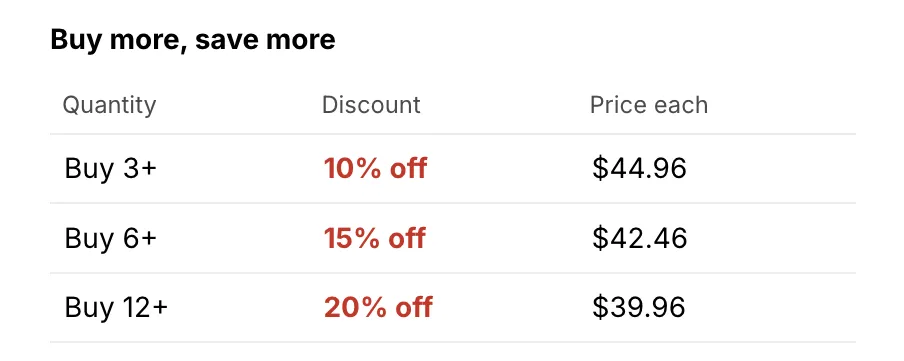
A volume price table gives a bigger discount as shoppers buy more, and shows a table with the price at each step on the product page. It is the Volume discount without the volume picker.
At a glance
| Gallery group | Promotions with storefront widgets |
| Discount | A bigger percent off as shoppers buy more. Default: 3 items for 10% off, 6 items for 15% off, 12 items for 20% off. |
| Theme block | AndOr Volume tiers, on the product page |
| Upsell offer | None. For a picker that sets the quantity, use Volume discount. |
| What the app embed adds | Your brand color, the parts in the cart drawer (if any), shared look settings and your Storefront text. The block shows without it. |
Before you start
- Decide your steps: how many items, and the percent off at each.
- Turn on the app embed if you want shared look settings or your own wording. See Install and turn on the app embed. For what works without it, see the app embed table.
Set it up in the app
-
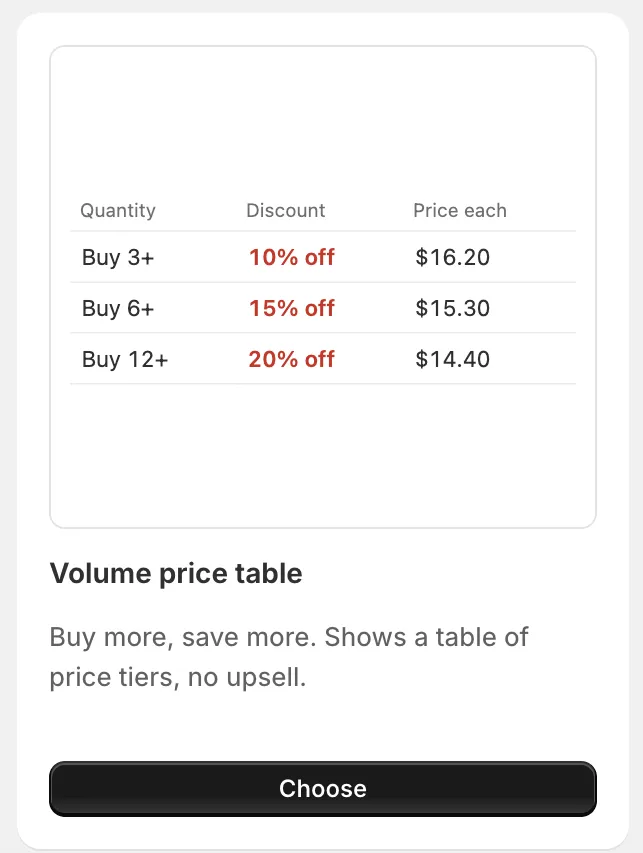
Open Promotions, click Create promotion, then click Choose on the Volume price table card.
It is under Promotions with storefront widgets.
-
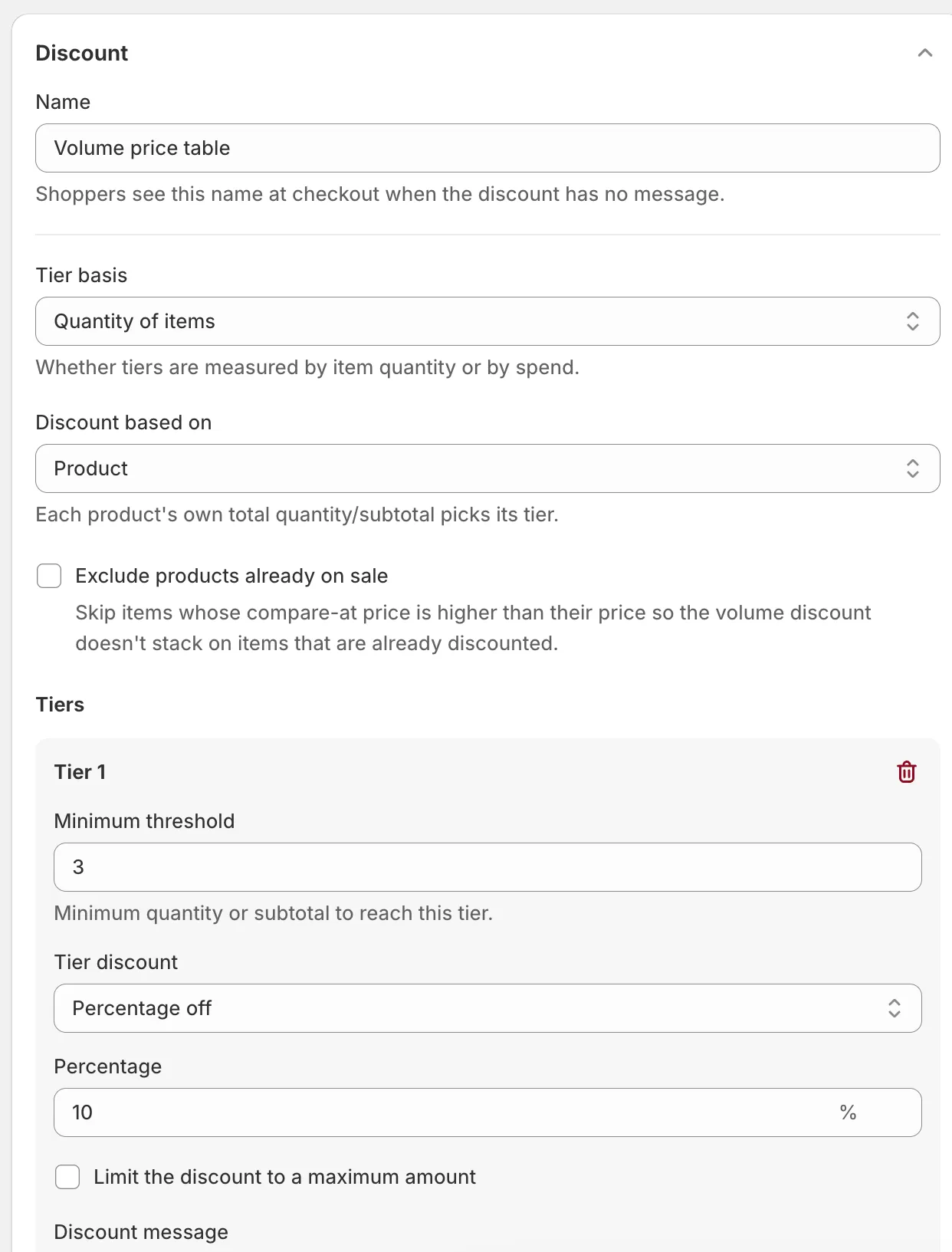
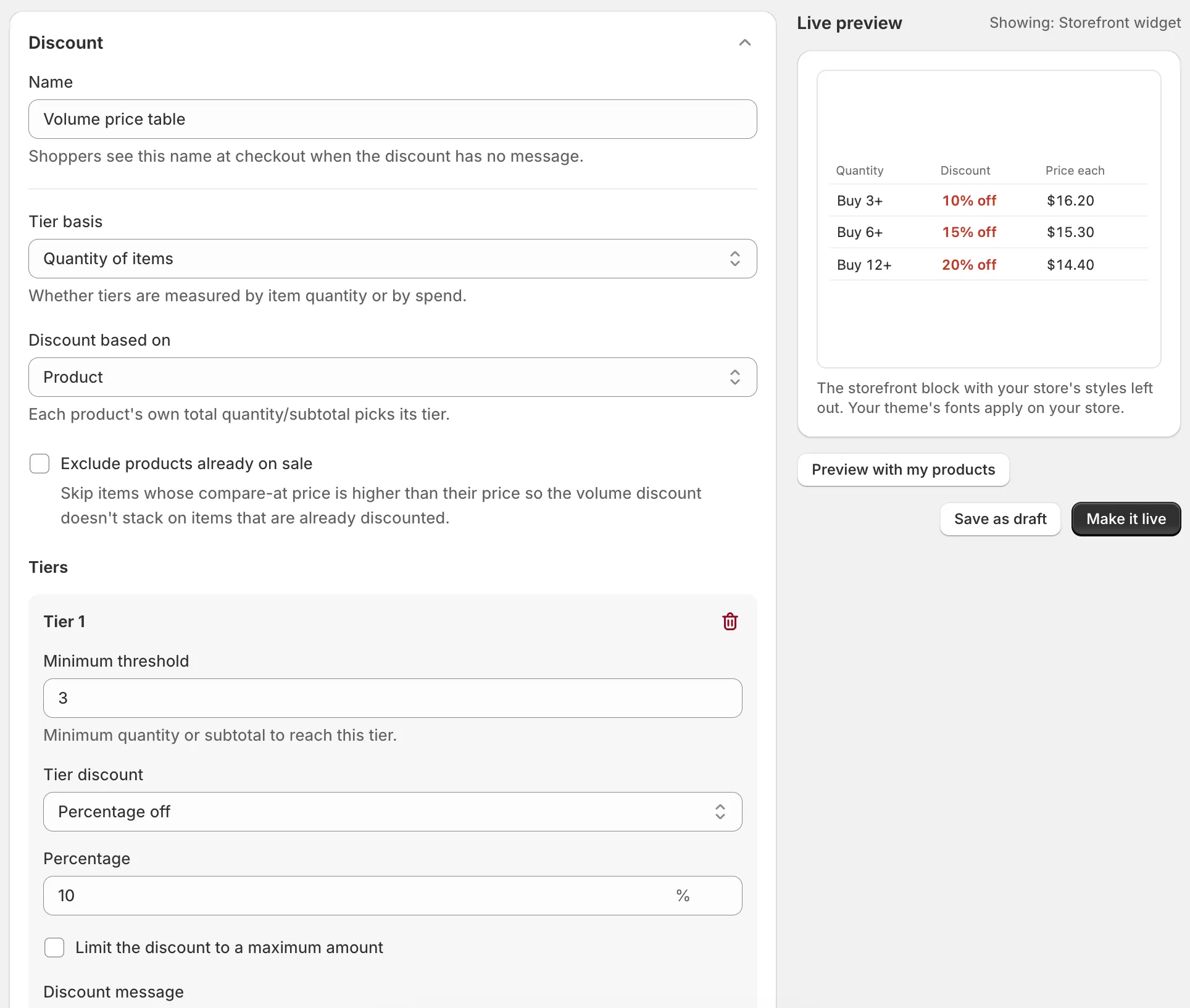
Set the tiers in the Discount section.
The page starts with three tiers: 3 items for 10% off, 6 items for 15% off and 12 items for 20% off. Keep every tier a percentage off, so the table can show it.
-
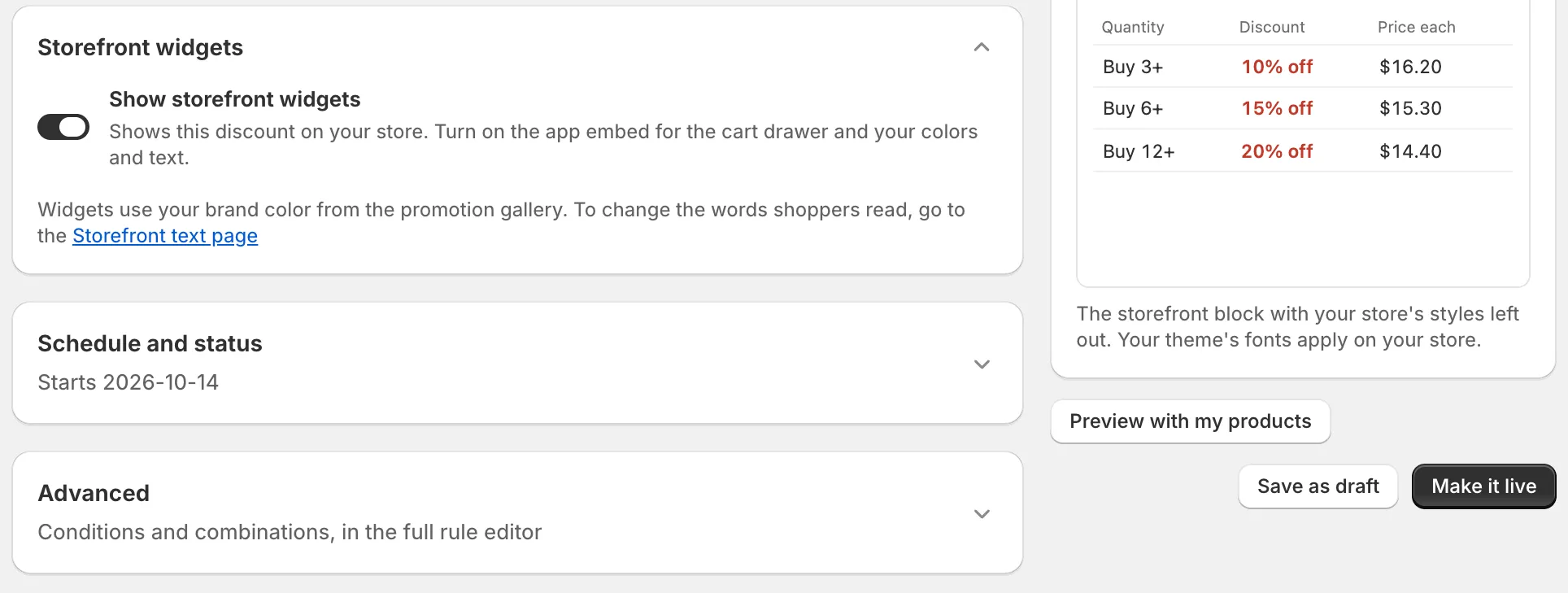
Check the Storefront widgets section.
Show storefront widgets is on by default. Leave it on.
-
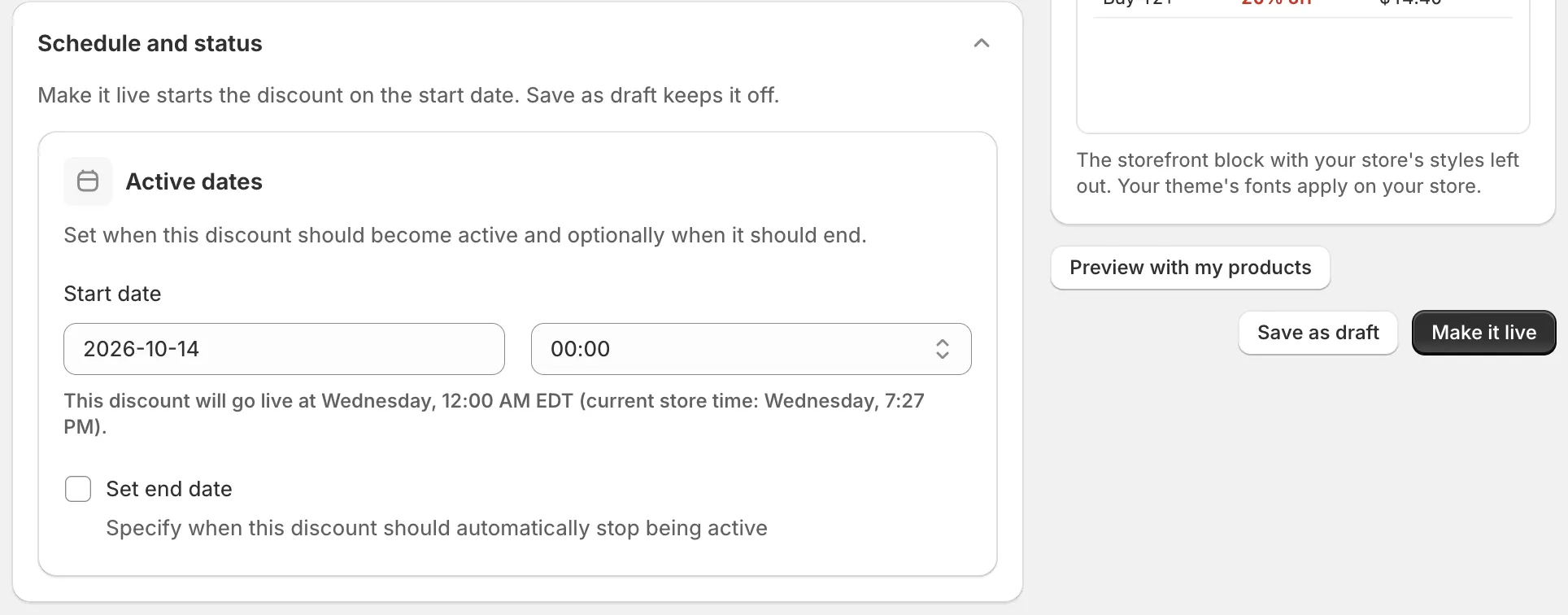
Set the dates in Schedule and status, then click Make it live.
Or click Save as draft to finish later.
Add it to your theme
Note What’s next appears after you click Make it live, not after Save as draft. It goes away when you dismiss it or leave the page. No What’s next panel? Open Promotions. In the row’s Storefront widgets column, click Add block. It shows when the block isn’t in your theme yet.
-
Under What’s next, click Open theme editor.
Add the widget to your theme names the AndOr Volume tiers block. The link opens your theme editor with the block added.
-
Drag the block under the price, near the quantity field, then click Save.
The block works on the product template only.
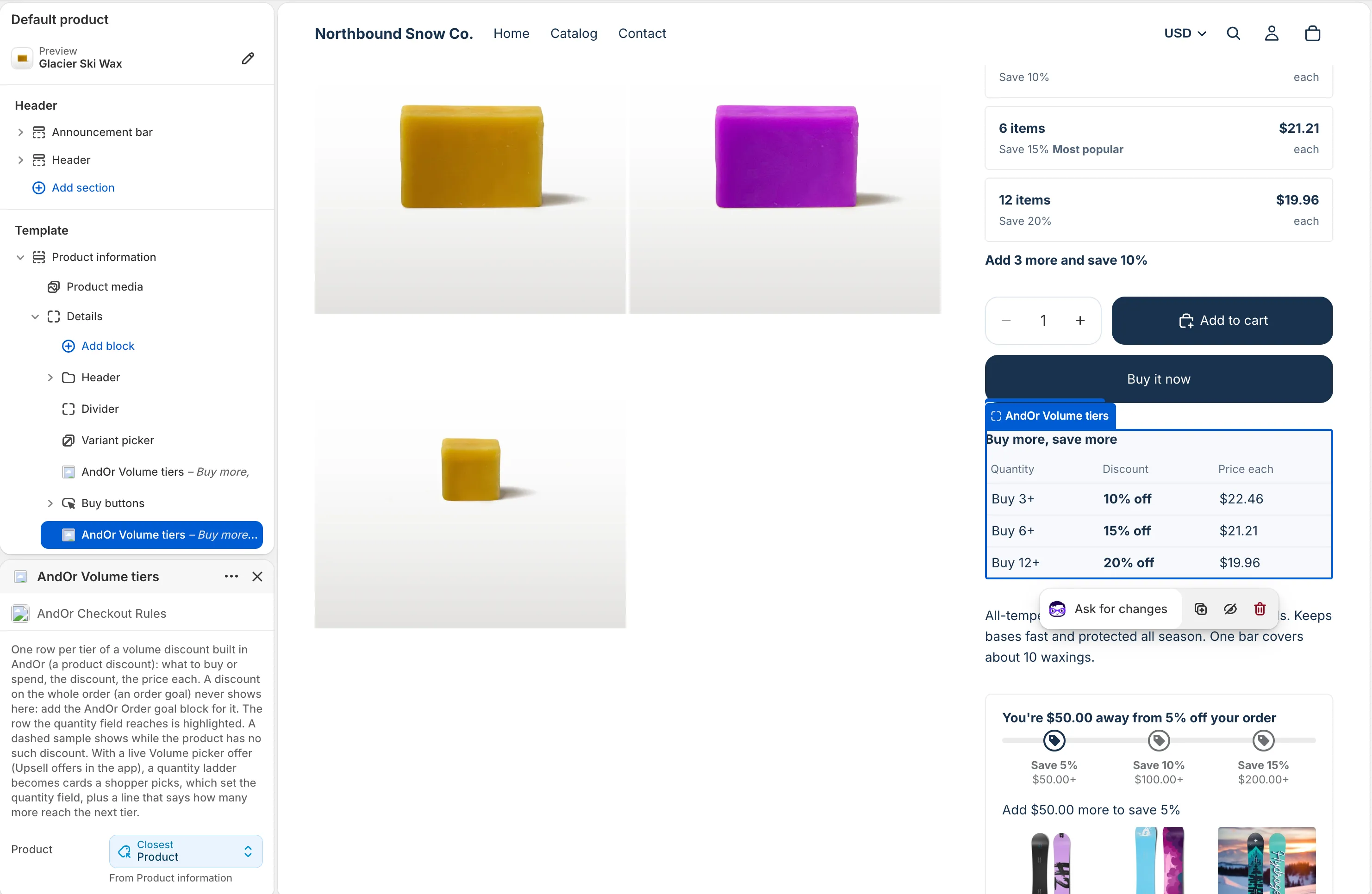
The dashed price in the editor preview is a sample. It shows until a discount applies to the product you preview.
-
Leave Picker layout as it is.
With no upsell offer, the block always shows the table, whatever Picker layout says. To show both a table and a picker, see Volume discount.
All block settings are on the Volume tiers widget page.
Check it on your store
-
Under What’s next, click View on store.
It opens your store, or a product or collection from this discount if you picked one. Open a product the discount covers. You see a table with one row per step: what to buy, the discount and the price each.
-
Set the quantity to a step, add it to the cart and go to checkout.
The row the quantity reaches is highlighted, and the discount comes off at checkout.
Not showing?
- The block is not on the product template, or you didn’t click Save in the theme editor.
- The discount is not running yet. Check its dates.
- A tier is not a percentage off, or the discount needs a code.
- Exclude products already on sale is on.
- A step doesn’t beat a sale already on the product. That step is hidden, and if no step is left, the whole table hides.
See What it needs to appear and Widgets not showing.
Turn the widget on or off
In Promotions, use the row’s Storefront widgets switch. The discount keeps working at checkout.
Settings and limits
| Setting | What it does | Default |
|---|---|---|
| Name | Shoppers see it at checkout when the discount has no message. Up to 60 characters, and different from your other discounts’ names. | Volume price table |
| Tier basis | Whether tiers count item quantity or spend: Quantity of items, Subtotal amount. | Quantity of items |
| Discount based on | What picks the tier: All products (combined), Product, or Variant. | Product |
| Exclude products already on sale | Skips items whose compare-at price is higher than their price. | Off |
| Tiers | Each tier has a Minimum threshold and a Tier discount. Click Add tier for another step. | Three tiers |
| Applies to | Which products get the discount. | All products |
| Combine with | Tick Product discounts, Order discounts or Shipping discounts. | None |
Discount based on in more detail:
- All products (combined): every selected item counts together.
- Product: each product counts on its own.
- Variant: each variant counts on its own.
Limits:
- With Exclude products already on sale on, storefront widgets can’t show this discount.
- For storefront widgets, every Tier discount must be a percentage off, and the discount must work without a code.
- The table works on the product template only.