 See it in action
 Import and export
Paid planImport and export are on paid plans, Starter and up.
On this page
Export saves your rules as files. Import reads those files back in. Use it to back up rules, copy rules to another store, or share a setup with your team.
Export rules
-
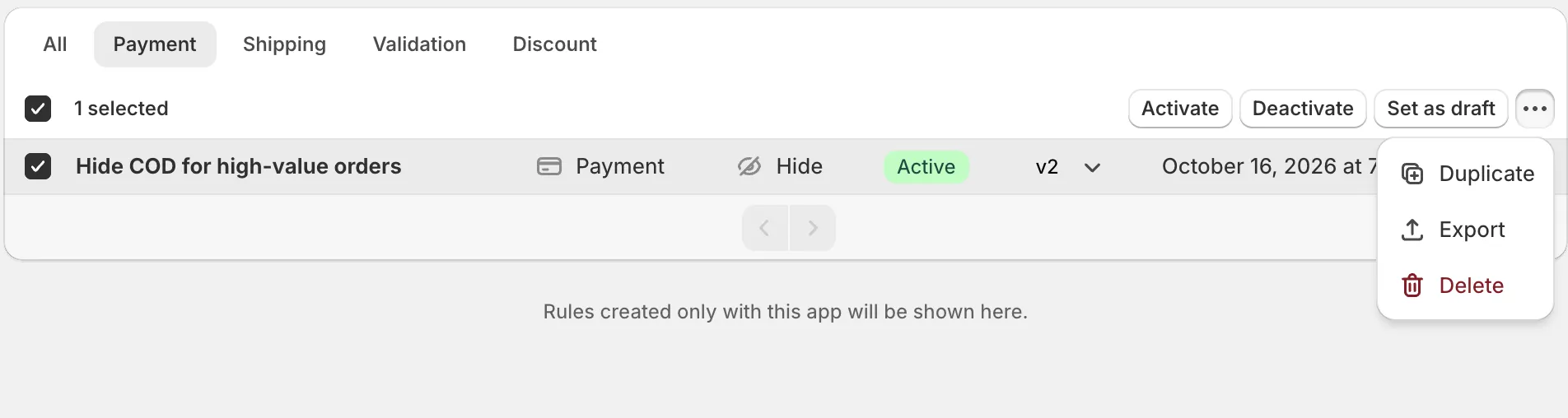
Open Rules, tick the rules you want and click Export.
Export is in the … menu of the bulk actions. The Export rules window opens.
-
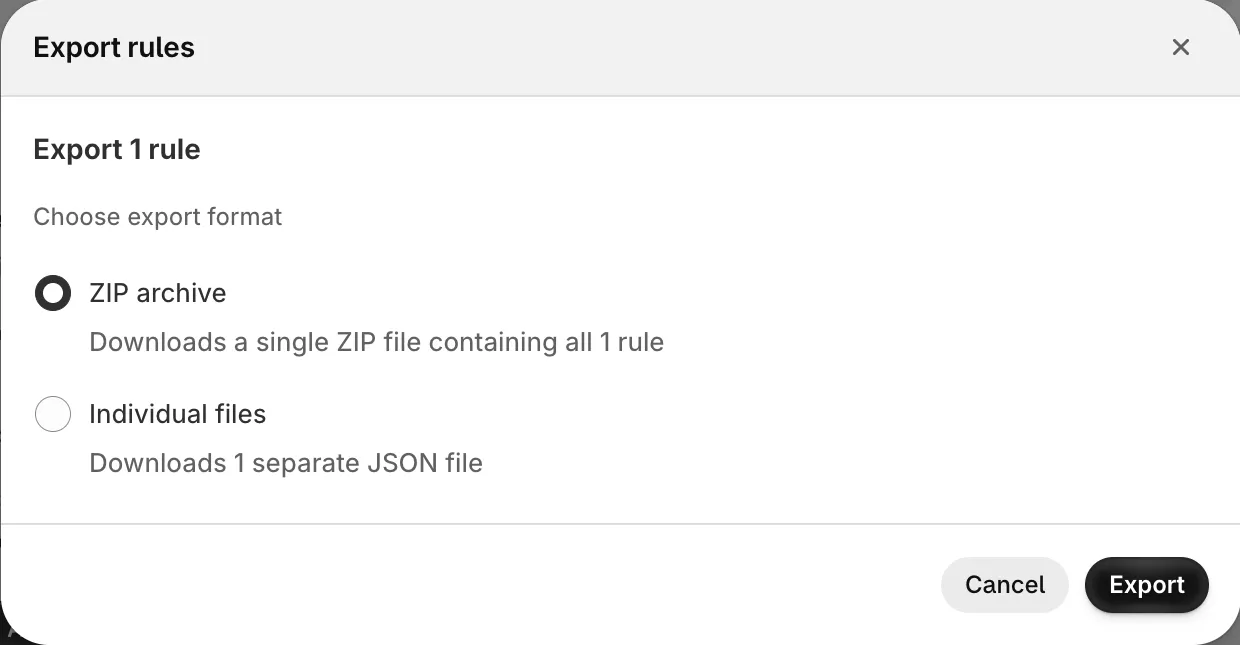
Choose a format and click Export.
- ZIP archive: one ZIP file with all the selected rules.
- Individual files: one JSON file per rule, downloaded one at a time.
To export a single rule from its edit page, open More actions and click Export.
Import rules
-
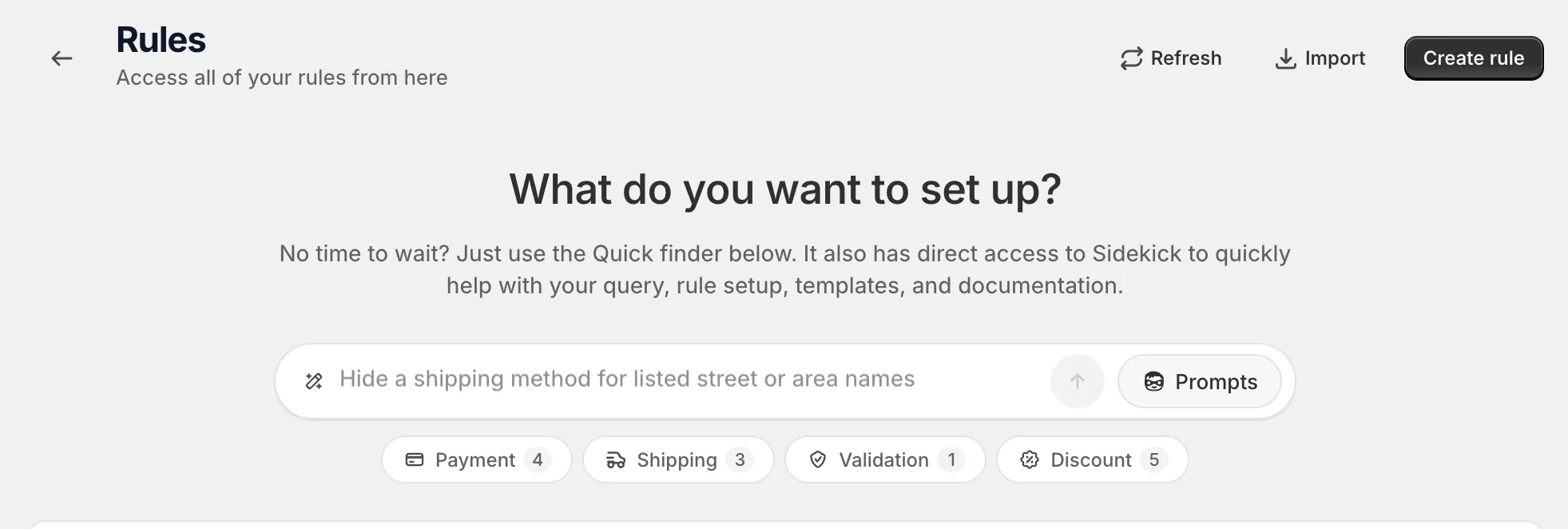
Open Rules and click Import.
The Import rules window opens.
-
Drop your files in, or pick them, then click Import.
It accepts
.jsonand.zipfiles. The window shows how many rules are ready to import. Click Remove to drop a file.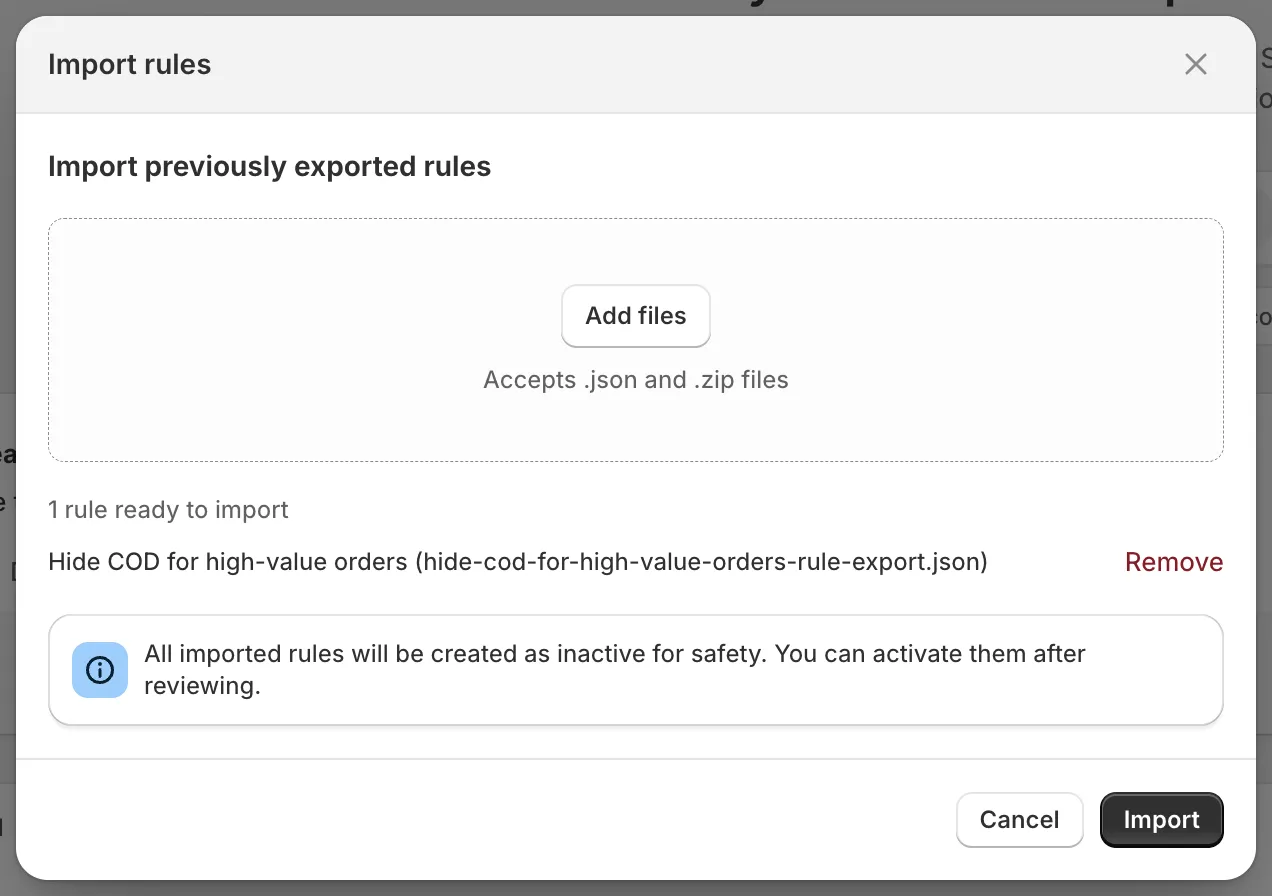
Note “All imported rules will be created as inactive for safety.” Open each rule, check it, test it as a draft, then activate it.
If an import fails
The window lists each file that failed and why:
- “Invalid JSON”: the file is not valid JSON.
- “Invalid format”: the file is JSON but not an AndOr rule export.
- “Failed to read ZIP file”: the ZIP is damaged.
A rule that is too big is rejected on import, the same way it would be on save. See Rule size.