 See it in action
 Countdown timer (AndOr Countdown block)
On this page

The countdown timer shows the time left before a discount stops running. Example: “Sale ends in 3h 12m”.
Made by: a Countdown sale promotion, or any other discount with an end date that shows on the product page.
For developers: Code · Styling · Events
What shoppers see
The time gets more exact as the end gets closer:
| Time left | Shows |
|---|---|
| 48 hours or more | Days and hours, like 2d 4h |
| 1 hour or more | Hours and minutes, like 3h 12m |
| 10 minutes or more | Minutes, like 45m |
| 2 minutes or more | Minutes and seconds, like 4m 32s |
| Under 2 minutes | “Sale ends soon” (replaces the whole line) |
The time is worked out from the shopper’s own clock. When the sale ends, the countdown hides.
Which discount it counts down
The countdown belongs to the same discount the sale price shows. That way the price changes when the timer reaches zero.
- If no sale price shows, it can count down a discount that only shows as a savings badge (for example a product discount with a minimum order). Turn this off with Show for discounts with conditions.
- If the winning discount has no end date, no countdown shows, even when another discount on the product has one.
Where it goes
Product page only, usually under the price.
Add the block
Note App blocks need an Online Store 2.0 theme. On an older (vintage) theme, this block can’t be added. See Theme requirements.
The AndOr Countdown block draws the countdown. You add it to the product template in the Shopify theme editor, usually under the price.
-
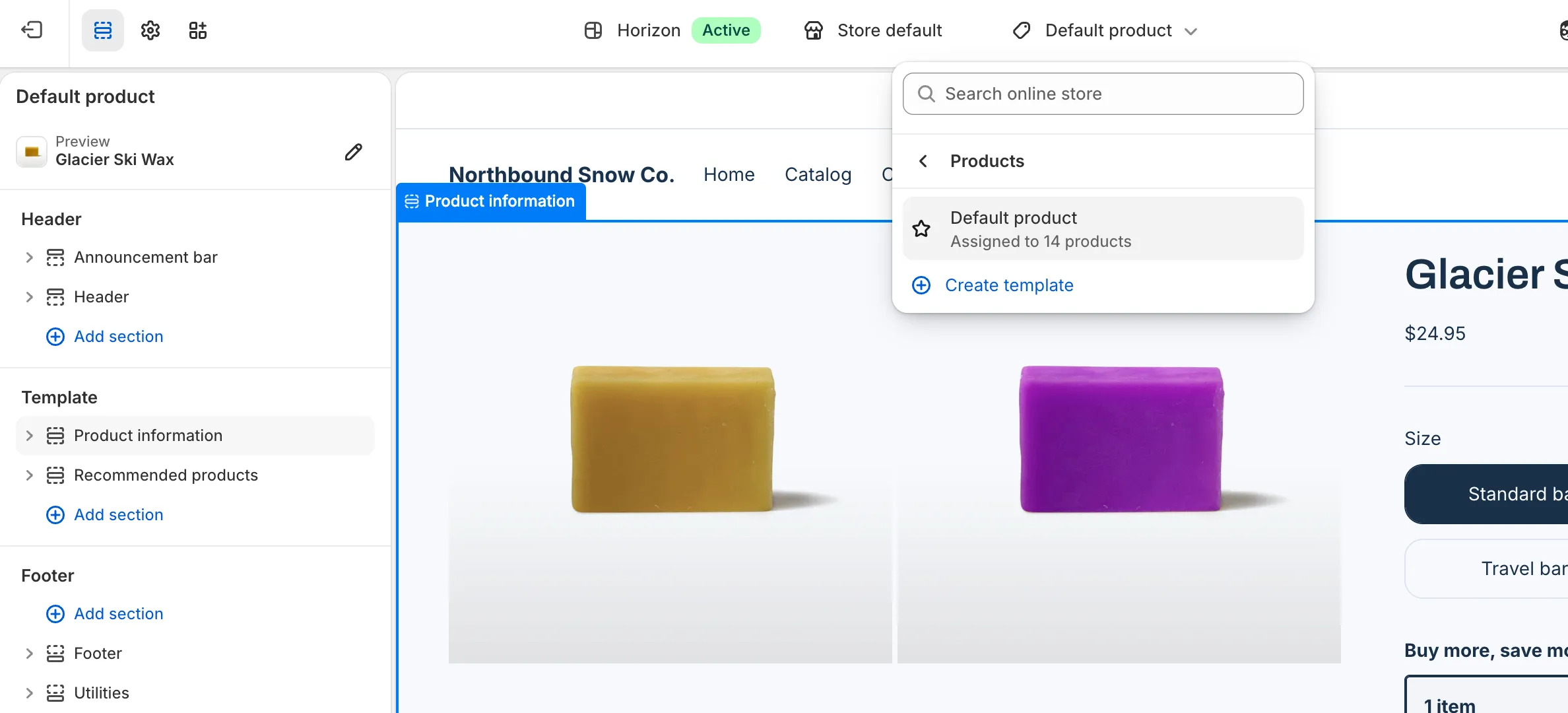
Open the theme editor on the product template.
In Shopify, go to Online Store > Themes and click Edit theme. Pick Products, then Default product, in the page menu at the top. This block works on product templates only.
-
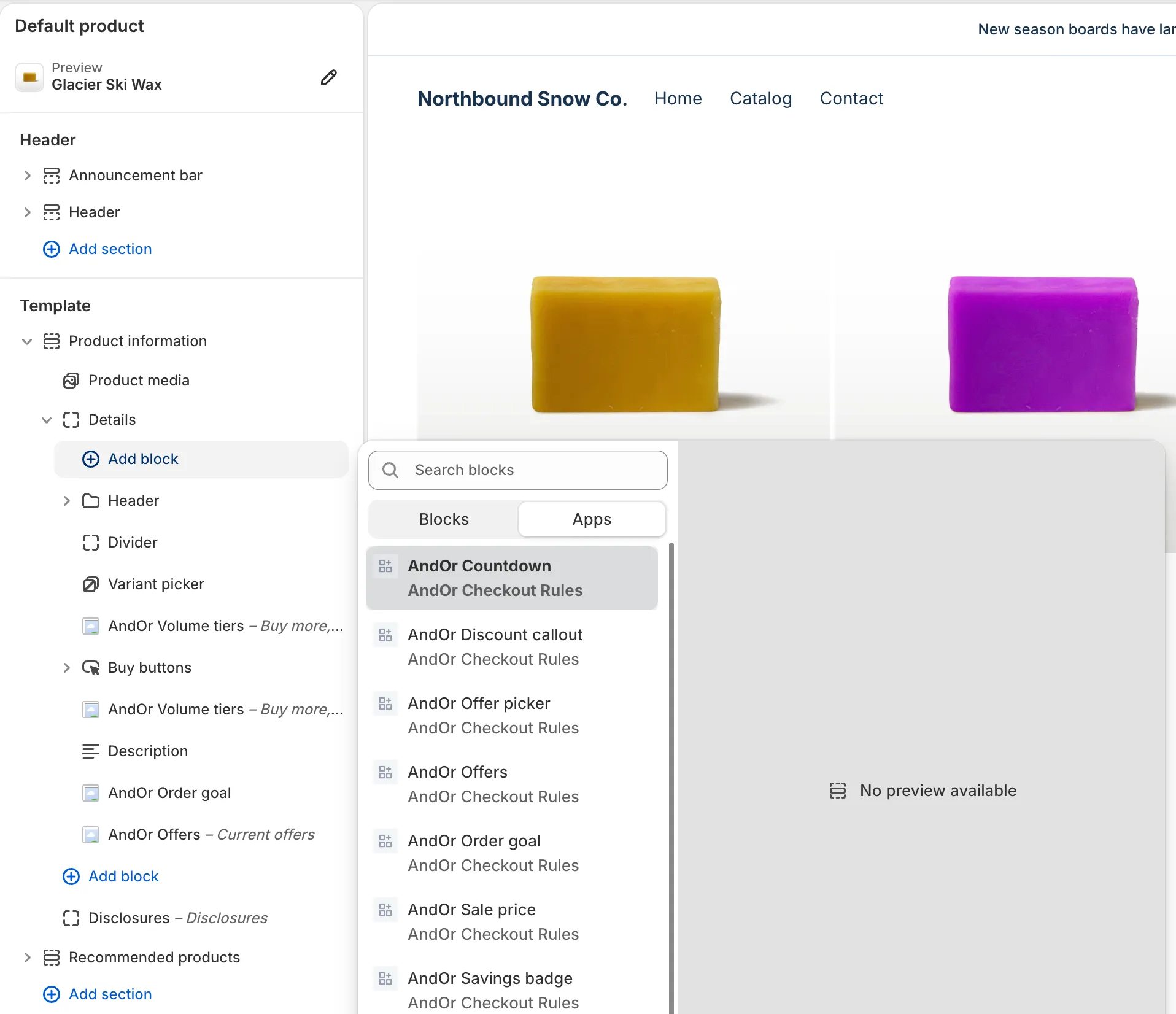
Click Add block, open Apps and pick AndOr Countdown.
Add it inside the product information section.
-
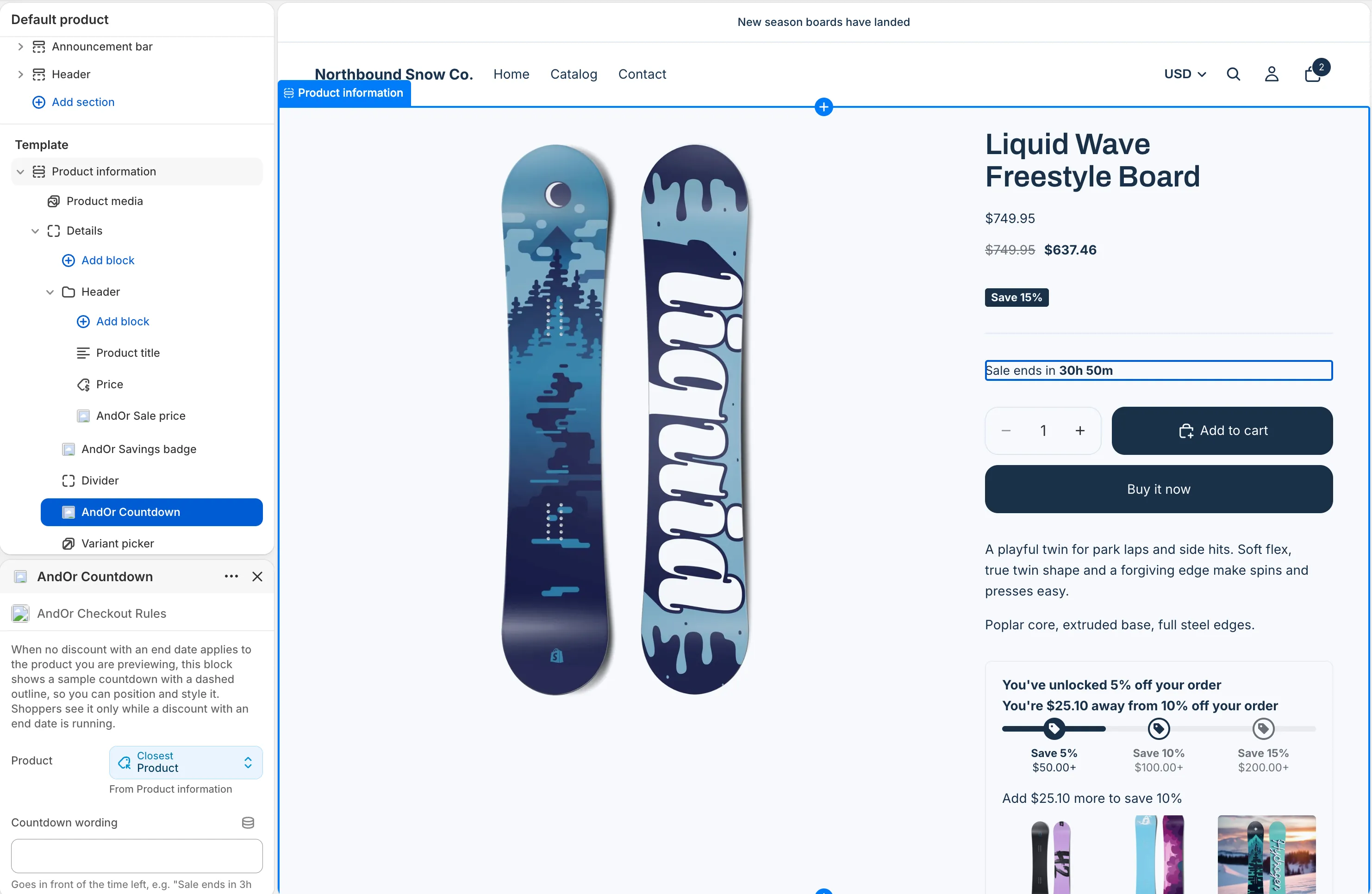
Drag the block under the price, then click Save.
Tip In AndOr, Promotions > Storefront widgets > See all blocks has an Add to theme button. It opens the theme editor with this block ready to place.
Note When no discount with an end date applies to the product you preview, the block shows a sample countdown with a dashed outline. That way you can place and style it. Shoppers see it only while a discount with an end date is running.
Block settings
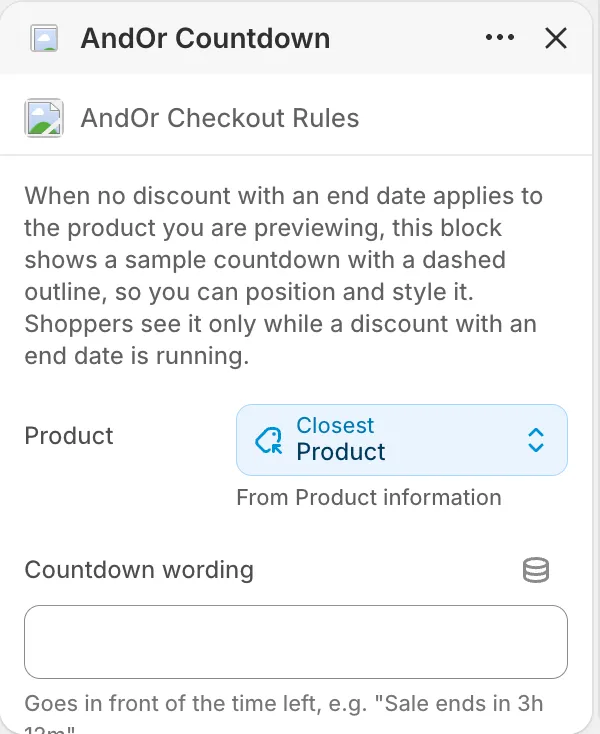
Product
The product to time. On a product page it fills itself from the page.
Countdown wording
Goes in front of the time left, for example “Sale ends in 3h 12m”. Leave it empty to use “Sale ends in” in the shopper’s language. In the last two minutes, the whole line says “Sale ends soon” instead.
Show for discounts with conditions
Also counts down the discounts that show a savings badge but no sale price.
Default: on.
Countdown text
The countdown text color. This color is used exactly as set. It does not follow your brand color.
Default: #c0392b.
Text size
Sized against the text around the countdown, so 100% matches your theme. The countdown ships slightly smaller, at 95%.
Options: 70% to 200%, in steps of 5. Default: 95%.
Space above
Empty space above the countdown.
Options: 0 to 64 px, in steps of 4. Default: 0 px.
Space below
Empty space below the countdown.
Options: 0 to 64 px, in steps of 4. Default: 0 px.
What it needs to appear
- Optional: the app embed. The block shows without it. The embed adds your shared look settings, text changes, the cart drawer parts and one-line tags.
- The AndOr Countdown block is on the product template.
- The discount is switched on under Promotions > Storefront widgets, and it is running now.
- The discount has an end date. A discount that runs until you switch it off has nothing to count down to, so no countdown shows.
- JavaScript is on in the shopper’s browser.
Show it in more places (code)
To show it where your theme has no slot for the block, paste a line of code. See Countdown: Code.
Limits
- It does not show on gift card products.
- When the counted discount ends, the countdown hides. A new countdown for another discount shows on the next page load.
- It follows a variant switch when up to eight discounts apply to the product. With more, it stays on the countdown for the variant that loaded.
- If you change Countdown wording, the last two minutes still show “Sale ends soon”.