 See it in action
 Rule not working at checkout
On this page
Most of the time a rule that “does nothing” is a status, a test cart or a Shopify limit. Work down this list.
1. Check the basics
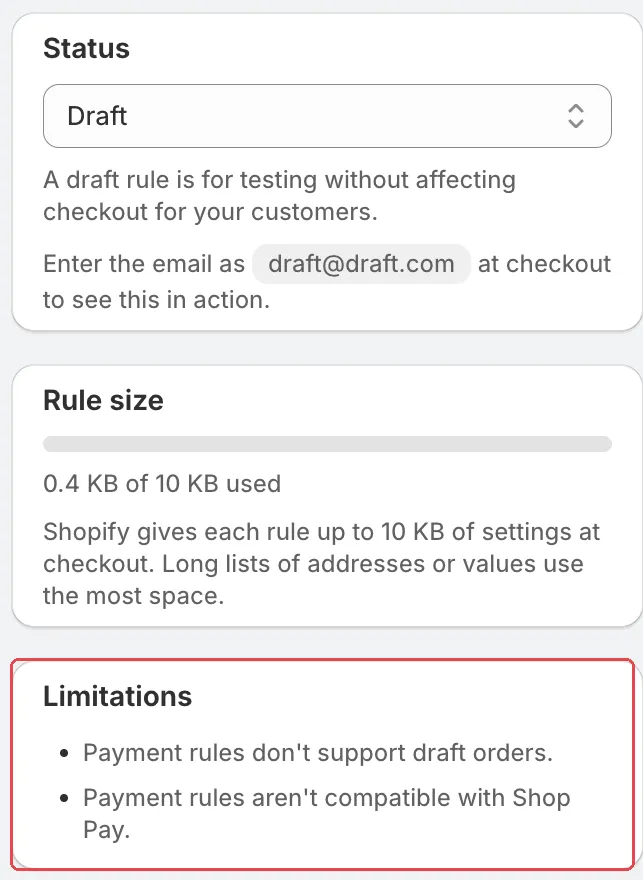
- Is the rule Active? A Draft rule runs only for the test email shown in its Status card. An Inactive rule never runs. Open Rules and check the Status column.
- Is it scheduled? A status of Active (Scheduled) starts later. Active (Expired) has ended. Check the rule’s Active dates.
- Does your test cart meet the conditions? Check each condition against your cart: the total, the country, the products, the customer.
- Are you testing the real storefront checkout? Payment, shipping and validation rules do not run in a cart or product preview. Payment and shipping rules also don’t show while you build a draft order in the admin.
- Did you give it a few seconds? For payment and shipping rules, let the checkout refresh after you save.
- Did you reach your plan’s rule limit? A rule over the limit can’t be activated. See Rule limit reached.
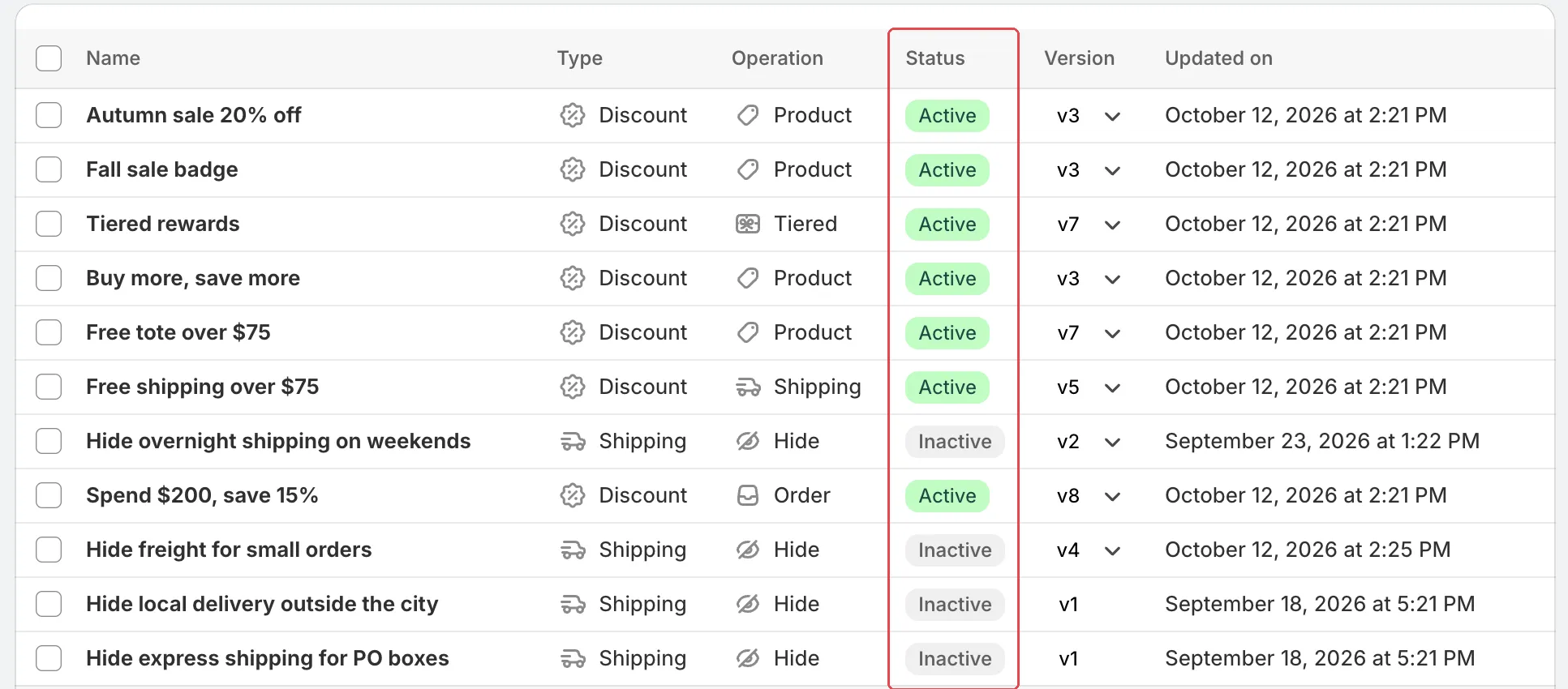
2. Check how the conditions combine
- Inside a rule group, All rule passes needs every condition to match. Any rule passes needs just one.
- Rule blocks are joined by Or. The rule matches when any one block matches.
- For text conditions with several values, like
US, CA, the rule matches any one of them.
See Conditions, groups and blocks.
3. Check the Shopify limits
Some things no app can change at checkout. The Limitations card on each rule lists the ones for that rule type.
- Draft orders: payment and shipping rules don’t show while you build a draft order in the admin. They do apply when the customer opens the draft order’s checkout. Validation rules also run on draft orders.
- Shop Pay: payment rules don’t change the methods inside Shop Pay, apart from gift cards.
- Logos: payment methods shown as a logo (Shop Pay, Apple Pay, Google Pay, gift card) can’t be renamed. Express and wallet methods can be hidden, but not reordered.
- Local delivery and pickup: shipping rules can hide, rename and reorder local delivery and local pickup options too.
- Point of sale: rules don’t run in Shopify POS.
- Shopify plan: the app works on all Shopify plans except Shopify Starter.
- Shopify Plus conditions: conditions marked Plus required, such as Selected payment method (Plus required), need Shopify Plus. They also don’t match in express checkouts such as Apple Pay or Google Pay.
4. Discount rules
For the full list, see Discount not applying.
- Another discount won. When two discounts can’t be combined, Shopify applies only one. Check the Combinations card on both discounts. See “Can’t be combined” notes.
- Discount code rules: a code discount applies only when the shopper types the code.
- Rejecting discount codes: an automatic order discount can reject codes with Discount code rejection, but only when the shopper enters the code. Shopify can’t reject a code based on the shipping method. To block it there, use a checkout validation rule.
5. The rule is too big
Shopify gives each rule a fixed amount of space for its settings. The Rule size card shows how much you use. If you are over the limit, remove some values or split the list into two rules. See Rule size.
Still stuck?
Email andor@backtrackhq.com or use the chat in the app. Tell us the rule name, what you expected and what the checkout showed.