 See it in action
 Volume tiers: quantity breaks and tiered pricing (AndOr Volume tiers block)
On this page
The volume tiers widget shows the steps of a “buy more, save more” discount, also called quantity breaks or tiered pricing. Example: Buy 2+ for 10% off, Buy 4+ for 15% off. It shows as a price table, or as a picker that sets the quantity.
Made by: a Volume discount promotion, whose Volume picker offer gives shoppers the picker, or a Volume price table promotion, which gives them the table.
For developers: Code · Styling · Events
What shoppers see
The price table
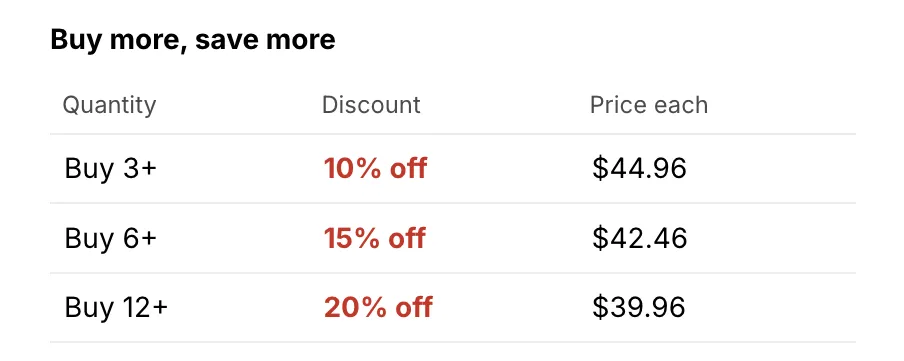
Without an upsell offer, the widget is a table. One row per step: what to buy or spend, the discount, and the price each. The row the quantity field reaches is highlighted.
The volume picker
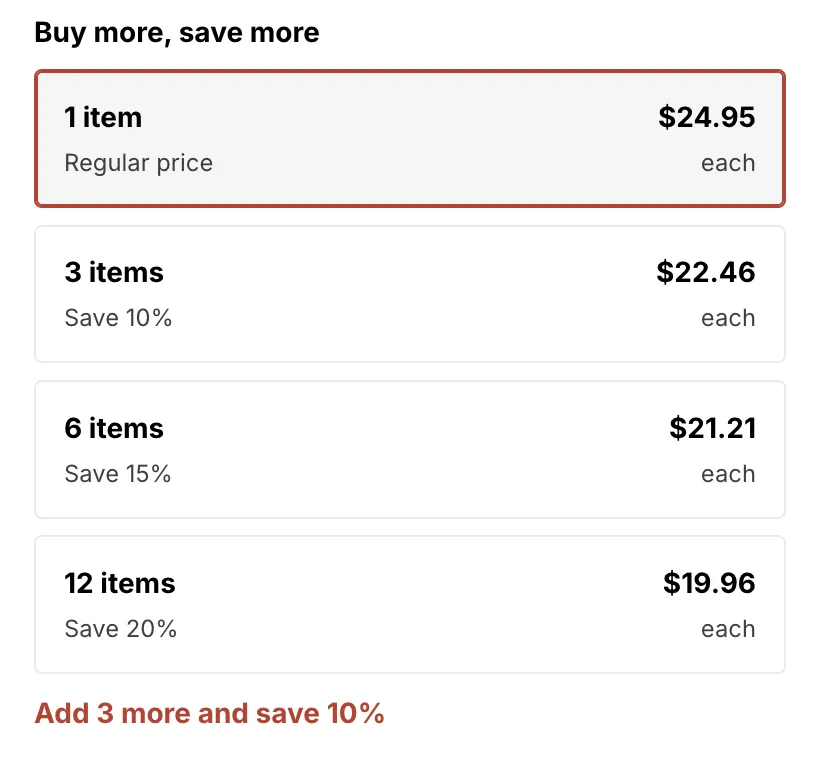
With a live Volume picker upsell offer, the table becomes a picker. Shoppers click an option, and the theme’s quantity field changes to that number. The theme’s own Add to cart button then adds that many. Under the options, one line says how many more reach the next step. Example: “Add 1 more and get 15% off”.
You choose the look with Picker layout. See Layouts.
Most popular tag: you can mark one step with a “Most popular” tag. It shows on the picker only, not on the table.
Tip To show the table and the picker on one page, add two AndOr Volume tiers blocks. Set one to Table and the other to any picker layout.
Layouts
The Picker layout setting on the AndOr Volume tiers block picks the look. Cards, List, Mini buttons and Boxes show only with a live Volume picker upsell offer. Without one, every layout shows the price table.
Cards
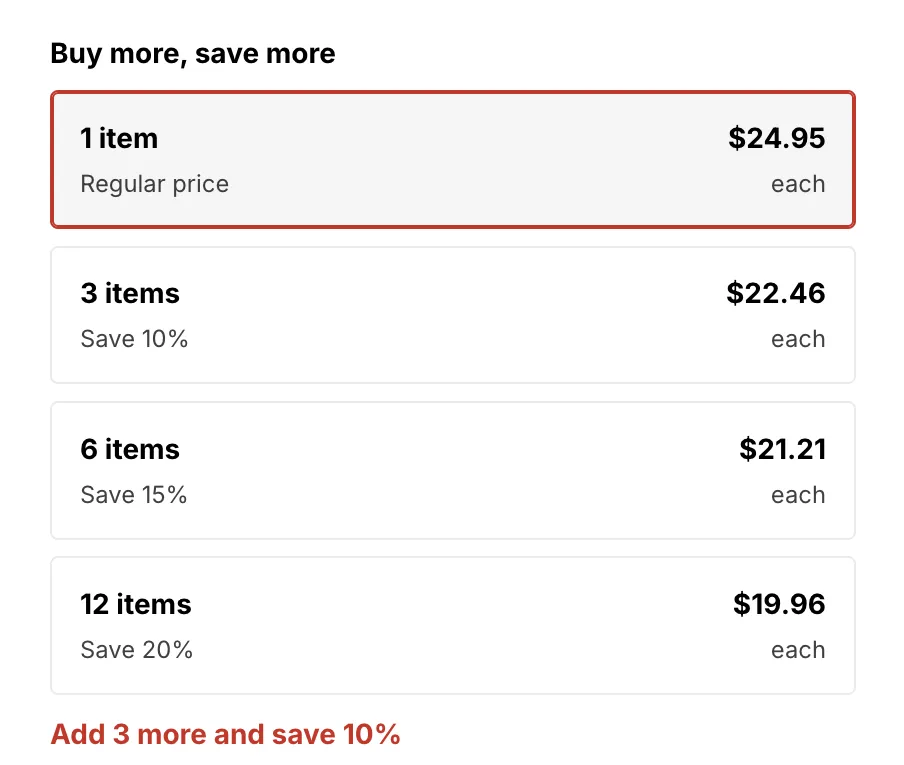
One card per step, with the price each. This is the default. Use it when you want each step to stand out.
Setting: Picker layout > Cards.
List
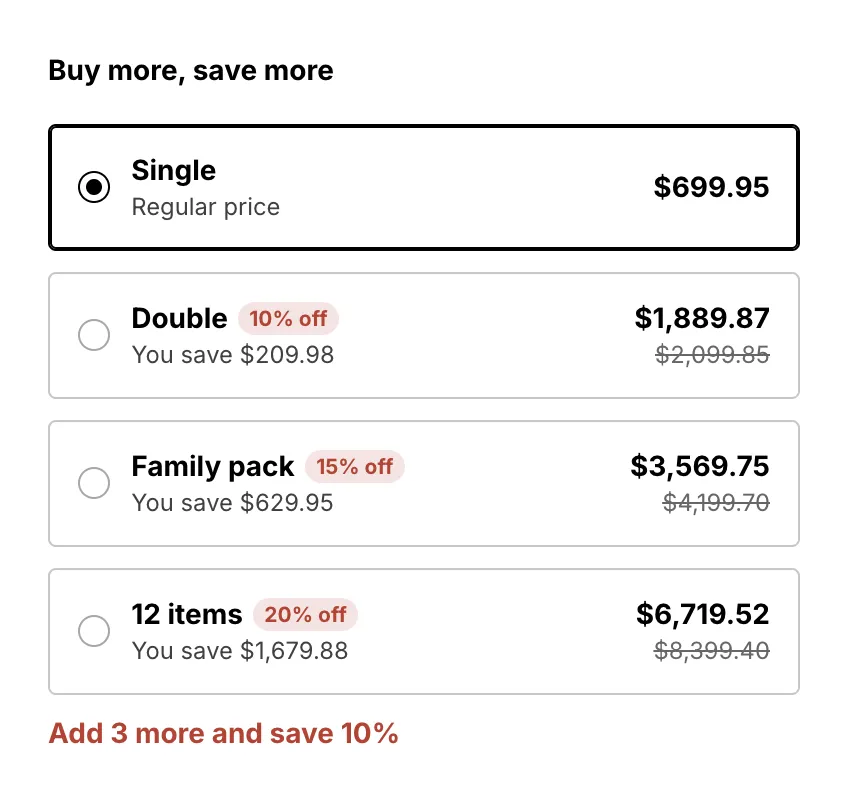
Full-width rows, each with a radio, a title, a “10% off” pill, the total and the regular total crossed out. Use it when shoppers should see what they pay in total.
Setting: Picker layout > List. Name the rows with Option titles, for example “Single, Double, Family pack”.
Mini buttons
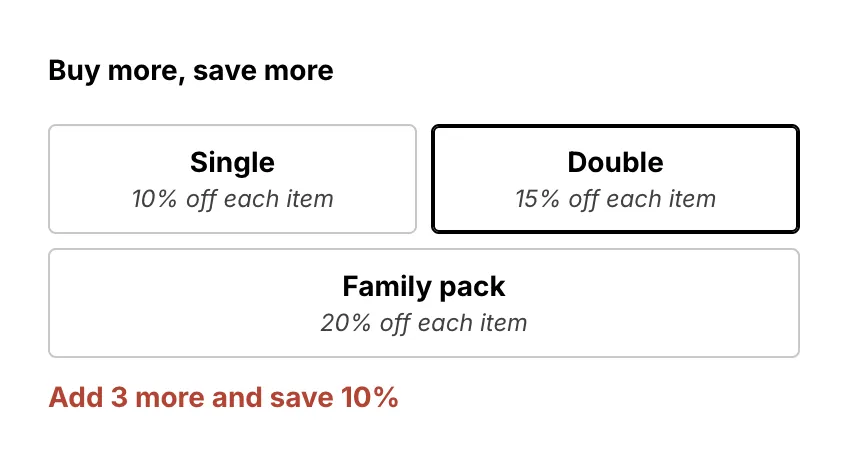
One compact row of equal buttons, like “Buy 2+, 10% off each item”. The theme’s quantity box stays below. Use it when there is little room under the price.
Setting: Picker layout > Mini buttons. There is no “1 item” button, so the first Option titles name goes on the first discount step. With “Single, Double, Family pack”, Single is the 10% off button. Up to four buttons fit a row, and two on narrow screens.
Boxes
Equal boxes side by side, with the same words and prices as the List. Use it to compare a few steps at a glance.
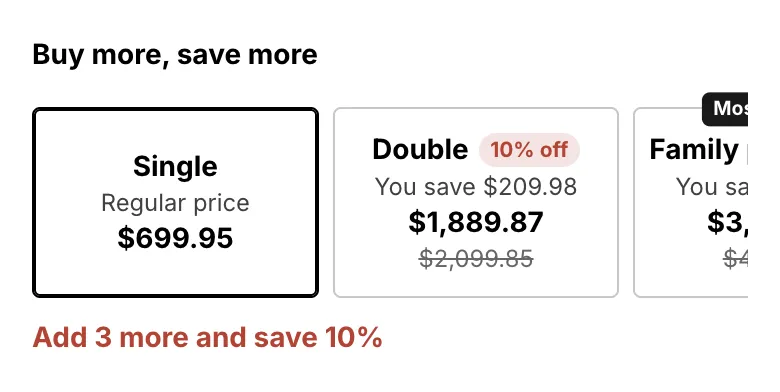
Setting: Picker layout > Boxes. On phones, two boxes fit a row. Turn on Scroll boxes sideways on phones to keep them in one row.
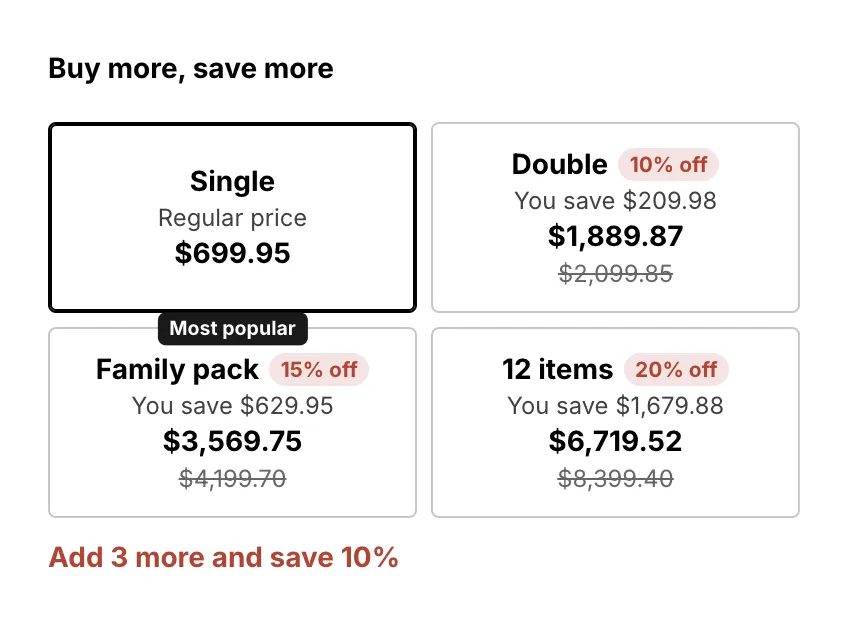
With Scroll boxes sideways on phones on, the boxes stay in one row and the shopper swipes to see the rest.
Table
Always the price table, never the picker, even with a live offer. Use it with a second block to show the table and the picker on one page.
Setting: Picker layout > Table.
Where it goes
Product page only, under the price and near the quantity field.
Note The volume picker updates the moment the cart changes only on a theme that sends Shopify’s storefront cart events. Horizon 4.0+ and Dawn 15.5+ do. On other themes it is right when the page loads, and after the shopper adds with the theme’s Add to cart button. See Theme requirements.
Add the block
Note App blocks need an Online Store 2.0 theme. On an older (vintage) theme, turn on the app embed and paste the one-line tag instead. See Theme requirements.
The AndOr Volume tiers block draws the volume price table and the volume picker. You add it to the product template in the Shopify theme editor, under the price and near the quantity field.
-
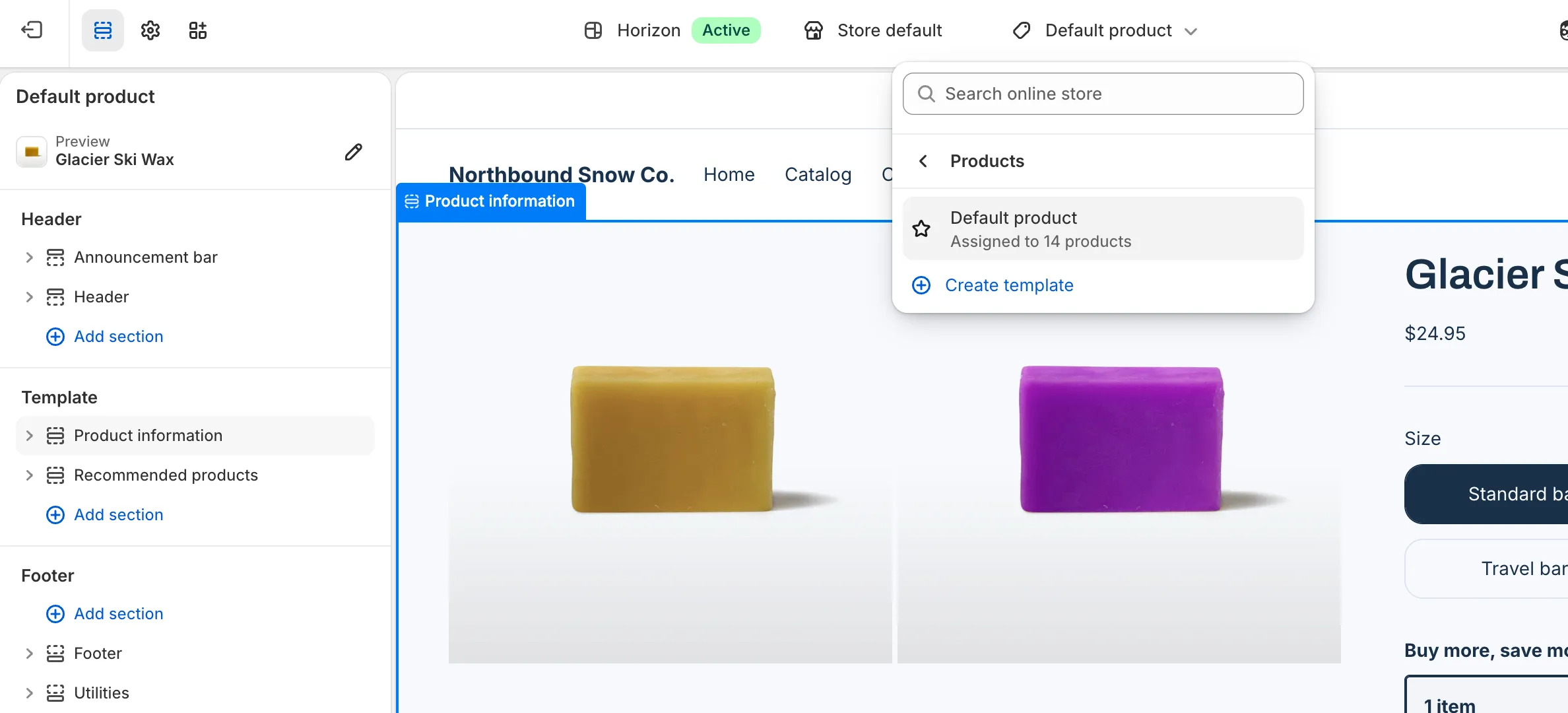
Open the theme editor on the product template.
In Shopify, go to Online Store > Themes and click Edit theme. Pick Products, then Default product, in the page menu at the top. This block works on product templates only.
-
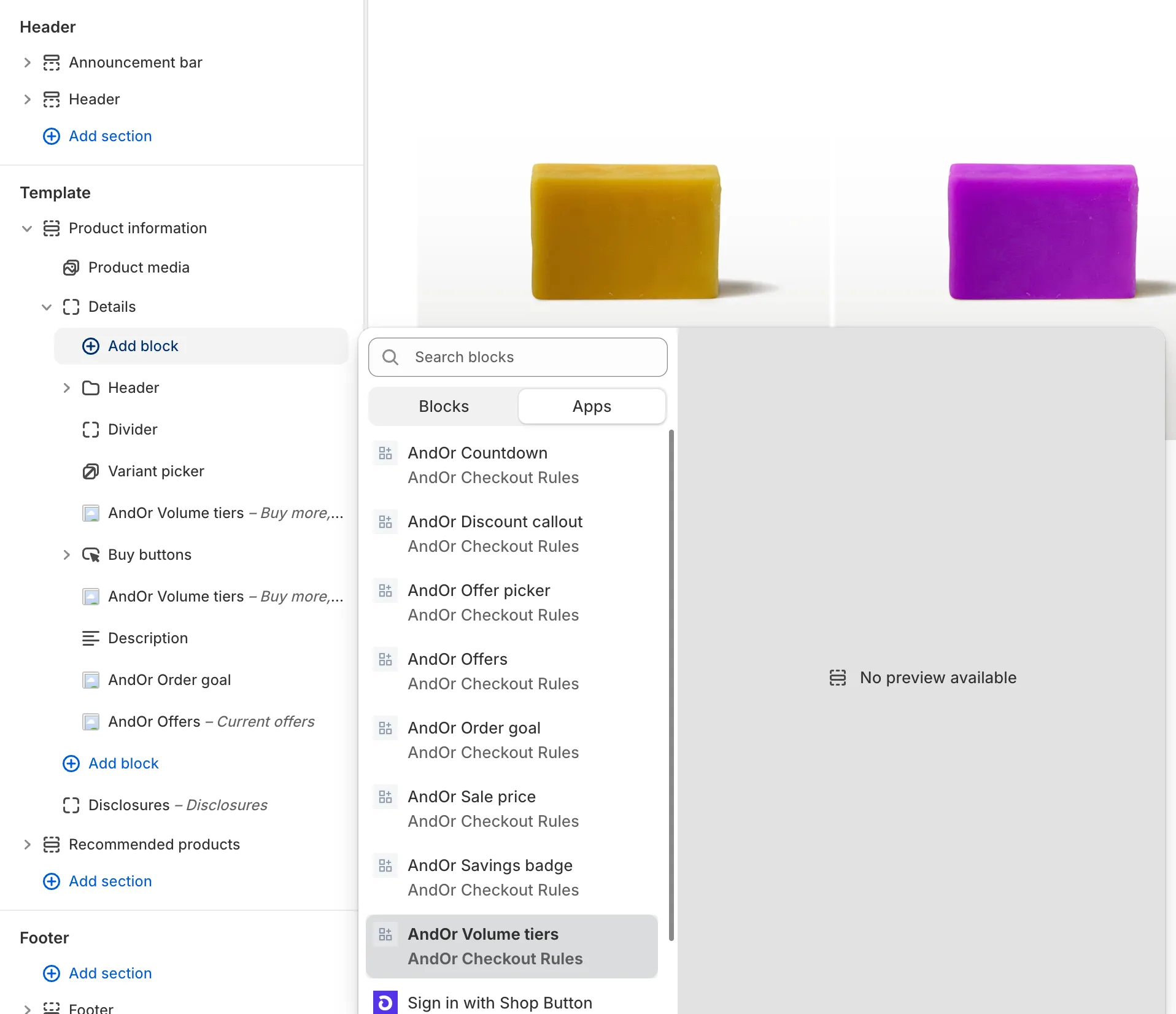
Click Add block, open Apps and pick AndOr Volume tiers.
Add it inside the product information section.
-
Drag the block under the price, near the quantity field, then click Save.
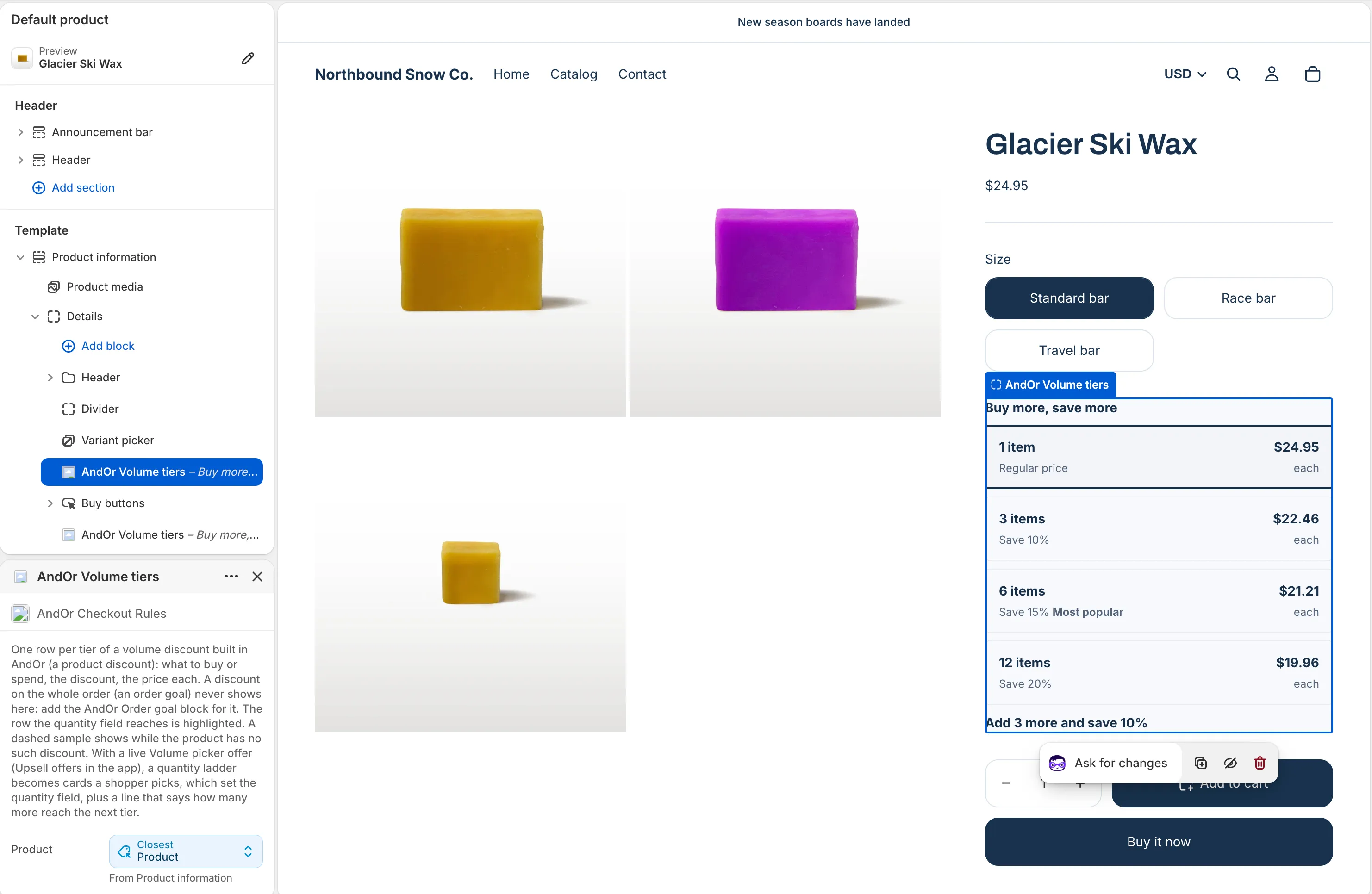
Tip In AndOr, Promotions > Storefront widgets > See all blocks has an Add to theme button. It opens the theme editor with this block ready to place.
Note When the product you preview has no volume discount, the block shows a dashed sample. That way you can place and style it.
Or paste the tag
Where your theme has no slot for the block, a developer can paste one line on the product template:
<andor-tiers></andor-tiers>
Note A pasted tag needs the AndOr Discount Display app embed on. The embed fills the tag in, so with the embed off it shows nothing. See One-line tags.
Do not paste it inside a product card or a related-products loop. It always shows the ladder for the product the page is about.
Block settings
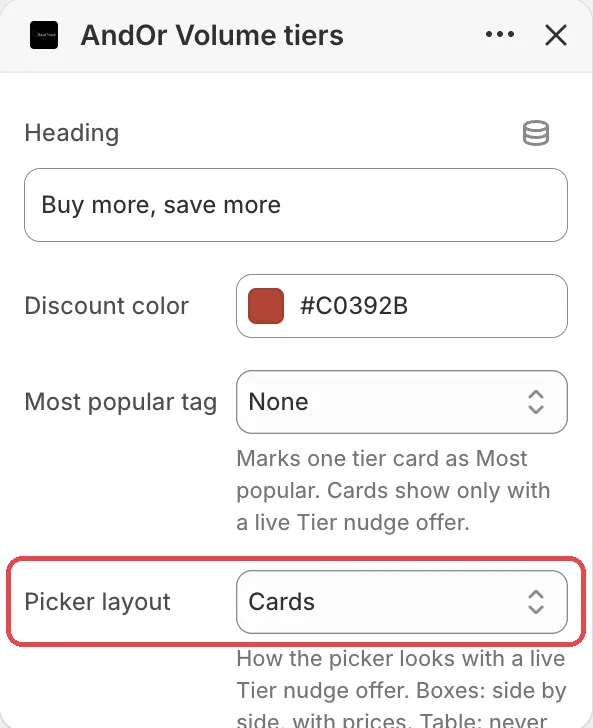
Product
The product whose steps to show. On a product page it fills itself from the page.
Heading
The title above the table or picker.
Default: Buy more, save more.
Discount color
The color of the discount text, the highlighted row’s edge and the picked card’s edge. Left on the default, it follows the app embed’s Sale price color, and then your brand color.
Default: #c0392b.
Most popular tag
Marks one step with a “Most popular” tag. It shows only on the picker, which needs a live Volume picker offer.
The tiers count discount steps only, not the regular price option. So Second tier tags the third option when the picker shows “1 item” first.
Options: None, First tier, Second tier, Third tier. Default: None.
Picker layout
How the picker looks when a Volume picker offer is live.
Options: Cards, List, Mini buttons, Boxes, Table. Default: Cards.
- Boxes: side by side, with prices.
- Table: never the picker. Use it for a second block that always shows the price table.
Scroll boxes sideways on phones
For the Boxes layout only. On: the boxes stay on one row and scroll sideways on phones. Off: two boxes a row on phones.
Default: off.
Option titles (List, Mini buttons and Boxes)
Your own names for the options. Optional, comma separated, top first.
Example: Single, Double, Family pack. A blank entry keeps the default
title, and options past the last name keep theirs too. The List and
Boxes count the “1 item” option. Mini buttons count steps only.
Tip The “You save” line and the “% off each item” line can be reworded per language on the Storefront text page, in the Volume picker group.
What it needs to appear
- Optional: the app embed. The block shows without it. The embed adds your shared look settings, text changes, the cart drawer parts and one-line tags.
- The AndOr Volume tiers block is on the product template.
- A discount that gives a bigger percentage off as a shopper buys more,
and works without a code. It must be switched on under Promotions
Storefront widgets.
For the picker, also:
- a live Volume picker upsell offer linked to that discount, shown on the Product page.
- steps counted by quantity. A discount counted by amount spent keeps the table, and gets the “add more” line under it.
- no customer conditions on the discount, because the store page cannot check who the shopper is.
With no such discount on the product, the block stays hidden.
The block also hides itself on a product that already has a sale price. This is by design: the shopper sees the sale price instead.
Show it in more places (code)
To show it where your theme has no slot for the block, paste a line of code. See Volume tiers: Code.
Limits
- Mini buttons have no “1 item” button. Each button is a step.
- Mini buttons show up to four a row, and two a row on narrow screens.
- A step that does not beat a sale on the product is hidden. With some sales, checkout would not give any step, and the whole widget hides.
- The “add more” line stays blank when AndOr cannot be sure checkout will give the discount. For example, when another discount in the cart may win.
- The table and the picker follow a variant switch.