 See it in action
 Flow visual editor
Paid planThe flow visual editor is on paid plans, Starter and up.
The flow visual editor shows your rule blocks as connected steps, like Shopify Flow. Each block checks its conditions and applies its action when they pass. You can preview the flow in the rule form, or open the editor to change it on a canvas.
Preview the flow
The Flow visual editor card sits above your rule blocks.
Click Show flow preview. The diagram of your rule opens inside the card. Use Zoom in, Zoom out, Fit view and Open in full screen to move around. Click Hide flow preview to close it.

Edit in the visual editor
-
Click Open visual editor.
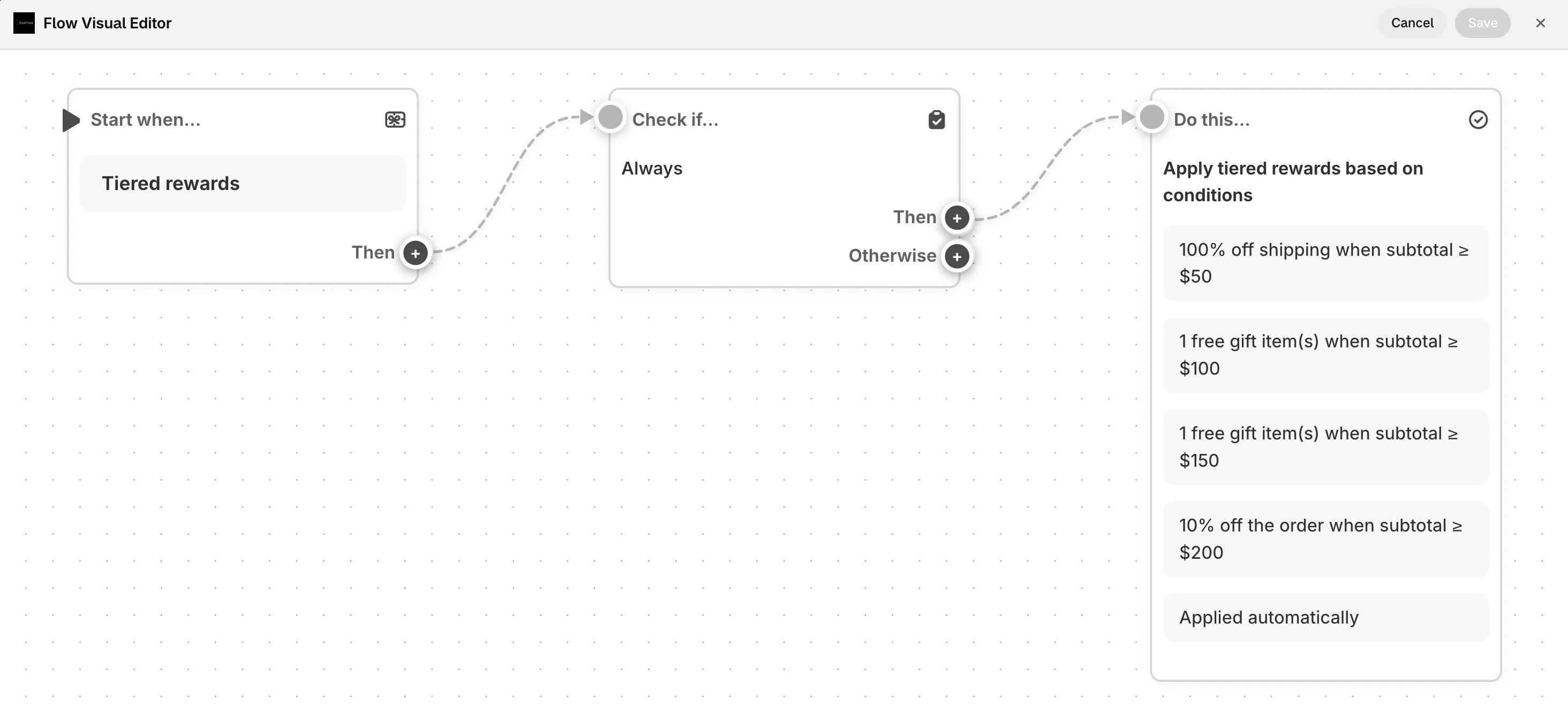
You can also click View in flow editor on any rule block. The Flow Visual Editor window opens. Read the steps from top to bottom:
- Start when…: the start of the rule.
- Check if…: a block’s conditions.
- Do this…: the block’s action.
- Then and Otherwise: the two paths after a check. Then runs when the conditions pass.
-
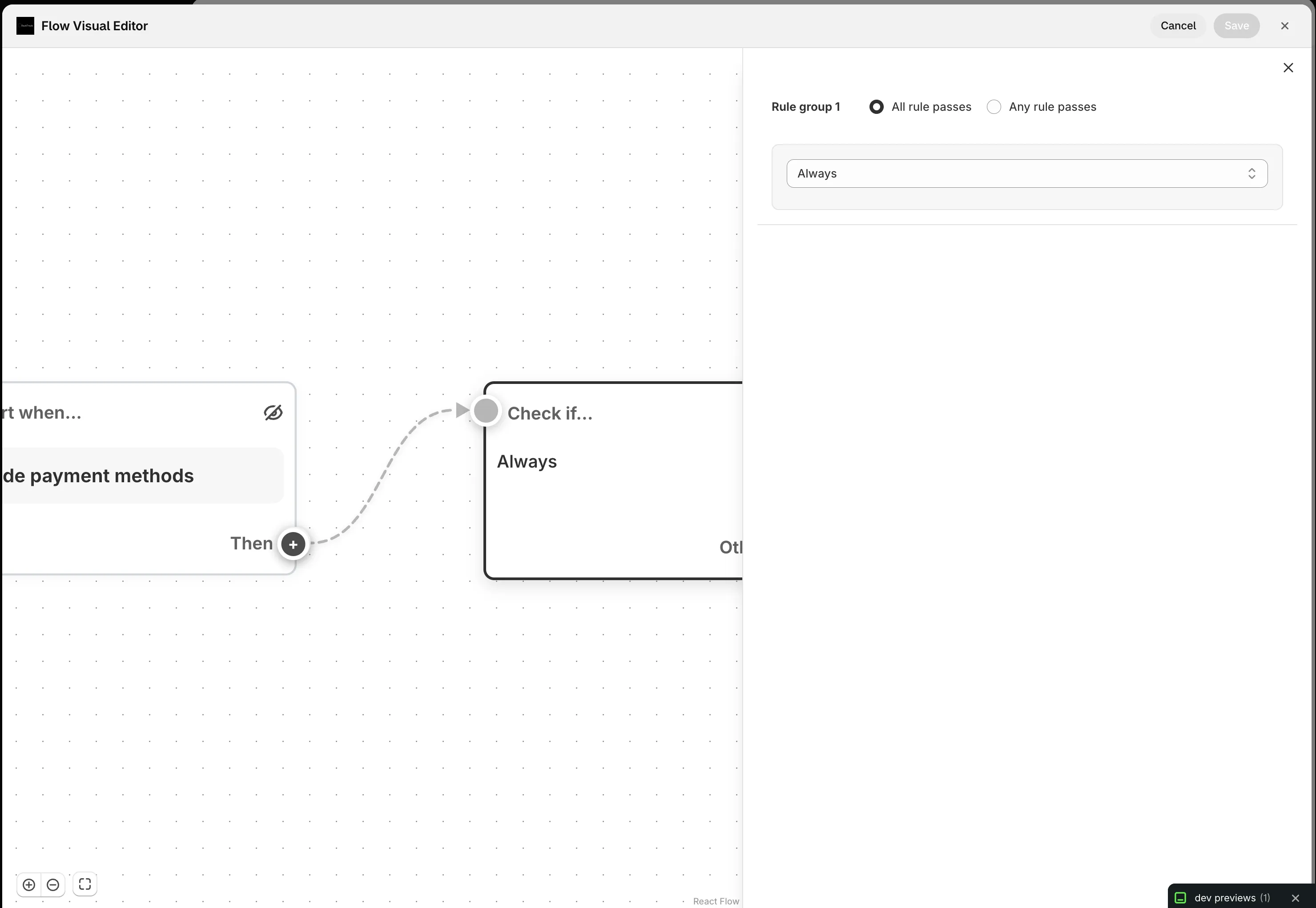
Click a step to edit it.
A side panel opens with the same fields as the form. Close it with Close side panel.
-
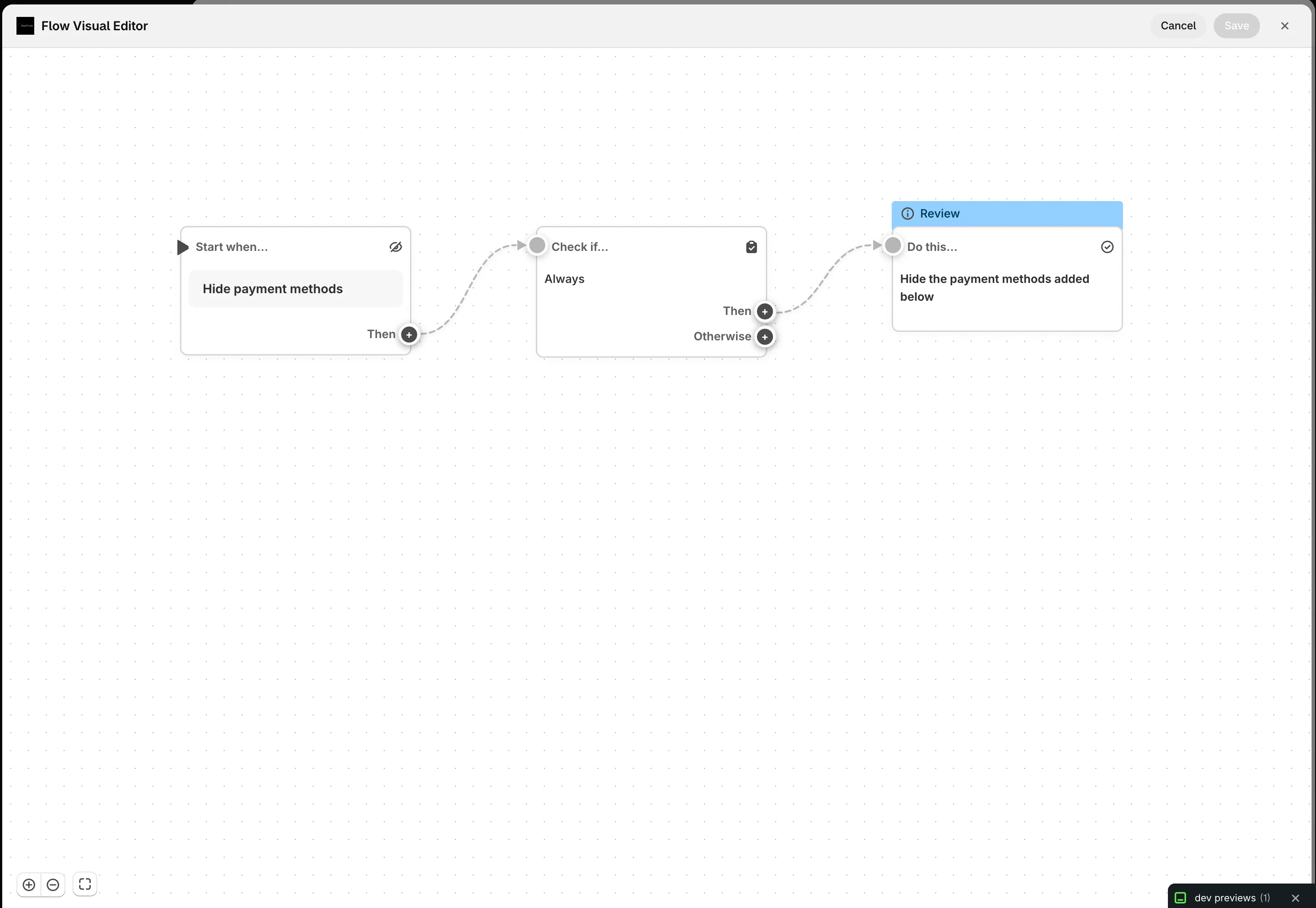
Add or remove steps, then click Save.
Use Add rule block, Add rule group to Then path or Add rule group to Otherwise path. To delete a step, use Delete this node. Save puts your changes back into the rule form. Cancel throws them away. Then save the rule as usual.
How the steps read
Conditions show as plain sentences built from the same labels as the form. For example: “Order total amount is greater than or equals 100”. Groups join conditions with AND or OR. A condition with one-typo matching shows “(typos allowed)”.
Limits
Caution Deleting a rule block node also deletes every node connected after it. This can’t be undone.
- The number of rule blocks in a rule is limited. When you reach it, the editor shows “Rule block limit reached”.
- When a path can’t take more rule groups, you see “Cannot add more rule groups in this path”.