 See it in action
 Message and where it shows
On this page
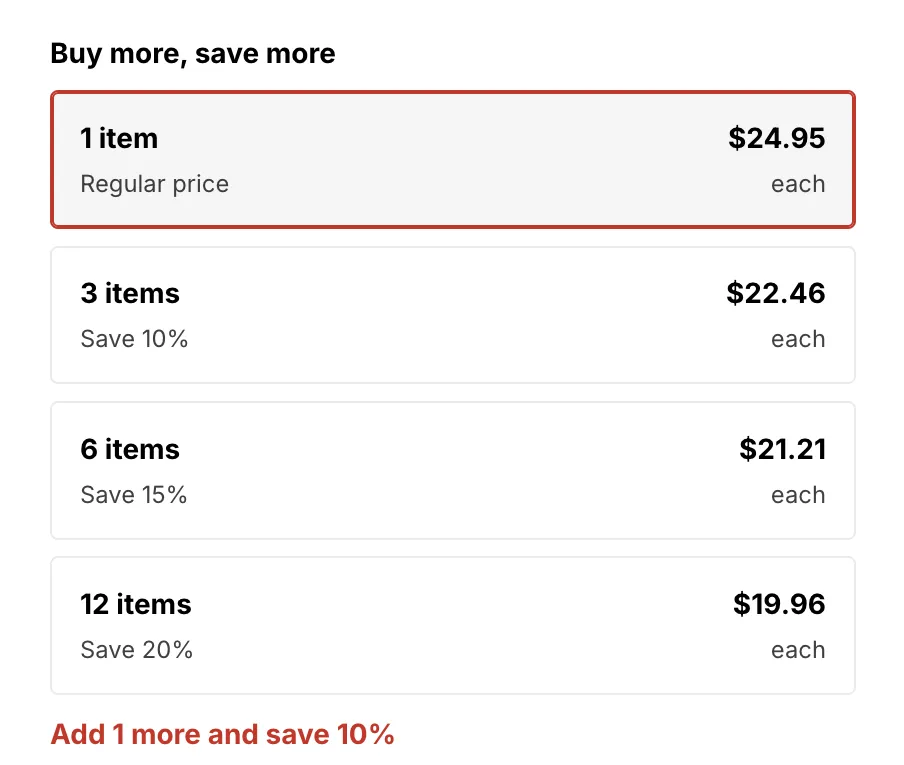
The message is the line shoppers read on the offer. Where it shows decides the pages that show it. Goal offers also have Products to suggest.
Message
The Message field is section 2. Message of the offer form. On a promotion page it sits in the Upsell offer section. A new offer starts with a default message for its type. You can change it.
Why it matters: the message is the one thing shoppers read. A clear number, like “Add 1 more and save 10%”, gets more adds than a vague line.
How to write a good one:
- Keep it short. One line is best.
- Put a number in it with a variable, so each shopper sees their own gap.
- Say what they get, not what they pay. For example “save 10%”.
- Not sure? Keep the default, then check the Add rate after a week.
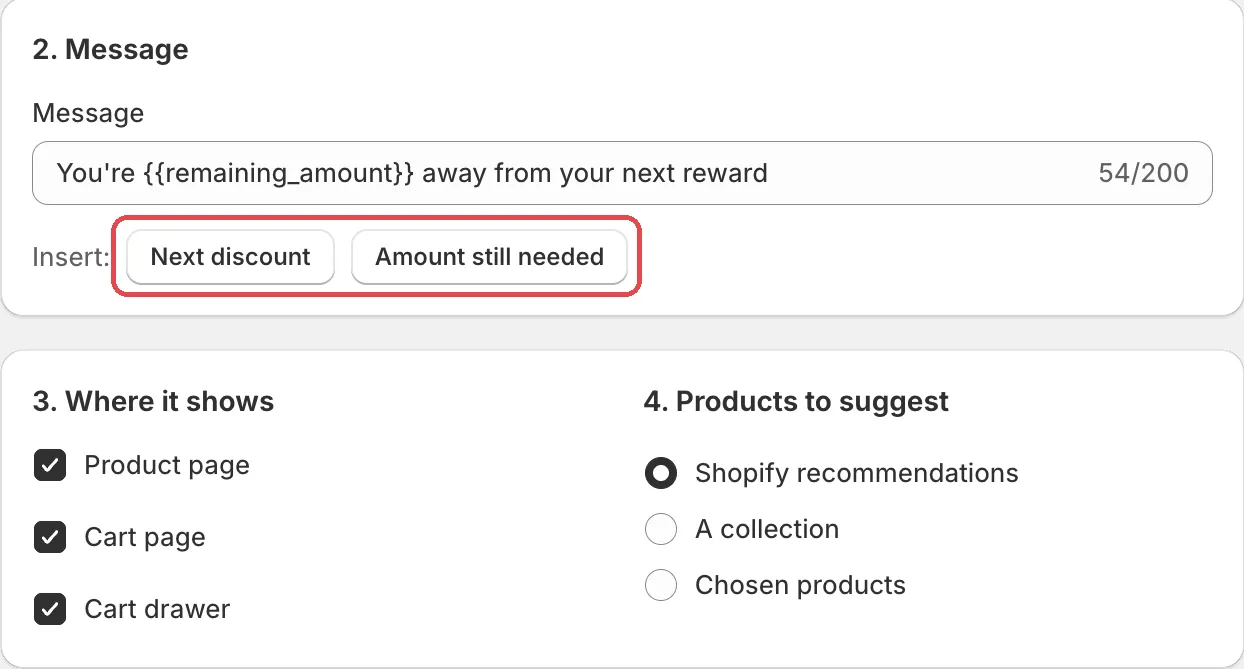
Variables
A variable is a number that changes with the cart. The widget fills it in for each shopper. To add one, put the cursor in the message and click a button next to Insert:.
Quantity still needed
How many more items the shopper needs to add. In the message it is
{{remaining_qty}}. Use it for volume, Buy X get Y and gift offers.
Next discount
The discount the shopper gets at the next step, for example “10%”. In
the message it is {{next_tier_discount}}. Use it to say what they
win.
Amount still needed
How much more the shopper needs to spend. In the message it is
{{remaining_amount}}. Use it for goals that unlock at a cart total.
Each offer type fills only some variables, and the Insert: row only shows those. See the table in Offer types.
Default messages
| Offer type | Default message |
|---|---|
| Volume picker | Add {{remaining_qty}} more and save {{next_tier_discount}} |
| Goal suggestions | You're {{remaining_amount}} away from your next reward |
| Bundle | Buy them together and save {{next_tier_discount}} |
| Buy X get Y | Add {{remaining_qty}} more to get {{next_tier_discount}} off |
| Free gift | Add {{remaining_qty}} more to get your free gift |
| Free gift that unlocks at a cart amount | Add {{remaining_amount}} more to unlock your gift |
When you switch to another discount, a message you did not change becomes the new discount’s default. A message you wrote yourself stays.
Message checks
- Not a variable this offer can fill: … The message has a variable the type can’t fill. Remove it or use one from the Insert: row.
- Shoppers won’t see how many more to add. Insert “Quantity still needed”. A volume offer message without the quantity. The offer still saves, but shoppers miss the one number they need.
The message can be up to 200 characters.
Where it shows
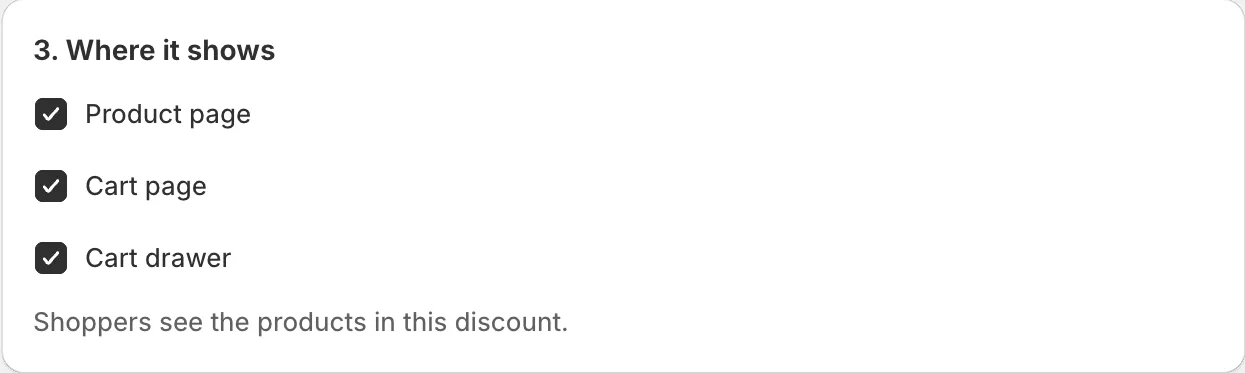
Section 3. Where it shows lists the places.
Why it matters: the same offer works better in some places than others. A volume offer fits the product page. A goal offer fits the cart, where the shopper sees the total.
How to use it: start with every place ticked. After a week, check the By placement table on Analytics. Untick a place with a much lower add rate. See Tables and funnel.
Product page
The offer shows on product pages.
Cart page
The offer shows on the cart page (/cart).
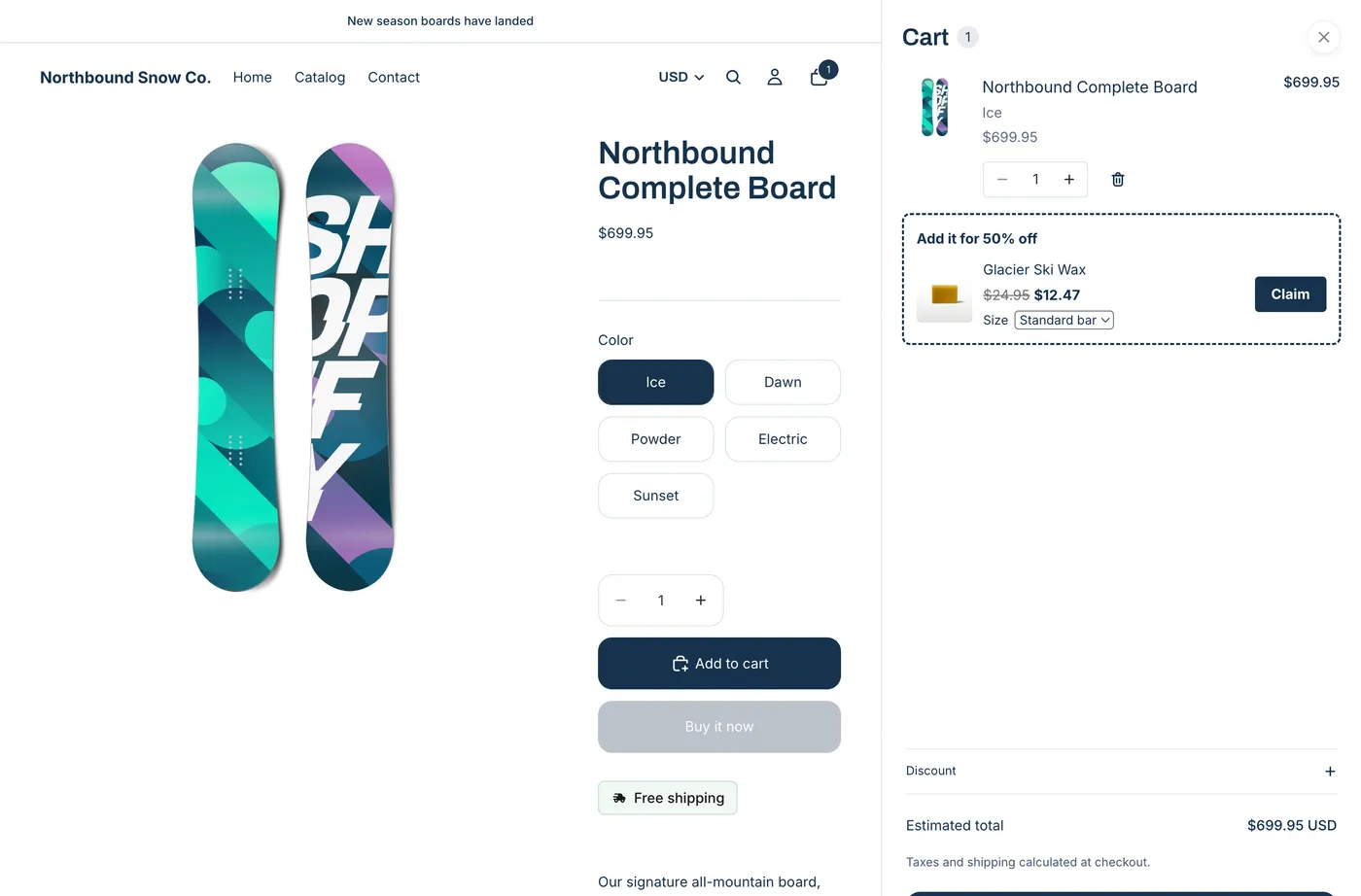
Cart drawer
The offer shows in the theme’s slide-out cart, under the cart items. The shopper picks a size or other option if the product has one, then clicks Claim.
A new offer starts with every place its type can use. A place the type can’t use stays in the list but is off, with the reason. For example: “Cart page (not for volume offers)”. See Offer types for the places of each type.
Help lines under the boxes tell you what each type shows:
- Most types: “Shoppers see the products in this discount.”
- Free gift: “On the product page, shoppers see a short line about the free gift.”
Caution A free gift offer needs a cart place. With neither cart place ticked you see “Gifts are added in the cart. Tick Cart page or Cart drawer.”
Note The theme decides if a place can show the offer. Cart drawer needs the app embed and a theme that sends Shopify’s storefront cart events, like Horizon 4.0+ or Dawn 15.5+. On other themes, the offer shows on the cart page and product page only. For goal suggestions, the goal bar also needs Also show in the cart drawer turned on. See Theme requirements and Offer types.
Products to suggest
Section 4. Products to suggest shows for goal offers only (order goal, free shipping goal and tiered rewards). These are the products shown under the goal bar.
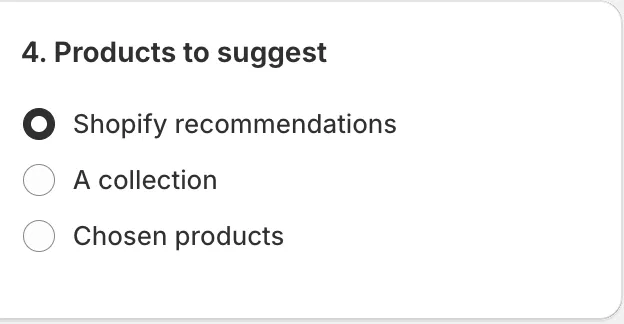
Why it matters: good suggestions help the shopper reach the goal with an item they actually want. Cheap, popular items work well.
Shopify recommendations
Shopify’s own product recommendations: related or complementary products, picked automatically. On the product page they are based on that product. In the cart they are based on the first item in the cart. This is the default.
Use it when you don’t want to pick products by hand.
A collection
Products from one collection. Click Choose collection to pick it.
Use it for a set of add-ons, for example a “Small extras” collection.
Chosen products
Products you pick. Click Choose products. You can pick up to 10. The count shows as, for example, “3 of 10 products”.
Use it when you know which items sell best as an add-on.
Products already in the cart are not suggested. Other offer types don’t have this section. They use the products in the discount.