 See it in action
 Analytics overview
Paid planOn Free, Analytics shows the last 7 days for the whole store. Other date ranges, comparisons, the filter, the tables and the CSV export are on paid plans.
On this page
The Analytics page shows how your discounts and upsell offers did over time. Open it from Analytics in the app menu.
Why use this page
Your discounts and offers cost you margin. This page tells you if they pay that back. Use it to answer questions like these:
- Did my volume discount make shoppers buy more?
- Which upsell offer brings in the most money?
- Did this week go better or worse than last week?
The page, top to bottom
- The filter, the Date range, Compare to and your store time.
- The metric cards. Click a card to draw it on the chart.
- A short note line with How we count.
- The chart: “… over time” for the card you picked.
- The Funnel and Offer units per order cards.
- The tables: By promotion, By upsell offer, By placement and By offer type.
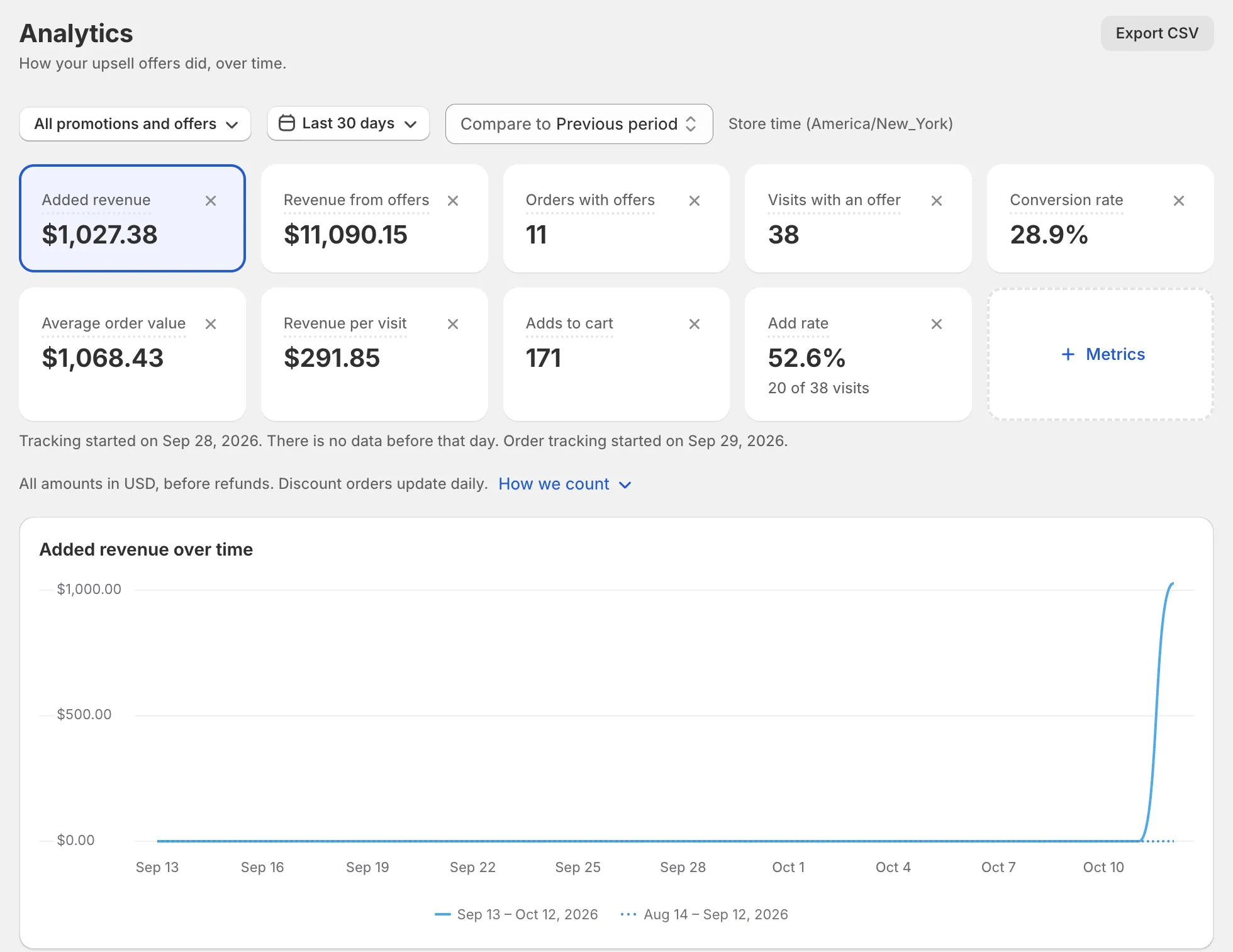
Free and paid plans
Paid plans see the full page described here: every date range up to 90 days, every Compare to choice, the filter, the tables and Export CSV.
The Free plan shows the last 7 days, compared with the 7 days before, for your whole store. You get the metric cards, the chart and the funnel. The tables and the CSV export show an upgrade card instead.
Controls
These controls sit at the top of the page. Every card, the chart, the funnel and the tables follow them.
Date range
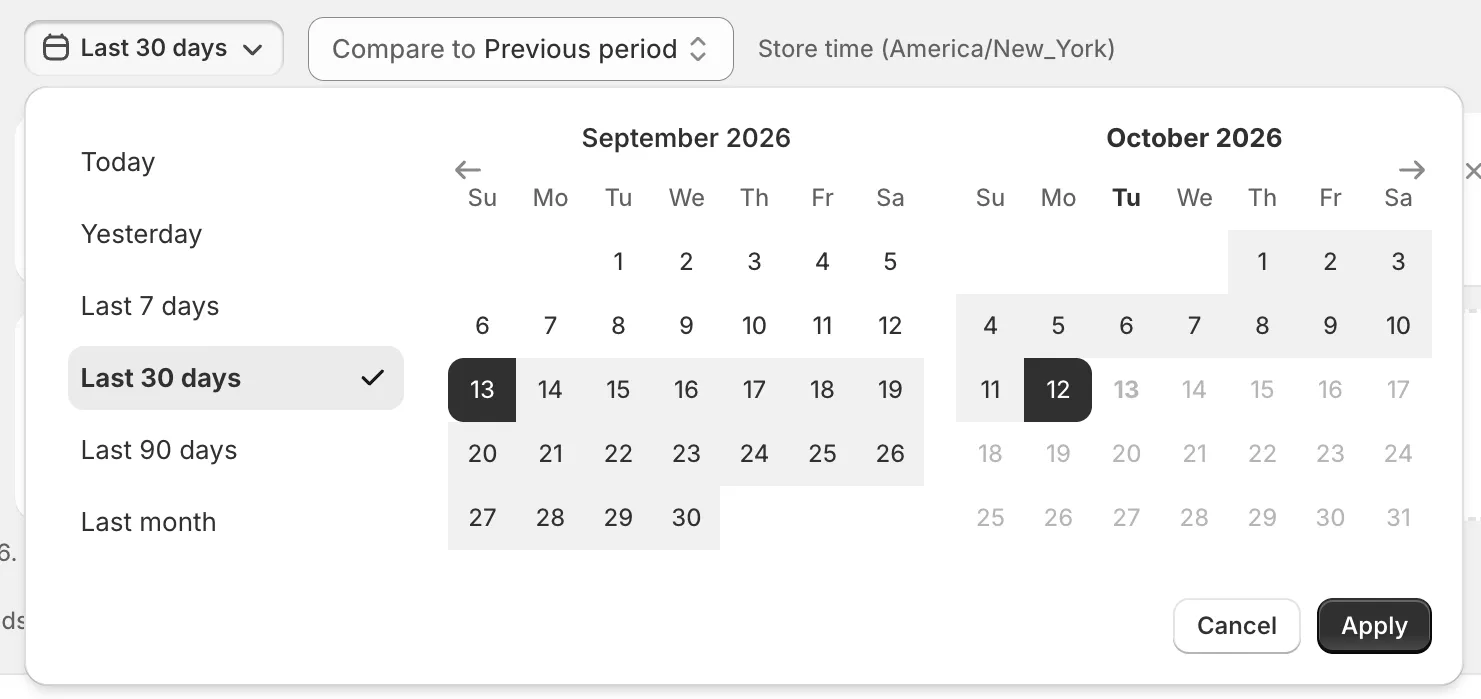
What it is: the days the page counts. Click the date range button. Pick a preset or days in the calendar, then click Apply. Cancel keeps the old range.
Options: Today, Yesterday, Last 7 days, Last 30 days, Last 90 days, Last month, or your own days. Default: Last 30 days.
On a paid plan you can pick up to 90 days, inside the last 90 days. A longer pick shows “Pick 90 days or fewer.” Days after today can’t be picked.
Why it matters: a single day jumps around a lot. A longer range shows the real trend.
How to use it: use Last 7 days or Last 30 days for a normal check. Pick the exact days of a sale to see how that sale did. For example, pick Friday to Monday for a weekend sale.
Compare to
What it is: a second period to measure against.
Options: Previous period, No comparison. Default: Previous period.
Previous period is the same number of days just before your range. For example, the last 30 days against the 30 days before.
Why it matters: a number alone does not tell you if things got better. The change does.
How to use it: with a comparison on, each card shows its change, and the chart and the funnel show the earlier period too. Turn it off with No comparison when you want a cleaner chart.
Store time
What it is: next to the range you see “Store time” and your store’s time zone. Days start and end in your store’s time zone, not your computer’s.
Why it matters: if you work from another time zone, “today” in the app may not match your clock. The numbers still match your store’s days, like Shopify’s own reports.
All promotions and offers (filter)
What it is: the first button is All promotions and offers. Click it to show one promotion or one upsell offer.
- Tabs: All, Active, Paused, Scheduled and Ended.
- Search promotions and offers finds one by name.
- The list has a Promotions part and an Upsell offers part.
Why it matters: the totals mix all your offers. The filter shows how one of them does on its own.
How to use it: pick a promotion to check it after a change, for example a new message. To go back, open the filter and pick All promotions and offers.
When a promotion has several offers, the page says: “Visits here are each offer’s own visits, added up. A visit that saw two of these offers counts twice.”
Tip See analytics in an offer’s menu, or in a promotion’s menu, opens this page with the filter already set.
Metrics
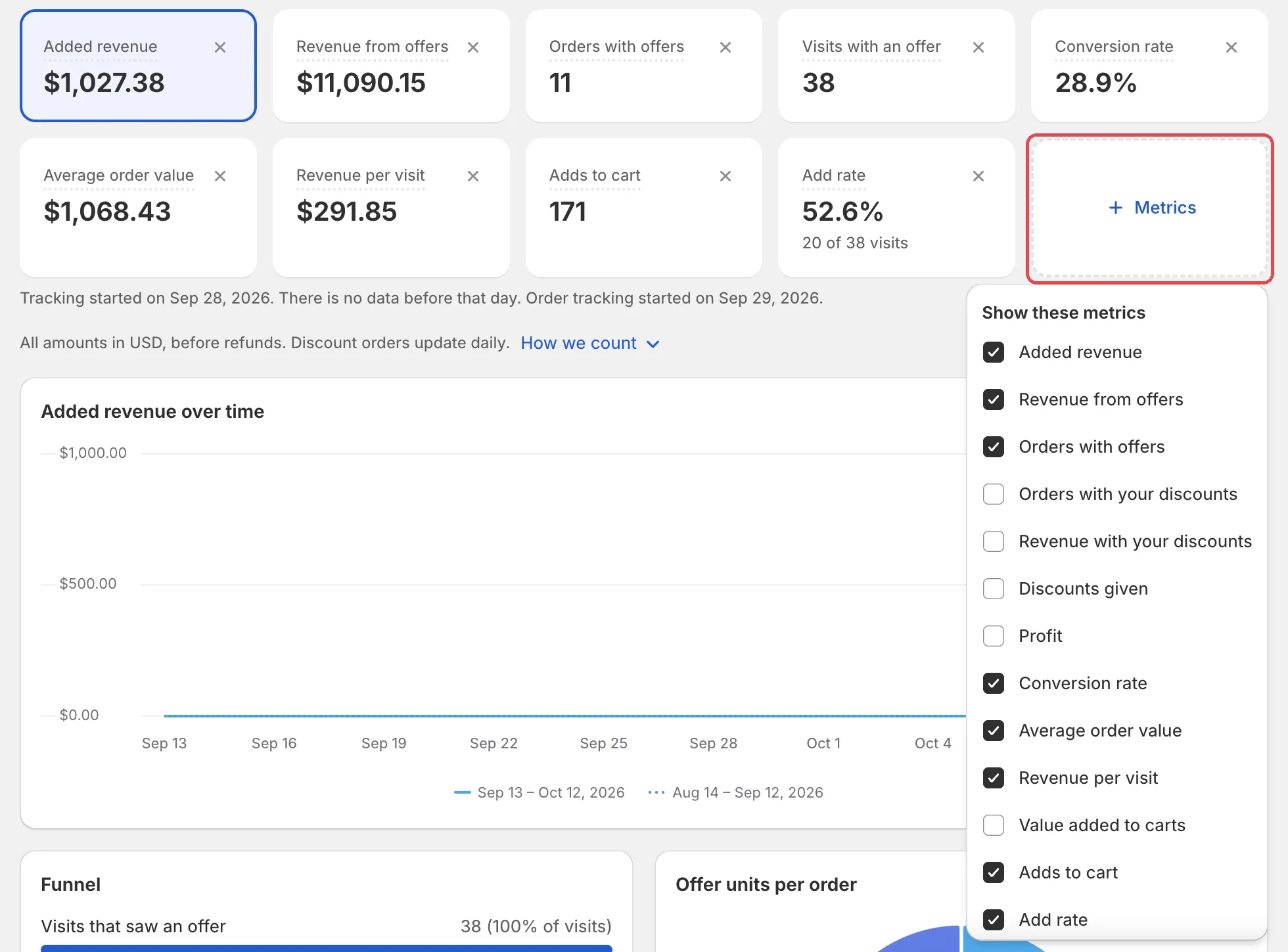
What it is: the last card in the card grid. Click it to open “Show these metrics” and tick the cards you want. Remove a card with the small x on it. At least one card always stays.
Your picks are saved in this browser. On another computer you see the default cards.
Why it matters: you only see the numbers you care about, so the page is quicker to read.
How to use it: keep three to five cards. For example, a store that runs gifts can drop Average order value and add Adds to cart. See Metrics for every metric.
Columns
What it is: each table has a Columns button. Click it to open “Show these columns” and untick the columns you don’t need. The name column always shows. Like the cards, your choice is saved in this browser.
Why it matters: wide tables are hard to read on a laptop. Hide what you don’t use.
How to use it: the CSV export always has every column, so hiding a column never loses data. See Tables and funnel.
The chart
What it is: “… over time” for the card you picked. Click any card to draw it. Counts, like orders, show as bars. Money and rates show as a line.
Why it matters: the chart shows when a change happened. A total can’t.
How to use it: look for a jump or a drop, then match it to what you did that day. For example, a jump on the day you turned on a new offer. With Compare to on, the earlier period shows next to it.
When there are no results
With no results in the range you see No upsell results yet. With no offers yet: “Add an upsell offer to a promotion to see results here.” Use Create upsell offer or Go to Promotions.
No numbers after a day with live offers? The app says: “Check that the AndOr app embed and blocks are on in your theme.” See Widgets not showing.
What to do next
- Revenue went up: keep the offer. Try the same idea on another product.
- Many views, few adds: change the offer message, or suggest cheaper products.
- Many adds, few orders: check that the discount applies at checkout, and that the cart notes are clear.