 See it in action
 Free gift with purchase promotion
On this page
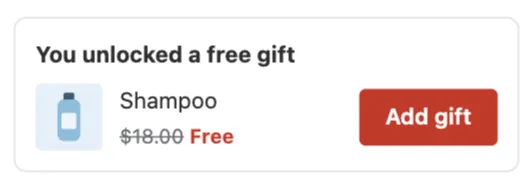
A free gift promotion (gift with purchase) gives shoppers a free product when the cart reaches an amount, for example a free tote bag on orders over 50.
At a glance
| Gallery group | Promotions with an upsell offer |
| Discount | The gift at 100% off once the cart subtotal reaches an amount. Default amount: 50. You pick the gift. |
| Theme block | AndOr Offer picker, on the cart page and the product page |
| Upsell offer | Free gift, on the Product page, Cart page and Cart drawer |
| What the app embed adds | Your brand color, the parts in the cart drawer (if any), shared look settings and your Storefront text. The block shows without it. |
Before you start
- Add the gift product to your store first. A gift that is one product or one variant lets AndOr add it for the shopper.
- Pick a gift product that doesn’t also count toward the gift. If the gift product qualifies too, the cart splits it into a paid line and a free line.
- Turn on the app embed if you want the gift in the cart drawer. See Turn on the app embed. For what works without it, see the app embed table.
Set it up in the app
-
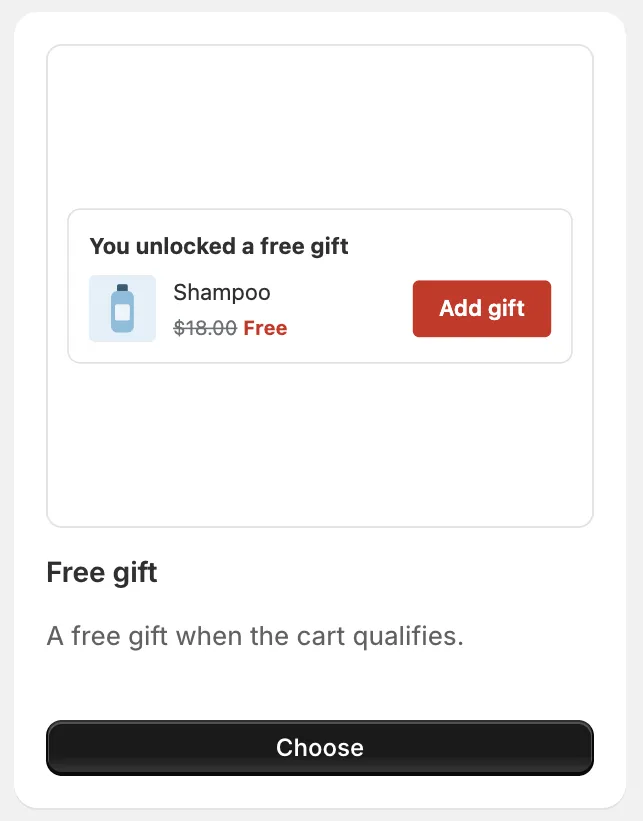
Open Promotions, click Create promotion, then click Choose on the Free gift card.
It is under Promotions with an upsell offer. The card says “A free gift when the cart qualifies.”
-
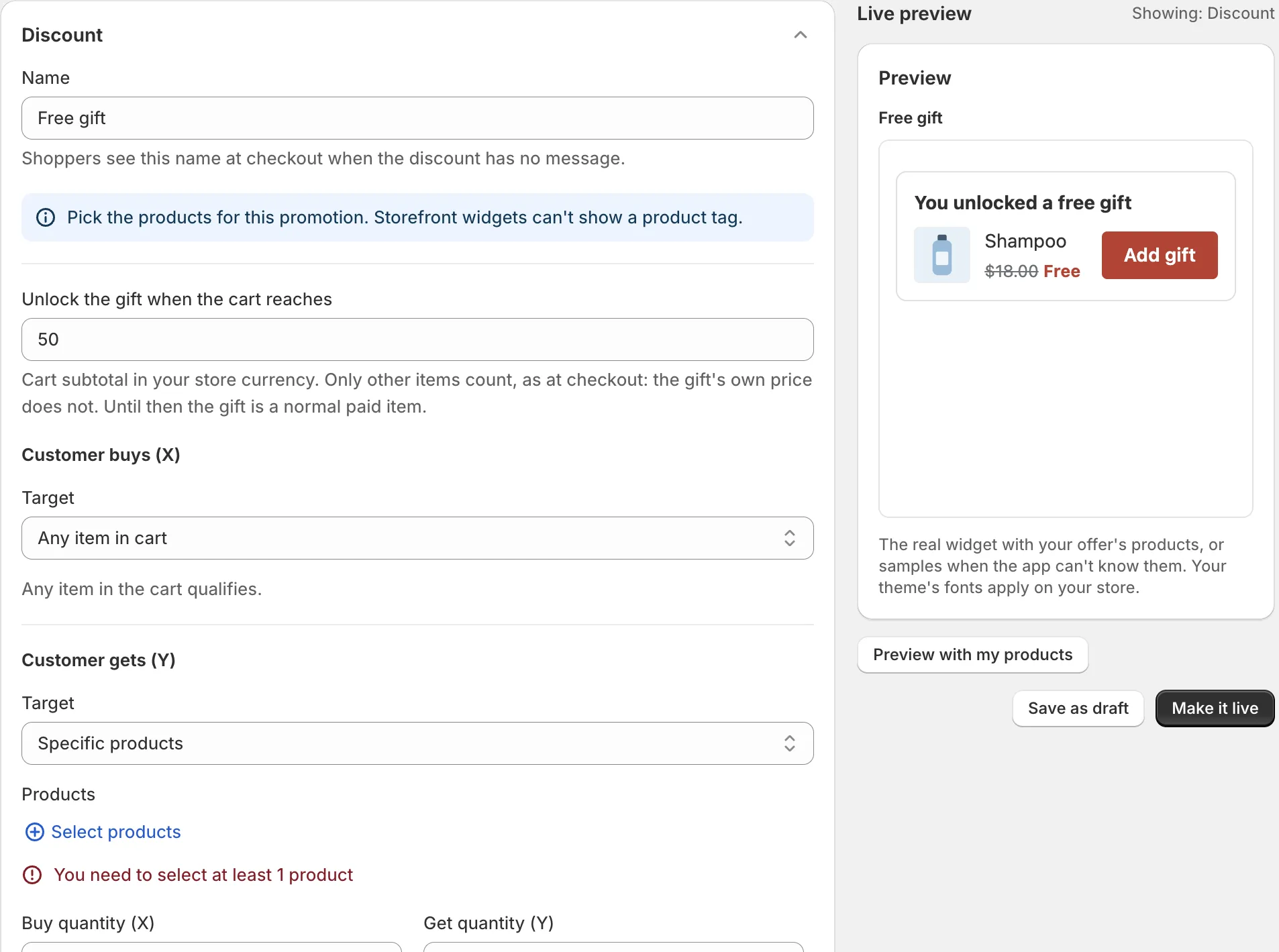
Set the amount and the gift in the Discount section.
Set Unlock the gift when the cart reaches. Under Customer gets (Y), pick the gift product. Until you pick, Make it live won’t save. It says “Pick the products under Discount first.”
-
Check the Storefront widgets section.
Show storefront widgets is on.
-
Set up the upsell offer.
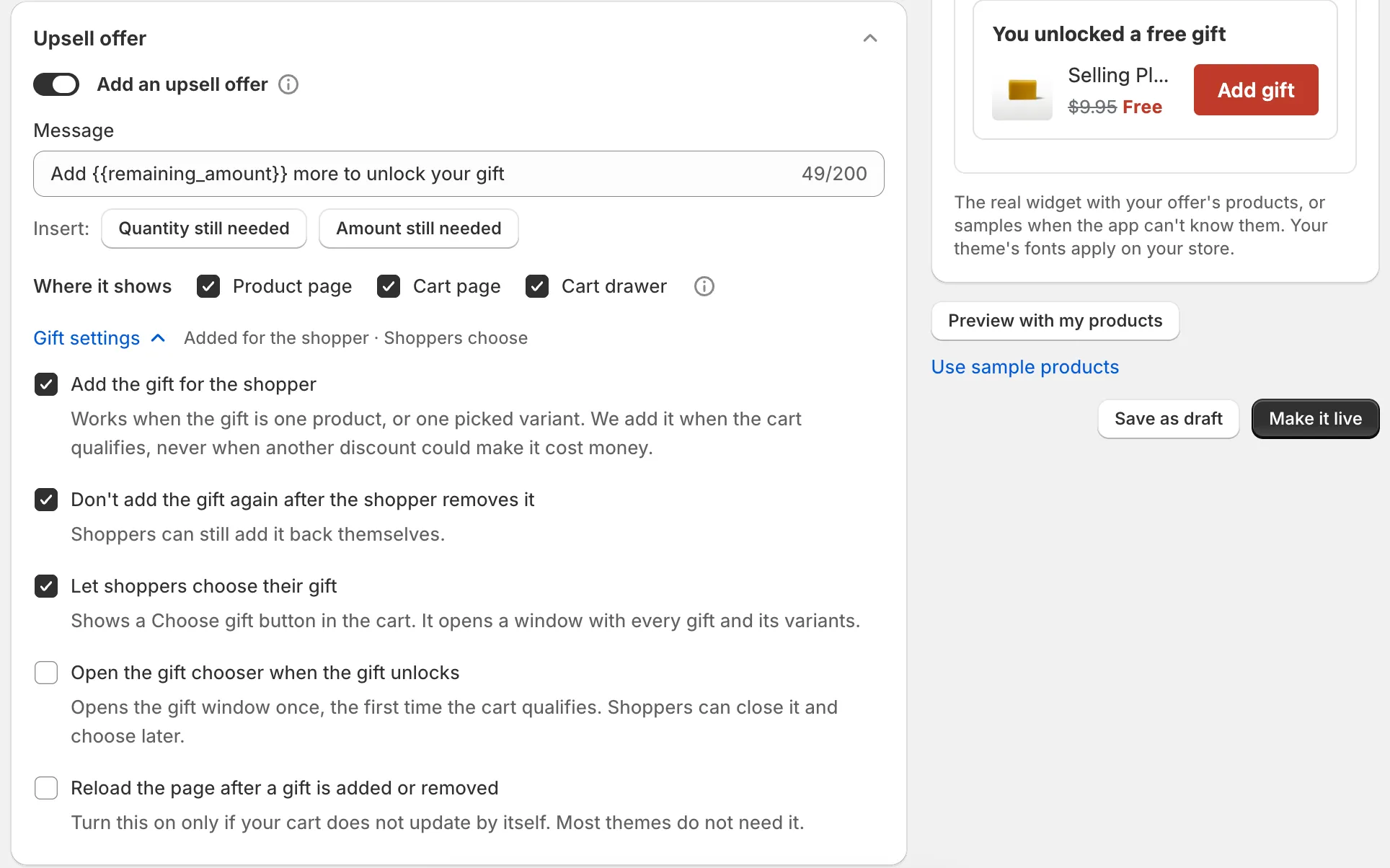
Add an upsell offer is on. Edit the Message. Under Where it shows, keep Cart page or Cart drawer ticked, since gifts are claimed in the cart.
Then open Gift settings. Both Add the gift for the shopper and Let shoppers choose their gift are on. Keep both for one gift product. Turn off the first if the gift has many products. See Gift settings.
-
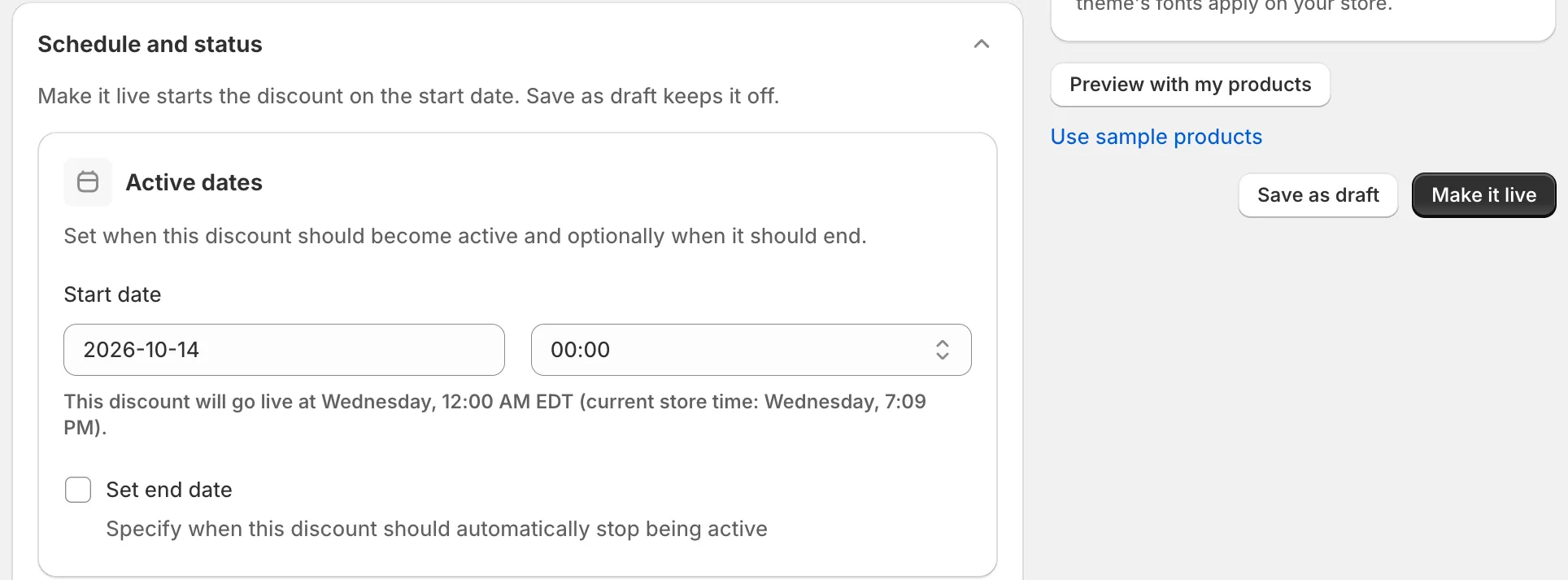
Set the dates in Schedule and status, then click Make it live.
Or click Save as draft to finish later.
Add it to your theme
What’s next shows on the promotion page after you click Make it live, not after Save as draft. It goes away when you dismiss it or leave the page. No What’s next panel? Open Promotions. In the row’s Storefront widgets column, click Add block. It shows when the block isn’t in your theme yet.
-
Under What’s next, click Open theme editor.
Your theme editor opens on a product page with the AndOr Offer picker block added. Drag it under the Add to cart button and click Save. It shows a short gift line on the product page.
-
Click Add to cart page.
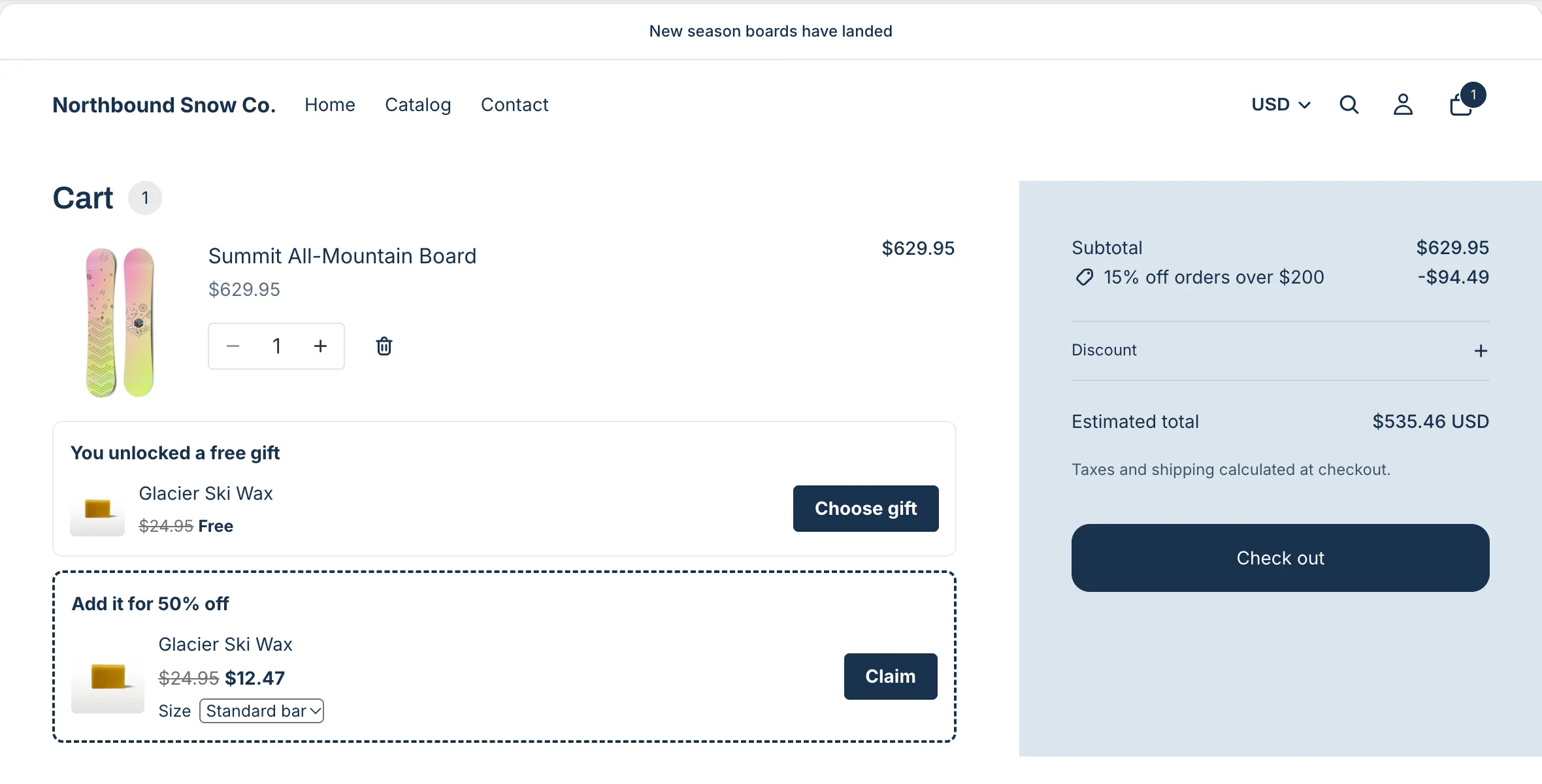
Your theme editor opens on the cart page with the block added at the bottom of the section. Drag it under the cart lines and click Save. This is the gift slot.
Already on your cart page? The step says “It is on your cart page too. Shoppers claim the reward there.” with an Added badge, and you can skip it.
-
For the cart drawer, click Turn on app embed.
The gift slot in the drawer comes from the app embed, not a block. It also needs a theme that sends Shopify’s storefront cart events, like Horizon 4.0+ or Dawn 15.5+. On other themes, shoppers get the gift slot on the cart page. See Theme requirements.
The block’s only setting is its button color. See Free gift slot.
Note The AndOr Offer picker shows nothing without an upsell offer. With the offer off, What’s next says “Add an upsell offer to show the Offer picker.”
Check it on your store
-
Under What’s next, click View on store.
It opens your online store in a new tab.
-
Add items until the cart reaches the amount.
The gift slot says the gift is unlocked. AndOr adds the gift, or the shopper clicks Choose gift to pick it in the gift chooser.
-
Go to checkout and check the gift is free.
Try it at checkout works the same way: click Open store, add items that qualify, then check out.
Not showing?
- The AndOr Offer picker block is not on the cart template, or you did not click Save.
- The upsell offer is paused, or Add an upsell offer is off.
- The gift is not 100% off, or the discount has conditions other than one minimum cart subtotal.
- Add the gift for the shopper and Let shoppers choose their gift are both off, so the shopper has no way to get it.
- In the cart drawer only: the app embed is off, or your theme doesn’t send Shopify’s storefront cart events. See Theme requirements.
See Free gift not added, or not free and What the gift slot needs.
Turn the offer on or off
To stop the offer for a while, click Pause offers in the row’s … menu on the Promotions list, or Pause on the Upsell offers page. The discount keeps working at checkout. The gift slot shows nothing while it is paused. See Manage offers.
No offer yet? In the Promotions list, click Add offer in the row’s Upsell offer column.
Settings and limits
| Setting | What it does | Default |
|---|---|---|
| Name | Shown at checkout when the discount has no message. Up to 60 characters, and different from your other discounts’ names. | Free gift |
| Unlock the gift when the cart reaches | The cart subtotal that unlocks the gift. The gift’s own price does not count. | 50 |
| Customer buys (X) | What the shopper buys to qualify. | Any item in cart |
| Customer gets (Y) | The gift. One product or one variant lets AndOr add it for the shopper. | Pick a product |
| Reward on Y | How much off the gift. | Free (100% off) |
| Combine with | Which other discounts can apply with this one. | Order discounts, Shipping discounts |
The gift settings (adding the gift, choosing it, Open the gift chooser when the gift unlocks and more) are all on Gift settings.
Limits:
Caution If both Add the gift for the shopper and Let shoppers choose their gift are off, shoppers have no way to get the gift.
- AndOr adds the gift for the shopper only when the gift is one product or one variant. For more, turn on Let shoppers choose their gift.
- AndOr never adds the gift when another discount could make it cost money.
- Until the cart qualifies, the gift is a normal paid item.
- For several gifts at different amounts, use Tiered rewards instead.