 See it in action
 Reorder shipping methods
“Rearrange the display order of shipping methods at checkout.” For example, sort rates by price, or move local pickup to the top.
Caution By default, the cheapest shipping option shows first at checkout and is pre-selected. Reordering can move it down, so a shopper may get a more expensive rate selected.
Before you start
- Note the exact names of your shipping rates as shoppers see them at checkout.
- Rules can also reorder local delivery and pickup options.
Set it up
-
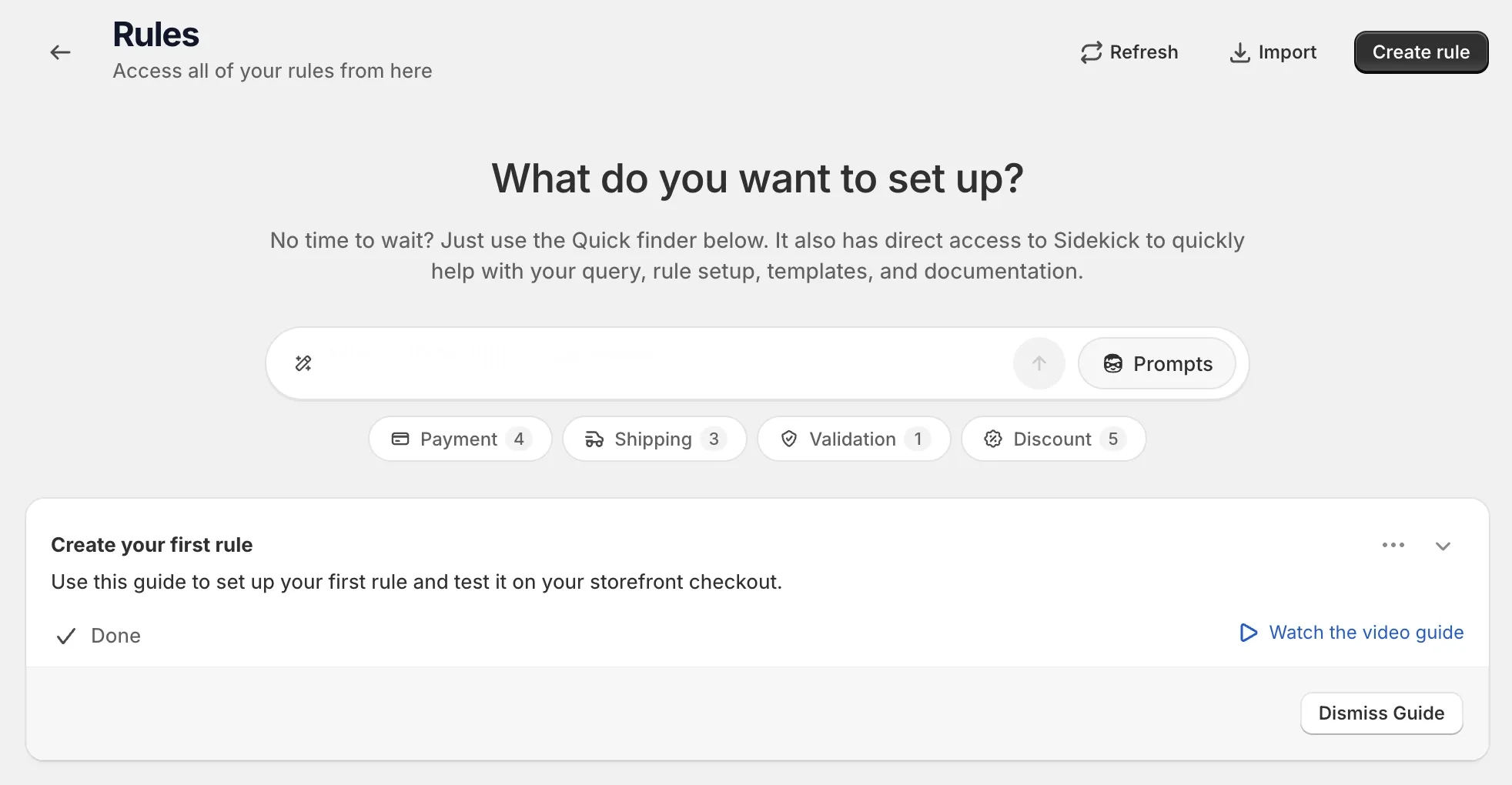
Open Rules and click Create rule.
-
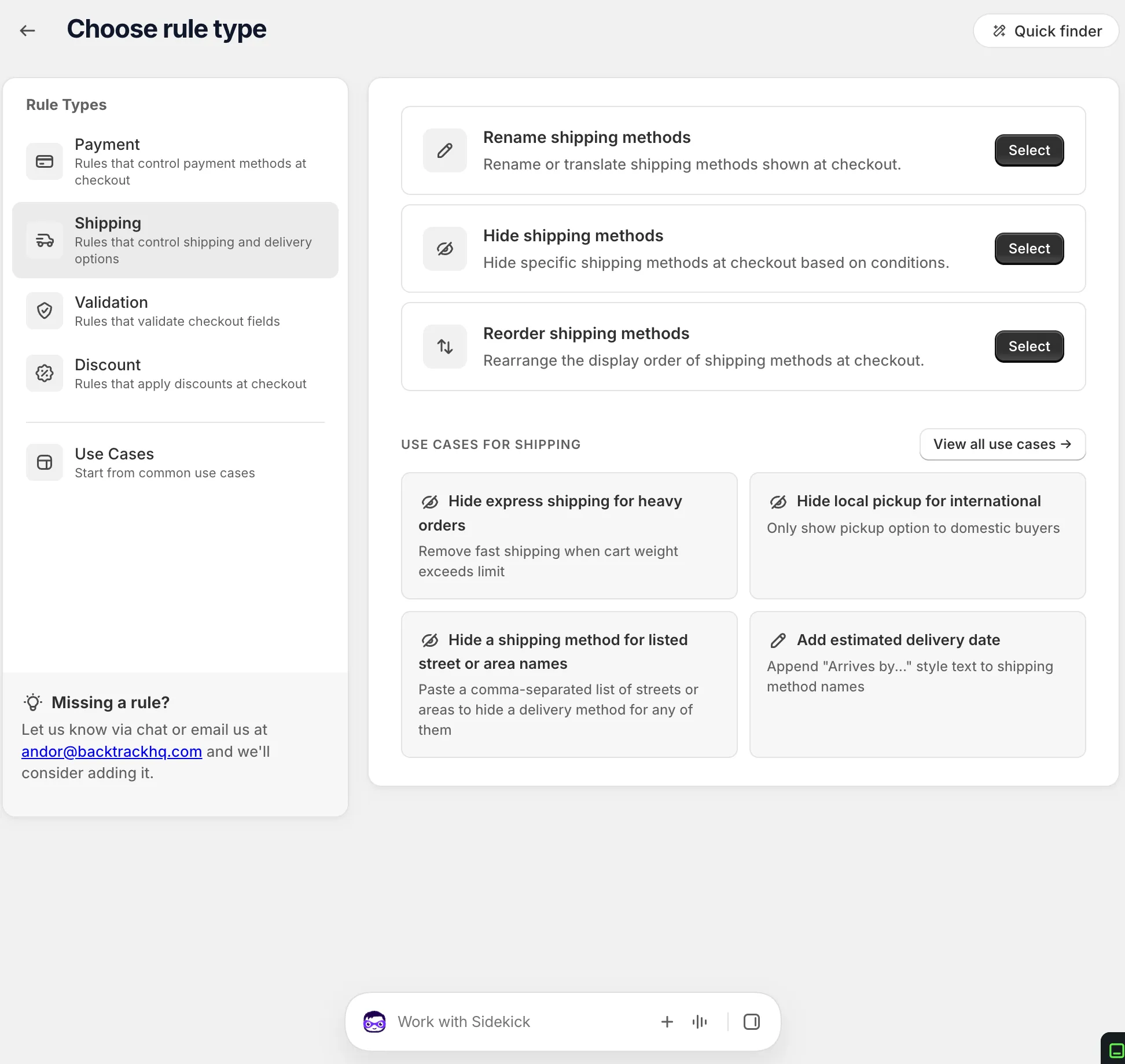
Under Shipping, find Reorder shipping methods and click Select.
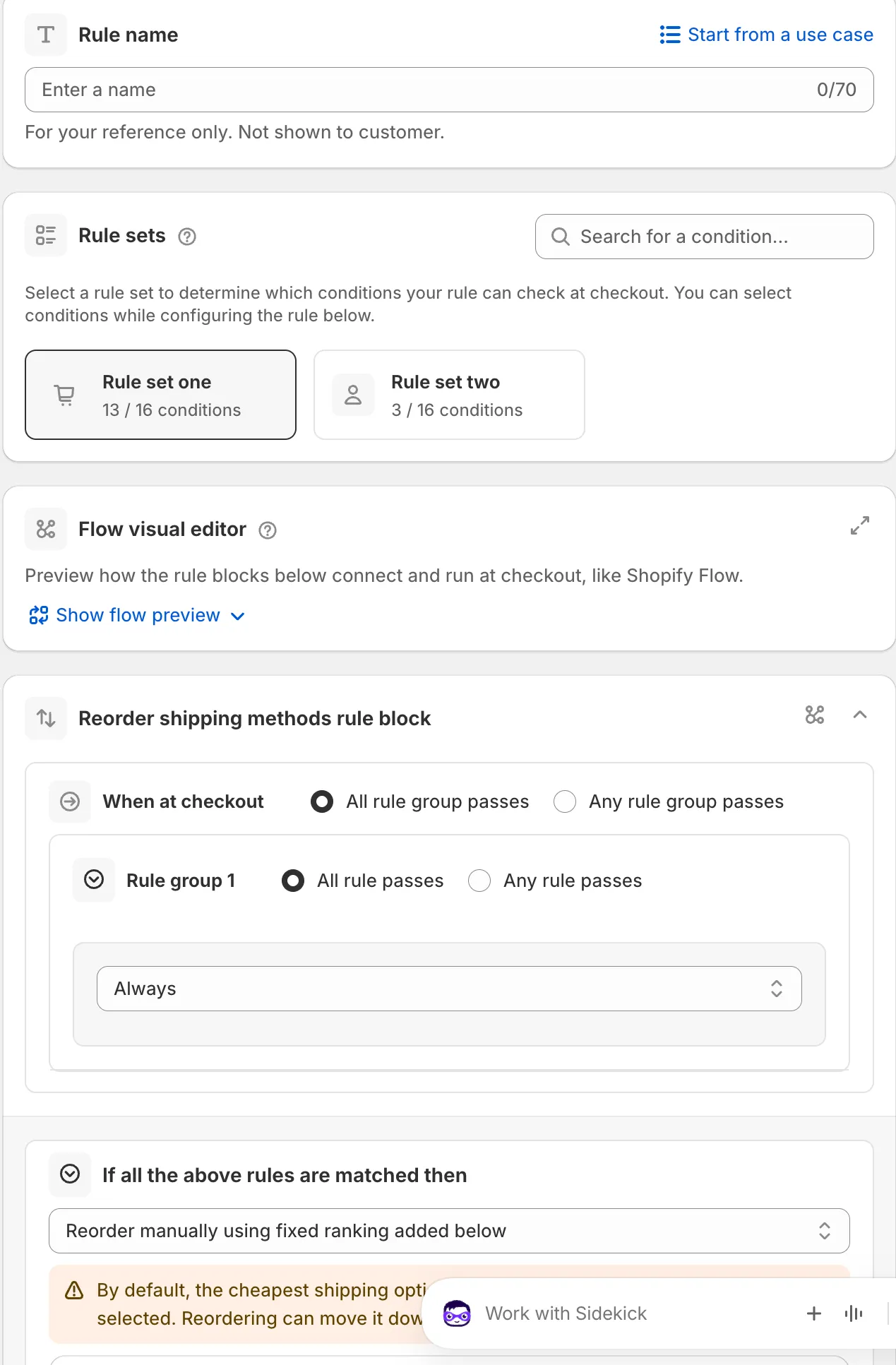
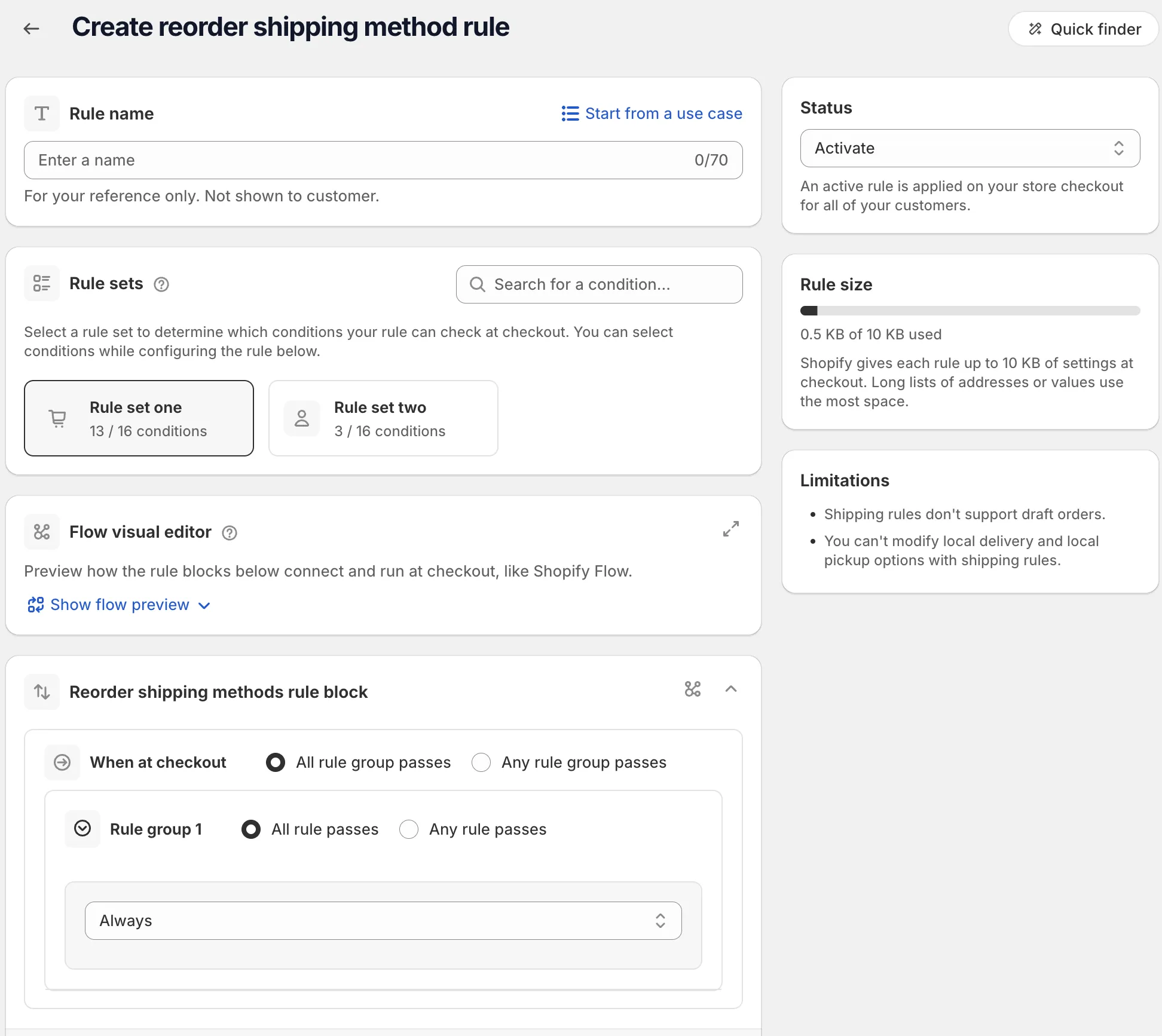
On the rule page, name the rule, or click Start from a use case to fill in the whole form. The name is for your reference only. Shoppers don’t see it. See Start from a use case.
-
Pick a rule set and add your conditions.
In Rule sets, pick the set with the conditions you need. Hover a set to preview it, or use Search for a condition….
Then, under When at checkout, use Always to reorder for every checkout, or a condition such as Order total amount. See Conditions, groups and blocks.
-
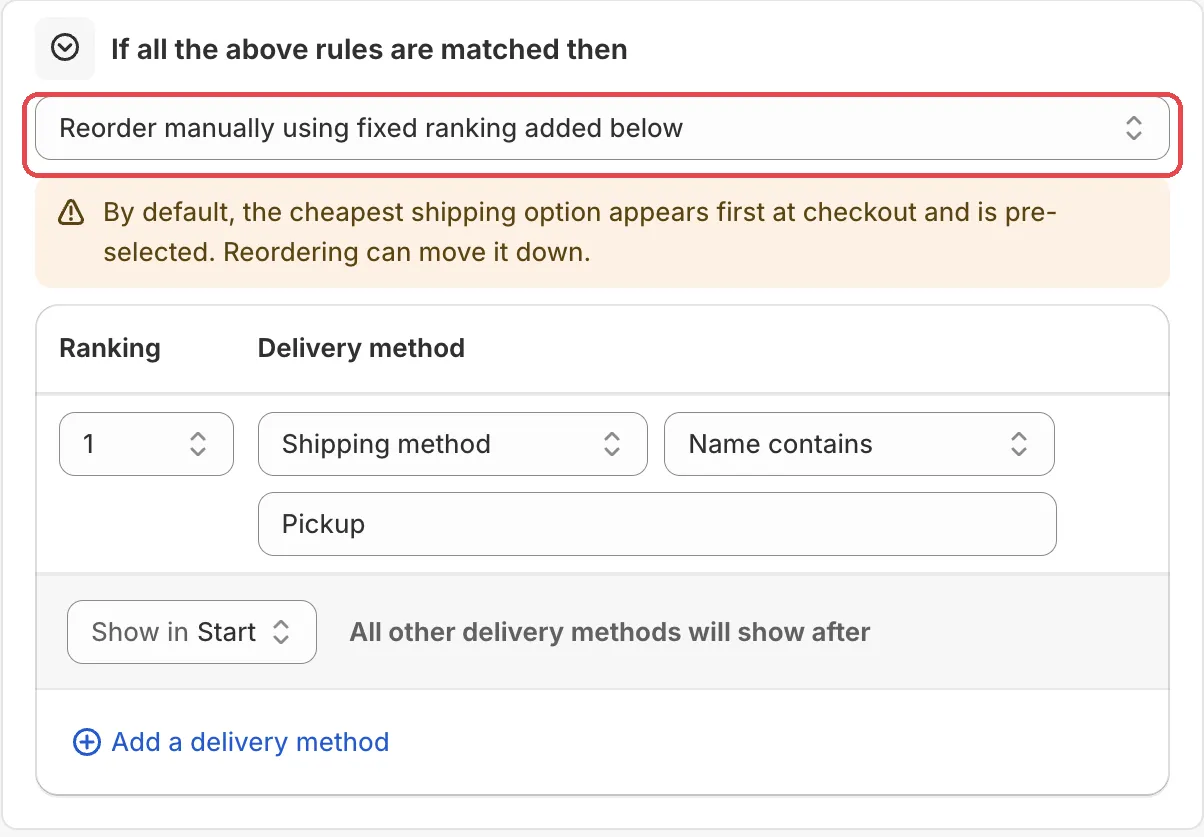
Pick how to reorder.
For example Reorder using delivery cost (low to high). For your own order, choose Reorder manually using fixed ranking added below and add the methods with Add a delivery method.
-
Save it as a draft, test it, then activate it.
In the Status card, choose Draft and save. Then go to checkout on your store and enter the test email from the rule’s Status card. Only this email sees a draft rule. Check the order of the rates, and which one is selected.
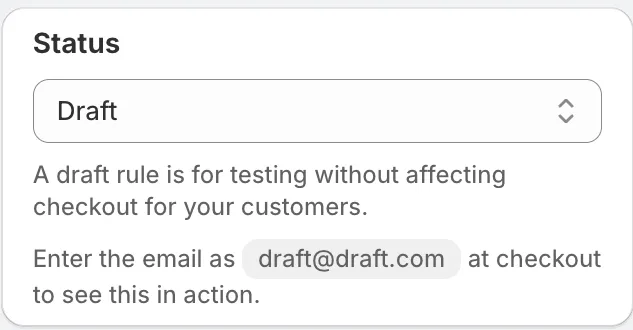
When it works, choose Activate in the Status card and save.
Actions
Reorder using delivery cost (high to low)
The most expensive rate shows first.
Reorder using delivery cost (low to high)
The cheapest rate shows first.
Reorder using name (A-Z)
Rates are sorted by name, A first.
Reorder using name (Z-A)
Rates are sorted by name, Z first.
Reorder manually using fixed ranking added below
You list the methods and give each a Ranking. Only this action uses the delivery method list.
Settings
Show in
For the manual action. Decides if your list goes at the start or the end. The methods you did not list fill the rest.
Options: Start, End.
With Start the line reads “All other delivery methods will show after”. With End it reads “All other delivery methods will show before”.
Delivery method type and logic
Each row finds a method, for example Shipping method, Name
is, Express. See
Hide shipping methods for all
the options.
Ranking
The position of the method in your list.
Status
Options: Draft, Activate, Deactivate.
Examples
Open Start from a use case on the rule page and pick one of these:
- Move pickup to top: puts the local pickup option at the top of the shipping list.
- Sort shipping by price (cheapest first): shows the lowest-cost option first.
- Move free shipping to last position: moves the free option down to encourage paid upgrades.
Limits
The Limitations card on the rule page lists:
- “Shipping rules don’t support draft orders.”
See Limits.