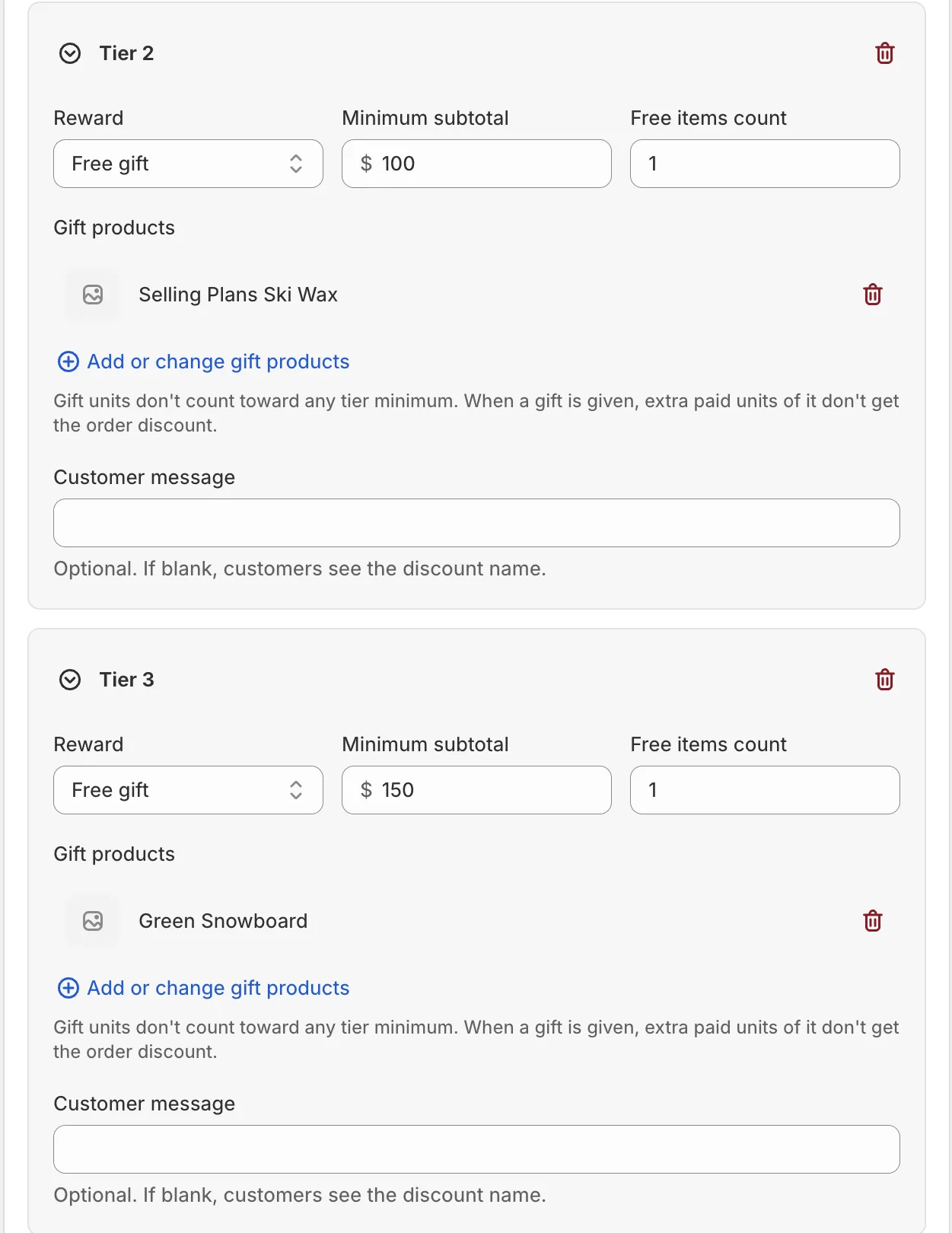
See it in action
 Gift settings
On this page
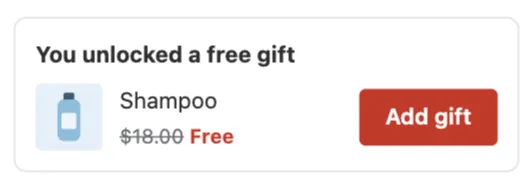
Gift settings decide how a free gift gets into the cart. The app can add the gift for the shopper, or shoppers can pick it themselves. Every free gift offer has these settings.
They matter because a gift that is hard to get feels like no gift. The right settings put the gift in the cart with no extra steps.
Where to find them
- On the Upsell offers tab: edit a free gift offer. The Gift settings card sits under the message.
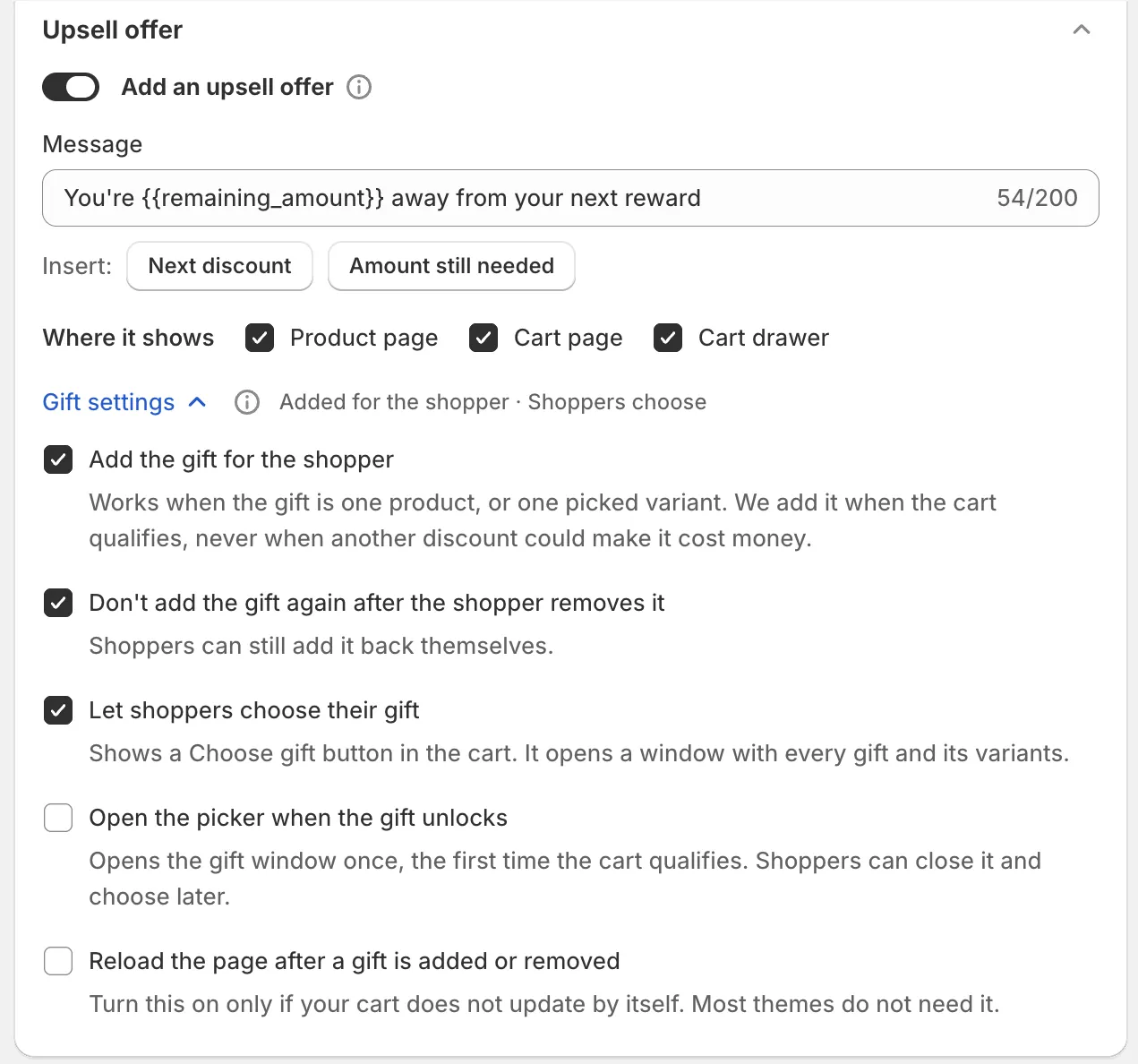
- On a promotion page: open the Upsell offer section of a Free gift or Tiered rewards promotion. The Gift settings row shows a summary, like Added for the shopper, Shoppers choose or Shoppers can’t get the gift. Open it to change the settings.
Settings
Add the gift for the shopper
“Works when the gift is one product, or one picked variant. We add it when the cart qualifies, never when another discount could make it cost money.” When the gift has several products or variants, the shopper adds it with a button instead.
Default: on.
Why it matters: the shopper gets the gift without doing anything. Fewer steps, fewer missed gifts.
How to use it: keep it on when you give one gift product. Turn it off when you want shoppers to pick, or when the gift has many variants.
Don’t add the gift again after the shopper removes it
“Shoppers can still add it back themselves.” With this off, a removed gift comes back on the next page load. This setting is greyed out while Add the gift for the shopper is off, because nothing is added for the shopper.
Default: on.
Why it matters: a shopper who removed the gift on purpose finds it annoying to see it come back.
How to use it: keep it on. Turn it off only if you want the gift back in every cart, for example a free sample you always ship.
Let shoppers choose their gift
“Shows a Choose gift button in the cart. It opens a window with every gift and its variants.” See Gift chooser. With this off, a gift that the shopper must choose shows no slot.
Default: on.
Why it matters: with several gift products, the shopper needs a way to pick one.
How to use it: keep it on when the gift has more than one product or variant, for example a free T-shirt in three sizes.
Open the gift chooser when the gift unlocks
“Opens the gift window once, the first time the cart qualifies. Shoppers can close it and choose later.” It only applies when there is more than one gift to choose from. It is greyed out while Let shoppers choose their gift is off.
Default: off.
Why it matters: the window shows the gift at the moment the shopper earns it, so it is hard to miss.
How to use it: turn it on for a big, exciting gift. Leave it off if pop-ups would get in the way, for example on a busy cart page.
Reload the page after a gift is added or removed
“Turn this on only if your cart does not update by itself. Most themes do not need it.”
Default: off.
Why it matters: some themes don’t refresh the cart after an app changes it. Shoppers then don’t see the gift until they reload.
How to use it: test first. Add items until the gift unlocks. If the gift does not show in the cart without a reload, turn this on.
Warnings
The settings warn you when shoppers can’t get the gift:
- “Shoppers have no way to get this gift. Turn on “Add the gift for the shopper” or “Let shoppers choose their gift”.” Both are off.
- “This gift has more than one product, so it cannot be added for the shopper. Turn on Let shoppers choose their gift.” Only the automatic add is on, and the gift has several products.
- “Gifts are added in the cart. Tick Cart page or Cart drawer.” This one shows next to Where it shows.
Caution With both Add the gift for the shopper and Let shoppers choose their gift off, shoppers can’t get the gift at all.
Examples
- One gift product, added for the shopper. Keep the defaults. When the cart qualifies, the gift is added. If the shopper removes it, it stays removed, and they can add it back.
- Three gift products to pick from. Keep Let shoppers choose their gift on. Turn on Open the gift chooser when the gift unlocks if you want the window to pop up once the cart qualifies.
Tiered rewards gift tiers
In a Tiered rewards promotion, the app says: “Each gift tier gets its own gift offer with these settings, even when the upsell offer is off.” You set them once, in the promotion’s Upsell offer section.