 See it in action
 Widgets overview
On this page
Storefront widgets are the parts of your store that show a discount to shoppers: a sale price, a savings badge, a countdown, a volume table, a goal bar and more. Each widget is a theme block that you place in the Shopify theme editor. Blocks need an Online Store 2.0 theme, and the cart drawer parts need a recent theme. See Theme requirements.
How widgets work
Two things must be true before a shopper sees a widget:
- The discount is switched on for your storefront. In AndOr, go to Promotions and open the Storefront widgets tab. Each discount has a switch. A promotion you make in AndOr has Show storefront widgets on by default. For discounts you made in Shopify or in Rules, see Show discounts you already have.
- The widget’s block is in your theme. For example, add the AndOr Sale price block under the product price.
A discount you switch on does not change your product pages by itself. Add the block that shows it, and it appears where you put it.
Note Blocks show without the app embed, AndOr Discount Display. Turn it on for the cart drawer parts, your shared look settings, text changes and one-line tags. See Turn on the app embed.
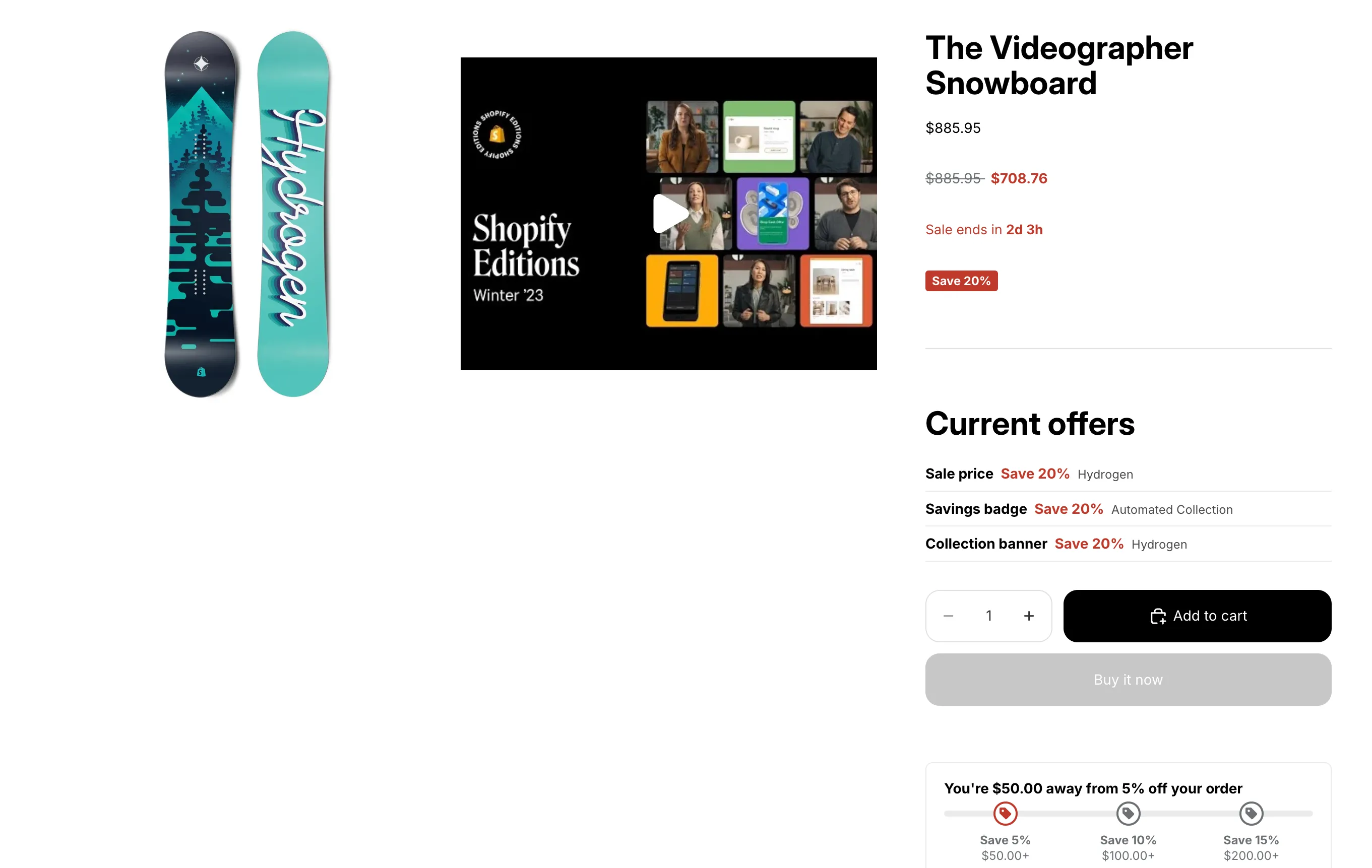
The app embed and the app blocks
AndOr adds two kinds of things to your theme:
- One app embed, AndOr Discount Display. It holds the shared settings, like Sale price color, Corner radius and Style preset, your text and translations, and the cart drawer parts. It shows nothing by itself.
- App blocks, one per widget. You add each block to a template and drag it where you want it. Each block has its own settings.
To see what needs the embed, read What needs the app embed. The embed’s own settings are on App embed.
Theme blocks and their docs pages
In the theme editor, you add blocks by name. This table takes you from a block name to the docs page for each widget it draws.
| Theme editor block | Widgets it draws (docs page) | Where it can go |
|---|---|---|
| AndOr Sale price | Sale price | Any template. Made for the product page, beside the price |
| AndOr Savings badge | Savings badge | Any template. Made for the product page, near the price or title |
| AndOr Countdown | Countdown | Product page only |
| AndOr Offers | Current offers | Any template |
| AndOr Volume tiers | Volume tiers | Product page only |
| AndOr Offer picker | Bundle card, Buy X get Y, Free gift slot | Product page and cart page. The bundle card is product page only |
| AndOr Order goal | Goal bar, Goal suggestions (with a Goal suggestions offer) | Product page and cart page |
| AndOr Collection banner | Collection banner | Collection page only |
| AndOr Discount callout | Discount callout | Any template |
| No block (the app embed, AndOr Discount Display) | Gift chooser, and the cart drawer parts of the goal bar, the Buy X get Y claim row and the free gift slot | Cart page and cart drawer |
One block can draw several widgets. For example, AndOr Offer picker shows a bundle card, a Buy X get Y banner or a gift banner on a product page. The upsell offer you set up in AndOr decides which.
Tip To see every block with a short description, open Promotions > Storefront widgets, then See all blocks in the page menu. Each card has an Add to theme button that opens the theme editor with the block ready to place.
Product cards on collection and search pages
Product cards on collection, search and home pages are drawn by your theme’s own code. Most themes do not let apps add blocks there.
- Horizon: add the AndOr Sale price or AndOr Savings badge block to the product card in the theme editor.
- Dawn and similar themes: a developer pastes a short recipe into the card snippet.
For developers, AndOr also has one-line tags (like
<andor-badge></andor-badge>) that you paste into theme code, and
product card recipes. See
One-line tags and
Product card recipes.
Which color wins
Several places can set a widget’s main color. The first one that is set wins:
- A color you change on the block in the theme editor.
- The color in the app embed (for example Sale price color).
- Your brand color, picked in AndOr on the Create promotion gallery under Brand color.
- The built-in red (
#c0392b).
Example: you pick green as your brand color and leave the block and embed colors on their defaults. The sale price, volume tiers, goal bar and offer picker show green.
Note The Savings badge, Countdown and Offers blocks use their own colors exactly as set on the block. They do not follow the brand color. Change them on the block.
See Brand color.
Words shoppers see
Widgets show in the shopper’s store language. AndOr has built-in text in 22 languages. To change or hide some of the notes, use the Storefront text page.