 See it in action
 Schedule and status
On this page
A rule’s status decides who it affects. Draft rules affect only you, active rules affect every shopper, and inactive rules affect no one. Discount rules can also have active dates, so they start and end on their own.
Status
The Status card on the right of the rule form has three choices.
Draft
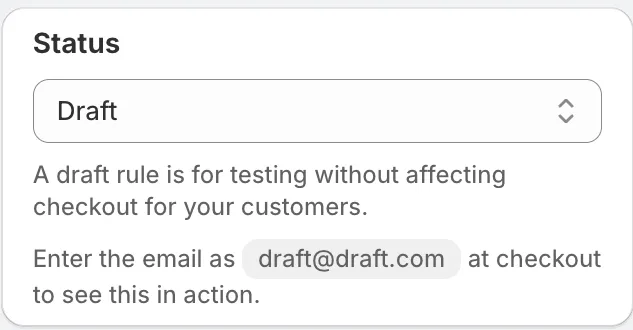
“A draft rule is for testing without affecting checkout for your
customers.” To see a draft rule in action, enter the email
draft@draft.com at checkout. The card shows this hint when Draft is
selected.
Activate
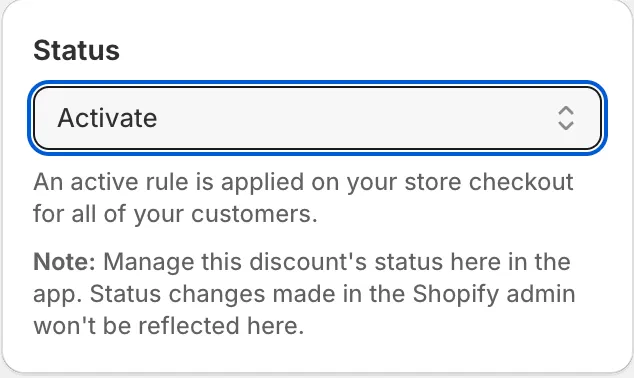
“An active rule is applied on your store checkout for all of your customers.” Active rules count toward your plan’s rule limit.
Deactivate
“A deactivated rule will not affect checkout for your customers, so you can deactivate a rule without deleting it.” The rule list shows it as Inactive.
Note Drafts do not count toward your rule limit. Only active rules do. See Rule limit reached.
Test a rule safely
-
Set the status to Draft and click Save rule.
-
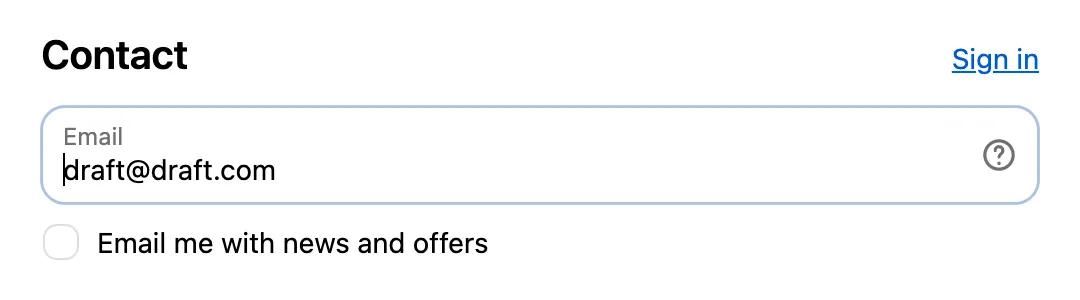
Go to checkout on your store and enter
draft@draft.comas the email.The draft rule now runs for this checkout only. Check that it does what you expect.
-
Set the status to Activate and save.
Now the rule runs for every shopper.
Change many rules at once
On the Rules page, select rules with the checkboxes. Then use Activate, Deactivate or Set as draft.
Active dates (discounts)
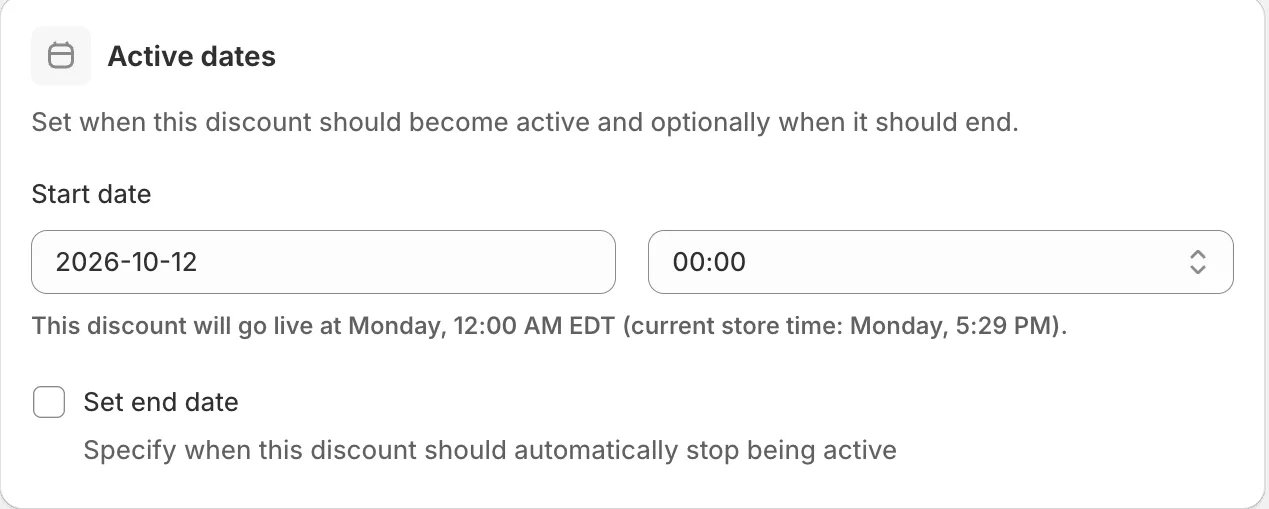
Discount rules have an Active dates card: “Set when this discount should become active and optionally when it should end.”
Start date and Start time
When the discount goes live. The card says “This discount will go live at …”.
Set end date
Tick it to pick an End date and End time. The discount then stops on its own.
Times use your store’s timezone. The card shows it, along with the current store time.
Scheduled, Active and Expired badges
The card shows a badge based on the dates and the current store time:
- Scheduled: the start date is still in the future. Once the status is Active, the discount goes live by itself on the start date.
- Active: the store time is inside the date range. The discount applies only if the rule’s status is also Active.
- Expired: the end date has passed. The discount won’t apply, even if the status is Active. Change or remove the end date to run it again.
The Rules list adds “(Scheduled)” or “(Expired)” next to the status.
Caution The end date wins over the status. An Active discount with a past end date does not apply at checkout.
Note Manage a discount’s status in AndOr. Status changes made in the Shopify admin won’t be reflected in the app.