 See it in action
 Quick finder
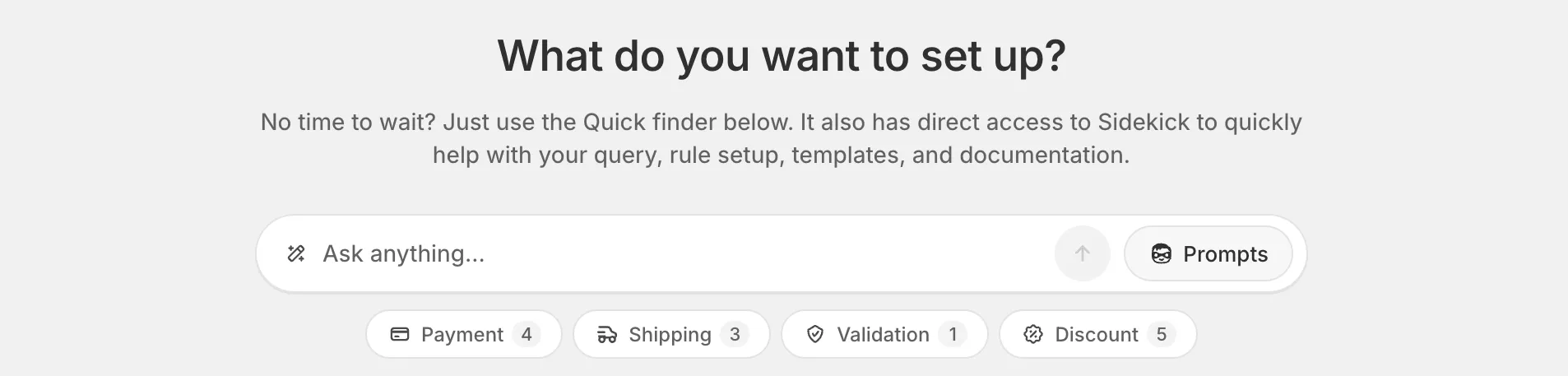
The Quick finder is the search bar under What do you want to set up? on the Rules page and on the Create rule page. Type what you need. It finds your rules, the matching templates, and a way to ask Sidekick.
Use it
-
Click the bar and type what you want to do.
For example “hide COD” or “free shipping”. The placeholder rotates through ideas such as Hide COD for high-value orders.

-
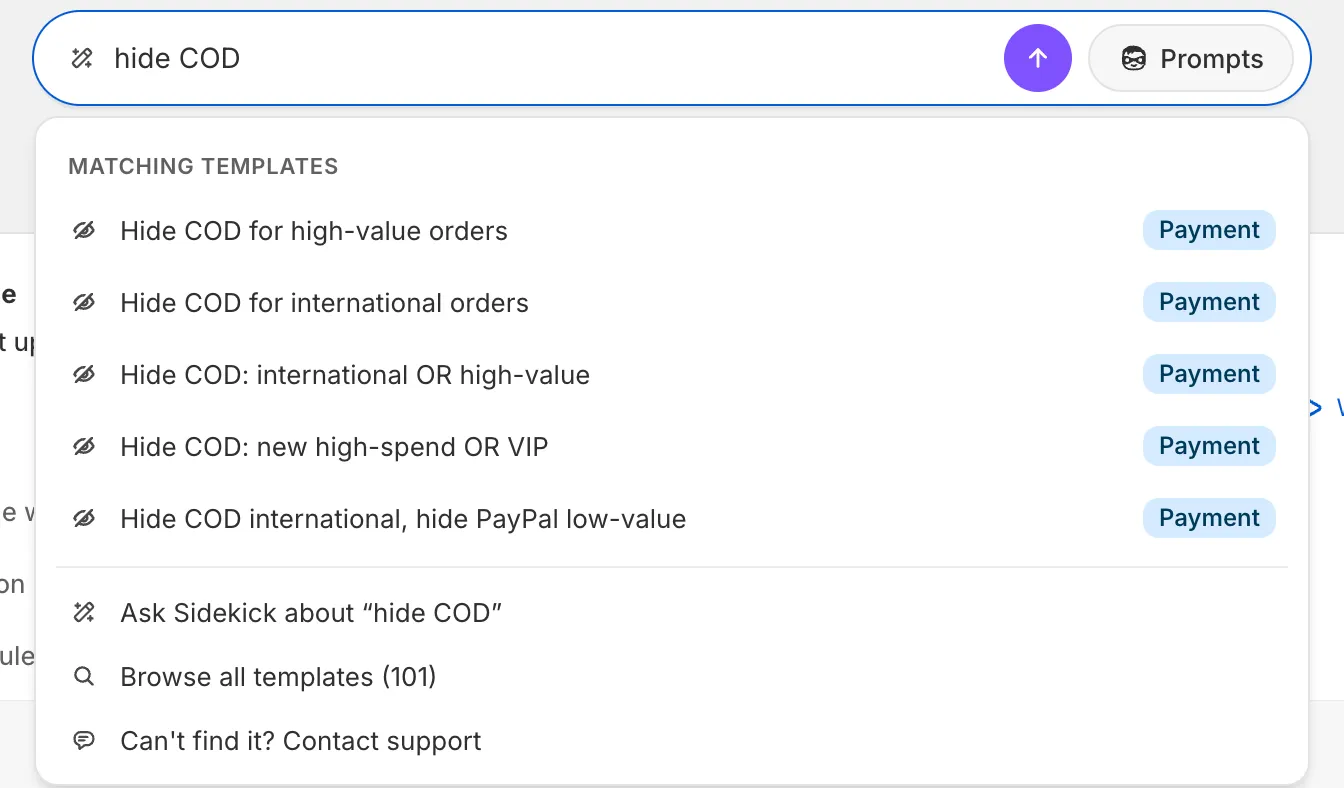
Pick a row from the list.
The list shows what matches:
- Popular use cases and Matching templates: open the rule builder already filled in for that use case.
- Payment customizations and similar headings: the rule types of that kind, for example Hide payment methods.
- Browse all templates: the full list of use cases.
-
Save the rule as a draft and test it.
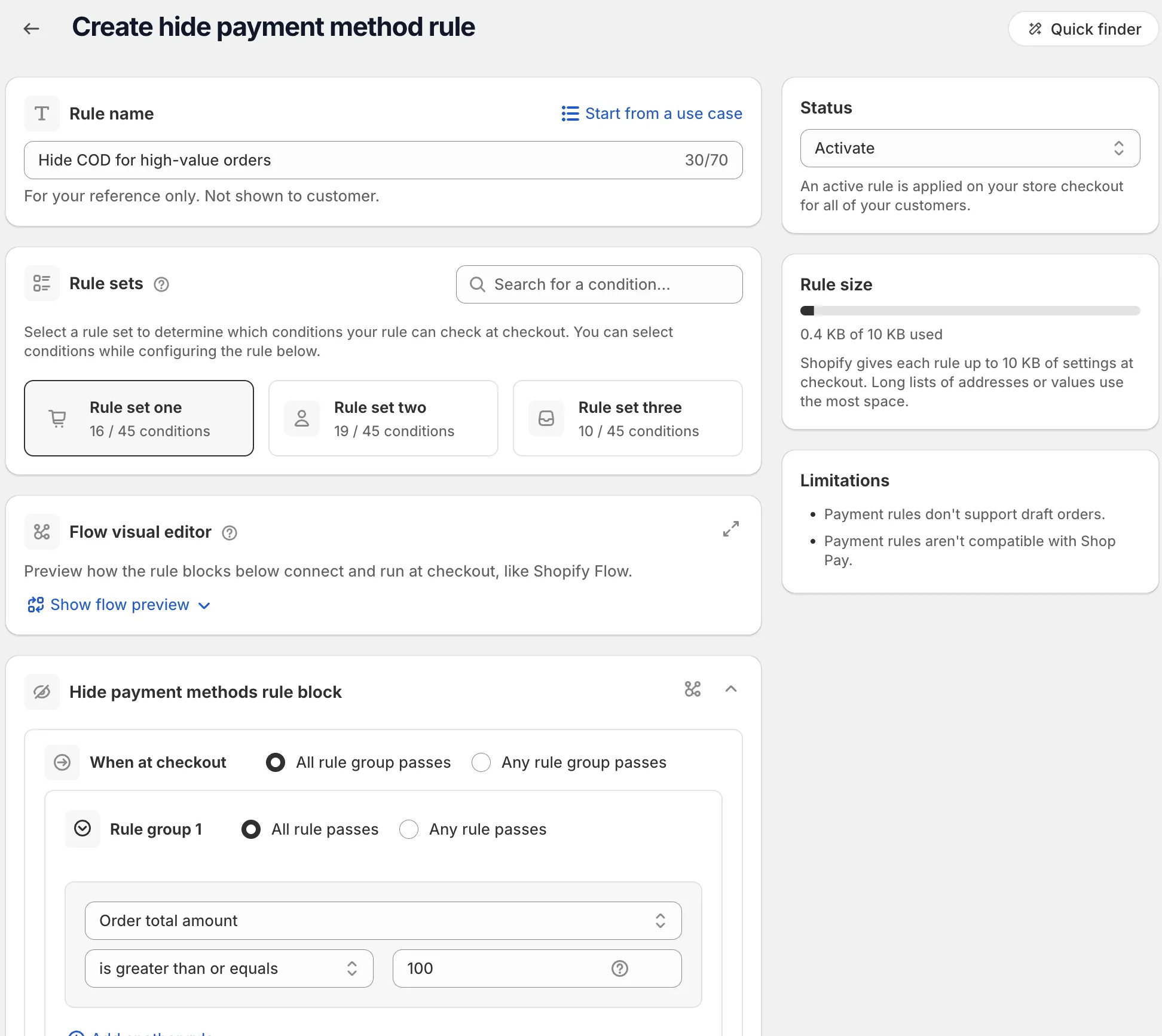
A template only fills in the form. Nothing changes at checkout until you save and activate the rule. See Your first checkout rule.
Ask Sidekick
When Sidekick is available in your admin, the bar reads Search rules and templates or ask Sidekick. Pick the row Ask Sidekick about “…” with your text, and Sidekick opens with your question. Press Enter there to run it. See Sidekick.
Sidekick prompts
Click Prompts next to the bar. The Sidekick prompts panel lists ready prompts:
- Hide COD over amount
- Hide a shipping method
- Block a discount code
- Block discounts on tagged products
- Free shipping over threshold
- Percentage order discount
- Rename COD by cart total
- Show my active rules
Click a prompt to open it in Sidekick, then press Enter there. Each click also copies the prompt. If the safety check fails, close the notice, paste, and press Enter.
Request a feature
Can’t find what you need? Pick the row Request “…” as a feature, with your words in the quotes. We save your request and you see Thanks! We saved your request. To talk to us instead, pick Can’t find it? Contact support.