 See it in action
 Hide express checkout options
“Hide express checkout options at the checkout page.” Express options are the quick payment buttons, like Apple Pay, Google Pay, PayPal and Shop Pay. For example, hide them for subscription products or for large carts.
Note This works on all Shopify plans except Shopify Starter. You don’t need Shopify Plus to hide express payment methods.
Before you start
- Decide if you want to hide all express options, or only some.
- The two “(One-page checkout)” actions need one-page checkout and a manual setup in your Shopify settings. See Actions.
Set it up
-
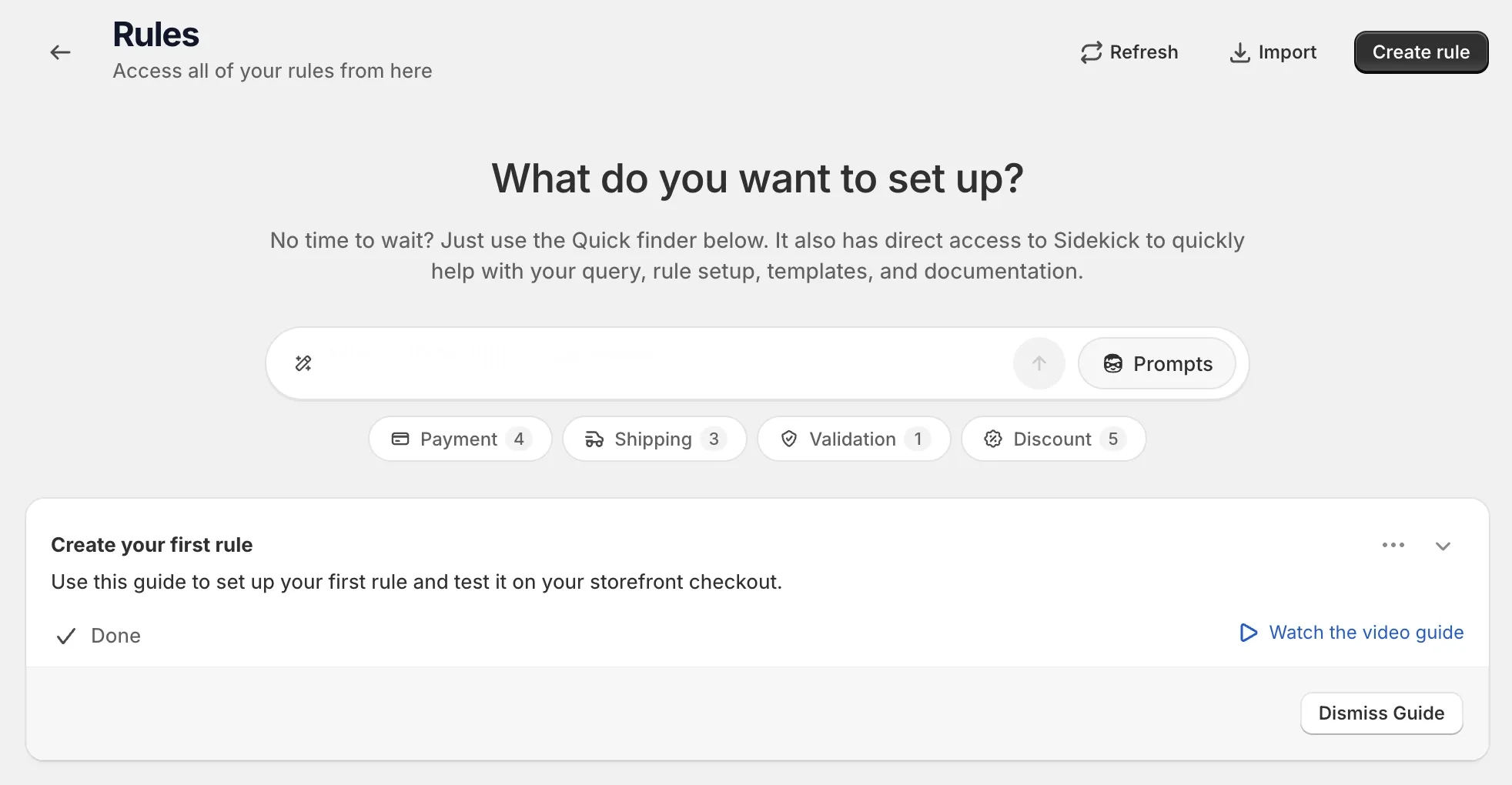
Open Rules and click Create rule.
-
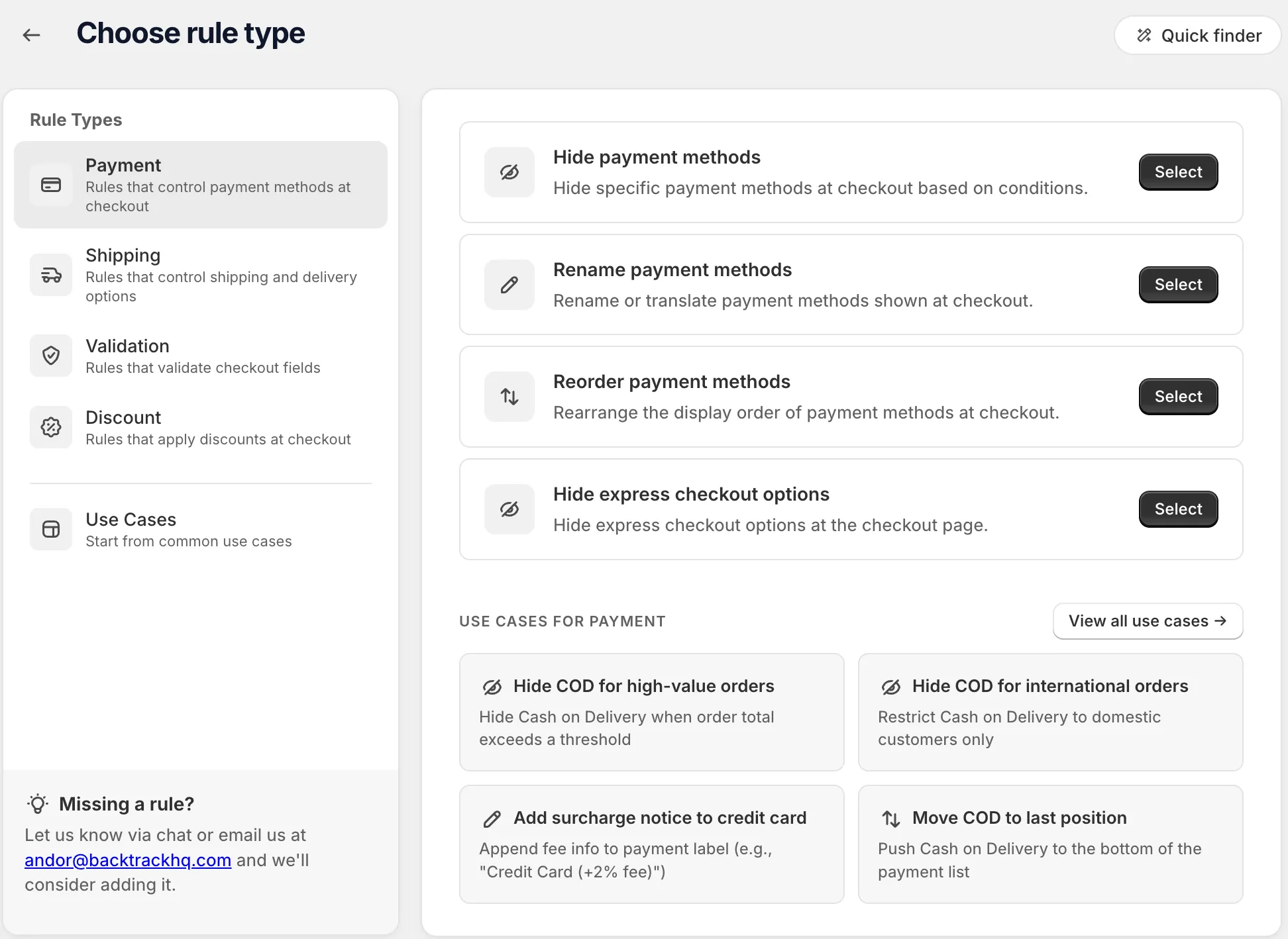
Under Payment, find Hide express checkout options and click Select.
On the rule page, name the rule, or click Start from a use case to fill in the whole form. The name is for your reference only. Shoppers don’t see it. See Start from a use case.
-
Add your conditions under When at checkout.
For example Product tags has any of these values
subscription. Use Always to hide for every checkout. Express rules have no Rule sets card. See Conditions, groups and blocks.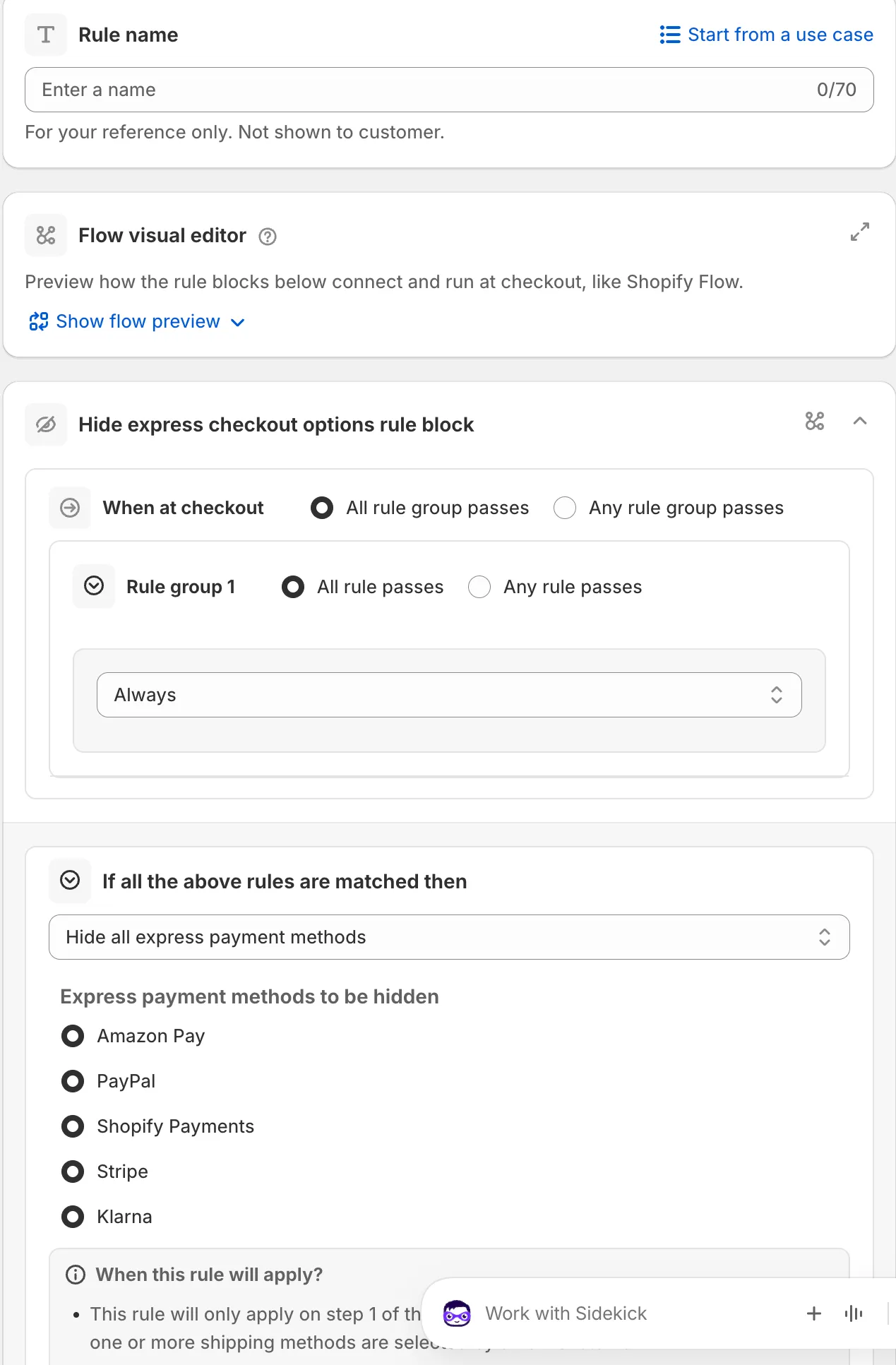
-
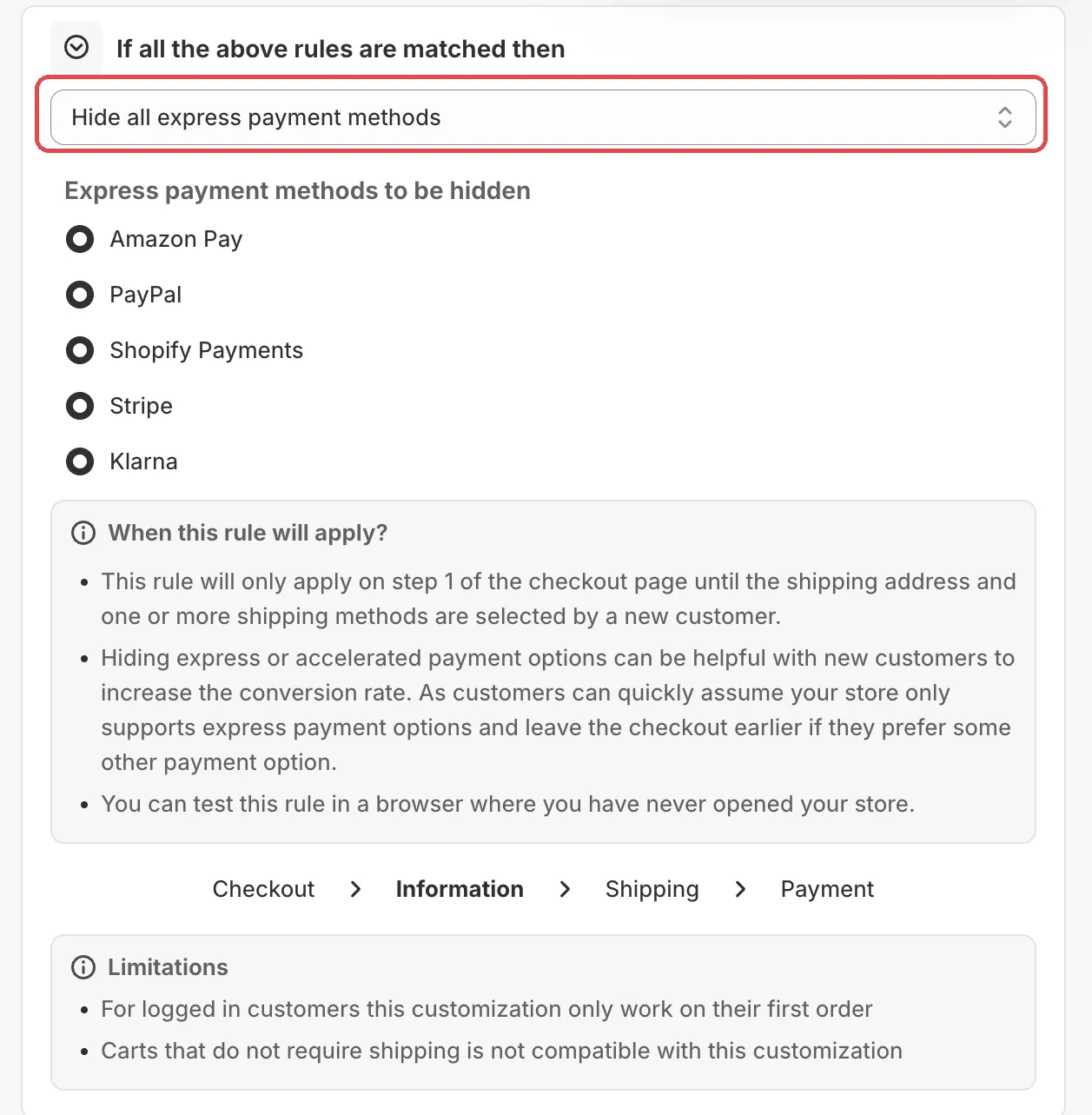
Pick an action and the express methods.
For example choose Hide all express payment methods. The list Express payment methods to be hidden shows what it covers. The card also shows a small checkout preview and explains When this rule will apply?.
-
Save it as a draft, test it, then activate it.
In the Status card, choose Draft and save. Then go to checkout on your store and enter the test email from the rule’s Status card. Only this email sees a draft rule. For the “new user” action, test in a browser where you have never opened your store.
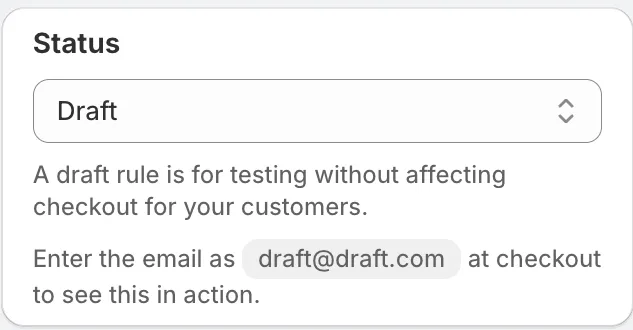
When it works, choose Activate in the Status card and save.
Actions
Hide all express payment methods
Hides every express payment method. Works on any checkout layout.
For new user hide all express payment methods (One-page checkout)
“Targets first-time visitors only.” It hides the express buttons at the top of checkout until the shipping address and a shipping method are selected. The payment section options stay visible.
It needs manual payment methods named exactly AmazonPay, PayPal
or ShopPay, to match your active methods. The card lists the setup
steps under *Required manual payment method setup. Shoppers
can’t use these manual methods. They are swapped for the real ones
once shipping is filled in.
For any user hide all express payment methods (One-page checkout)
“Applies to any visitor, even returning ones.” The express buttons stay hidden until the shopper selects a shipping method, then they come back at the top.
It needs a manual shipping rate named exactly Select a delivery method. The card lists the steps under *Required manual shipping
rate setup.
Hide all express payment methods except
Hides every express method except the ones you pick under Exceptional payment methods.
Show all express payment methods except
Shows the express methods, except the ones you pick under Exceptional payment methods.
Hide the payment methods added below
Hides the payment methods you add by name. “This rule will apply on any step of the checkout page that matches the payment list added below for all customers on any order.”
Only show the payment methods added below
Shows only the payment methods you add by name, and hides the rest.
Tip To hide a method from both the express buttons and the payment list, use two rule blocks. Give one an express hide action, and the other Hide the payment methods added below.
Settings
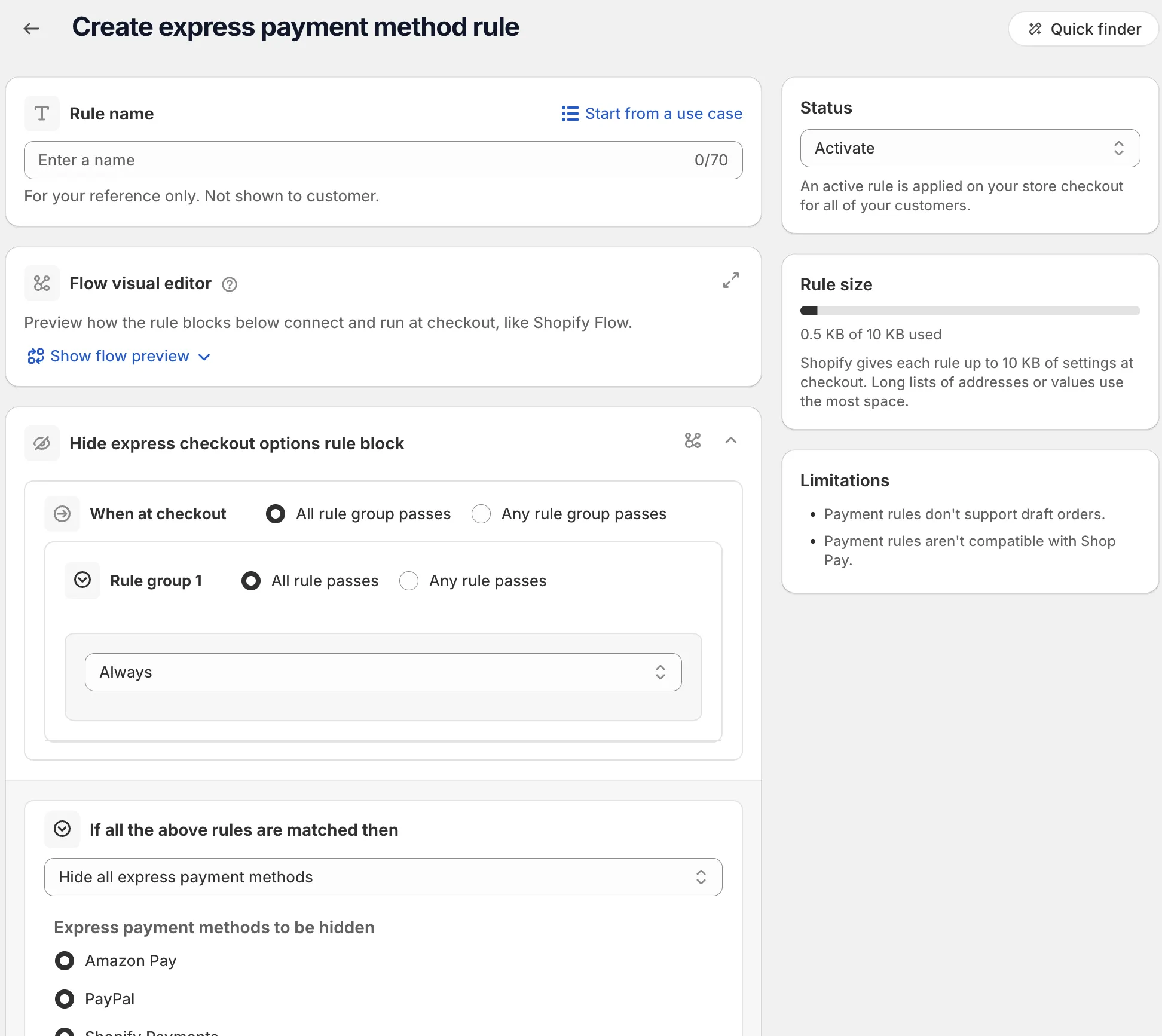
Express payment methods to be hidden
A read-only list that shows which express methods the hide action covers: Amazon Pay, PayPal, Shopify Payments, Stripe and Klarna.
Exceptional payment methods
The express methods to keep (with Hide all express payment methods except) or to hide (with Show all express payment methods except).
Payment method name
For the “added below” actions. Each row has a match type and a name.
Options: Contains, Is. Default: Contains.
Status
Options: Draft, Activate, Deactivate.
Examples
Open Start from a use case on the rule page and pick one of these:
- Hide express for subscription products: hides express checkout
when the cart has products tagged
subscription. - Hide express for high-value carts: makes shoppers use the full checkout for large orders.
- Hide all express payments at checkout: removes all express payment buttons from checkout.
Limits
- “For logged in customers this customization only work on their first order.”
- “Carts that do not require shipping is not compatible with this customization.”
- The two “(One-page checkout)” actions apply to one-page checkout. On three-page checkout there is no top express section. Use Hide all express payment methods or one of the “except” actions.
- “Payment rules don’t support draft orders.” and “Payment rules aren’t compatible with Shop Pay.”
See Limits.