 See it in action
 Discount callout (AndOr Discount callout block)
On this page
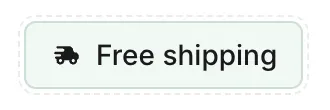
The discount callout is one short line with an icon, for an offer you want to advertise. Example: a truck beside “Free shipping”. It comes from the AndOr Discount callout block and can go on any page.
Made by: no discount of its own. It uses a free shipping discount with no minimum spend when you have one. You add it from the Discount callout card in the promotion gallery.
For developers: Code · Styling
What shoppers see
A pill with an icon and one sentence. There is no number and no countdown. The pill is drawn on the server, with no JavaScript, so it shows as soon as the page loads.
Two ways to use it
The block has a checkbox, Only show while a free shipping discount is active. It decides the mode.
| Checkbox | Callout text | What shoppers see |
|---|---|---|
| On | blank | “Free shipping”, while a qualifying discount runs |
| On | your text | your text, while a qualifying discount runs |
| Off | your text | your text, always |
| Off | blank | nothing at all |
Checkbox on (the default). The pill shows only while a qualifying free shipping discount runs. That discount has no minimum spend and no code, and it applies to every product. The pill hides by itself when that discount ends.
Checkbox off. The pill always shows your text. Use this when your free shipping is a shipping rate set to zero in Shopify. That is not a discount, so AndOr cannot find it. In this mode AndOr checks nothing, so remove or change the text yourself when the offer ends.
Caution With the checkbox off and the text blank, shoppers see nothing. In the theme editor, a dashed line reads “Add your callout text in the theme editor” so you can see the block is there.
Where it goes
Any template: product pages, the cart, the home page or anywhere your theme lets you add a block.
Add the block
Note App blocks need an Online Store 2.0 theme. On an older (vintage) theme, turn on the app embed and paste the one-line tag instead. See Theme requirements.
The discount callout comes from the AndOr Discount callout app block. It can go on any template.
From the promotion gallery
-
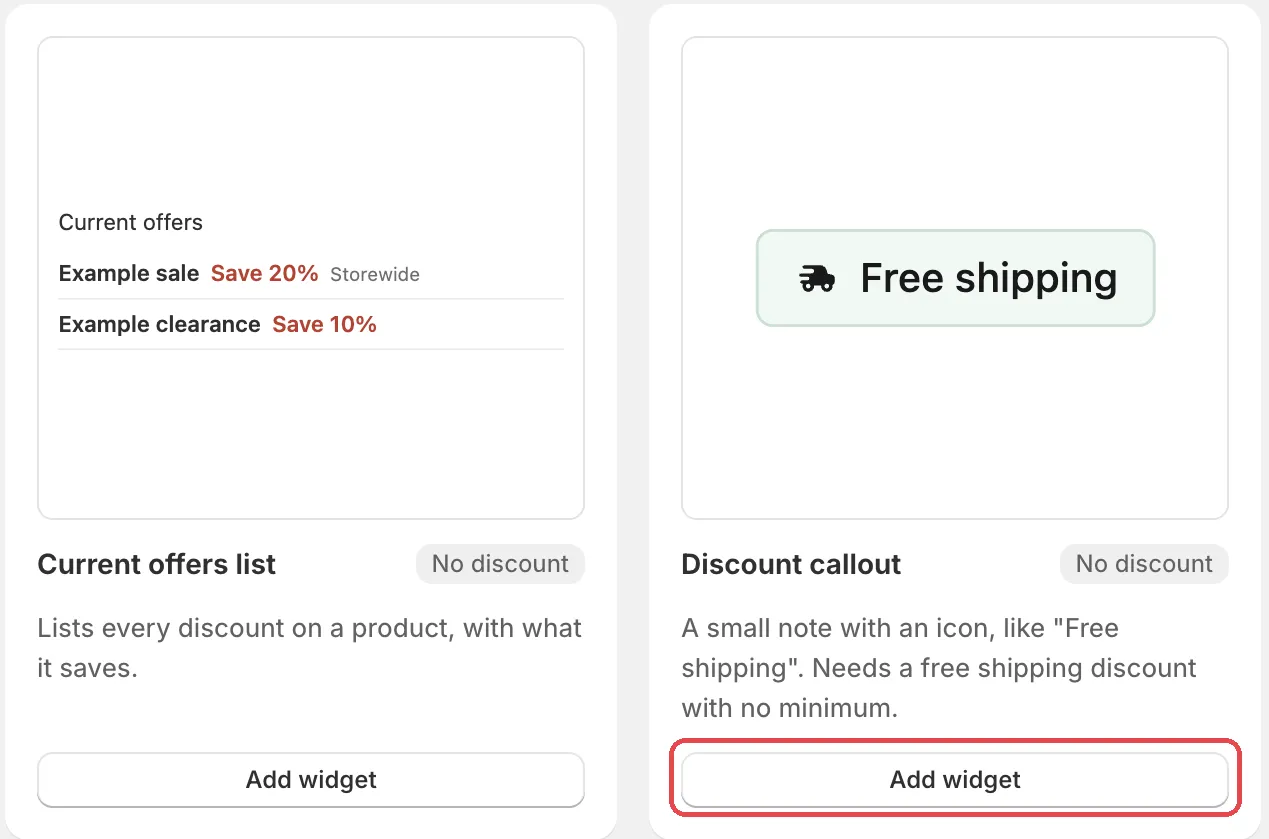
Open Promotions, click Create promotion, then click Add widget on the Discount callout card.
It is under Promotions with storefront widgets, with a No discount tag. The Storefront blocks page opens.
-
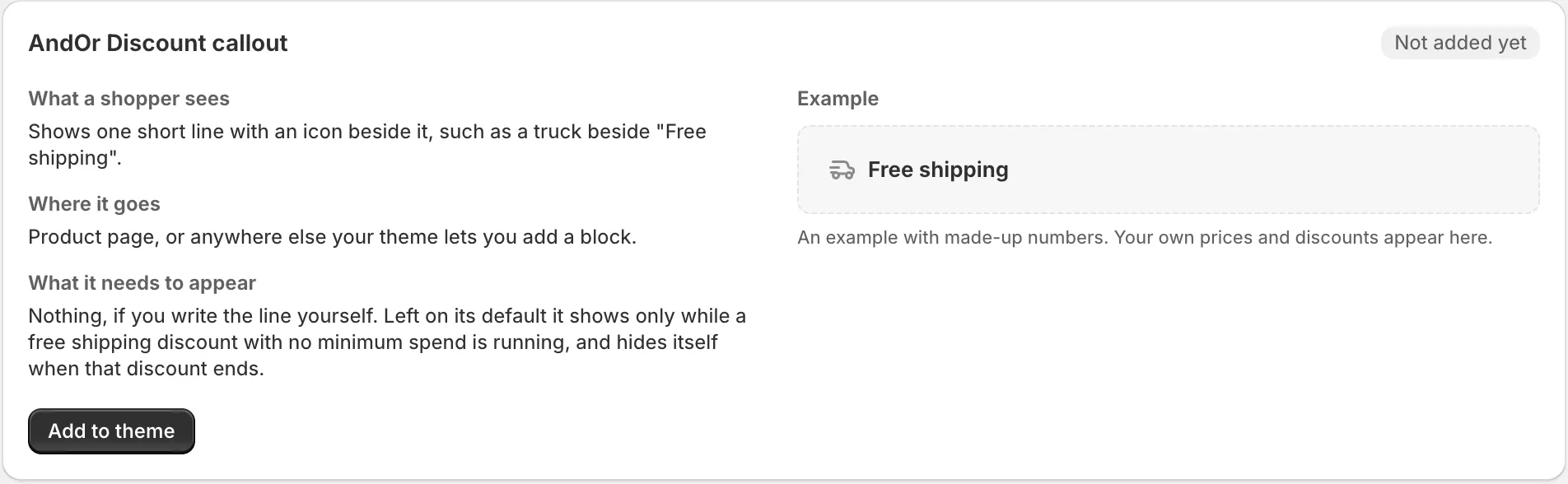
Find AndOr Discount callout and click Add to theme.
Add to theme opens your theme editor with the block added.
-
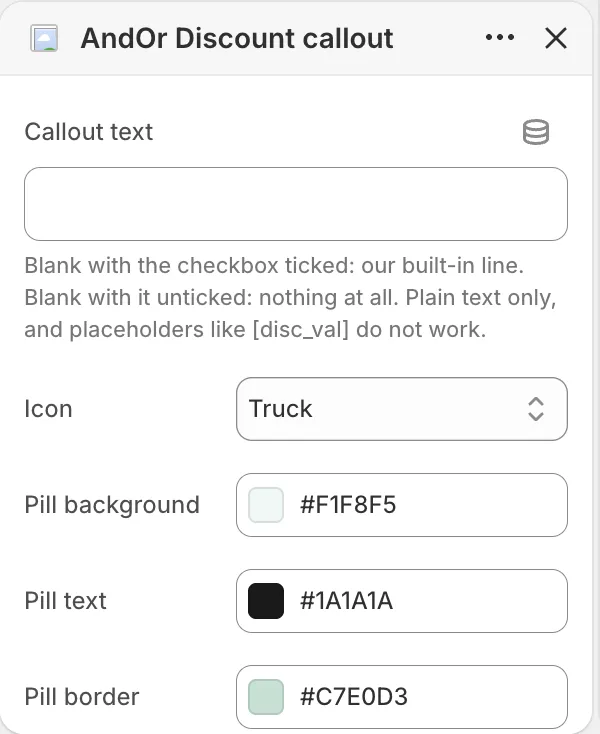
Set the text and icon, move the block, and click Save.
See Block settings for each setting.
Or add it in the theme editor
-
Open the theme editor on the page where the pill should go.
In Shopify, go to Online Store > Themes and click Edit theme. For example Products > Default product to show it near the price.
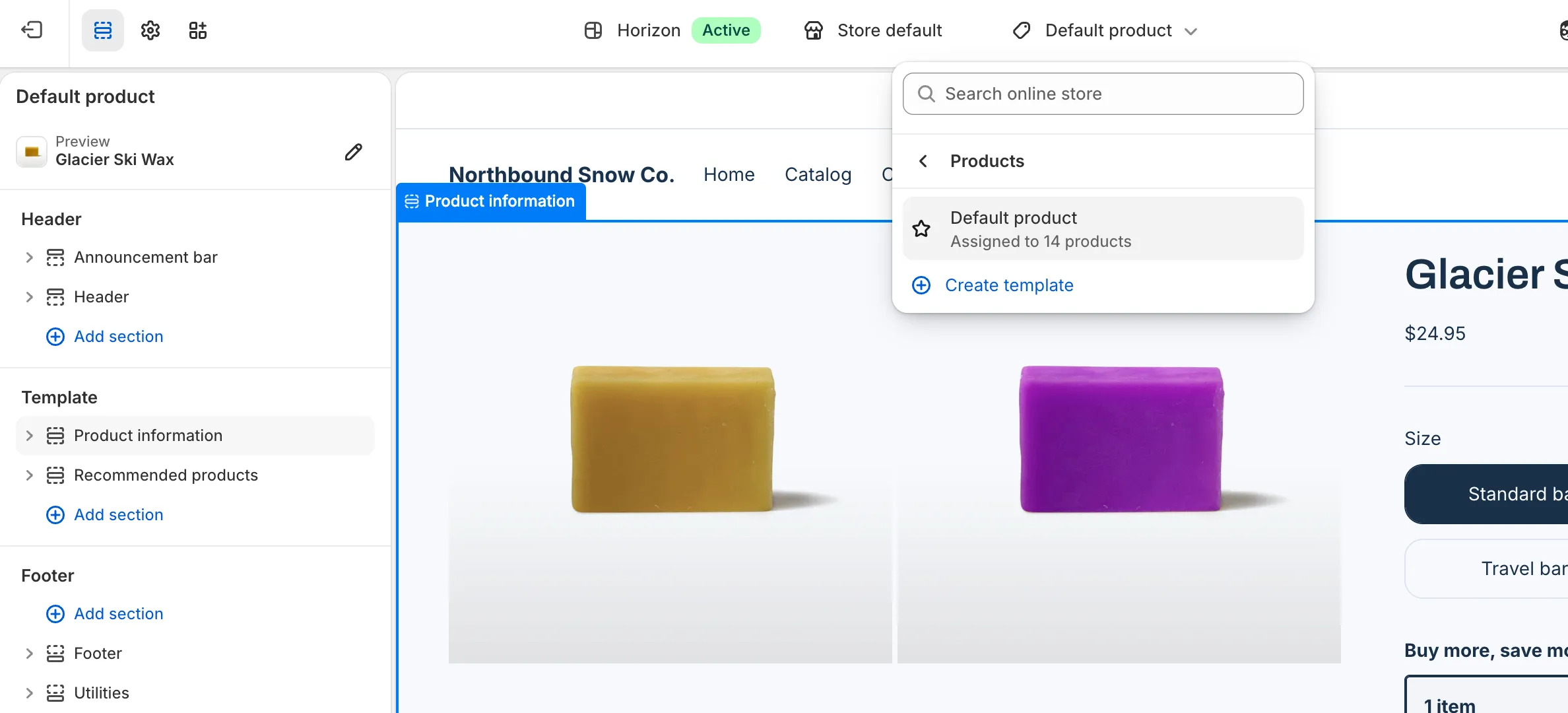
-
Click Add block, open Apps and pick AndOr Discount callout.
Add it inside a section.
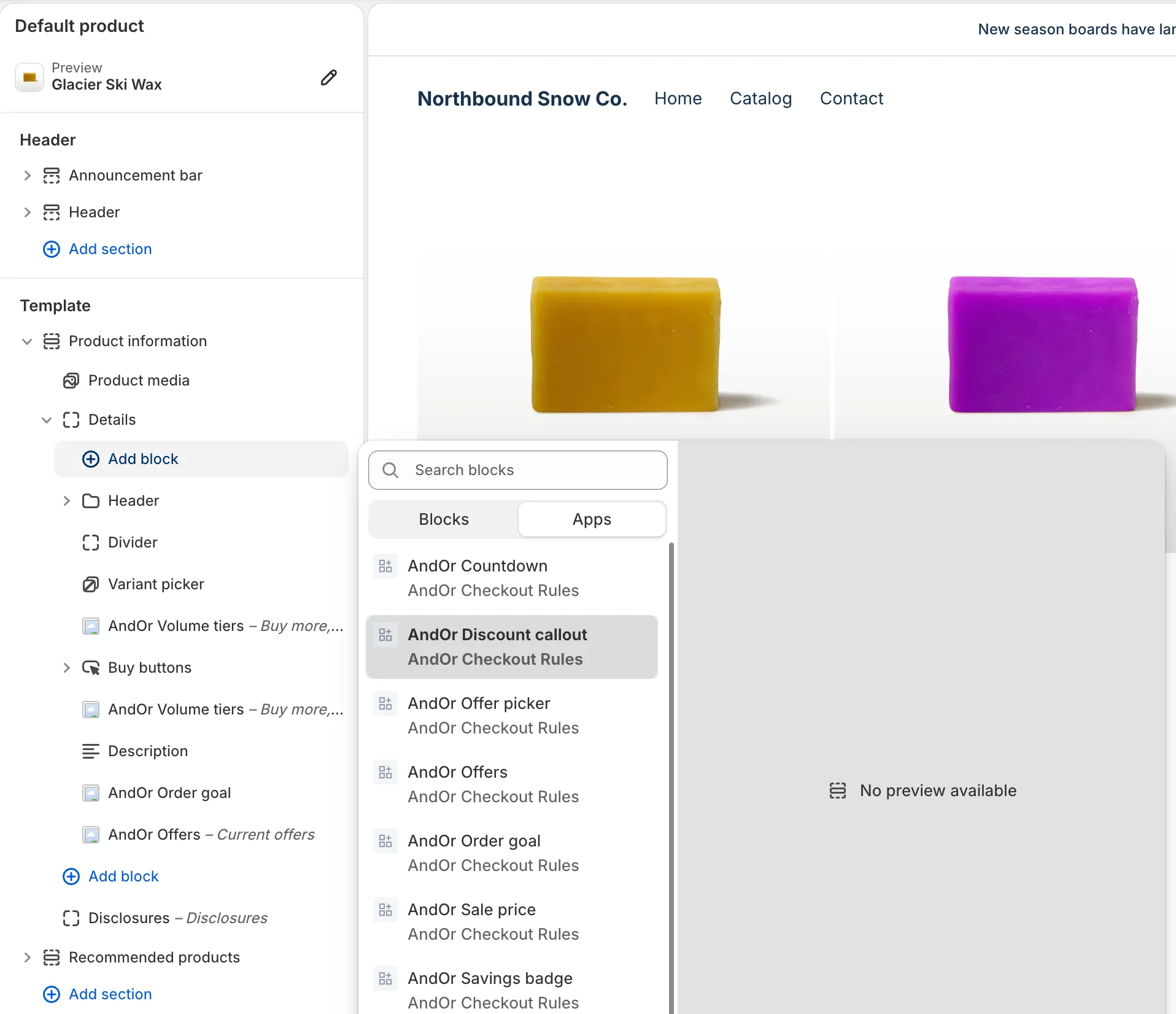
-
Drag the block where you want it, then click Save.
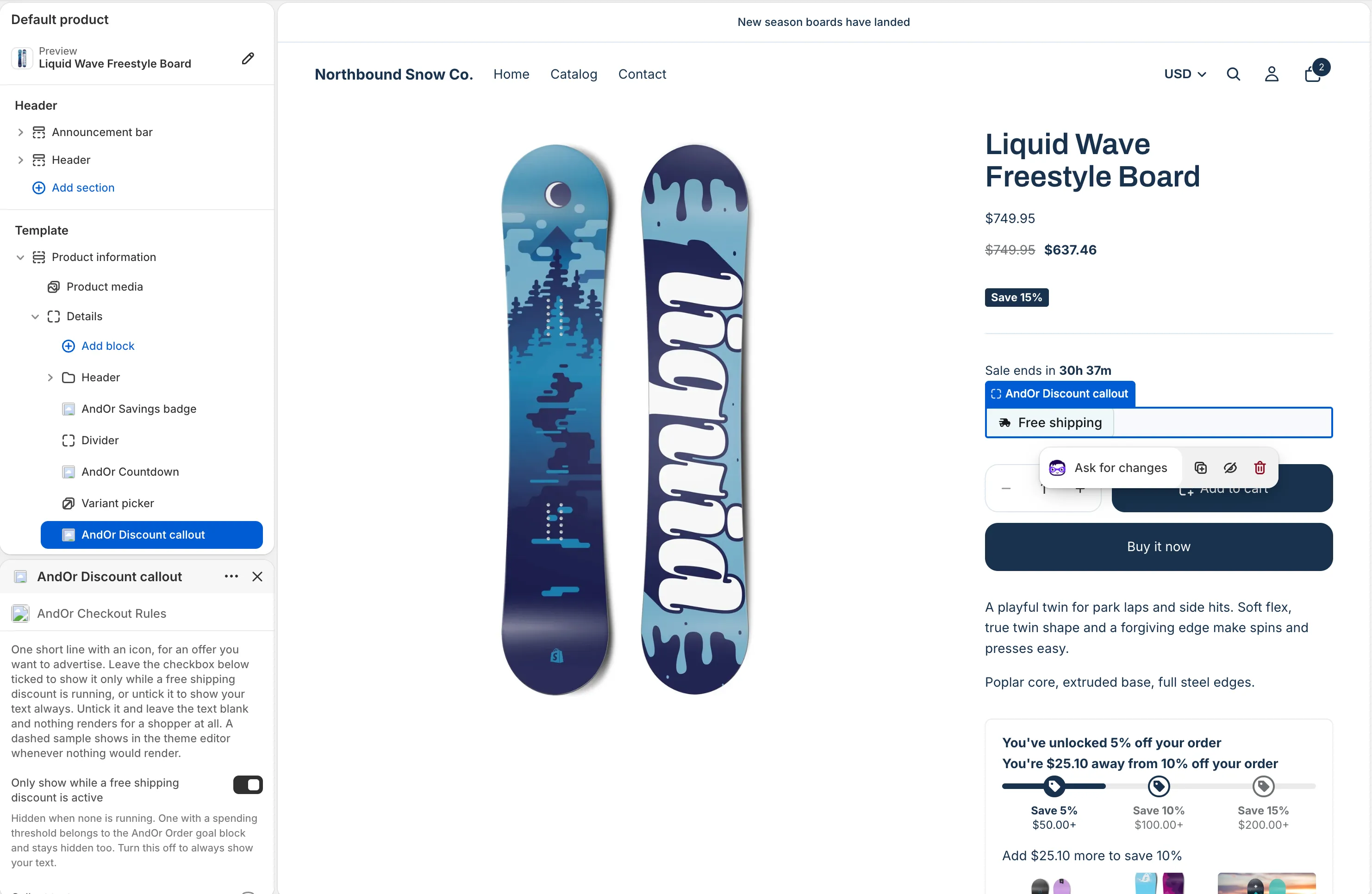
Or paste the tag
A developer can paste <andor-discount-callout> into theme code. It
draws the same pill as the block with the checkbox on, and takes
data-text, data-icon, data-background, data-color,
data-border and data-radius. There is no attribute to turn the
check off. See One-line tags.
Block settings
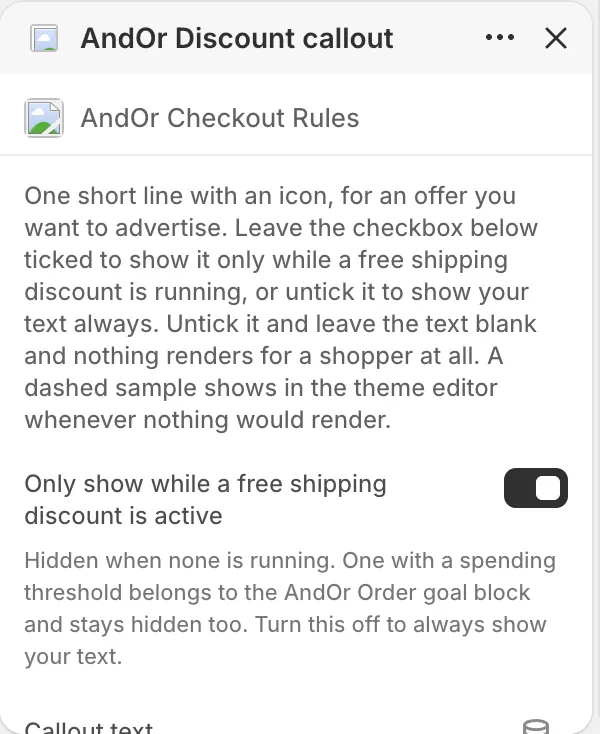
The block starts with a short paragraph about its two modes.
Only show while a free shipping discount is active
On, the pill shows only while a free shipping discount with no minimum spend is running, and hides when none is. A free shipping discount with a spending threshold belongs to the AndOr Order goal block and keeps the pill hidden too. Off, the pill always shows your text.
Default: on.
Callout text
The sentence on the pill. Plain text only. Placeholders like [disc_val]
do not work.
- Blank with the checkbox on: the built-in line, “Free shipping”.
- Blank with the checkbox off: nothing at all.
Example: “Free delivery on every order”.
Icon
The small picture before the text.
Options: Truck, Percent badge, Tag, Gift, Check circle, Cart, No icon. Default: Truck.
Pill background
The pill’s fill color.
Default: #f1f8f5.
Pill text
The color of the text and the icon.
Default: #1a1a1a.
Pill border
The color of the pill’s border.
Default: #c7e0d3.
Corner radius
How round the pill’s corners are, from 0 to 24 px. 0 gives square corners. Leave it at 6 to keep the rounding the pill ships with.
Default: 6 px.
What it needs to appear
With the checkbox on:
- Optional: the app embed. The block shows without it. The embed adds your shared look settings, text changes, the cart drawer parts and one-line tags.
- A free shipping discount shows on your storefront, and it has no minimum spend, no code and covers every product.
- The discount is inside its active dates.
With the checkbox off: only your text.
Show it in more places (code)
To show it where your theme has no slot for the block, paste a line of code. See Discount callout: Code.
Limits
- Free shipping with a minimum spend (“free shipping over $50”) never shows in the callout. It belongs to the goal bar, which counts the cart up to the amount. The two widgets never talk about the same discount.
- A quantity minimum (“free shipping when you buy 3”) shows in neither.
- The callout shows one pill, never more. With several qualifying free shipping discounts, it picks the one that lasts longest.
- It can’t point at one chosen discount. The gated mode only knows free shipping discounts.
- The callout text is plain text. Placeholders like
[disc_val]do not work here.