 See it in action
 Manage offers
On this page
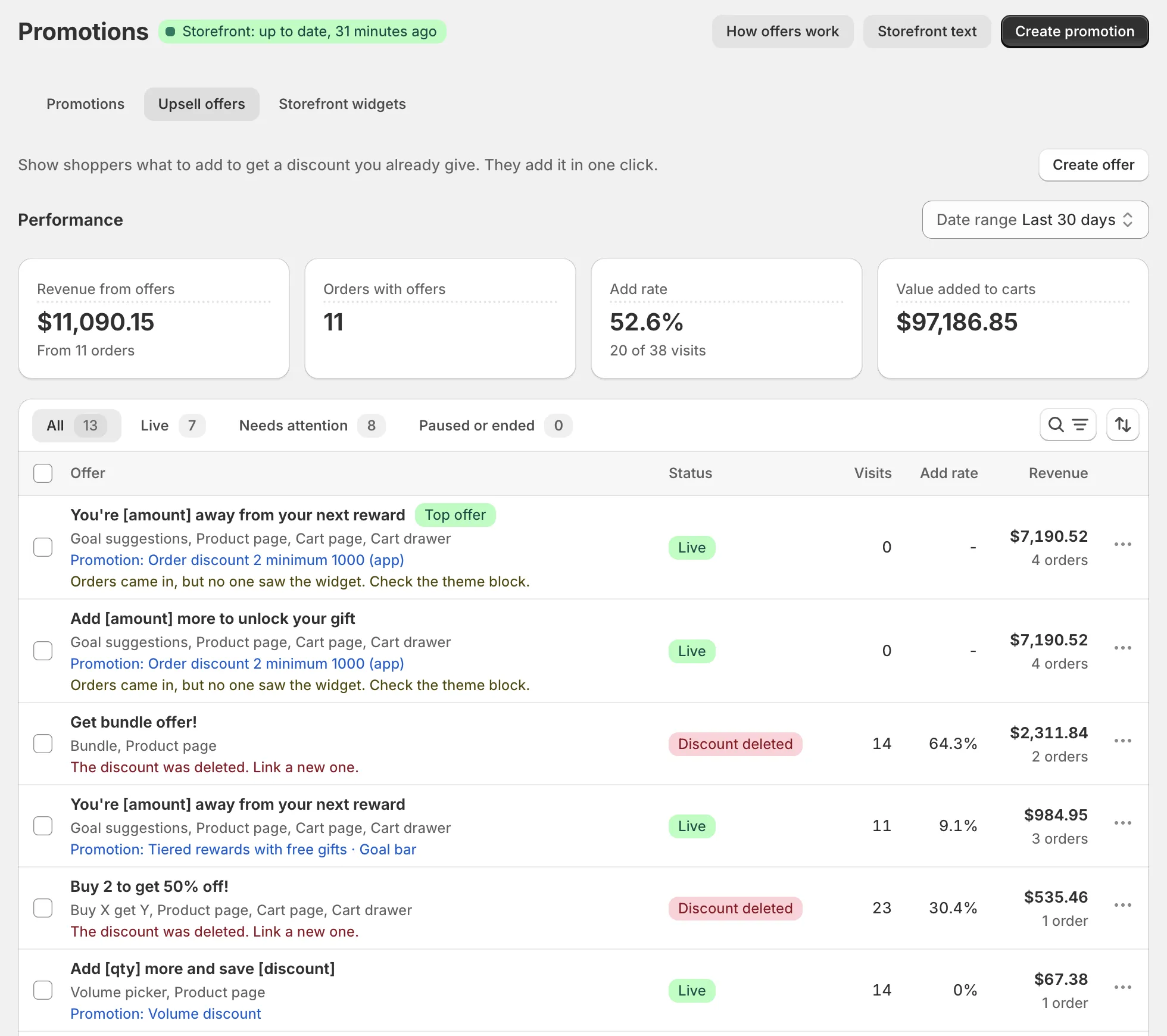
The Upsell offers tab lists every upsell offer in your store. It shows how each offer does, which ones need a fix, and lets you pause, copy or delete them.
To open it, go to Promotions and click the Upsell offers tab.
A weekly routine
- Check the Performance cards. Are your numbers up or down?
- Open the Needs attention tab. Fix each row. The hint says what to do.
- Look at offers with many visits and a low add rate. Try a new message on them.
- Pause offers that don’t work. Pausing keeps their numbers.
Performance
What it is: at the top, Performance sums up all your offers for the range in Date range.
Options: Last 7 days, Last 30 days, Last 90 days. Default: Last 30 days.
Why it matters: it tells you in a few seconds how your offers are doing.
How to use it: hover a card’s label to read what it counts. Change the range to compare, for example Last 7 days against Last 30 days. For a deeper look, use the Analytics page. See Analytics overview.
Revenue from offers
What offer items sold for, after discounts. Under it: “From … orders”.
Orders with offers
Orders that had an offer’s item or its discount.
Add rate
Visits where a shopper added an offer item, out of visits that saw an offer. Under it: “… of … visits”.
Value added to carts
The price of items added through offers, counted on every add. Many carts never check out, so this is higher than revenue.
See Metrics and How we count.
Click How offers work in the page header for a short guide and the counting rules.
The offers table
Tabs
What they are: quick views of the table.
- All: every offer.
- Live: offers shoppers can see now.
- Needs attention: offers with a problem to fix. See Hints.
- Paused or ended: paused, scheduled and ended offers.
How to use them: start with Needs attention. When it is empty, nothing is broken.
Columns
Offer
The message, with your discount’s own numbers filled in, then the type and places, for example “Free gift, Cart page, Cart drawer”. A Top offer badge marks your best offer. Offers made by a promotion also show “Promotion:” and its name.
Status
Whether shoppers can see the offer. See Statuses.
Visits
Visits that saw the offer. Zero on a live offer usually means the theme block is missing.
Add rate
Visits with an add, out of visits that saw it. Use it to compare offers with different traffic.
Revenue
What the offer’s items sold for, and how many orders. It reads None yet until an order comes in.
Search, filter and sort
How to use them:
- Search offers finds offers by name.
- Offer type and Shows on filter the list. For example, show only Free gift offers on the Cart drawer.
- Sort by Revenue, Add rate, Visits, Value added to carts, Priority (Shows first or Shows last) or Name. Sort by Revenue, high to low, to find your best offers.
Statuses
Live
The offer shows to shoppers now.
Paused
You paused it. Shoppers don’t see it. Its numbers are kept.
Scheduled
Its Start (optional) date is still to come.
Ended
Its End (optional) date has passed. Edit the dates to run it again.
Discount deleted
Its discount no longer exists. The offer can never show. Link a new discount or delete the offer.
Discount not shown
Its discount is not live on your storefront. For example, its storefront widgets are off, or the discount is not active. An offer that links several discounts is live when at least one of them is.
Fix: turn on the discount’s storefront widgets on the Promotions tab, or turn the discount on.
Paused: order limit reached
Your store reached 110% of your plan’s orders this month. Live offers show this instead of Live until next month or until you upgrade. See Offers and widgets paused.
Hints
Offers under Needs attention show a hint in the row. Each one says what to do:
- “The discount was deleted. Link a new one.”
- “The discount is not shown on your storefront.”
- “Orders came in, but no one saw the widget. Check the theme block.”
- “No views in … days. Check the theme block.” A brand-new offer doesn’t get this hint.
- “Seen … times, no adds. Try a new message.”
Most hints about views mean the theme block is missing. See Widgets not showing.
Actions
Click a row to open its details. The … menu of a row has these items.
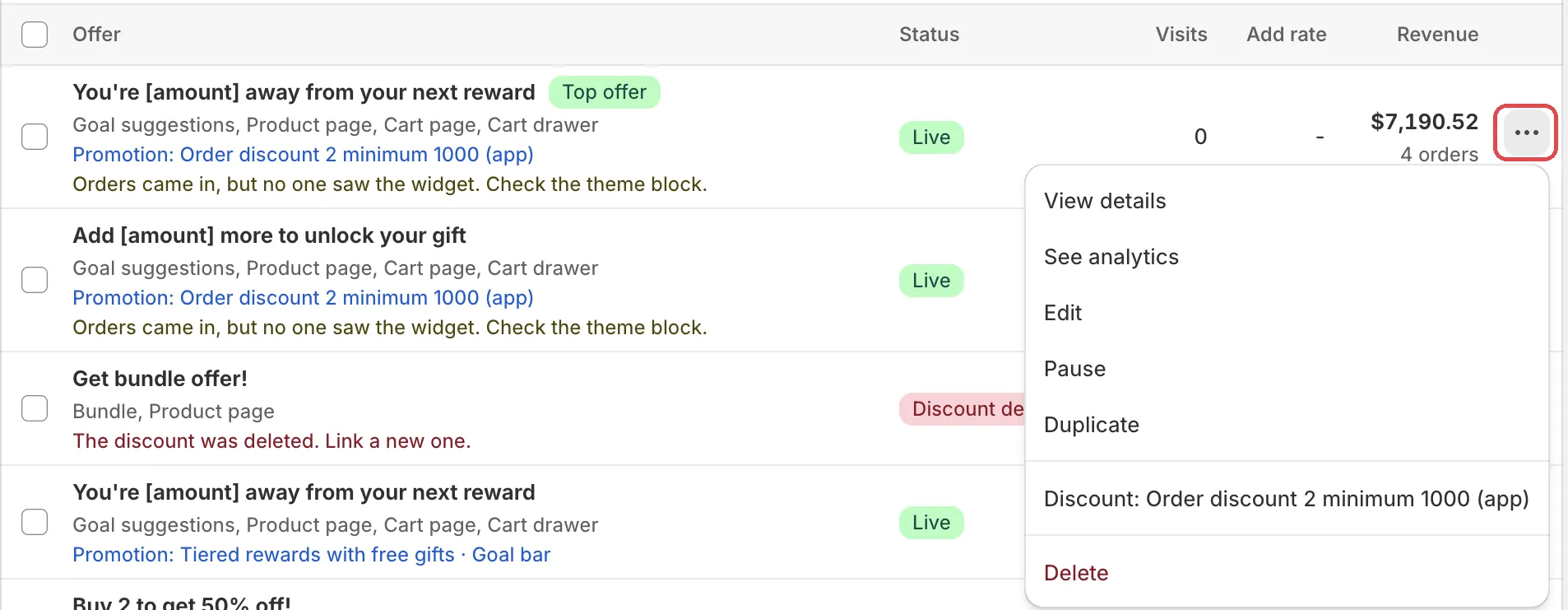
View details
Opens the offer details window. See Offer details.
See analytics
Opens the Analytics page, filtered to this offer.
Edit
Opens the offer form. Change the message, places or products.
Pause or Turn on
Hides the offer or shows it again. You see “Offer paused” or “Offer turned on”. This item is missing when the discount was deleted.
Use Pause to stop an offer but keep its numbers.
Duplicate
Makes a copy of the offer. “Offer copied. The copy is paused until you turn it on.”
Use it to test a new message: copy the offer, change the copy’s message, then pause the old one and turn on the copy. Compare their add rates after a week.
Discount: (name)
Shows Discount: and the discount’s name. It opens the discount in Shopify. When the discount is gone, it opens the storefront display page.
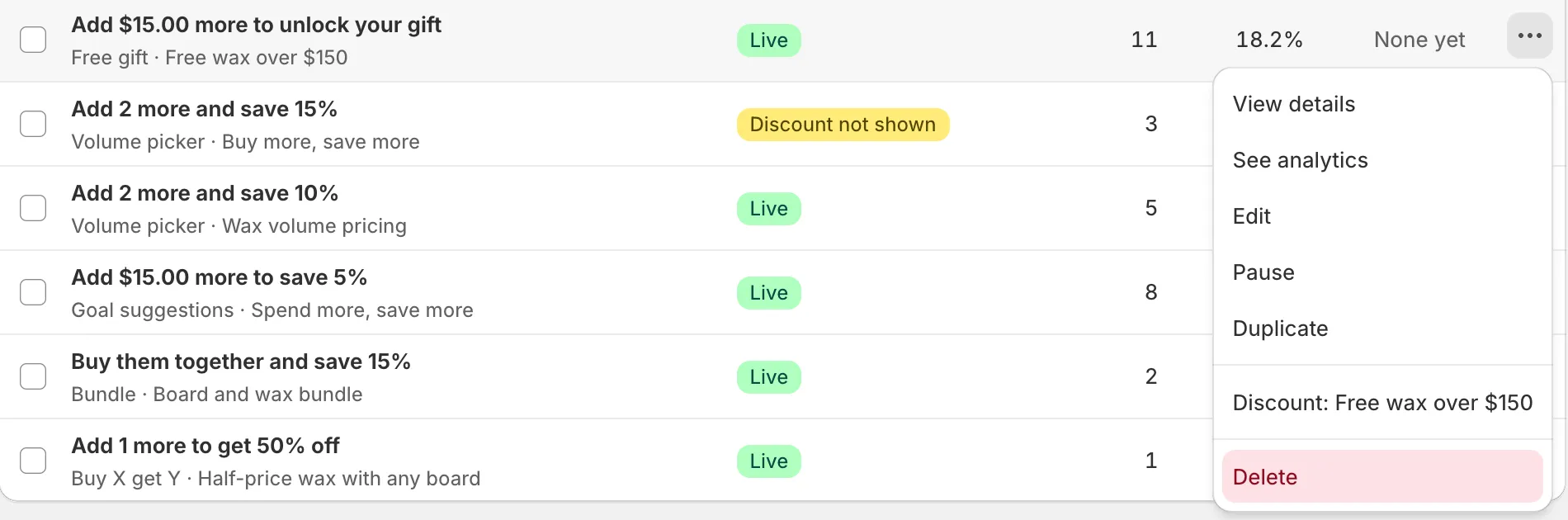
Delete
Removes the offer. See Delete an offer.
Act on several offers
Tick their rows. Then use Pause, Turn on or Delete.
Tip On the Promotions tab, a promotion’s menu also has Pause offers and Resume offers. They act on every offer of that promotion.
Delete an offer
-
In the offer’s menu, click Delete.
-
Read the warning and click Delete offer.
“Shoppers stop seeing it right away. Its stats are removed. This can’t be undone.” Pause the offer instead if you want to keep its numbers.
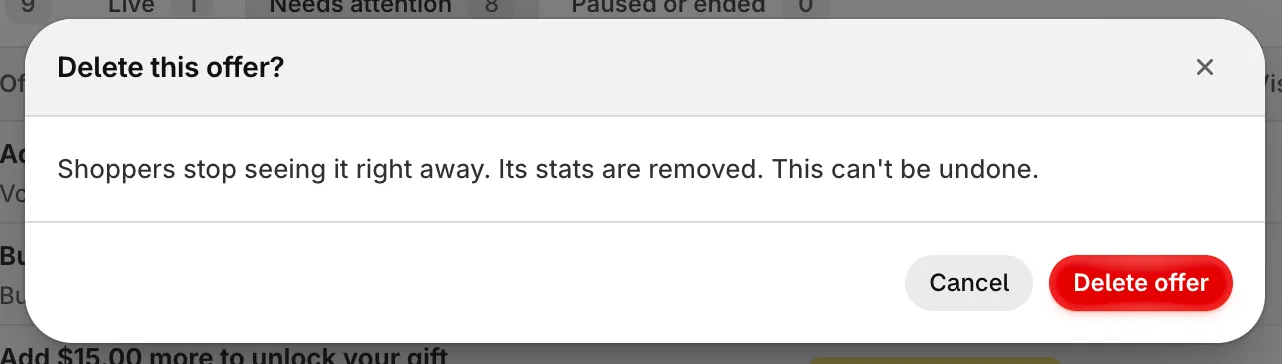
Caution Deleting an offer also deletes its stats. They don’t come back.
Offer details
What it is: the details window opens when you click a row or View details. It shows, for the chosen date range:
- The status, type, places and linked discounts.
- Visits, from view to order: how many visits saw the offer, clicked it, added it and ordered.
- Money: Revenue from offer items, Value added to carts and Units sold.
- Rates: Add rate, Click rate and Orders per visit.
- Discount uses: the all-time uses of the discount, from Shopify. This includes uses without the offer.
- Setup: Message, Discounts, Shows on, Products shown, Priority and Schedule.
Why it matters: it shows one offer’s results and settings side by side, so you can see what to change.
How to use it: the window has Edit and Pause (or Turn on) buttons. See Offer and rule stats.
Priority
Priority in Setup decides which offer shows first when two offers fit the same place. “Higher numbers show first when two offers fit.” When two offers have the same priority, the older one shows first.
You can’t change the priority in the app. The offer form has no priority field, so every offer you create has priority 0. In practice your oldest offer shows first. Sort the table by Priority (Shows first or Shows last) to see the order shoppers get.
Schedule
An offer runs as long as its discount runs. To give it its own dates, edit it and fill in Start (optional) and End (optional). The details show the schedule as Always on, “From …”, “Until …” or a date range.
Use it for a short push, for example a gift offer for one weekend.
Offers that don’t fit
Shopify gives your theme limited space for app data. When your live offers don’t all fit, you see:
Some offers don’t show on your store: … “Your live offers are too big to fit in the space Shopify gives your theme. The lowest priority offers are left out. Pause offers you don’t need, or use shorter messages.”
The banner goes away when the offers fit again.
Discounts without an offer
What it is: the Discounts without an offer card lists discounts that show on your storefront and could have an offer, but have none yet.
Why it matters: each one is a deal shoppers see but get no nudge toward.
How to use it: click Create offer on a row. The form opens with that discount picked. Click Hide to close the card.
You can also reach it from the Upsell offers card on Home: it says, for example, “2 discounts have no offer yet.” with a Create offers link.
Near your order limit
At 80% of your plan’s orders, a banner shows here. From 100% to 110%, offers keep running and the app asks you to upgrade. At 110%, offers pause until next month or until you upgrade. See your usage on Plan, and Offers and widgets paused.